
M1 G2 Operation
From ViewSonic Documentation
Home Screen
The Home Screen is displayed every time you start the projector. To navigate the Home Screen, simply use the directional buttons on the remote control. You can return to the main Home Screen at any time by pressing the Home button on the remote control, regardless of what page you are on.

File Management
Easily manage files and folders.
-
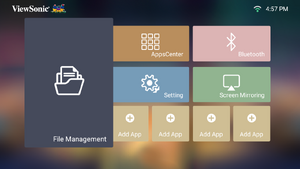 Step 1 - Select File Management
 -
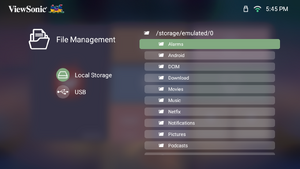 Step 2 - Navigate the files


- Select: Home > File Management.
- Select a device on the source list. Use the direction buttons to select the desired file. Then press OK on the remote control to open the selected file.
- Press the Return button to go to a previous a level.
- NOTE: Press the Home button on the remote control to return to the Home Screen at anytime.
How to Edit a File

- While in File Management, press and hold the OK button for three (3) seconds.
- A check box will appear at the front of each file. Use the directional buttons and press OK to select one or more files.
- By pressing the Right button, Copy, Paste, Cut, Delete, Select All, and Return boxes will be available for use.
- Select your desired action and press OK to execute.
- If you are Copying or Cutting, select your destination folder to complete the process.
How to Use Control Bar Buttons
The Control Bar buttons will appear on screen if a video, music, or photo file are selected to be opened.

Tips for using USB
When using USB for reading and/or storage please keep in mind the following:
- Some USB storage devices may not be compatible.
- If you use an USB extension cable, the USB device may not recognize the USB.
- Only use USB storage devices formatted with Windows FAT32 file system.
- Larger files will need extra time to load.
- Data on USB storage devices may be damaged or lost. Back up important files.
Supported File Formats
- Supported Office formats:

- Supported Multimedia formats:

Basic Settings
Under Basic Settings you can manage Language, Projector Projection, and Keystone settings.
-
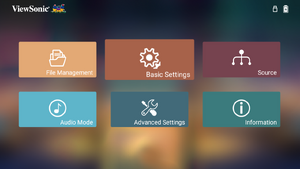 Step 1 - Select Basic Settings
 -
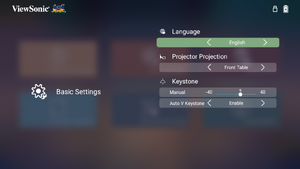 Step 2 - Choose an option


- Select: Home > Basic Settings.
- Use the Up and Down buttons to select the desired option and press OK. Then use the Left and Right buttons to make adjustments or selections.
- To return to a previous menu press the Return button.
Source
Select the preferred input source.
-
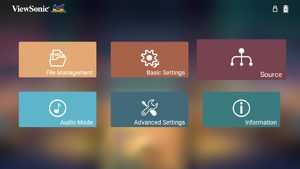 Step 1 - Select Source
 -
 Step 2 - Choose a source


- Select: Home > Source to display the available sources.
Audio Mode
-
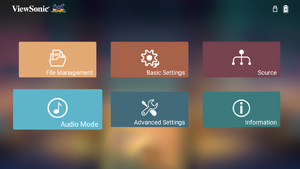 Step 1 - Select Audio Mode
 -
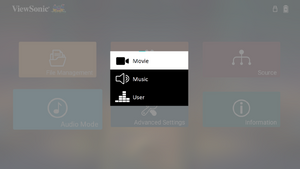 Step 2 - Choose an option
 -
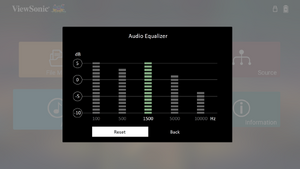 User adjustment


- Select: Home > Audio Mode.
- Choose your preferred sound play setting: Movie, Music, or User.
Advanced Settings
-
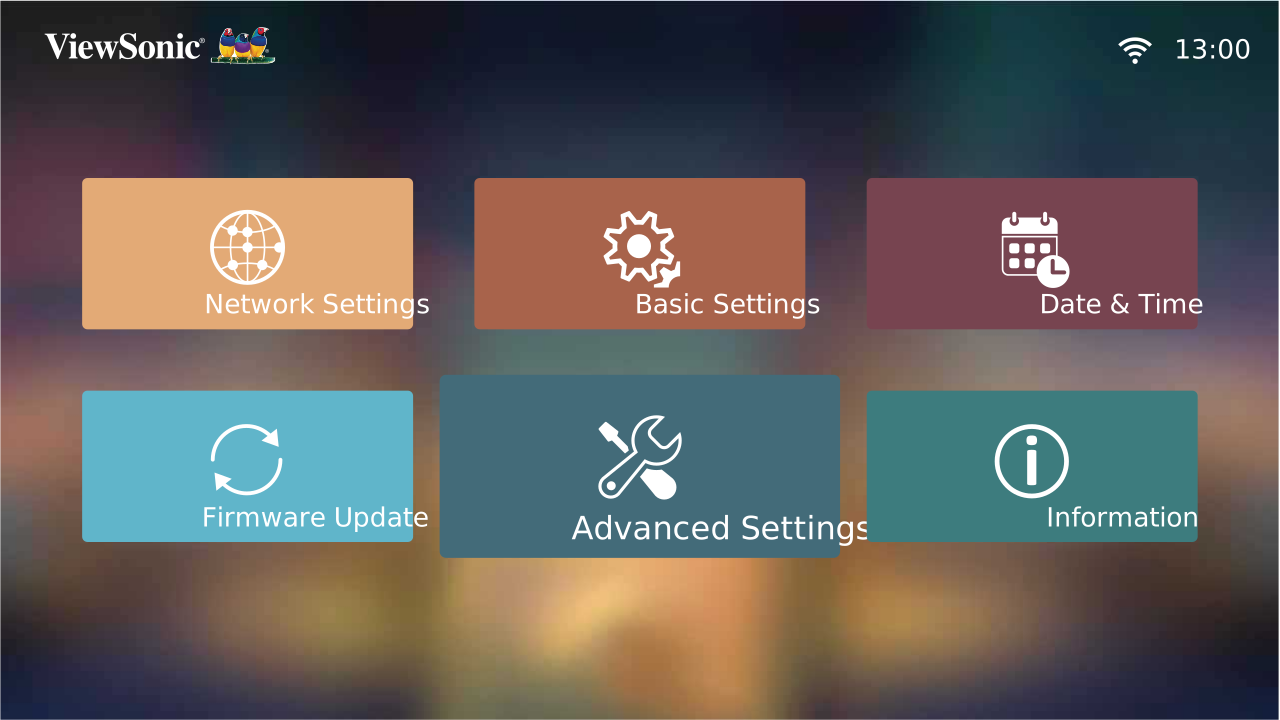 Step 1 - Select Advanced Settings
 -
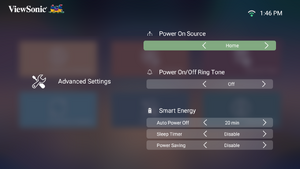 Step 2 - Choose an option


- Select: Home > Setting > Advanced Settings.
- Use the Up and Down buttons to select the desired option and press OK. Then use the Left and Right buttons to make adjustments or selections.
- To return to a previous menu press the Return button.
Information
- NOTE: Press the Home button on the remote control to return to the Home Screen at anytime.
-
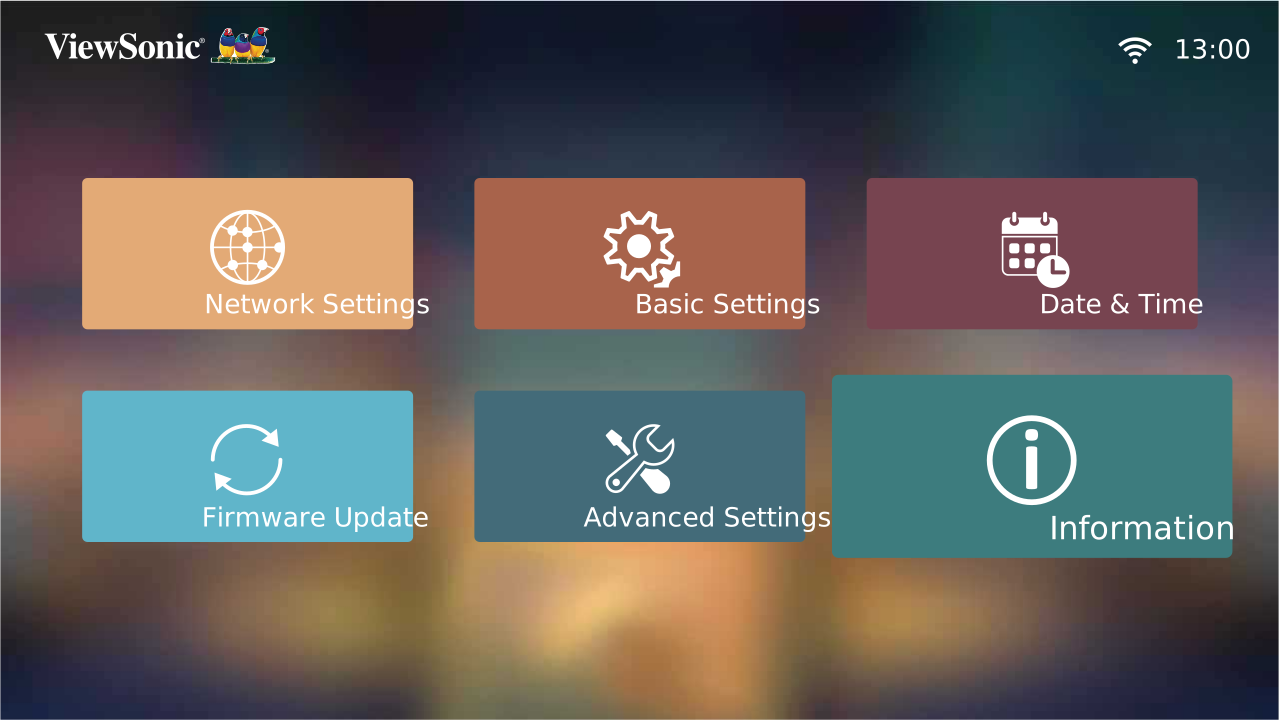 Step 1 - Select Information
 -
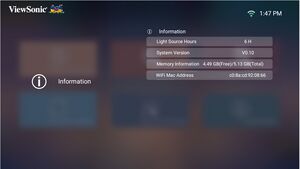 Step 2 - View the information


- Select: Home > Setting > Information.
- View system status and information.
Screen Mirroring
Please see Wireless Screen Mirroring
Adding Apps
Add your favorite Apps to the Home Screen.
-
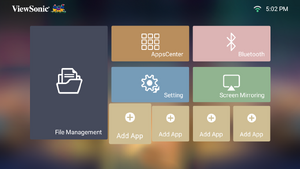 Step 1 - Select Add App
 -
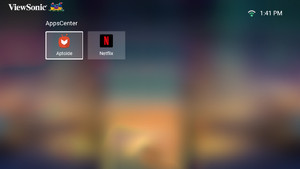 Step 2 - Navigate the Apps


- From the Home Screen, select Add App and then press OK on the remote control.
- Use the directional buttons to select the desired App and press OK.
- Now your favorite App will appear on the Home Screen.
Delete Apps from the Home Screen
- From the Home Screen, select the App you want to delete and press and hold OK for three (3) seconds.
- The message, “Do you want to Delete this application from My Favorites?” will appear.
- Select Yes, and press OK to delete the App.