
M10 Connecting Power and Devices: Difference between revisions
Created page with "<noinclude> {{Sticky_Menu_Projector |1=M10_Introduction |2=M10_Remote_Control |3=M10_Initial_Setup |4=M10_Connecting_Power_and_Devices |5=M10_Using_the_Projector |6=M10_Operation |7=M10_On-Screen_Display_Menu_Tree |8=M10_On-Screen_Display_Menu_Options |9=M10_Specifications |10=M10_Regulatory_and_Service_Information }} </noinclude> =Connecting to Power= ===DC Power (Power Outlet)=== <div class="res-img">500px|Connect to Power</div> <ol><l..." |
|||
| Line 18: | Line 18: | ||
<ol><li>Connect the power cord to the power adapter.</li> | <ol><li>Connect the power cord to the power adapter.</li> | ||
<li>Connect the power adapter to the DC IN jack at the side of the projector.</li> | <li>Connect the power adapter to the DC IN jack at the side of the projector.</li> | ||
<li>Plug the power cord plug into a power outlet.</li | <li>Plug the power cord plug into a power outlet.</li> | ||
{{Note|When installing the projector, incorporate a readily accessible disconnect device in the fixed wiring, or connect the power plug to an easily accessible outlet near the unit. If a fault should occur during operation of the projector, use the disconnect device to switch off the power supply, or disconnect the power plug.}}</ol> | |||
{{Note|When installing the projector, incorporate a readily accessible disconnect device in the fixed wiring, or connect the power plug to an easily accessible outlet near the unit. If a fault should occur during operation of the projector, use the disconnect device to switch off the power supply, or disconnect the power plug.}} | |||
=Connecting to External Devices= | =Connecting to External Devices= | ||
Revision as of 07:52, 26 February 2024
Connecting to Power
DC Power (Power Outlet)

- Connect the power cord to the power adapter.
- Connect the power adapter to the DC IN jack at the side of the projector.
- Plug the power cord plug into a power outlet.
Connecting to External Devices

HDMI Connection
Connect one end of an HDMI cable to the HDMI port of your video device. Then connect the other end of the cable to the HDMI port (supports HDCP 1.4/HDMI 1.4) of your projector.
USB Connection
USB Type A Connection
To enjoy photos, music, and movies, simply plug in a USB flash drive to the USB Type A port.
USB Type C Connection
Connect one end of a USB Type C cable to the USB-C port of your device. Then connect the other end of the cable to the USB-C port of your projector.
- NOTE:
- Ensure your USB Type C device can support video transmission.
- The connected device can also be charged (5V/2A).
Audio Connection
You can connect to various external sound delivery devices via the Audio Out port.
Wireless Screen Mirroring
Please see Wireless Screen Mirroring
Bluetooth Connection
Bluetooth Speaker
The projector is equipped with Bluetooth that allows the user to connect the projector to their Bluetooth device wirelessly for audio playback.
-
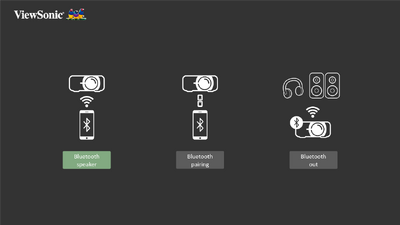 Step 2 - Select Bluetooth Speaker
 -
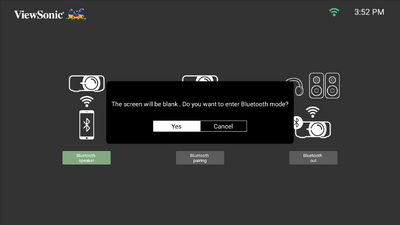 Step 3 - Enter Bluetooth mode


To connect and pair your device:
- Go to: Home > Bluetooth.
- Use the Left and Right directional buttons on the remote control to select Bluetooth Speaker or Bluetooth Pairing. Then press OK on the remote control.
- When the dialogue box appears, select Yes and press OK on the remote control to enter Bluetooth mode.
- A sound effect will be audible upon entering pairing mode.
- Upon successful connection, another sound effect will be audible.
- NOTE:
- The projector’s name will be labeled as “M1-Pro”.
- Only the Power and Return buttons can exit Bluetooth mode.
- NOTE:
Bluetooth Out
Connect the projector to external headphones or speakers that support Bluetooth.
-
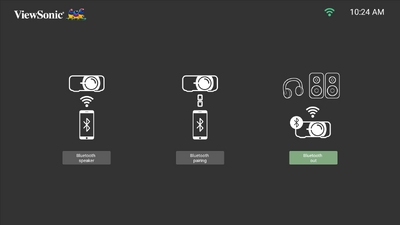 Step 2 - Select Bluetooth Out
 -
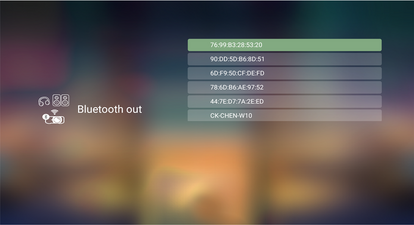 Step 3 - Search for nearby devices


To connect and pair your device:
- Go to: Home > Bluetooth.
- Use the Left and Right directional buttons on the remote control to select the Bluetooth Out option.
- The projector will search for nearby Bluetooth devices. Select your device from the list and press OK on the remote control.
- NOTE: Once paired, if both the projector and your device are powered on they will automatically connect via Bluetooth.
Connecting to Networks
Wi-Fi Connection
To connect to a Wi-Fi network:
- Go to: Home > Setting > Network Settings > Wi-Fi
- Press Left or Right on the remote control to select Enable.
- Available Wi-Fi networks will then be displayed. Select one of the available Wi-Fi networks.
- If you connect to a secure Wi-Fi network, you must enter the password when prompted.
-
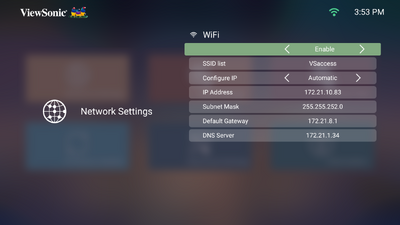 Step 2 - Enable Wi-Fi
 -
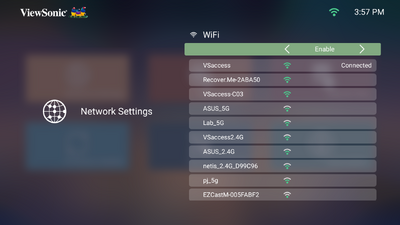 Step 3 - Select Network
 -
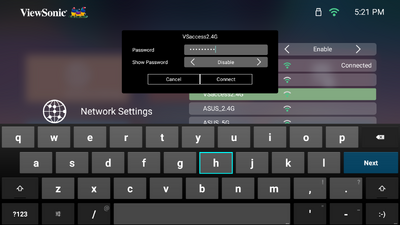 Step 4 - Enter credentials


Custom SSID
- Go to: Home > Setting > Network Settings > Wi-Fi
- Press Left or Right on the remote control to select Enable.
- From the available Wi-Fi networks list select Others and press OK on the remote control.
- Enter the SSID and select the security level.
- Enter the password when prompted.
-
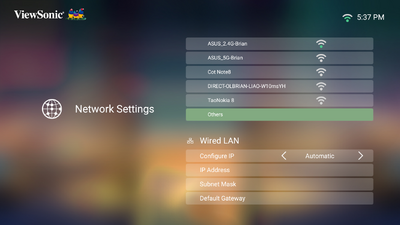 Step 3 - Select Others
 -
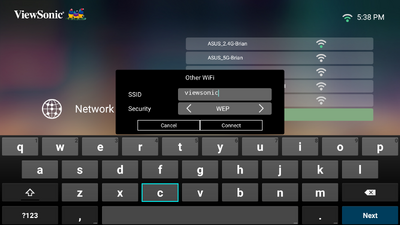 Step 4 - Enter SSID
 -
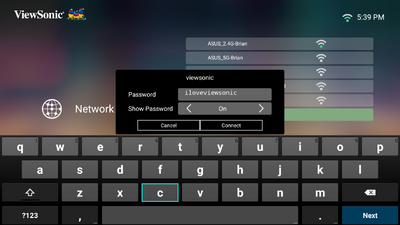 Step 5 - Enter Password


