
IFP70 Using the ViewBoard
From ViewSonic Documentation
Power On/Off your ViewBoard

- Ensure the power cord is connected, plugged into a power outlet, and the power switch is in the “On” position.
- Press the Power button to turn on the ViewBoard.
- To turn the ViewBoard off, press and hold the Power button.
Initial Launch Setup
When you first turn on your ViewBoard, an initial setup wizard will launch.
-
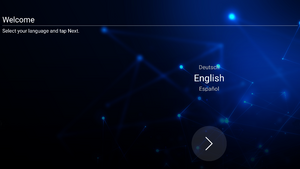 Language Select
 -
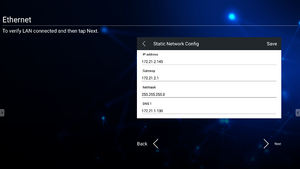
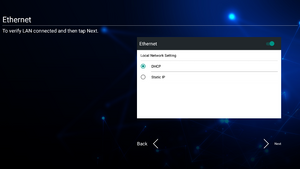 Network Connection
 -
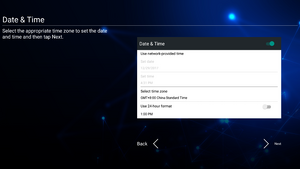
 Date and Time
 -
 System Mode
 -
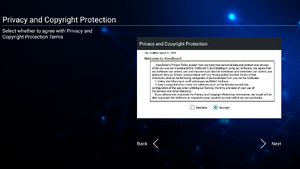 Privacy and Copyright Protection


- Select your Language.
- Setup and verify your LAN connection.
- Select your Time Zone to set the Date and Time.
- Select your preferred System Mode.
- Accept or Decline the Privacy and Copyright Protection Terms.
vLauncher - Customizable Welcome Screen

- NOTE: ViewBoard offers two background themes, Corporate and Education.
Toolbar
Toolbar trigger icons are on the edge of the ViewBoard launcher providing access to your tools.

To launch a tool:
- Tap a Toolbar trigger icon.
- Tap on your desired tool icon.
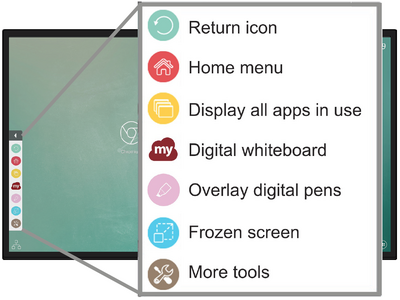
- NOTE: The default toolbar setting is to be available for all input sources; however, users can go to: Settings > Personal > Other Settings to adjust the options: (1) available for all input sources, (2) available for all input sources, except for PC, and (3) disable the tool bar.

Toolbar Icons
| Icon | Description |
|---|---|
| Return to the previous operation screen | |
| Return to the Home Screen of the Embedded Player | |
| Display all embedded applications that are being used | |
| Launch myViewBoard | |
| Access the Pen, Highlighter, Clear, and Save options | |
| 1. Digital Pen Annotate the overlay of any input source with red, black, blue, or green ink.
| |
| 2. Digital Highlighter Mark and highlight with four colors: yellow, orange, blue, and green.
| |
| 3. Brush Clears all the digital ink on the screen. | |
| 4. Save As Save the on-screen image onto the internal storage. | |
| 5. Writing Mode Transparent mode: Screen won't be frozen, the screen resolution won't be reduced to 1080p. | |
6. Picture Save Setting
| |
| 7. Close Close the digital pen icon. | |