
M1 Pro Connecting Power and Devices: Difference between revisions
Created page with "<noinclude> {{Sticky_Menu_Projector |1=M1_Pro_Introduction |2=M1_Pro_Remote_Control |3=M1_Pro_Initial_Setup |4=M1_Pro_Connecting_Power_and_Devices |5=M1_Pro_Using_the_Projecto..." |
|||
| Line 15: | Line 15: | ||
</noinclude> | </noinclude> | ||
=Connecting to Power= | =Connecting to Power= | ||
===DC Power (Power Outlet)=== | ===DC Power (Power Outlet)=== | ||
<div class="res-img">[[File:M1_Pro_DC_Power_Connect.png|500px]]</div> | |||
# Connect the power cord to the power adapter. | # Connect the power cord to the power adapter. | ||
# Connect the power adapter to the DC IN jack at the | # Connect the power adapter to the DC IN jack at the side of the projector. | ||
# Connect the power cord plug to a power outlet. | # Connect the power cord plug to a power outlet. When connected, the status LED will turn red. | ||
: | :'''NOTE:''' Charge the projector for two (2) hours via the power adapter before using it in battery mode for the first time.<br /> | ||
=== | '''IMPORTANT''' | ||
# Connect one end of the USB Type | * Use only the bundled power adapter to change the battery pack and supply power to your LED projector. | ||
# Connect the other end of the USB Type | * Ensure that your LED projector is connected to the power adapter before turning it on for the first time. We strongly recommend that you use a grounded wall socket while using your LED projector in power adapter mode. | ||
: | * The socket outlet must be easily accessible and near your LED projector. | ||
* To disconnect your LED projector from its main power supply, unplug your LED projector from the power socket. | |||
===Power On by Power Bank Function=== | |||
The projector can be powered by a power bank. | |||
<div class="res-img">[[File:M1_Pro_Power_Bank.png|500px]]</div> | |||
To power the projector: | |||
# Connect one end of the USB Type C cable to the '''USB-C''' port of the projector. | |||
# Connect the other end of the USB Type C cable to the power bank. | |||
:'''NOTE:''' | |||
:* The power bank should be 45W (15V/3A) at least, and support Power Delivery (PD) protocol output. Additionally, at 15V/3A the projector can be powered on and charge simultaneously. | |||
:* Due to the IC protection mechanism, the USB-C charging function may stop briefly then continue later on. | |||
=Connecting to External Devices= | =Connecting to External Devices= | ||
Revision as of 09:23, 16 August 2022
Connecting to Power
DC Power (Power Outlet)

- Connect the power cord to the power adapter.
- Connect the power adapter to the DC IN jack at the side of the projector.
- Connect the power cord plug to a power outlet. When connected, the status LED will turn red.
- NOTE: Charge the projector for two (2) hours via the power adapter before using it in battery mode for the first time.
IMPORTANT
- Use only the bundled power adapter to change the battery pack and supply power to your LED projector.
- Ensure that your LED projector is connected to the power adapter before turning it on for the first time. We strongly recommend that you use a grounded wall socket while using your LED projector in power adapter mode.
- The socket outlet must be easily accessible and near your LED projector.
- To disconnect your LED projector from its main power supply, unplug your LED projector from the power socket.
Power On by Power Bank Function
The projector can be powered by a power bank.

To power the projector:
- Connect one end of the USB Type C cable to the USB-C port of the projector.
- Connect the other end of the USB Type C cable to the power bank.
- NOTE:
- The power bank should be 45W (15V/3A) at least, and support Power Delivery (PD) protocol output. Additionally, at 15V/3A the projector can be powered on and charge simultaneously.
- Due to the IC protection mechanism, the USB-C charging function may stop briefly then continue later on.
Connecting to External Devices
-
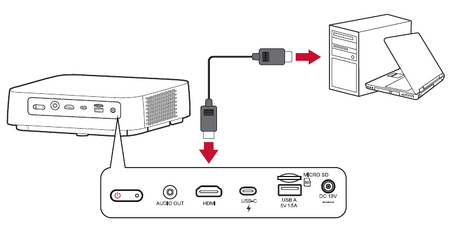 HDMI Connection
 -
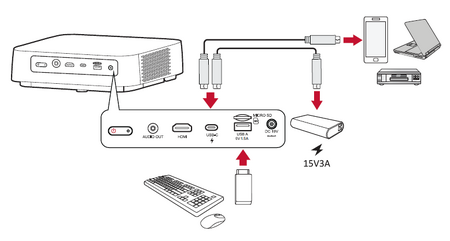 USB Connection


HDMI Connection
Connect one end of an HDMI cable to the HDMI port of your video device. Then connect the other end of the cable to the HDMI port (it supports HDCP 1.4/HDMI 1.4) of your projector.
- NOTE: iPhone/iPad users will need to use an additional adapter.
USB Connection
USB-C Connection
Connect one end of a USB Type-C cable to the USB-C port of your device. Then connect the other end of the cable to the USB-C port of your projector.
- NOTE:
- Ensure your USB Type-C device can support video transmission.
- The M2W can also use a USB-C connected power bank to turn on the system. However, the brightness level will be limited to 50% and 30% when the Light Source Level is set as Full or Eco respectively.
USB Type-A Connection
Connect one end of a USB Type-A cable to the USB-A port of your device (if applicable). Then connect the other end of the cable to the USB A port of your projector.
Additionally, you can connect a keyboard, a mouse, dongles, storage devices, etc. to the projector’s USB-A port.
Wireless Screen Mirroring
Please see Wireless Screen Mirroring
Connecting to Audio
Bluetooth Speaker
The projector is equipped with Bluetooth that allows the user to connect the projector to their Bluetooth device wirelessly for audio playback.
-
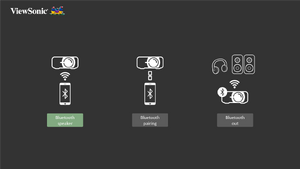 Step 2 - Select Bluetooth Speaker
 -
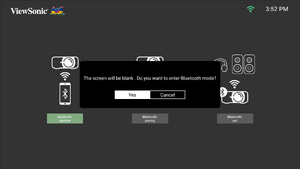 Step 3 - Enter Bluetooth mode


To connect and pair your device:
- Go to: Home > Bluetooth.
- Use the Left and Right directional buttons on the remote control to select Bluetooth Speaker or Bluetooth Pairing. Then press OK on the remote control.
- When the dialogue box appears, select Yes and press OK on the remote control to enter Bluetooth mode.
- A sound effect will be audible upon entering pairing mode.
- Upon successful connection, another sound effect will be audible.
- NOTE:
- Once paired, if both the projector and your device are powered on they will automatically connect via Bluetooth.
- The projector’s name will be labeled as “M2W”.
- Only the Power and Return buttons can exit Bluetooth mode.
- NOTE:
Bluetooth Out
Connect the projector to external headphones or speakers that support Bluetooth.
-
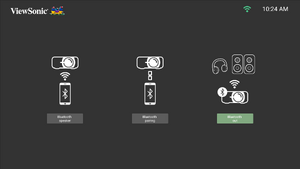 Step 2 - Select Bluetooth Out
 -
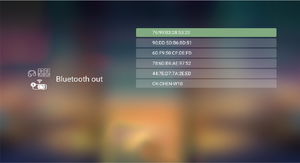 Step 3 - Search for nearby devices


To connect and pair your device:
- Go to: Home > Bluetooth.
- Use the Left and Right directional buttons on the remote control to select the Bluetooth Out option.
- The projector will search for nearby Bluetooth devices. Select your device from the list and press OK on the remote control.
Connecting to Networks
Wi-Fi Connection
To connect to a Wi-Fi network:
- Go to: Home > Setting > Network Settings > Wi-Fi
- Press Left or Right on the remote control to select Enable.
- Available Wi-Fi networks will then be displayed. Select one of the available Wi-Fi networks.
- If you connect to a secure Wi-Fi network, you must enter the password when prompted.
-
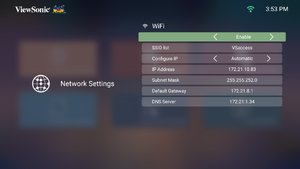 Step 2 - Enable Wi-Fi
 -
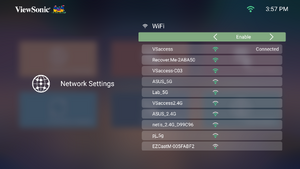 Step 3 - Select Network
 -
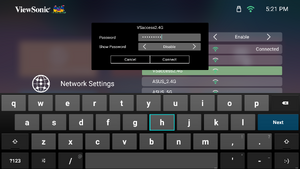 Step 4 - Enter credentials


Custom SSID
- Go to: Home > Setting > Network Settings > Wi-Fi
- Press Left or Right on the remote control to select Enable.
- From the available Wi-Fi networks list select Others and press OK on the remote control.
- Enter the SSID and select the security level.
- Enter the password when prompted.
-
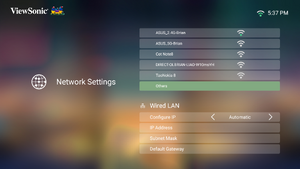 Step 3 - Select Others
 -
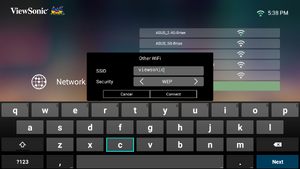 Step 4 - Enter SSID
 -
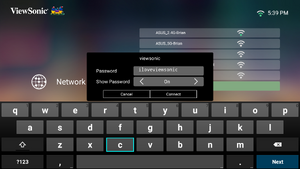 Step 5 - Enter Password


