
IFP50-3 Embedded Applications: Difference between revisions
| Line 95: | Line 95: | ||
# Choose from the available interactive functions at the bottom of the screen. | # Choose from the available interactive functions at the bottom of the screen. | ||
{| class="wikitable" style="font-weight:bold; text-align:center;" | {| class="wikitable" style="font-weight:bold; text-align:center;" width=45% | ||
|- | |- | ||
! style="background-color:#c41230; color:#ffffff;"| Item | ! style="background-color:#c41230; color:#ffffff;"| Item | ||
Revision as of 10:35, 22 June 2020
Embedded Digital Whiteboarding App
Within ViewBoard, ViewSonic offers the embedded digital whiteboarding app, myViewBoard.
myViewBoard
Floating Bar

Toolbar

ViewBoard Cast
Working with ViewBoard® Cast software, the vCastReceiver app, will allow the ViewBoard® to receive vCastSender laptop screens (Windows/Mac/Chrome) and mobile (iOS/Android) users’ screens, photos, videos, annotations, and camera(s).

Network Information
- ViewBoard® Cast software, laptops, and mobile devices can connect to both the same subnet and across the subnet network.
- Connected devices will show up under “Device List” on the same subnet connection.
- If the device does not show up under “Device List”, users will need to key-in the on-screen PIN-code.
ViewBoard Cast is a wireless peer to peer data communication, therefore the below port settings are required:
Ports:
- CP: 56789, 25123, 8121, and 8000
- UDP: 48689 and 25123
Port and DNS activation:
- Port: 8001
- DNS: h1.ee-share.com
Cast Sender from Windows-based, Macbook, and Chrome Devices

Windows, Mac, Chrome Devices:
- Make sure your device is connected to the same network as the ViewBoard.
- Visit the address that is shown on the ViewBoard to download the application.
- Launch the application and click the connect icon next to the Device Name.
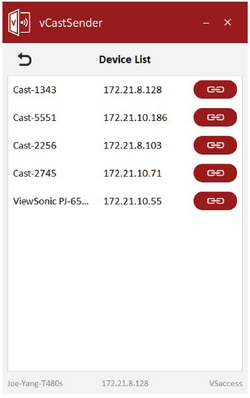
- NOTE: If the device is not listed, click Connect with PIN-Code and input the pin-code displayed on the ViewBoard.

Cast Sender from Mobile Devices: iOS-based (iPhone, iPad) and Android OS based phone/tablet

Android/iOS:
- Make sure your device is connected to the same network as the ViewBoard.
- Scan the QR Code that is shown on the ViewBoard to download directly from the server, or download from the Google Play Store or the Apple Store.
- Launch the application and select the correct Device Name and input the pin to connect. You can also directly input the pin-code displayed on the ViewBoard to connect.
Apple Airplay®:
- Make sure your device is connected to the same network as the ViewBoard.
- Directly open AirPlay and select the Device Name to connect.
- Another “AirPlay Password” will be generated on-screen for connection.

Cast Out from a Mobile Device that Supports Annotation


Screen Recorder
Capture everything that is displayed on screen in a video format.

To launch the Screen Recorder application:
- Select the Screen Recorder icon in the application drawer.
- Tap the record icon and select the preferred recording configurations. Then tap the check mark.
- Select Start Now and a three (3) second countdown will begin. Screen recording will begin immediately after the countdown.
- After stopping the recording, you will be able to preview the video, save it, or discard it.
Air Class
Display quiz questions on the ViewBoard and allow up to 30 mobile users to submit answers remotely. Whether deploying single or multiple choice questions, the ViewBoard will record the results for each device being used.

Network Information
- PC (Windows/Mac/Chromebook) and tablet/mobile (iOS/Android) devices, as well as the ViewBoard need to be linked to the same LAN network subnet.
- Ports: TCP 8080
To launch Air Class:
-
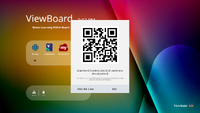 Select "Enter the class"
 -
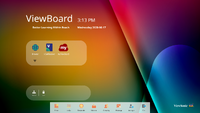 Choose a function


- Tap the tool bar trigger icon and select the more tools icon. Then select the Air Class icon.
- Select “Enter the class”.
- Choose from the available interactive functions at the bottom of the screen.
| Item | Description |
|---|---|
| Voter | Single and Multiple choice questions. |
| Judge | True/False questions. |
| Responder | Race to answer first |
| Selector | Randomly select a participant |
| Grouping | Assign participants to groups |
| Message | Allow/Deny participants to direct message the ViewBoard |
| Manager | Add participants |
| Exit | Exit Air Class |