
IFP50-3 Embedded Applications: Difference between revisions
From ViewSonic Documentation
| Line 48: | Line 48: | ||
# Visit the address that is shown on the ViewBoard to download the application. | # Visit the address that is shown on the ViewBoard to download the application. | ||
# Launch the application and click the connect icon next to the Device Name. | # Launch the application and click the connect icon next to the Device Name. | ||
<div class="res-img">[[File:vCast_Sender_2.png|border| | ::<div class="res-img">[[File:vCast_Sender_2.png|border|250px]]</div> | ||
:<small>'''NOTE:''' If the device is not listed, click '''Connect with PIN-Code''' and input the pin-code displayed on the ViewBoard.</small> | ::<small>'''NOTE:''' If the device is not listed, click '''Connect with PIN-Code''' and input the pin-code displayed on the ViewBoard.</small> | ||
[[Category:ViewBoard]] | [[Category:ViewBoard]] | ||
[[Category:IFP50-3]] | [[Category:IFP50-3]] | ||
Revision as of 09:07, 22 June 2020
Embedded Digital Whiteboarding App
Within ViewBoard, ViewSonic offers the embedded digital whiteboarding app, myViewBoard.
myViewBoard
Floating Bar

Toolbar

ViewBoard Cast
Working with ViewBoard® Cast software, the vCastReceiver app, will allow the ViewBoard® to receive vCastSender laptop screens (Windows/Mac/Chrome) and mobile (iOS/Android) users’ screens, photos, videos, annotations, and camera(s).

Network Information
- ViewBoard® Cast software, laptops, and mobile devices can connect to both the same subnet and across the subnet network.
- Connected devices will show up under “Device List” on the same subnet connection.
- If the device does not show up under “Device List”, users will need to key-in the on-screen PIN-code.
ViewBoard Cast is a wireless peer to peer data communication, therefore the below port settings are required:
Ports:
- CP: 56789, 25123, 8121, and 8000
- UDP: 48689 and 25123
Port and DNS activation:
- Port: 8001
- DNS: h1.ee-share.com
Cast Sender from Windows-based, Macbook, and Chrome devices

Windows, Mac, Chrome Devices:
- Make sure your device is connected to the same network as the ViewBoard.
- Visit the address that is shown on the ViewBoard to download the application.
- Launch the application and click the connect icon next to the Device Name.
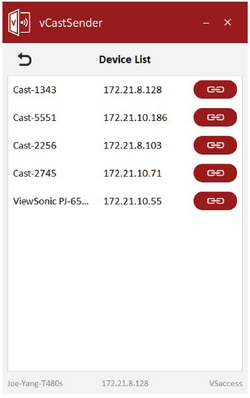
- NOTE: If the device is not listed, click Connect with PIN-Code and input the pin-code displayed on the ViewBoard.
