
X10-4K Remote Control: Difference between revisions
From ViewSonic Documentation
No edit summary |
|||
| (8 intermediate revisions by the same user not shown) | |||
| Line 1: | Line 1: | ||
<noinclude> | |||
{{Sticky_Menu_Projector | |||
|1=X10-4K_Introduction | |||
|2=X10-4K_Remote_Control | |||
|3=X10-4K_Initial_Setup | |||
|4=X10-4K_Connecting_Power_and_Devices | |||
|5=X10-4K_Using_the_Projector | |||
|6=X10-4K_Operation | |||
|7=X10-4K_On-Screen_Display_Menu_Tree | |||
|8=X10-4K_On-Screen_Display_Menu_Options | |||
|9=X10-4K_Specifications | |||
|10=X10-4K_Regulatory_and_Service_Information | |||
}} | |||
</noinclude> | |||
=Overview= | =Overview= | ||
[[File:X10-4K_Remote_Control.png|thumb|120px| Remote Control]] | [[File:X10-4K_Remote_Control.png|thumb|120px| Remote Control]] | ||
| Line 8: | Line 22: | ||
|- | |- | ||
| style="font-weight:bold;" | Power | | style="font-weight:bold;" | Power | ||
| | | [[File:X10_Power_Icon.png|50px]] | ||
| Turns the projector On or Off. | | Turns the projector On or Off. | ||
|- | |- | ||
| style="font-weight:bold;" | Source | | style="font-weight:bold;" | Source | ||
| | | [[File:X10_Source_Icon.png|50px]] | ||
| Displays the input source selection bar. | | Displays the input source selection bar. | ||
|- | |- | ||
| style="font-weight:bold;" | Focus | | style="font-weight:bold;" | Focus | ||
| | | [[File:X10_Focus_Icon.png|50px]] | ||
| Automatically focus the image. | | Automatically focus the image. | ||
To manually adjust, press and hold the Focus button on the remote control for three (3) seconds. | To manually adjust, press and hold the Focus button on the remote control for three (3) seconds. | ||
|- | |- | ||
| style="font-weight:bold;" | Setting | | style="font-weight:bold;" | Setting | ||
| | | [[File:X10_Setting_Icon.png|50px]] | ||
| Displays the Settings menu. | | Displays the Settings menu. | ||
|- | |- | ||
| style="font-weight:bold;" | Audio Mode | | style="font-weight:bold;" | Audio Mode | ||
| | | [[File:X10_Audio_Icon.png|50px]] | ||
| Displays the speaker settings. | | Displays the speaker settings. | ||
|- | |- | ||
| style="font-weight:bold;" | Bluetooth | | style="font-weight:bold;" | Bluetooth | ||
| | | [[File:X10_BT_Icon.png|50px]] | ||
| View Bluetooth options. | | View Bluetooth options. | ||
|- | |- | ||
| style="font-weight:bold;" | Up/Down/Left/Right | | style="font-weight:bold;" | Up/Down/Left/Right | ||
| | | rowspan="2" | [[File:X10_Wheel_Icon.png|50px]] | ||
| rowspan="2" | Navigates and selects the desired menu items and makes adjustments. | | rowspan="2" | Navigates and selects the desired menu items and makes adjustments. | ||
|- | |- | ||
| style="font-weight:bold;" | Shuttle Wheel Left/Right | | style="font-weight:bold;" | Shuttle Wheel Left/Right | ||
|- | |- | ||
| style="font-weight:bold;" | OK | | style="font-weight:bold;" | OK | ||
| | | [[File:X10_Ok_Icon.png|50px]] | ||
| Confirms the selection. | | Confirms the selection. | ||
|- | |- | ||
| style="font-weight:bold;" | Return | | style="font-weight:bold;" | Return | ||
| | | [[File:X10_Return_Icon.png|50px]] | ||
| Returns to the previous screen. | | Returns to the previous screen. | ||
|- | |- | ||
| style="font-weight:bold;" | Home | | style="font-weight:bold;" | Home | ||
| | | [[File:X10_Home_Icon.png|50px]] | ||
| Access the Home menu. | | Access the Home menu. | ||
|- | |- | ||
| style="font-weight:bold;" | Volume Control | | style="font-weight:bold;" | Volume Control | ||
| | | [[File:X10_Volume_Icon.png|50px]] | ||
| Increases/decreases the volume level or mutes/unmutes it. | | Increases/decreases the volume level or mutes/unmutes it. | ||
|} | |} | ||
| Line 62: | Line 75: | ||
# The distance between the remote control and the sensor(s) should not exceed 8 m (26 ft.) | # The distance between the remote control and the sensor(s) should not exceed 8 m (26 ft.) | ||
::<small>'''NOTE:''' Refer to the illustration for the location of the infrared (IR) remote control sensor(s).</small> | :::<small>'''NOTE:''' Refer to the illustration for the location of the infrared (IR) remote control sensor(s).</small> | ||
=Replacing the Batteries= | =Replacing the Batteries= | ||
| Line 68: | Line 81: | ||
# Remove any existing batteries (if necessary) and install two AAA batteries. | # Remove any existing batteries (if necessary) and install two AAA batteries. | ||
# Replace the battery cover by aligning it with the base and pushing it back into position. | # Replace the battery cover by aligning it with the base and pushing it back into position. | ||
[[File:X10_Remote_Battery.png|600px| ]] | ::<div class="res-img">[[File:X10_Remote_Battery.png|600px| ]]</div> | ||
:::<small>'''NOTE:''' | |||
:::* Avoid leaving the remote control and batteries in excessive heat or a humid environment. | |||
:* Avoid leaving the remote control and batteries in excessive heat or a humid environment. | :::* Replace only with the same or equivalent type recommended by the battery manufacturer. | ||
:* Replace only with the same or equivalent type recommended by the battery manufacturer. | :::* If the battery is drained or if you will not be using the remote control for an extended period of time, remove the battery to avoid damage to the remote control. | ||
:* If the battery is drained or if you will not be using the remote control for an extended period of time, remove the battery to avoid damage to the remote control. | :::* Dispose of used batteries according to the manufacturer’s instructions and local environment regulations for your region.</small> | ||
:* Dispose of used batteries according to the manufacturer’s instructions and local environment regulations for your region. | |||
[[Category:X10-4K]] | [[Category:X10-4K]] | ||
[[Category:X Series]] | [[Category:X Series]] | ||
Latest revision as of 06:15, 5 May 2020
Overview

| Button | Icon | Description |
|---|---|---|
| Power | 
|
Turns the projector On or Off. |
| Source | 
|
Displays the input source selection bar. |
| Focus | 
|
Automatically focus the image.
To manually adjust, press and hold the Focus button on the remote control for three (3) seconds. |
| Setting | 
|
Displays the Settings menu. |
| Audio Mode | 
|
Displays the speaker settings. |
| Bluetooth | 
|
View Bluetooth options. |
| Up/Down/Left/Right | 
|
Navigates and selects the desired menu items and makes adjustments. |
| Shuttle Wheel Left/Right | ||
| OK | 
|
Confirms the selection. |
| Return | 
|
Returns to the previous screen. |
| Home | 
|
Access the Home menu. |
| Volume Control | 
|
Increases/decreases the volume level or mutes/unmutes it. |
Effective Range

To ensure proper function of the remote control follow the steps below:
- The remote control must be held at an angle within 30° perpendicular to the projector’s IR remote control sensor(s).
- The distance between the remote control and the sensor(s) should not exceed 8 m (26 ft.)
- NOTE: Refer to the illustration for the location of the infrared (IR) remote control sensor(s).
Replacing the Batteries
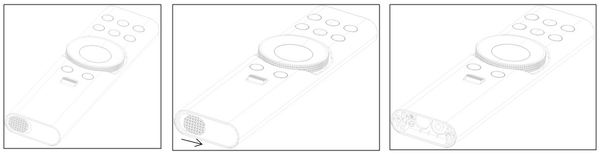
- Remove the battery cover from the bottom of the remote control by pressing the finger grip and sliding it across.
- Remove any existing batteries (if necessary) and install two AAA batteries.
- Replace the battery cover by aligning it with the base and pushing it back into position.
- NOTE:
- Avoid leaving the remote control and batteries in excessive heat or a humid environment.
- Replace only with the same or equivalent type recommended by the battery manufacturer.
- If the battery is drained or if you will not be using the remote control for an extended period of time, remove the battery to avoid damage to the remote control.
- Dispose of used batteries according to the manufacturer’s instructions and local environment regulations for your region.
- NOTE:
