
VP2776T-4K On-Screen Display Menu
General Operation
-
Move the Joy Key
 to display the Startup Menu. Then navigate to Main Menu and press the Joy Key
  to display the OSD Menu.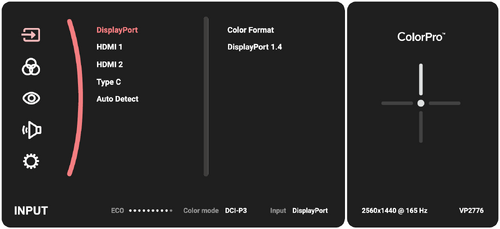
-
Move the Joy Key
 or
or  to select the main menu. Then press the Joy Key to enter the selected menu.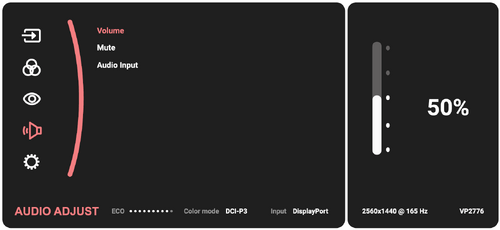
-
Move the Joy Key
or to select the desired menu option. Then press the Joy Key to enter the sub-menu.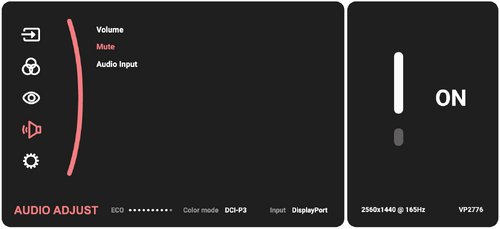
-
Move the Joy Key
or to select the desired menu option. Then press the 'Joy Key to enter the sub-menu. -
Move the Joy Key
or to adjust/select the setting. Then press the the Joy Key to confirm.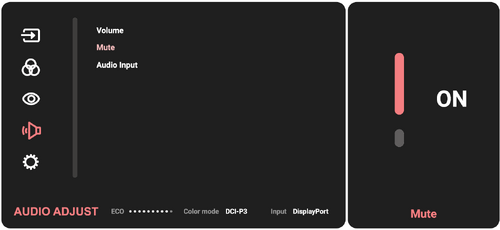
-
Move the Joy Key to return to the previous menu.


ColorPro™ Wheel for OSD Control
Apart from the Joy Key, the ColorPro™ Wheel also provides a quick way to control and access the OSD menus.
Using the ColorPro™ Wheel
Enter the On-Screen Display (OSD) Menu
Enter the OSD Menu by pressing the Confirm Button.

Select an Option and Confirm
Rotate the Dial to select an option, and press the Confirm Button to confirm.

Adjust the Value
Rotate the Dial left or right to adjust the value of the selected option.

Back
Press Back Button the at any time to return to the previous option.
