
M2e Connecting Power and Devices: Difference between revisions
Created page with "<noinclude> {{Sticky_Menu_Projector |1=M2e_Introduction |2=M2e_Remote_Control |3=M2e_Initial_Setup |4=M2e_Connecting_Power_and_Devices |5=M2e_Using_the_Projector |6=M2e_Operat..." |
No edit summary |
||
| Line 14: | Line 14: | ||
{{Top}} | {{Top}} | ||
</noinclude> | </noinclude> | ||
=Connecting to Power= | |||
<gallery widths=300px heights=300px mode="nolines"> | |||
File:M2_Connect_Power_DC.png| DC Power (Power Outlet) | |||
File:M2_Connect_Power_USBC.png| USB-C Power Bank | |||
</gallery> | |||
===DC Power (Power Outlet)=== | |||
# Connect the power cord to the power adapter. | |||
# Connect the power adapter to the DC IN jack at the rear of the projector. | |||
# Connect the power cord plug to a power outlet. When connected, the status LED will turn red. | |||
===USB-C Power Bank=== | |||
# Connect one end of the USB Type-C cable to the '''USB-C''' port of the projector. | |||
# Connect the other end of the USB Type-C cable to the power bank. | |||
:::<small>'''NOTE:''' The power bank should be 45W (15V/3A) at least, and support Power Delivery (PD) protocol output.</small> | |||
=Connecting to External Devices= | |||
<gallery widths=350px heights=350px mode="nolines"> | |||
File:M2_Connect_HDMI.png| HDMI Connection | |||
File:M2_Connect_USB.png| USB Connection | |||
</gallery> | |||
===HDMI Connection=== | |||
Connect one end of an HDMI cable to the HDMI port of your video device. Then connect the other end of the cable to the '''HDMI''' port (it supports HDCP 2.0/HDMI 2.2) of your projector. | |||
:<small>'''NOTE:''' iPhone/iPad users will need to use an additional adapter.</small> | |||
===USB Connection=== | |||
<u>USB-C Connection</u><br> | |||
Connect one end of a USB Type-C cable to the USB-C port of your device. Then connect the other end of the cable to the '''USB-C''' port of your projector. | |||
:<small>'''NOTE:''' | |||
::* Ensure your USB Type-C device can support video transmission. | |||
::* The M2 can also use a USB-C connected power bank to turn on the system. However, the brightness level will be limited to 50% and 30% when the '''Light Source Level''' is set as '''Full''' or '''Eco''' respectively.</small> | |||
<u>USB Type-A Connection</u><br> | |||
Connect one end of a USB Type-A cable to the USB-A port of your device (if applicable). Then connect the other end of the cable to the '''USB A''' port of your projector. | |||
Additionally, you can connect a keyboard, a mouse, dongles, storage devices, etc. to the projector’s '''USB-A''' port. | |||
<noinclude> | |||
=vRemote App= | |||
<i>Please see</i> <big>[[vRemote_App|vRemote App]]</big> | |||
=Wireless Screen Mirroring= | |||
<i>Please see</i> <big>[[Wireless_Screen_Mirroring|Wireless Screen Mirroring]]</big> | |||
</noinclude> | |||
=Connecting to Audio= | |||
===Bluetooth Speaker=== | |||
The projector is equipped with Bluetooth that allows the user to connect the projector to their Bluetooth device wirelessly for audio playback, e.g. Bluetooth speaker. | |||
:'''NOTE:''' The M2 projector doesn’t support audio streaming from your mobile device. | |||
<gallery mode="packed"> | |||
M2_BT_1.png| Step 1 - Bluetooth Device Search | |||
M2_BT_2.png| Step 2 - Turn On | |||
M2_BT_3.png| Step 3 - Search for nearby devices | |||
</gallery> | |||
To connect and pair your device: | |||
# Press the '''Bluetooth''' button on the remote control, or go to: '''Setting''' > '''Basic Settings''' > '''Bluetooth Device Search'''. | |||
# Ensure that '''Bluetooth Device Search''' is '''On''' and use the Left and Right directional buttons on the remote control to adjust if needed. | |||
# Once '''On''', the projector will search for nearby Bluetooth devices. Select your device from the list and press '''OK''' on the remote control. | |||
===Voice Control=== | |||
The M2 projector is embedded with voice control technology, making projector control even easier. Voice Control allows the user to easily control the projector via Google Home or Alexa. | |||
*<i>Please see</i> <big>[[Alexa_Voice_Control| Alexa Voice Control]]</big> | |||
*<i>Please see</i> <big>[[Google_Assistant_Voice_Control| Google Assistant Voice Control]]</big> | |||
=Connecting to Networks= | |||
===Wi-Fi Connection=== | |||
With the included Wi-Fi dongle, you can easily connect to wireless internet networks. | |||
<gallery mode="packed"> | |||
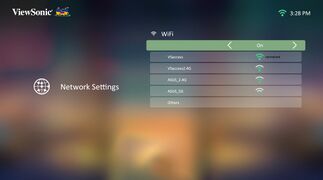
M2_WiFi_Connection_1.jpg| Step 3 - Turn On Wi-Fi | |||
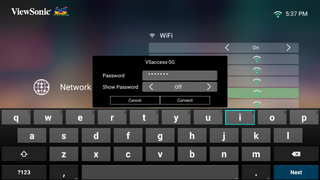
M2_WiFi_Connection_2.jpg| Step 4 - Select Network | |||
M2_WiFi_Connection_3.png| Step 5 - Enter credentials | |||
</gallery> | |||
To connect to a Wi-Fi network: | |||
# Insert the Wi-Fi dongle into the projector’s Wi-Fi dongle socket. | |||
# Go to: '''Home''' > '''Setting''' > '''Network Settings''' > '''Wi-Fi''' | |||
# Press '''Left''' or '''Right''' on the remote control to select '''On'''. | |||
# Available Wi-Fi networks will then be displayed. Select one of the available Wi-Fi networks. | |||
# If you connect to a secure Wi-Fi network, you must enter the password when prompted. | |||
'''Custom SSID''' | |||
# Ensure the Wi-Fi dongle is plugged into the projector’s Wi-Fi dongle socket. | |||
# Go to: '''Home''' > '''Setting''' > '''Network Settings''' > '''Wi-Fi''' | |||
# Press '''Left''' or '''Right''' on the remote control to select '''On'''. | |||
# From the available Wi-Fi networks list select '''Others''' and press '''OK''' on the remote control. | |||
# Enter the SSID and select the security level. | |||
# Enter the password when prompted. | |||
<gallery mode="packed"> | |||
M2_SSID_1.png| Step 4 - Select Others | |||
M2_SSID_2.png| Step 5 - Enter SSID | |||
M2_SSID_3.png| Step 6 - Enter Password | |||
</gallery> | |||
Revision as of 03:13, 21 December 2020
Connecting to Power
-
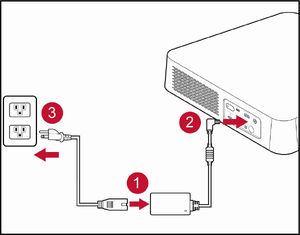 DC Power (Power Outlet)
 -
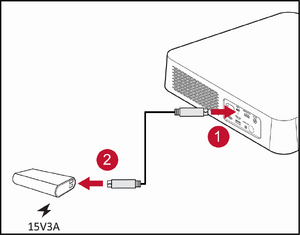 USB-C Power Bank


DC Power (Power Outlet)
- Connect the power cord to the power adapter.
- Connect the power adapter to the DC IN jack at the rear of the projector.
- Connect the power cord plug to a power outlet. When connected, the status LED will turn red.
USB-C Power Bank
- Connect one end of the USB Type-C cable to the USB-C port of the projector.
- Connect the other end of the USB Type-C cable to the power bank.
- NOTE: The power bank should be 45W (15V/3A) at least, and support Power Delivery (PD) protocol output.
Connecting to External Devices
-
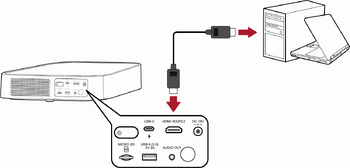 HDMI Connection
 -
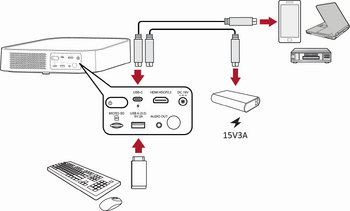 USB Connection


HDMI Connection
Connect one end of an HDMI cable to the HDMI port of your video device. Then connect the other end of the cable to the HDMI port (it supports HDCP 2.0/HDMI 2.2) of your projector.
- NOTE: iPhone/iPad users will need to use an additional adapter.
USB Connection
USB-C Connection
Connect one end of a USB Type-C cable to the USB-C port of your device. Then connect the other end of the cable to the USB-C port of your projector.
- NOTE:
- Ensure your USB Type-C device can support video transmission.
- The M2 can also use a USB-C connected power bank to turn on the system. However, the brightness level will be limited to 50% and 30% when the Light Source Level is set as Full or Eco respectively.
USB Type-A Connection
Connect one end of a USB Type-A cable to the USB-A port of your device (if applicable). Then connect the other end of the cable to the USB A port of your projector.
Additionally, you can connect a keyboard, a mouse, dongles, storage devices, etc. to the projector’s USB-A port.
vRemote App
Please see vRemote App
Wireless Screen Mirroring
Please see Wireless Screen Mirroring
Connecting to Audio
Bluetooth Speaker
The projector is equipped with Bluetooth that allows the user to connect the projector to their Bluetooth device wirelessly for audio playback, e.g. Bluetooth speaker.
- NOTE: The M2 projector doesn’t support audio streaming from your mobile device.
-
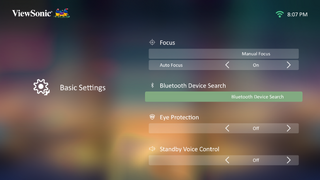 Step 1 - Bluetooth Device Search
 -
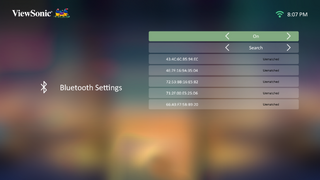 Step 2 - Turn On
 -
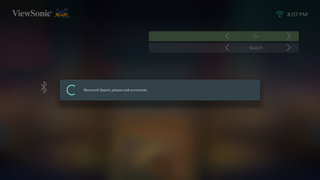 Step 3 - Search for nearby devices


To connect and pair your device:
- Press the Bluetooth button on the remote control, or go to: Setting > Basic Settings > Bluetooth Device Search.
- Ensure that Bluetooth Device Search is On and use the Left and Right directional buttons on the remote control to adjust if needed.
- Once On, the projector will search for nearby Bluetooth devices. Select your device from the list and press OK on the remote control.
Voice Control
The M2 projector is embedded with voice control technology, making projector control even easier. Voice Control allows the user to easily control the projector via Google Home or Alexa.
- Please see Alexa Voice Control
- Please see Google Assistant Voice Control
Connecting to Networks
Wi-Fi Connection
With the included Wi-Fi dongle, you can easily connect to wireless internet networks.
-
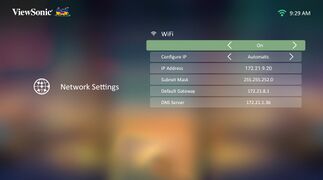 Step 3 - Turn On Wi-Fi
 -
 Step 4 - Select Network
 -
 Step 5 - Enter credentials


To connect to a Wi-Fi network:
- Insert the Wi-Fi dongle into the projector’s Wi-Fi dongle socket.
- Go to: Home > Setting > Network Settings > Wi-Fi
- Press Left or Right on the remote control to select On.
- Available Wi-Fi networks will then be displayed. Select one of the available Wi-Fi networks.
- If you connect to a secure Wi-Fi network, you must enter the password when prompted.
Custom SSID
- Ensure the Wi-Fi dongle is plugged into the projector’s Wi-Fi dongle socket.
- Go to: Home > Setting > Network Settings > Wi-Fi
- Press Left or Right on the remote control to select On.
- From the available Wi-Fi networks list select Others and press OK on the remote control.
- Enter the SSID and select the security level.
- Enter the password when prompted.
-
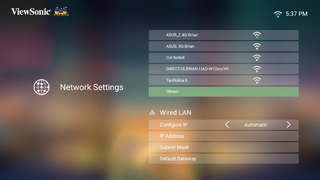 Step 4 - Select Others
 -
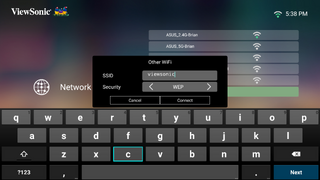 Step 5 - Enter SSID
 -
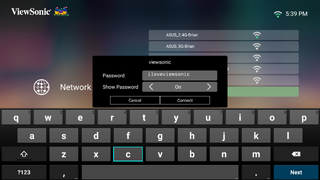 Step 6 - Enter Password


