
VP2776T-4K Initial Setup: Difference between revisions
From ViewSonic Documentation
// via Wikitext Extension for VSCode |
|||
| Line 53: | Line 53: | ||
|} | |} | ||
<ol><li>Turn off the device and disconnect all cables.</li> | <ol> | ||
<li>Place the device on a flat, stable surface with the screen facing down.</li> | <li>Turn off the device and disconnect all cables.</li> | ||
<li>Pull and hold the quick release tab and carefully lift the stand.</ | <li>Place the device on a flat, stable surface with the screen facing down.</li> | ||
<li> | |||
<div | <p>Pull and hold the quick release tab and carefully lift the stand.</p> | ||
<div class="res-img">[[File:VP2776_Wall_Mount_1.png|300px|Disengage the hooks]]</div> | |||
<li | </li> | ||
</ | <li> | ||
<p>Pull down slightly to disengage the hooks and remove the stand.</p> | |||
<li> | <div class="res-img">[[File:VP2776_Wall_Mount_2.png|300px|Remove the stand]]</div> | ||
</li> | |||
<li> Follow the instructions that come with the mounting kit to mount the monitor. | |||
</li> | <li> | ||
<p>Attach the mounting bracket to the VESA mounting holes at the rear of the monitor. Then secure it with four screws (M4 x 10 mm).</p> | |||
<div class="res-img">[[File:VP2776_Mount_3.png|350px|VESA mounting points]]</div> | |||
</li> | |||
<li> Follow the instructions that come with the mounting kit to mount the monitor.</li> | |||
</ol> | </ol> | ||
<noinclude> | <noinclude> | ||
Revision as of 04:00, 2 July 2024
Stand Installation
- Place the monitor on a flat, stable surface with the screen facing down.
- Align and slide the upper hooks of the monitor stand into the stand mounting slots.
- Lift the monitor into its upright position on a flat, stable surface.


Note: Always place the device on a flat, stable surface. Failure to do so may cause the device to fall and damage the device and/or result in personal injury.
Wall Mounting
Refer to the table below for the standard dimensions for wall mount kits.
Note: For use only with a UL certified wall mount kit/bracket. To obtain a wall-mounting kit or height adjustment base, contact ViewSonic® or your local dealer.
| Maximum
Loading |
Hole Pattern
(W x H) |
Interface Pad
(W x H x D) |
Pad Hole | Screw
Specification |
Screw
Quantity |
|---|---|---|---|---|---|
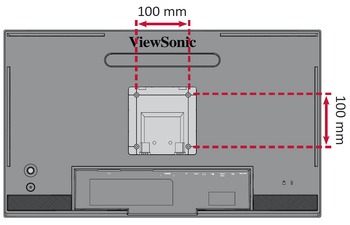
| 14 kg | 100 x 100 mm | N/A | N/A | M4 x 10 mm | 4 |
- Turn off the device and disconnect all cables.
- Place the device on a flat, stable surface with the screen facing down.
-
Pull and hold the quick release tab and carefully lift the stand.
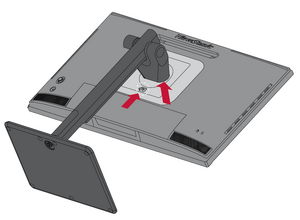
-
Pull down slightly to disengage the hooks and remove the stand.
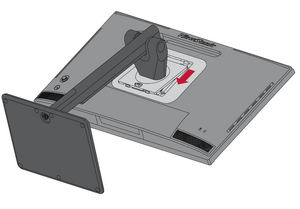
-
Attach the mounting bracket to the VESA mounting holes at the rear of the monitor. Then secure it with four screws (M4 x 10 mm).
- Follow the instructions that come with the mounting kit to mount the monitor.


Using the Security Slot
Installing the Shade Hood
Note: The Shade Hood is an optional accessory.
- Place the monitor upright on a flat, stable surface. Make sure the monitor is rotated to the landscape mode.
- Prepare the shade hood by folding the side panels down.
- Attach the shade hood to the top of the monitor by aligning the shape bar inside the hood with the one on top of the monitor. Repeat for the left and right sides.
- Press down on the shade hood to fix it firmly in place.


