
VP2786-4K Adjusting the Viewing Angle: Difference between revisions
From ViewSonic Documentation
No edit summary |
|||
| Line 25: | Line 25: | ||
<small> | <small> | ||
:'''NOTE:''' When adjusting, press down firmly along the adjustment track holding the monitor with both hands on the side. | :'''NOTE:''' When adjusting, press down firmly along the adjustment track holding the monitor with both hands on the side. | ||
</small> | </small> | ||
| Line 50: | Line 40: | ||
::* When adjusting, make sure to hold both sides of your monitor firmly with both hands. | ::* When adjusting, make sure to hold both sides of your monitor firmly with both hands. | ||
::* If using the Auto Pivot function, the system can detect the screen orientation automatically.</small> | ::* If using the Auto Pivot function, the system can detect the screen orientation automatically.</small> | ||
===Swivel Adjustment=== | |||
Swivel the monitor to the left or right for the desired viewing angle (60˚). | |||
===Tilt Angle Adjustment=== | |||
Tilt the monitor forwards or backwards to the desired viewing angle (-5˚ to 21˚). | |||
<small> | |||
:'''NOTE:''' When adjusting, support the stand firmly with one hand while tilting the monitor forwards or backwards with the other hand. | |||
</small> | |||
{{#seo: | {{#seo: | ||
Revision as of 09:16, 29 December 2022
-
 Height Adjustment
 -
 Swivel Adjustment
 -
 Tilt Angle Adjustment


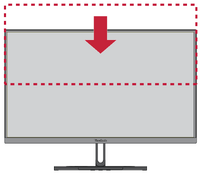
Height Adjustment
Lower or raise the monitor to the desired height (0 to 130 mm).
- NOTE: When adjusting, press down firmly along the adjustment track holding the monitor with both hands on the side.
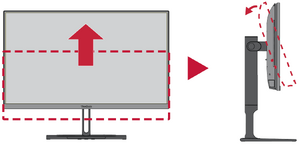
Screen Orientation Adjustment (Monitor Pivot)
-
 Screen Orientation Adjustment
 -
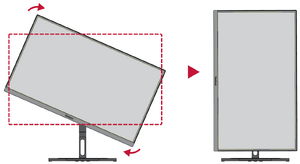 Screen Orientation Adjustment
 -
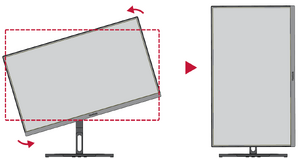 Screen Orientation Adjustment


- Adjust the monitor height to the highest position. Then tilt the monitor backwards to the full tilt position.
- Rotate the monitor 90° clockwise or counter clockwise from landscape to portrait orientation.
- NOTE:
- When adjusting, make sure to hold both sides of your monitor firmly with both hands.
- If using the Auto Pivot function, the system can detect the screen orientation automatically.
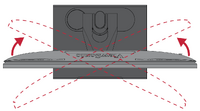
Swivel Adjustment
Swivel the monitor to the left or right for the desired viewing angle (60˚).
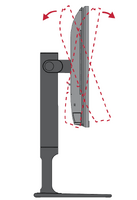
Tilt Angle Adjustment
Tilt the monitor forwards or backwards to the desired viewing angle (-5˚ to 21˚).
- NOTE: When adjusting, support the stand firmly with one hand while tilting the monitor forwards or backwards with the other hand.