
LDP163-181 Embedded Applications: Difference between revisions
From ViewSonic Documentation
No edit summary |
|||
| Line 17: | Line 17: | ||
</noinclude> | </noinclude> | ||
=ViewBoard Cast= | =ViewBoard Cast= | ||
Working with ViewBoard® Cast software, the | Working with ViewBoard® Cast software (vCast, vCast Pro, and vCastSender), the vCast application will allow the display to receive laptop screens (Windows/Mac/Chrome) and mobile (iOS/Android) users’ screens, photos, videos, annotations, and camera(s) that are using the vCastSender application. | ||
<div class="res-img">[[File:ViewBoard_Cast.png|border|500px]]</div> | <div class="res-img">[[File:ViewBoard_Cast.png|border|500px]]</div> | ||
:'''NOTE:''' | |||
* ViewBoard® Cast software, laptops, and mobile devices can connect to both the same subnet and | * ViewBoard® Cast software, laptops, and mobile devices can connect to both the same subnet and cross subnet by entering the on-screen PIN code. | ||
* Connected devices will show up under | * Connected devices will show up under '''Device List''' on the same subnet connection. | ||
* If the device does not show up under | * If the device does not show up under '''Device List''', users will need to key-in the on-screen PIN code. | ||
==Casting from Windows, MacBook, and Chrome Devices== | |||
== | |||
<div class="res-img">[[File:vCast_Sender_1.png|border|500px]]</div> | <div class="res-img">[[File:vCast_Sender_1.png|border|500px]]</div> | ||
# Make sure your device is connected to the same network as the ViewBoard. | # Make sure your device is connected to the same network as the ViewBoard. | ||
# Visit the address that is shown on the ViewBoard to download the application. | # Visit the address that is shown on the ViewBoard to download the application. | ||
Revision as of 10:41, 2 August 2023
ViewBoard Cast
Working with ViewBoard® Cast software (vCast, vCast Pro, and vCastSender), the vCast application will allow the display to receive laptop screens (Windows/Mac/Chrome) and mobile (iOS/Android) users’ screens, photos, videos, annotations, and camera(s) that are using the vCastSender application.

- NOTE:
- ViewBoard® Cast software, laptops, and mobile devices can connect to both the same subnet and cross subnet by entering the on-screen PIN code.
- Connected devices will show up under Device List on the same subnet connection.
- If the device does not show up under Device List, users will need to key-in the on-screen PIN code.
Casting from Windows, MacBook, and Chrome Devices

- Make sure your device is connected to the same network as the ViewBoard.
- Visit the address that is shown on the ViewBoard to download the application.
- Launch the application and click the connect icon next to the Device Name.
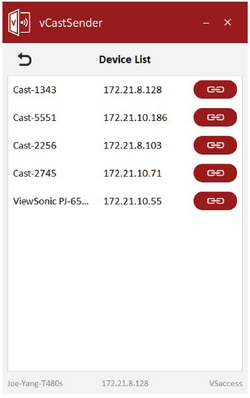
- NOTE: If the device is not listed, click Connect with PIN-Code and input the pin-code displayed on the ViewBoard.

Cast Sender from Mobile Devices: iOS-based (iPhone, iPad) and Android OS based phone/tablet

Android/iOS:
- Make sure your device is connected to the same network as the ViewBoard.
- Scan the QR Code that is shown on the ViewBoard to download directly from the server, or download from the Google Play Store or the Apple Store.
- Launch the application and select the correct Device Name and input the pin to connect. You can also directly input the pin-code displayed on the ViewBoard to connect.
Apple Airplay®:
- Make sure your device is connected to the same network as the ViewBoard.
- Directly open AirPlay and select the Device Name to connect.
- Another “AirPlay Password” will be generated on-screen for connection.

Cast Out from a Mobile Device that Supports Annotation


vSweeper
Clear unnecessary data and unwanted files.

Advanced Settings can also be customized to the user's needs.

Browser
Web browser for surfing the internet.

WPS Office
Create, edit, and view Documents, Memos, Presentations, and Spreadsheets.
