


| Sub-menu | Menu Option | ||
|---|---|---|---|
| Color Mode | Brightest | ||
| TV | |||
| Movie | |||
| Low Blue Light | |||
| Brightness | (-/+, 0~100) | ||
| Contrast | (-/+, -50~50) | ||
| Color Temp | 6500K | ||
| 7500K | |||
| 9300K | |||
| User | Red Gain | (-/+, 0~100) | |
| Green Gain | (-/+, 0~100) | ||
| Blue Gain | (-/+, 0~100) | ||
| Red Offset | (-/+, 0~100) | ||
| Green Offset | (-/+, 0~100) | ||
| Blue Offset | (-/+, 0~100) | ||
| Wall Color - Pink | |||
| Wall Color - Yellow | |||
| Wall Color - Blue | |||
| Tint | (-/+, -50~50) | ||
| Saturation | (-/+, 0~100) | ||
| Sharpness | (-/+, 0~50) | ||
| Gamma | 1.8 | ||
| 2.0 | |||
| 2.2 | |||
| 2.5 | |||
| Light Source Level | Full | ||
| Eco | |||
| Battery Saving | |||
| Test Pattern | OK | ||
| Reset Current Color Settings | Yes | ||
| Cancel | |||
M1X
From ViewSonic Documentation
Package Contents
-
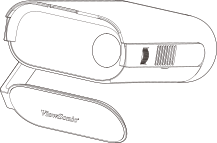 Projector
 -
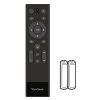 Remote Control with Batteries
 -
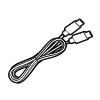 USB Type C Cable
 -
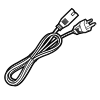 Power Cord
 -
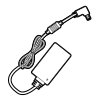 Power Adapter
 -
 Carrying Bag
 -
 Quick Start Guide
Projector Overview

| Number | Item |
|---|---|
| ① | Volume Up |
| ② | Volume Down |
| ③ | Play / Pause |
| ④ | LED Indicator (Power and Battery LED) |
| ⑤ | Speaker |
| ⑥ | IR Receiver |
| ⑦ | Lens |
| ⑧ | Focus Ring |
| ⑨ | I/O Ports |
| ⑩ | Smart Stand |
| ⑪ | Tripod Mount |
I/O Ports

| Number | Item |
|---|---|
| ❶ | DC IN |
| ❷ | USB Type C[1] |
| ❸ | Audio Out |
| ❹ | HDMI[2][3] |
| ❺ | USB Type A |
Overview

| Number | Button | Description |
|---|---|---|
| ① | Power | Turns the projector On or Off |
| ② | Source | Displays the input source selection menu |
| ③ | Bluetooth | Enables Bluetooth |
| ④ | ▲ / ▼ / ◀ / ▶ | Navigates and selects menu items |
| ⑤ | OK | Confirms the selection |
| ⑥ | Setting | Displays the Setting menu |
| ⑦ | Return | Returns to the previous screen |
| ⑧ | Home | Accesses the Home screen |
| ⑨ | Volume Control | Increases or decreases the volume level |
| ⑩ | Mute | Turn off the volume |
| ⑪ | Next/Previous | Move to the next or previous media |
| ⑫ | Play/Pause | Play or pause media |
Note: This model does not support the Focus button.
Effective Range
To ensure proper function of the remote control follow the steps below:
- The remote control must be held at an angle within 30° perpendicular to the projector’s IR remote control sensor(s).
- The distance between the remote control and the sensor(s) should not exceed 7 m (22 ft.).
Replacing the Batteries
- To open the battery cover, turn the remote control over to view its back, open the cover in the direction of the arrow.
- Remove any existing batteries (if necessary) and install two AAA batteries observing the battery polarities as indicated in the base of the battery compartment. Positive (+) goes to positive and negative (-) goes to negative.
- Replace the battery tray by aligning it with the base and pushing it back into position.
Note:
- Avoid leaving the remote control and batteries in excessive heat or a humid environment.
- Replace only with the same or equivalent type recommended by the battery manufacturer.
- If the battery is drained or if you will not be using the remote control for an extended period of time, remove the battery to avoid damage to the remote control.
- Dispose of used batteries according to the manufacturer’s instructions and local environment regulations for your region.
Choosing a Location - Projector Orientation
Personal preference and room layout will decide the installation location. Consider the following:
- Size and position of your screen.
- Location of a suitable power outlet.
- Location and distance between the projector and other equipment.
The projector is designed to be installed in one of the following locations:
Front Table
| The projector is placed near the floor in front of the screen. |  |
Front Ceiling
| The projector is suspended upside-down from the ceiling in front of the screen. |  |
Rear Table[1]
| The projector is placed near the floor behind the screen. |  |
Rear Ceiling[1]
| The projector is suspended upside-down from the ceiling behind the screen. |  |
Projection Dimensions

Note: (e) = Screen / (f) = Center of Lens
| (a) Screen Size | (b) Projection Distance | (c) Image Height | Image Width | ||||||
|---|---|---|---|---|---|---|---|---|---|
| in. | cm | in. | m | in. | m | in. | cm | in. | mm |
| 30 | 76.2 | 32.16 | 0.82 | 32.16 | 0.82 | 14.7 | 37.36 | 26.15 | 664 |
| 40 | 101.6 | 42.88 | 1.09 | 42.88 | 1.09 | 19.6 | 49.81 | 34.86 | 886 |
| 50 | 127 | 53.6 | 1.36 | 53.6 | 1.36 | 24.5 | 62.26 | 43.58 | 1107 |
| 60 | 152.4 | 64.32 | 1.63 | 64.32 | 1.63 | 29.4 | 74.72 | 52.29 | 1328 |
| 70 | 177.8 | 75.04 | 1.91 | 75.04 | 1.91 | 34.3 | 87.17 | 61.01 | 1550 |
| 80 | 203.2 | 85.76 | 2.18 | 85.76 | 2.18 | 39.2 | 99.62 | 69.73 | 1771 |
| 90 | 228.6 | 96.48 | 2.45 | 96.48 | 2.45 | 44.1 | 112.07 | 78.44 | 1992 |
| 100 | 254 | 107.2 | 2.72 | 107.2 | 2.72 | 49 | 124.53 | 87.16 | 2214 |
Note: It is recommended that if you intend to permanently install the projector, please physically test the projection size and distance using the actual projector before you permanently install it.
Connecting to Power
DC Power (Power Outlet)

- Connect the power cord to the power adapter.
- Connect the power adapter to the DC IN jack at the side of the projector.
- Connect the power cord plug to a power outlet. When connected, the status LED will turn white.
Note: Charge the projector for 4.5 hours via the power adapter before using it in battery mode for the first time
- IMPORTANT
- Use only the bundled power adapter to change the battery pack and supply power to your LED projector.
- Make sure your LED projector is connected to the power adapter before turning it on for the first time. We strongly recommend that you use a grounded wall socket while using your LED projector in power adapter mode.
- The socket outlet must be easily accessible and near your LED projector.
- To disconnect your LED projector from its main power supply, unplug your LED projector from the power socket.
Power by Power Bank
The projector can also be powered by a power bank.

- Connect one end of the USB Type-C cable to the USB-C port of the projector.
- Connect the other end of the USB Type-C cable to the power bank.
Note:
- The power bank should be 45W (15V/3A) at least, and support Power Delivery (PD) protocol output. Additionally, at 15V/3A the projector can be powered on and charge simultaneously.
- Due to the IC protection mechanism, the USB-C charging function may stop briefly then continue later on.
Using the Battery
The battery level icon will show at the top right of the Home Screen. As the battery’s power level runs low, the screen will show a “low battery message”.
| Charging | About 4.5 hours (Power Off) |
| Usage Hours | Up to 4 hours (Battery Saving)
Up to 2.5 hours (Eco) Up to 2 hours (Full) |
| Battery Level Indicator (Charging) | During Charging: Flashing White LED light
Full Charge: Solid White LED light |
Connecting to External Devices

HDMI Connection
Connect one end of an HDMI cable to the HDMI port of your video device. Then connect the other end of the cable to the HDMI port (supports HDCP 1.4/HDMI 1.4) of your projector.
USB Connection
USB Type A Connection
To enjoy photos, music, and movies, simply plug in a USB flash drive to the USB Type A port. For supported file formats, see Supported File Formats
USB Type-C Connection
Connect one end of a USB Type C cable to the USB-C port of your device. Then connect the other end of the cable to the USB-C port of your projector.
Note:
- Ensure your USB Type C device can support video transmission.
- The connected device can also be charged (5V/2A).
Audio Connection
You can connect to various external sound delivery devices via the Audio Out port.
Bluetooth Connection
Bluetooth Speaker
The projector is equipped with Bluetooth that allows the user to connect their device wirelessly for audio playback.
To connect and pair your device:
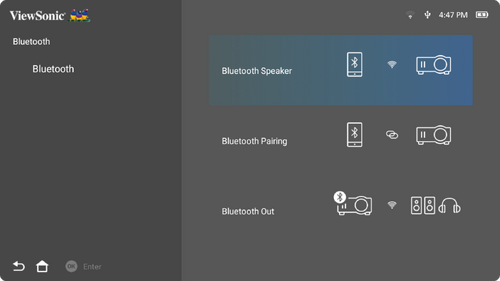
- Go to: Home > Bluetooth.
-
Use the Up ▲ or Down ▼ directional buttons on the remote control to select Bluetooth Speaker or Bluetooth Pairing. Then press OK on the remote control.
-
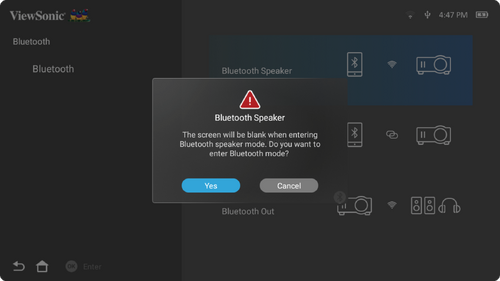
When the below dialogue box appears, select Yes and press OK on the remote control to enter Bluetooth mode.
- A sound effect will be audible upon entering pairing mode.
-
Upon successful connection, another sound effect will be audible.
- NOTE:
- The projector’s name will be labeled as “M1X”.
- Only the Power and Return
 buttons can exit Bluetooth mode.
Bluetooth Out
Connect the projector to external headphones or speakers that support Bluetooth.

To connect and pair your device:
- Go to: Home > Bluetooth.
-
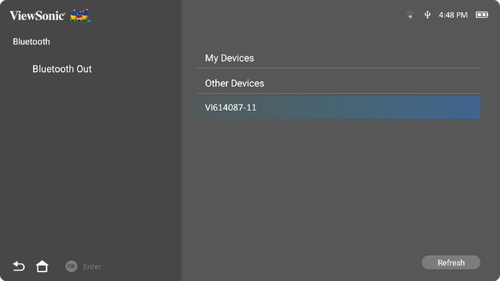
Use the Up ▲ or Down ▼ directional buttons on the remote control to select Bluetooth Out option.
-
The projector will search for nearby Bluetooth devices. Select your device from the list and press OK on the remote control.
Note: Once paired, if both the projector and your device are powered on they will automatically connect via Bluetooth.
Connecting to Networks
Wi-Fi Connection
With built-in Wi-Fi, you can easily connect to wireless internet networks.
To connect to a Wi-Fi network:
- Go to: Home > Settings > Network Settings > Wi-Fi.
-
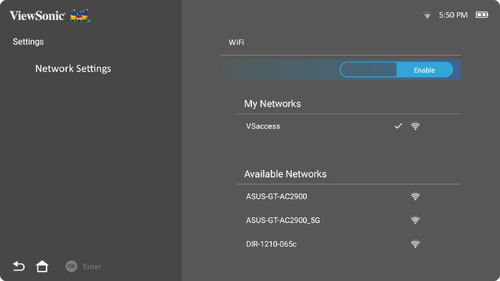
Use the Left ◀ or Right ▶ directional buttons on the remote control to select Enable.
-
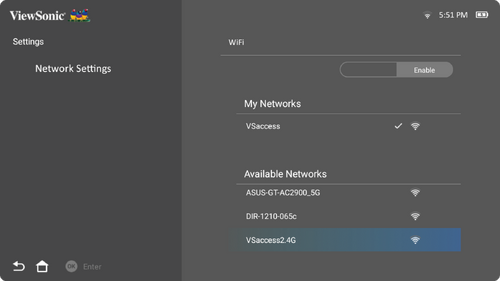
Available Wi-Fi networks will then be displayed. Select one of the available Wi-Fi networks.
-
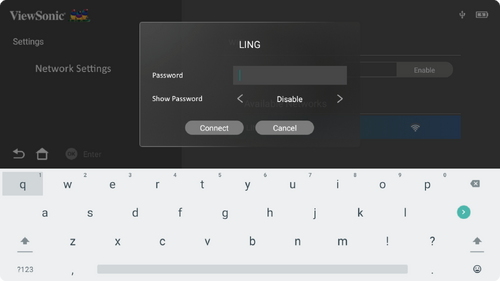
If you connect to a secure Wi-Fi network, you must enter the password when prompted.
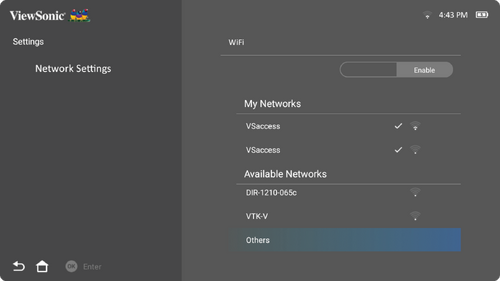
Custom SSID
- Go to: Home > Settings > Network Settings > Wi-Fi.
- Use the Left ◀ or Right ▶ directional buttons on the remote control to select Enable.
-
From the available Wi-Fi networks list select Others and press OK on the remote control.
-
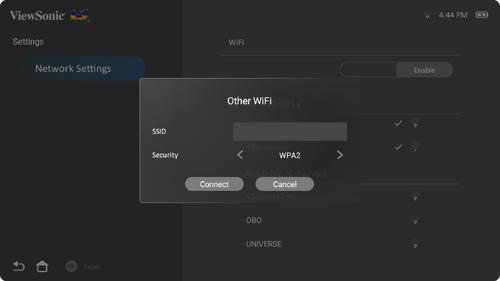
Enter the SSID and select the security level.
-
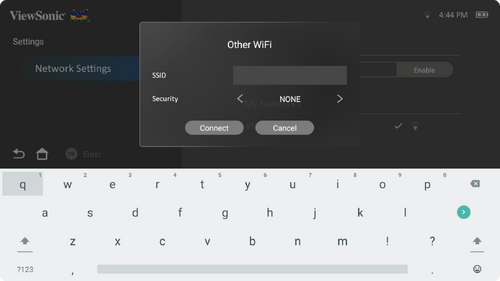
Enter the password when prompted.
Wireless Screen Mirrowing
Screen Mirroring provides a 5 GHz Wi-Fi connection for users to mirror the screen on their personal device.

Note: Ensure your device is connected to the same network as the projector.
For iOS:
- Access the drop down control menu.
- Select the “Screen Mirroring” icon.
- Choose “ViewSonic PJ-XXXX”.
For Android:
- Download and install the Goole Home application and open it.
- Pull-to-refresh the app and wait for 30 seconds.
- “ViewSonic PJ-XXXX” will now be visible, select it.
How to Directly Cast (YouTube example)
- Connect the projector and a mobile phone to the same Wi-Fi network.
- Open the YouTube application on the connected mobile phone and tap the “CAST” icon at top right of the screen.
- Select the projector’s name “ViewSonic PJ-XXXX” to start casting content from the mobile phone through the projector.
- To stop casting, select the disconnect option on the phone’s screen.
Starting the Projector
- Ensure the projector is connected to a power source or that the battery has sufficient charge.
-
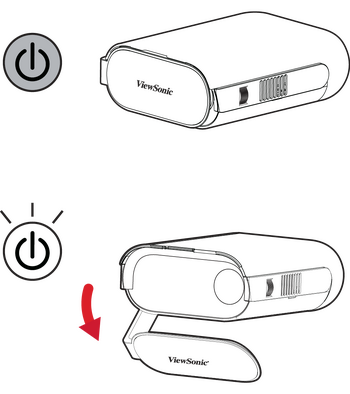
Open the Smart Stand by moving the lens cover down.
-
Move the Smart Stand to your desired viewing angle.
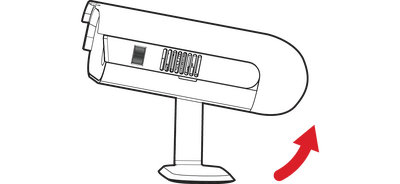 Note:
Note:
Do not place any heavy objects or press down forcefully on the projector’s I/O side when opening the Smart Stand as it may cause damage to the projector.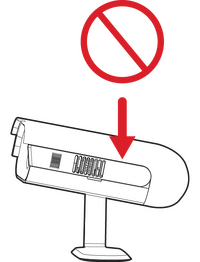
Warning of heavy press on the I/O section
Adjusting the Projected Image
Adjusting the Projector’s Height and Projection Angle
The projector is equipped with one Smart Stand. Adjusting the stand will change the projector’s height and the vertical projection angle. Carefully adjust the stand to fine tune the projected image’s position.

Note: If the projector is not placed on a flat surface or the screen and the projector are not perpendicular to each other, the projected image can become trapezoidal. However, the “Auto Vertical Keystone” function will correct the issue automatically.
Adjusting the Focus
To adjust the focus of the on-screen image, slowly move the focus ring upwards or downwards.

First Time Activation
If the projector is activated for the first time, you will need to select your Preferred Language, Projection Orientation, and Network Settings. Follow the on-screen instructions using the OK and Up ▲/ Down ▼ / Left ◀ / Right ▶ buttons on the remote control. When the "Finish screen" appears, this indicates the projector is ready to use.
Bluetooth Remote Pairing
- Press and hold the Settings
 and Return buttons for three seconds to enter pairing mode.
 - The LED on the remote control will flash blue.
- A “Successfully Paired” message will show. If not, please try again or select Next and go to: Apps Center > RC BT Pairing.
Preferred Language
Select the desired language and press OK to confirm the selection.

Projection Orientation
Select the preferred projection orientation and press OK to confirm the selection. for more information, see Projector Orientation.

Network Settings
Select one of the available Wi-Fi options. For more information, see Wi-Fi Connection.
Shutting Down the Projector
-
Press and hold the Power button for three seconds on the remote control will result in the following message:
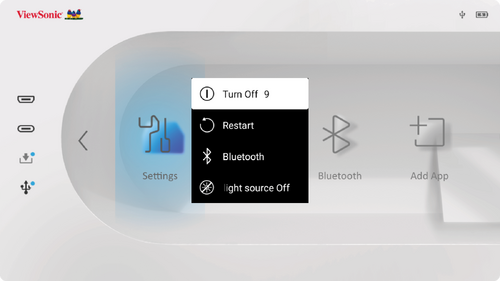
Press the Up ▲ or Down ▼ directional buttons on the remote control to select Turn Off and press OK on the remote control.
- NOTE: When not in use, please press the Power button to power off. If only using the Power button on the remote control to power off, the projector will enter standby mode and the embedded battery will still consume some power.
Input Source Selected - On-Screen Display (OSD) Menu Tree
| Sub-menu | Menu Option | |
|---|---|---|
| Aspect Ratio | Auto | |
| 4:3 | ||
| 16:9 | ||
| HDMI Setting | Auto | |
| Full | ||
| Limited | ||
| 3D Settings | 3D Format | Disable |
| Frame Sequential | ||
| Frame Packing | ||
| Top-Bottom | ||
| Side-by-Side | ||
| 3D Sync Invert | Disable | |
| Invert | ||
| Audio Settings | Audio Mode | Movie |
| Music | ||
| Audio Volume | (-/+, 0~50) | |
| Mute | Disable | |
| Enable | ||
| Information | Source | Ex. HDMI |
| Rsolution | Ex. 1920 x 1080 @60Hz | |
| 3D Format | Ex. Frame Packing | |
Home Screen - On-Screen Display (OSD) Menu Tree
Provides a user interface to manage files and folders.
Access and view all installed applications.
Manage various categories such as: Network settings, Basic and Advanced settings, Date & Time, Firmware update, and System Information.
| Sub-menu | Menu Option | ||
|---|---|---|---|
| Network Settings | Wi-Fi | Disable | |
| Enable | SSID | ||
| Configure IP | |||
| IP Address | |||
| Subnet Mask | |||
| Default Gateway | |||
| DNS Server | |||
| Others | |||
| Date & Time | Automatic Date & Time | Disable | |
| Enable | |||
| Date | |||
| Time | |||
| Time Zone | |||
| Time Format | 12 hours | ||
| 24 hours | |||
| Basic Settings | Language | English | |
| Français | |||
| Deutsch | |||
| Italiano | |||
| Español | |||
| Русский | |||
| 繁體中文 | |||
| 简体中文 | |||
| 日本語 | |||
| 한국어 | |||
| Svenska | |||
| Dutch | |||
| Türkçe | |||
| Česká | |||
| Português | |||
| ไทย | |||
| Polski | |||
| Suomi | |||
| يبرع | |||
| Indonesia | |||
| Bahasa | |||
| Tiếng Việt | |||
| ελληνικά | |||
| Magyar | |||
| Projector Projection | Front Table | ||
| Front Ceiling | |||
| Rear Table | |||
| Rear Ceiling | |||
| Keystone | Auto V Keystone | Disable | |
| Enable | |||
| V Keystone | (-/+, -40~40) | ||
| H Keystone | (-/+, -40~40) | ||
| 4 Corner | Disable | ||
| Enable | |||
| 4 Corner Adjustment | OK | ||
| Zoom | 0.8x | ||
| 0.9x | |||
| 1.0x | |||
| Test Pattern | OK | ||
| Advanced Settings | Power On Source | Disable | |
| HDMI | |||
| USB C | |||
| Power On Ring Tone | Disable | ||
| Enable | |||
| Smart Energy | Auto Power Off | Disable | |
| 10 minutes | |||
| 20 minutes | |||
| 30 minutes | |||
| Sleep Timer | Disable | ||
| 30 minutes | |||
| 1 hour | |||
| 2 hours | |||
| 3 hours | |||
| 4 hours | |||
| 8 hours | |||
| 12hours | |||
| Power Saving | Enable | ||
| Disable | |||
| Audio Settings | Audio Mode | Movie | |
| Music | |||
| Audio Volume | (-/+, 0~50) | ||
| Mute | Enable | ||
| Disable | |||
| Light Source Level | Full | ||
| Eco | |||
| Battery Saving | |||
| Screen Saver | Enable | ||
| Disable | |||
| Power Bank Mode | Enable | ||
| Disable | |||
| High Altitude Mode | Off | ||
| On | |||
| Reset Settings | OK | ||
| Reset to Factory Default | OK | ||
| Firmware Upgrade | Software Update Online | ||
| Software Update by USB | |||
| OTA Reminder | Enable | ||
| Disable | |||
| Software Version | |||
| Information | Light Source Hours | ||
| System Version | |||
| Memory Information | XX GB of XX GB Used | ||
| Wi-Fi Mac Address | |||
| Serial Number | |||
Mirror your personal device’s screen through the projector.
Select the appropriate Bluetooth mode.
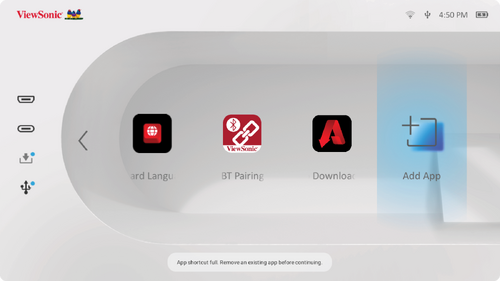
Customize the Home Screen by adding extra Apps to it. You can place up to four different Apps.
Input Source Selected
After your input source is selected, you can adjust the Image Setting and Advanced menus.
Image Setting Menu
After your input source is selected, you can adjust the Image Setting menu.
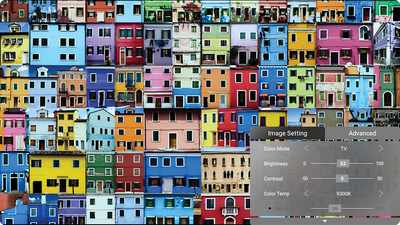
To access the Image Setting menu:
-
Press Setting
on the remote control.
-
Use the Up ▲ / Down ▼ directional buttons to select a menu.
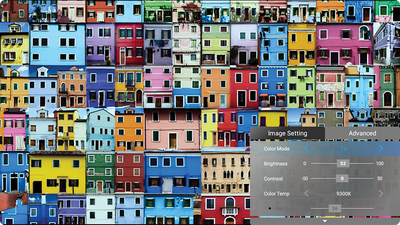
-
Then use the Left ◄ / Right ► directional buttons to enter the sub-menu(s) and/or adjust the settings.
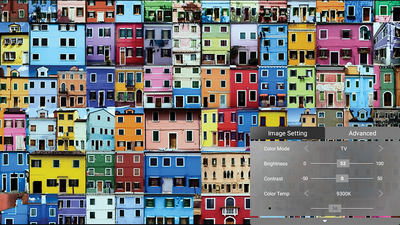
-
Press the Return
button to go to the previous menu or exit.
Note: USB device source does not support the Image Setting function.Menu Option Description Color Mode The projector is preset with several predefined picture modes so that you can choose one to suit your operating environment and input signal. Brightest
Maximizes the brightness of the projected image. This mode is suitable for environments where extra-high brightness is required (i.e. well-lit rooms).TV
Optimized for viewing sports in well-lit environments.Movie
Appropriate for colorful movies, video clips from digital cameras, or DVs through the PC input. Best for low-light environments.Low Blue Light
Block high-energy blue light for a more comfortable viewing experience.Brightness The higher the value, the brighter the image. Lower values will result in a darker image. 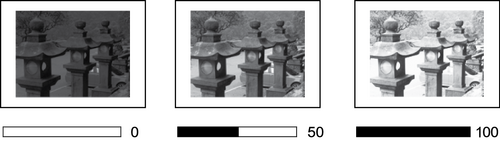
Contrast Use this to set the peak white level after you have previously adjusted the Brightness setting to suit your selected input and viewing environment. 
Color Temp Select the color temperature setting. 6500K
Maintains normal white coloring.
7500K
A higher, cooler color temperature than 6500K.
9300K
The highest color temperature; makes the image appear the most bluish-white.
User Color
Adjust red, green, and blue values as desired.
- NOTE: The Wall Color feature can help correct the projected picture’s colors to prevent possible color difference between the source and projected pictures if you are projecting onto a colored surface such as a painted wall which may not be white.
Tint The higher the value, the more greenish the picture becomes. The lower the value, the more reddish the picture becomes. Saturation Refers to the amount of that color in a video picture. Lower settings produce less saturated colors; in fact, a setting of “0” removes that color from the image entirely. If the saturation is too high, that color will be overpowering and unrealistic. Sharpness A high value results in a sharper picture; a low value softens the picture. Gamma Reflects the relationship between input source and picture brightness. Light Source Level Select the suitable power consumption of the LED. Full
100% power consumption.Eco
70% power consumption.Battery Saving
30% power consumption.Test Pattern Test the color presentation of the projector. Reset Current Color Settings Return current color settings to their default values.


Advanced Setting Menu
After your input source is selected, you can adjust the Advanced menu.
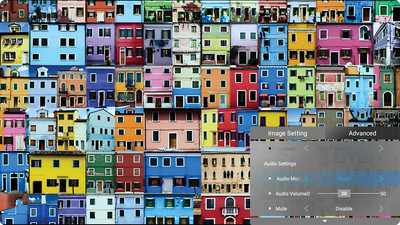
To access the Advanced menu:
-
Press Setting
on the remote control.
-
Use the Right ▶ directional buttons to access the Advanced menu.
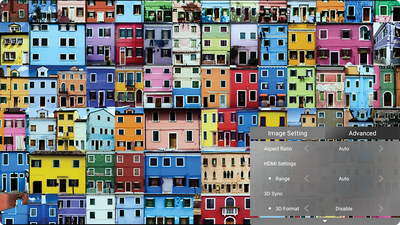
-
Use the Up ▲ / Down ▼ directional buttons to select a menu.
-
Then use the Left ◄ / Right ► directional buttons to enter the sub-menu(s) and/or adjust the settings.
-
Press the Return
button to go to the previous menu or exit.
Menu Option Description Aspect Ratio The Aspect Ratio is the ratio of the image width to the image height. With the advent of digital signal processing, digital display devices, like this projector, can dynamically stretch and scale the image output to a different aspect than that of the image input signal. - NOTE: Only supports HDMI/USB-C signal input.
Auto
Scales an image proportionally to fit the projector’s native resolution in its horizontal width. This is suitable for the incoming image which is neither 4:3 nor 16:9 and you want to make the most use of the screen without altering the image’s aspect ratio.4:3
Scales an image so that it is displayed in the center of the screen with a 4:3 aspect ratio. This is most suitable for 4:3 images like computer monitors, standard definition TV, and 4:3 aspect DVD movies, as it displays them without aspect alteration.16:9
Scales an image so that it is displayed in the center of the screen with a 16:9 aspect ratio. This is most suitable for images which are already in a 16:9 aspect, like high definition TV.HDMI Settings Select a suitable color range according to the color range setting of the connected output device. Color Range Range Description Auto The projector automatically detects the range of the input signal. Full Sets the color range from 0~255. Limited Sets the color range from 15~235. 3D Settings Enables you to enjoy 3D movies, videos, and sporting events in a more realistic way by presenting the depth of the images while wearing 3D glasses. 3D Format
Adjust and choose from: Automatic, Off, Frame Sequential, Frame Packing, Top-Bottom, Side-by-Side.3D Sync Invert
Allows for correction if the 3D image depth is inversed.Audio Settings Adjust the audio settings. Information Shows Input Source, Resolution, and 3D Format.


Home Screen
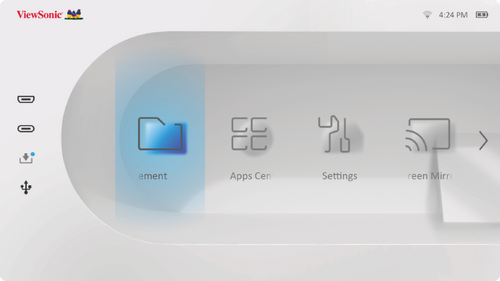
The Home Screen is displayed every time you start the projector. To navigate the Home Screen, simply use the directional buttons ▶ / ◀ / ▲ / ▼ on the remote control. You can return to the main Home Screen at any time by pressing the Home button on the remote control, regardless of what page you are on.

| Menu | Description |
|---|---|
| File Management | Provides a user interface to manage files and folders. |
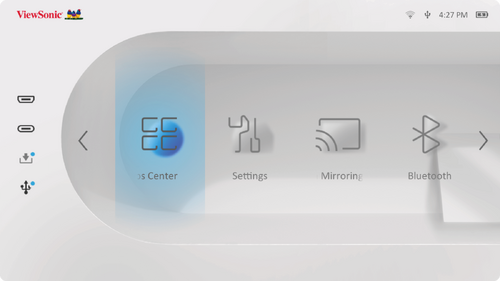
| Apps Center | Access and view all installed applications. |
| Settings | Manage various categories such as: Network settings, Basic and Advanced settings, Date & Time, Firmware update, and System Information. |
| Screen Mirroring | Mirror your personal device’s screen through the projector. |
| Bluetooth | Select the appropriate Bluetooth mode. |
| Add App | Select your favorite Apps and add them to the Home Screen. |
File Management
Easily manage files and folders.
-
Select: Home > File Management.
-
Select a device on the source list: USB, Local Storage, MicroSD, etc. Use the directional buttons ▶ / ◀ / ▲ / ▼ to select the desired file. Then press OK on the remote control to open the selected file.
-
Press the Return
button to go to a previous level.Note: Press the Home button on the remote control to return to the Home Screen at anytime.
How to Edit a File
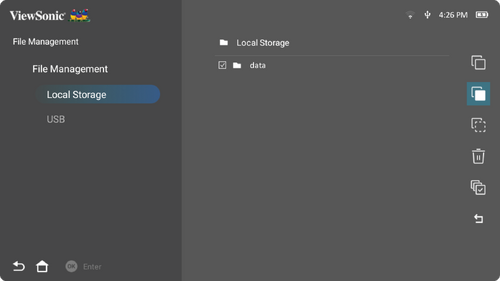
- While in File Management, press and hold the OK button for three seconds.
-
A check box will appear at the front of each file. Use the directional buttons ▶ / ◀ / ▲ / ▼ and press OK to select one or more files.
-
By pressing the Right ▶ button, Copy, Paste, Cut, Delete, Select All, and Return boxes will be available for use.

- Select your desired action xand press OK to execute.
- If you are Copying or Cutting, select your destination folder to complete the process.


How to Use the Media Control Bar Buttons
The media control bar buttons will appear on screen if a video, music, or photo file are selected to be opened.

Tips for using USB
When using USB for reading and/or storage please keep in mind the following:
- Some USB storage devices may not be compatible.
- If you use an USB extension cable, the USB device may not recognize the USB.
- Only use USB storage devices formatted with Windows FAT32 or NTFS file system.
- Larger files will need extra time to load.
- Data on USB storage devices may be damaged or lost. Back up important files.
Supported File Formats
| Extension | Type | Codec |
|---|---|---|
| .avi | Audio | MP3 |
| .mp4 .m4v .mov |
Video | H.264/MPEG-4 |
| .mkv | Video | H.264 |
| .ts .trp .tp .mts .m2ts |
Video | H.264, MPEG-2 |
| Audio | MP3 | |
| .vob | Video | MPEG-1, MPEG-2 |
| Audio | DVD-LPCM | |
| .mpg | Video | MPEG-1 |
| Items | Indicators | |||
|---|---|---|---|---|
| I. | Document Viewing Function | 1 | doc/docx | Able to open and read documents in doc/docx |
| 2 | xls/xlsx | Able to open and read documents in xls/xlsx | ||
| 3 | ppt/pptx | Able to open and read documents in ppt/pptx | ||
| 4 | Able to open and read documents in PDF | |||
| II. | Supporting Interface Language | 1 | Supporting 44 Interface Languages | English, Simplified Chinese, Chinese (TW), Chinese (HK), Spanish (LA), French (EU), PT (EU), PT (BR), German, Russian, Italian, Swedish, Spanish (EU), Korean, Arabic, Farsi, Serbian, Bosnian, Macedonian, Bulgarian, Ukrainian, Greek, Norwegian, Danish, Czech, Hungarian, Slovak, Polish, Romanian, Finnish, Estonian, Latvian, Lithuanian, British English, Slovenian, Croatian, Turkish, Vietnamese, Bahasa Indonesia, Dutch, Malay, Thai, Hindi, Hebrew, Burmese, Catalan. |
| Format | Type | Maximum Resolution |
|---|---|---|
| .jpg/.jpeg | Progressive JPEG | 7680 x 4320 |
| Baseline JPEG | 7680 x 4320 | |
| .bmp | 9600 x 6400 | |
| .png | 7680 x 4320 |
| Device | Support Size (Max. Size) |
NTFS Format | FAT32 Format | exFAT | |||
|---|---|---|---|---|---|---|---|
| Read | Write | Read | Write | Read | Write | ||
| USB Memory Stick | 256 GB | V | N/A | V | V | N/A | N/A |
| USB HDD | 2 TB | V | N/A | V | V | N/A | N/A |
Note:
- Windows 10 built-in format tool only supports FAT32 format up to 32 GB.
- Firmware upgrade only supports FAT32 format.
Apps Center
View, launch, and uninstall Apps.
-
To view your Apps, select: Home > Apps Center.
-
Use the directional buttons ▶ / ◀ / ▲ / ▼ to select the desired App. Then press OK on the remote control to launch the App.
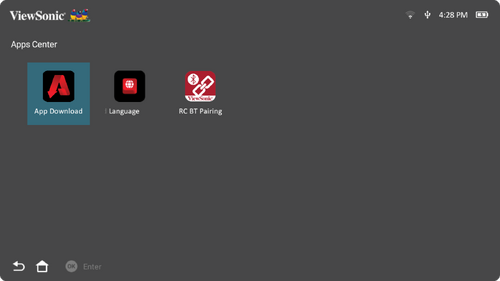 Note: Press the Home button on the remote control to return to the Home Screen at anytime.


ViewSonic App Download
Use the directional buttons ▶ / ◀ / ▲ / ▼ to navigate the menu options. When you find the preferred App, press the OK button on the remote control to install the App.

Note:
- Users can install third-party Apps by .apk file in File Management. However, some third-party Apps may have compatibility issues.
- Apps not pre-loaded by ViewSonic may not be compatible or work properly.
- Some Apps may require a keyboard or mouse.
- Some Apps may be Region-Specific.
To Uninstall Apps
- Open the Apps Center by selecting: Home > Apps Center.
- Use the directional buttons ▶ / ◀ / ▲ / ▼ to select the desired App.
-
Press and hold OK on the remote control for three seconds. The below dialogue box will appear:
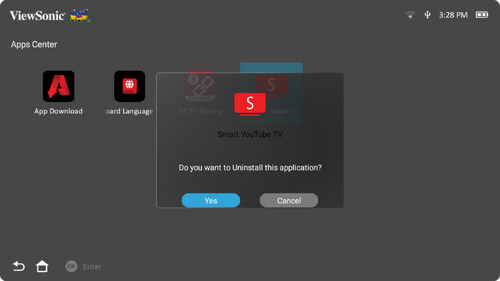
-
Select Yes to uninstall the App.
Note: Press the Home button on the remote control to return to the Home Screen at anytime.

Settings
Under Settings you can adjust Network, Basic, and Advanced settings, Date & Time, Firmware Upgrade, and view Information.

Network Settings
-
Select: Home > Setting > Network Settings.
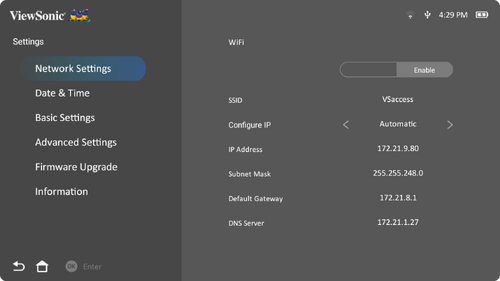
-
View and adjust your Wi-Fi and network settings.
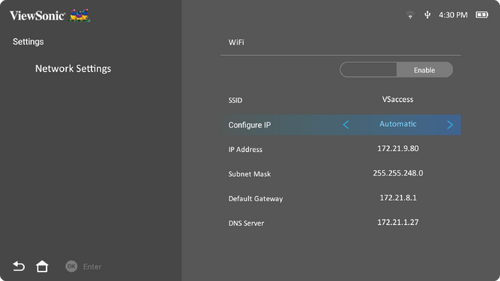
-
To setup a Wireless connection, see Connecting to Networks.


Basic Settings
-
Select: Home > Setting > Basic Settings.
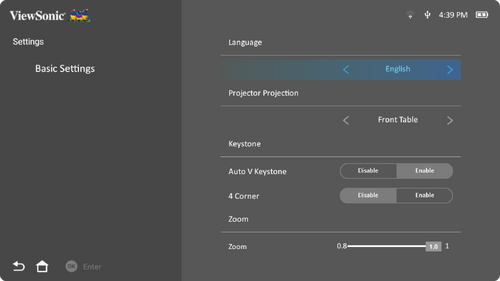
-
Use the Up ▲ and Down ▼ directional buttons to select the desired option and press OK. Then use the Left ◀ and Right ▶ buttons to make adjustments or selections.
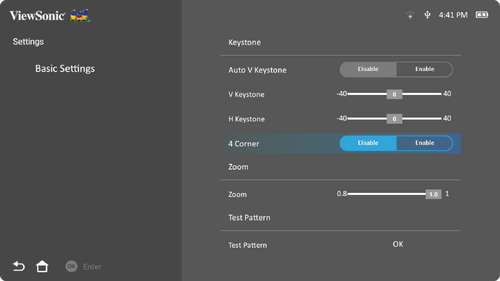
-
To return to a previous menu press the Return
button.
Note: Press the Home button on the remote control to return to the Home Screen at anytime.Menu Description Language Select your desired language. Projector Position Select the preferred projection position. Keystone Adjust trapezoidal screen image distortion.
Auto V Keystone
Provides a rectangular screen image by automatically adjusting the keystone number when there is a trapezoidal screen image caused by the tilting of the projector.- Enable: Automatically adjust the keystone number.
- Disable: Manually adjust the keystone number.
V Keystone
Keystone can be adjusted vertically manually.H Keystone
Keystone can be adjusted horizontally manually.4 Corner
Enable or disable 4 Corner Adjustment.4 Corner Adjustment
Adjust each corner individually for maximum projection flexibility.Zoom Adjust the digital zoom setting. Test Pattern Test the color presentation of the projector and/or adjust the focus of the projected image.


Date & Time
Adjust Date, Time, Time Zone, and Time Format.
Note: The time is displayed in the top-right corner after connecting to the Internet.
-
Select: Home > Setting > Date & Time.
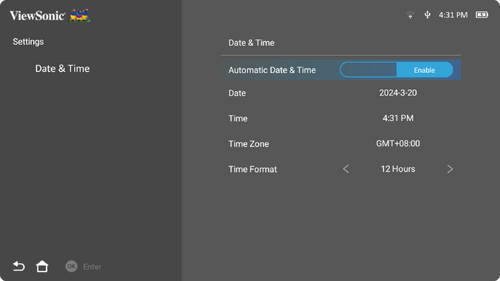
-
Use the Up ▲ and Down ▼ directional buttons to select the desired option and press OK. Then use the Left ◀ and Right ▶ buttons to make adjustments or selections.
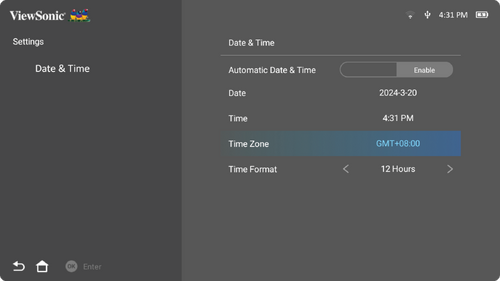


Advanced Settings
-
Select: Home > Setting > Advanced Settings.
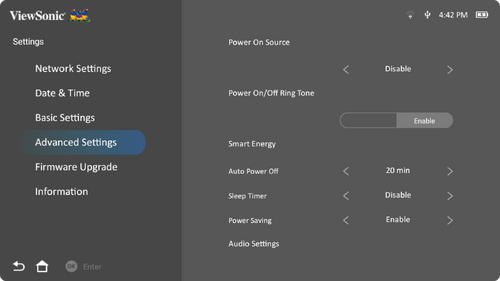
-
Use the Up ▲ and Down ▼ directional buttons to select the desired option and press OK. Then use the Left ◀ and Right ▶ buttons to make adjustments or selections.
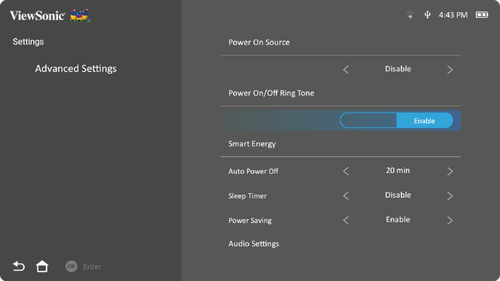
-
To return to a previous menu press the Return
button.
Note: Press the Home button on the remote control to return to the Home Screen at anytime.Menu Description Power On Source Enter the desired input source directly after turning on the projector. Power On Ring Tone Enable or disable the power on ring tone. Smart Energy Auto Power Off
The projector can turn off automatically after a set period of time once no input source is detected.Sleep Timer
Turn offautomatically after a set period of time.Power Saving
Lower power consumption if no input source is detected after five minutes.- NOTE: The power consumption of the LED will be changed to 30% after no signal is detected for five minutes.
Audio Settings Audio Mode
- Movie: Default audio mode.
- Music: Optimized for music playback.
Audio Volume
Adjust the volume from 0 to 50.Mute
Mute or unmute the volume.Light Source Level Select the suitable power consumption of the LED. Screen Saver On the homepage and folder pages, if there is no action within five minutes, the screen saver and time display will be activated. Power Bank Mode Enable or disable to turn on or charge the projector.
- NOTE: The power bank should be at least 45W (15V/3A) and support Power Delivery (PD) protocol output.
High Altitude Mode It is recommended that you use High Altitude Mode when your environment is between 1,500~3,000 m above sea level, and a temperature between 5°C~25°C.
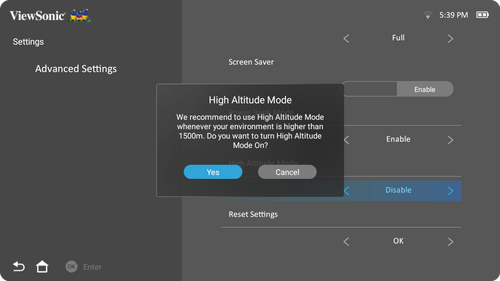
- NOTE: If you use this projector under other extreme conditions excluding the above, it may display auto shut-down symptoms, which is designed to protect your projector from over-heating. In cases like this, you should switch to High Altitude Mode to solve these symptoms. However, this is not to state that this projector can operate under any and all harsh or extreme conditions.
Reset Settings Reset the Settings to default. - NOTE: Language, High Altitude Mode, Projector Position, Network Settings, All installed Apps in the Apps Center, Add App, Bluetooth, Keystone, 4 Corner Adjustment, and Light Source Hours will remain unchanged.
Reset to Factory Default Restore all settings to their default values. - NOTE: Light Source Hours will remain unchanged.


Firmware Upgrade
Users can update the firmware by internet or USB, and check the version number.
Note: Do not unplug the power cord, USB, or disconnect from the Internet during the upgrading process.
-
Before entering the Firmware Upgrade menu, ensure the projector is connected to the Internet.
-
To enter the menu, select: Home > Setting > Firmware Upgrade.
Firmware Update Online
-
Go to: Home > Setting > Firmware Upgrade > Software Update Online.
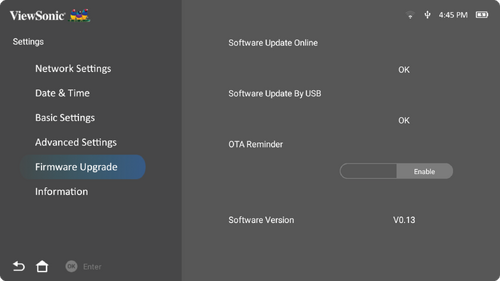
-
Select Enter by pressing OK on the remote control.
-
The system will check the ViewSonic website (OTA) and display the below dialog message if there is new Firmware.
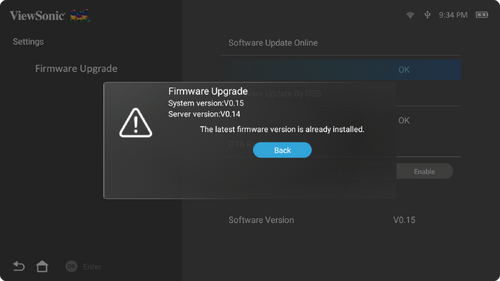
-
After selecting Yes, a progress bar will appear as the update process begins.

-
After reaching 100% the projector will restart.
Note: The whole process will take about 10 minutes. -
After updating the Firmware, it will take a few minutes to restart the projector.


Firmware Update by USB with FAT32 Format
- Download the latest version from the ViewSonic website and copy the file to a USB device.
- Plug the USB into the projector, then go to: Home > Setting > Firmware Upgrade > Software Update By USB.
- Select Enter by pressing OK on the remote control.
- The system will detect the Firmware version and display a dialog message.
- After selecting Yes, a progress bar will appear as the update process begins.
- After reaching 100% the projector will restart. The whole process will take about 10 minutes.
- After updating the Firmware, it will take a few minutes to restart the projector.
Information
-
Select: Home > Setting > Information.
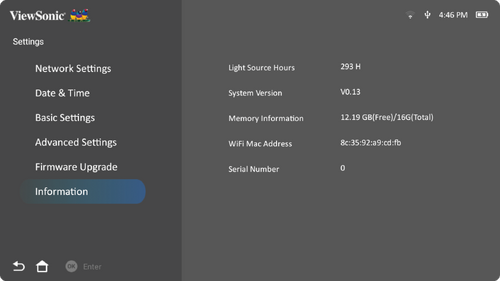
- View system status and information.

Note: Press the Home button on the remote control to return to the Home Screen at anytime.
Screen Mirroring
Mirror your personal device’s screen. To setup wireless Screen Mirroring, see Wireless Screen Mirroring.
Note: Ensure your device is connected to the same network as the projector.

Bluetooth
The projector is equipped with that allows the user to connect their device wirelessly for audio playback. For more information, see Bluetooth.

Add App
Adding Apps
Add your favorite Apps to the Home Screen.
-
From the Home Screen, select Add App and then press OK on the remote control.
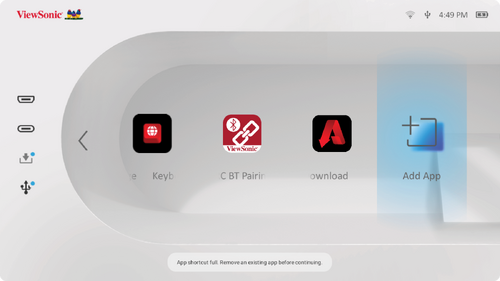
-
Use the directional buttons ▶ / ◀ / ▲ / ▼ to select the desired App and press OK.
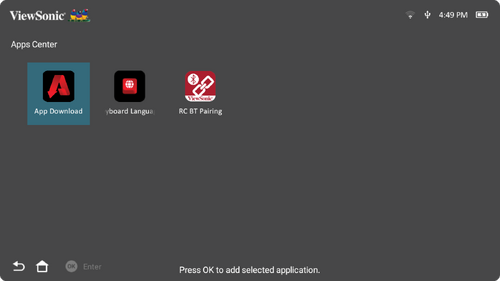
-
Now your favorite App will appear on the Home Screen.


Delete Apps from the Home Screen
- From the Home Screen, select the App you want to delete and press and hold OK for three seconds.
-
The message, “Do you want to Delete this application from My Favorites?” will appear.
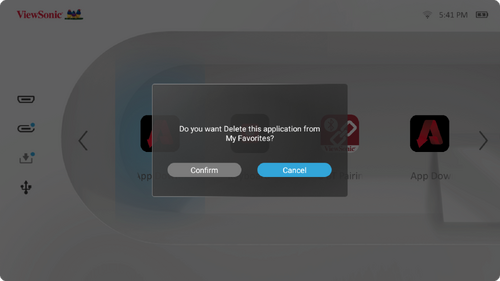
- Select Yes, and press OK to delete the App.

Technical Specifications

| Model No. | P/N |
|---|---|
| VS19530 | M1 |
| Item | Category | Specifications |
|---|---|---|
| Projector | Type | 0.2” WVGA, LED |
| Display Size | 24”~100” | |
| Throw Distance | 0.64-2.66 m (38” @ 1m) | |
| Lens | F=1.7, f=5.5 mm | |
| Optical Zoom | Fixed | |
| Digital Zoom | 0.8x ~ 1.0x | |
| Lamp Type | RGB LED | |
| Light Source Life
(Normal) |
up to 60,000 hours | |
| Display Color | 1.07 Billion Colors | |
| Keystone | -/+ 40 (Vertical) | |
| Battery Capacity | 11,790 mAh
(3,930 mAh 3.7V x 3) | |
| Input Signal | HDMI | fh: 15K~102KHz, fv:23~120Hz |
| Resolution | Native | 854 x 480 |
| Support | VGA (640 x 480) to Full HD (1920 x 1080) | |
| Input | HDMI | 1 (HDMI 1.4, HDCP 1.4) |
| Audio In | Bluetooth 4.2 | |
| USB Type-C | 1 (Video out - 5V/1.5A) | |
| USB Type-A | 1 (USB 2.0 Reader) | |
| Wi-Fi | 1 x (5G) | |
| Output | Speaker | 2 x 3W Cube |
| USB Type-A (Power) | 1 x (USB 2.0, 5V/1A; share with USB reader) | |
| Audio Out (Bluetooth) | Bluetooth 4.2 | |
| Audio Out (3.5mm) | 1 | |
| Power Adapter[1] | Input Voltage | AC 100-240V, 50/60 Hz (auto switch) |
| Output Voltage | DC 19V/3.26A | |
| Local Storage | Total: 16GB | (Available: 12GB) |
| Operating Conditions | Temperature | 0°C to 35°C
(32°F to 95°F) |
| Relative Humidity | 0% to 90% (non-condensing) | |
| Dimensions | Physical
(W x H x D) |
166 x 138 x 54 mm
(6.54” x 5.43” x 2.13”) |
| Weight | Physical | 0.8 kg
(1.76 lbs) |
| Power Consumption | On | 45W (Typical) |
| Off | < 0.5W (Standby) |
- ↑ Please use the power adapter from ViewSonic® or an authorized source only.
Timing Charts
HDMI/USB C Video Timing
| Timing | Resolution | Horizontal Frequency (KHz) | Vertical Frequency (Hz) | Dot Clock Frequency (MHz) |
|---|---|---|---|---|
| 480i | 720(1440) x 480 | 15.73 | 59.94 | 27 |
| 480p | 720 x 480 | 31.47 | 59.94 | 27 |
| 576i | 720(1440) x 576 | 15.63 | 50 | 27 |
| 576p | 720 x 576 | 31.25 | 50 | 27 |
| 720/50p | 1280 x 720 | 37.5 | 50 | 74.25 |
| 720/60p | 1280 x 720 | 45 | 60 | 74.25 |
| 1080/50i | 1920 x 1080 | 28.13 | 50 | 74.25 |
| 1080/60i | 1920 x 1080 | 33.75 | 60 | 74.25 |
| 1080/24p | 1920 x 1080 | 27 | 24 | 74.25 |
| 1080/25p | 1920 x 1080 | 28.13 | 25 | 74.25 |
| 1080/30p | 1920 x 1080 | 33.75 | 30 | 74.25 |
| 1080/50p | 1920 x 1080 | 56.25 | 50 | 148.5 |
| 1080/60p | 1920 x 1080 | 67.5 | 60 | 148.5 |
HDMI/USB C Support PC Timing
| Resolution | Refresh Rate (Hz) | Horizontal Frequency (kHz) | Dot Clock Frequency (MHz) |
|---|---|---|---|
| 640 x 480 | 59.94 | 31.469 | 25.175 |
| 72.809 | 37.861 | 31.5 | |
| 75 | 37.5 | 31.5 | |
| 720 x 400 | 70.087 | 31.469 | 28.3221 |
| 800 x 600 | 56.250 | 35.156 | 36 |
| 60.317 | 37.879 | 40 | |
| 72.188 | 48.077 | 50 | |
| 75 | 46.875 | 49.5 | |
| 1024 x 768 | 60.004 | 48.363 | 65 |
| 70.069 | 56.476 | 75 | |
| 75.029 | 60.023 | 78.75 | |
| 1152 x 864 | 75 | 67.5 | 108 |
| 1280 x 720 | 50 | 37.5 | 74.25 |
| 60 | 45.00 | 74.25 | |
| 1280 x 768 | 59.87 | 47.776 | 79.5 |
| 74.893 | 60.289 | 102.25 | |
| 1280 x 800 | 59.81 | 49.702 | 83.5 |
| 74.934 | 62.795 | 106.5 | |
| 1280 x 960 | 60 | 60 | 108 |
| 1280 x 1024 | 60.02 | 63.981 | 108 |
| 75.025 | 79.976 | 135 | |
| 1360 x 768 | 60.015 | 47.712 | 85.5 |
| 1400 x 1050 | 59.978 | 65.317 | 121.75 |
| 1440 x 900 | 59.887 | 55.935 | 106.5 |
| 60 | 55.469 | 88.75 | |
| 74.984 | 70.635 | 136.75 | |
| 1600 x 1200 | 60 | 75 | 162 |
| 1680 x 1050 | 59.883 | 64.674 | 119 |
| 59.954 | 65.29 | 146.25 | |
| 1920 x 1080 | 60 | 67.5 | 148.5 |
3D Support Timing
| HDMI 3D (BlueRay 3D with info frame) | ||||
|---|---|---|---|---|
| Signal | Resolution (dots) | Aspect Ratio | Refresh Rate (Hz) | Support |
| Frame Packing | ||||
| 1080p | 1920 x 1080 | 16:9 | 23.98/24 | Yes |
| 720p | 1280 x 720 | 16:9 | 50/59.94/60 | Yes |
| Side by Side | ||||
| 1080i | 1920 x 1080 | 16:9 | 50/59.94/60 | Yes |
| Top and Bottom | ||||
| 1080p | 1920 x 1080 | 16:9 | 23.98/24 | Yes |
| 720p | 1280 x 720 | 16:9 | 50/59.94/60 | Yes |
| 3D (HDMI) Manual Setting | ||||
|---|---|---|---|---|
| Signal | Resolution (dots) | Aspect Ratio | Refresh Rate (Hz) | Support |
| SVGA | 800 x 600 | 4:3 | 60[1] | Yes |
| XGA | 1024 x 768 | 4:3 | 60[1] | Yes |
| HD | 1280 x 720 | 16:9 | 60[1] | Yes |
| WXGA | 1280 x 800 | 16:9 | 60[1] | Yes |
| HDTV(1080p) | 1920 x 1080 | 16:9 | 60 | Yes |
LED Indicators
| Light | Description |
|---|---|
| Green | Power On |
| Red | Stand-by Mode |
| Flashing White | Projector Charging |
| Solid White | Battery is Fully Charged |
Compliance Information
This section addresses all connected requirements and statements regarding regulations. Confirmed corresponding applications shall refer to nameplate labels and relevant markings on the unit.
FCC Compliant Statement
This device complies with part 15 of FCC Rules. Operation is subject to the following two conditions: (1) this device may not cause harmful interference, and (2) this device must accept any interference received, including interference that may cause undesired operation. This equipment has been tested and found to comply with the limits for a Class B digital device, pursuant to part 15 of the FCC Rules.
These limits are designed to provide reasonable protection against harmful interference in a residential installation. This equipment generates, uses, and can radiate radio frequency energy, and if not installed and used in accordance with the instructions, may cause harmful interference to radio communications. However, there is no guarantee that interference will not occur in a particular installation. If this equipment does cause harmful interference to radio or television reception, which can be determined by turning the equipment off and on, the user is encouraged to try to correct the interference by one or more of the following measures:
- Reorient or relocate the receiving antenna.
- Increase the separation between the equipment and receiver.
- Connect the equipment into an outlet on a circuit different from that to which the receiver is connected.
- Consult the dealer or an experienced radio/TV technician for help.
The antenna(s) used for this transmitter must not be collocated or operating in conjunction with any other antenna or transmitter.
The device was tested and complies to measurement standards and procedures specified in FCC CFR Tile 47 Part 15 Subpart C.
Warning: You are cautioned that changes or modifications not expressly approved by the party responsible for compliance could void your authority to operate the equipment.
FCC Radiation Exposure Statement
This equipment complies with FCC radiation exposure limits set forth for an uncontrolled environment. End users must follow the specific operating instructions for satisfying RF exposure compliance.
This transmitter must not be co-located or operating in conjunction with any other antenna or transmitter. This equipment should be installed and operated with a minimum distance of 20 centimeters between the radiator and your body.
The users manual or instruction manual for an intentional or unintentional radiator shall caution the user that changes or modifications not expressly approved by the party responsible for compliance could void the user’s authority to operate the equipment.
Industry Canada Statement
This Class B digital apparatus complies with Canadian ICES-003.
Cet appareil numérique de la classe B est conforme à la norme NMB-003 du Canada.
CAN ICES-003(B) / NMB-003(B)
IC Warning Statement
This device complies with Industry Canada license- exempt RSS standard(s). Operation is subject to the following two conditions: (1) this device may not cause interference, and (2) this device must accept any interference, including interference that may cause undesired operation of the device.
Le présent appareil est conforme aux CNR d’Industrie Canada applicables aux appareils radio exempts de licence. L’exploitation est autorisée aux deux conditions suivantes : ( 1 ) l’appareil ne doit pas produire de brouillage, et ( 2) l’utilisateur de l’appareil doit accepter tout brouillage radioélectrique subi, méme si le brouillage est susceptible d’en compromettre le fonctionnement.
Country Code Statement
For product available in the USA/Canada market, only channel 1~11 can be operated. Selection of other channels is not possible.
Pour les produits disponibles aux États-Unis/Canada du marché, seul le canal 1 à 11 peuvent être exploités. Sélection d’autres canaux n’est pas possible.
IC Radiation Exposure Statement
This equipment complied with IC RSS-102 radiation exposure limits set forth for an uncontrolled environment. This equipment should be installed and operated with minimum distance 20cm between the radiator & your body. The device for the band 5150-5825 MHz is only for indoor usage to reduce potential for harmful interference to co-channel mobile satellite systems.
Cet équipement est conforme aux limites d’exposition aux rayonnements IC établies pour un environnement non contrôlê. Cet équipement doit être installé et utilize avec un minimum de 20cm de distance entre la source de rayonnement et votre corps. les dispositifs fonctionnant dans la bande 5150-5825 MHz sont réservés uniquement pour une utilisation à l’intérieur afin de réduire les risques de brouillage préjudiciable aux systèmes de satellites mobiles utilisant les mêmes canaux.
Operation in the band 5150-5250 MHz is only for indoor use to reduce the potential for harmful interference to co-channel mobile satellite systems.
La bande 5150-5250 MHz est réservés uniquement pour une utilisation à l’intérieur afin de réduire les risques de brouillage pré judiciable aux systèmes de satellites mobiles utilisant les mêmes canaux.
CE Conformity for European Countries

The device complies with the EMC Directive 2014/30/EU and Low Voltage Directive 2014/35/EU. Ecodesign Directive 2009/125/EC and Radio Equipment Directive 2014/53/EU
Frequency Range: 2400-2483.5MHz, 5150-5250MHz
Max Output Power: under 20dBm
The following information is only for EU-member states:

The mark shown to the right is in compliance with the Waste Electrical and Electronic Equipment Directive 2012/19/EU (WEEE). The mark indicates the requirement NOT to dispose of the equipment as unsorted municipal waste, but use the return and collection systems according to local law.

If the batteries, accumulators and button cells included with this equipment, display the chemical symbol Hg, Cd, or Pb, then it means that the battery has a heavy metal content of more than 0.0005% Mercury or more than, 0.002% Cadmium, or more than 0.004% Lead.
Declaration of RoHS2 Compliance
This product has been designed and manufactured in compliance with Directive 2011/65/EU of the European Parliament and the Council on restriction of the use of certain hazardous substances in electrical and electronic equipment (RoHS2 Directive) and is deemed to comply with the maximum concentration values issued by the European Technical Adaptation Committee (TAC) as shown below.
| Substance | Proposed Maximum Concentration | Actual Concentration |
|---|---|---|
| Lead (Pb) | 0.1% | < 0.1% |
| Mercury (Hg) | 0.1% | < 0.1% |
| Cadmium (Cd) | 0.01% | < 0.01% |
| Hexavalent Chromium (Cr6⁺) | 0.1% | < 0.1% |
| Polybrominated biphenyls (PBB) | 0.1% | < 0.1% |
| Polybrominated diphenyl ethers (PBDE) | 0.1% | < 0.1% |
| Bis (2-ethylhexyl) phthalate (DEHP) | 0.1% | < 0.1% |
| Butyl benzyl phthalate (BBP) | 0.1% | < 0.1% |
| Dibutyl phthalate (DBP) | 0.1% | < 0.1% |
| Diisobutyl phthalate (DIBP) | 0.1% | < 0.1% |
Certain components of products as stated above are exempted under the Annex III of the RoHS2 Directives as noted below. Examples of exempted components are:
- Copper alloy containing up to 4% lead by weight.
- Lead in high melting temperature type solders (i.e. lead-based alloys containing 85% by weight or more lead).
- Electrical and electronic components containing lead in a glass or ceramic other than dielectric ceramic in capacitors, e.g. piezoelectronic devices, or in a glass or ceramic matrix compound.
- Lead in dielectric ceramic in capacitors for a rated voltage of 125 V AC or 250 V DC or higher.
Battery Warning
Battery:
- High or low extreme temperatures that a battery can be subjected to during use, storage or transportation; and low air pressure at high altitude;
- Replacement of a battery with an incorrect type that can defeat a safeguard (for example, in the case of some lithium battery types);
- Disposal of a battery into fire or a hot oven, or mechanically crushing or cutting of a battery, that can result in an explosion;
- Leaving a battery in an extremely high temperature surrounding environment that can result in an explosion or the leakage of flammable liquid or gas;
- A battery subjected to extremely low air pressure that may result in an explosion or the leakage of flammable liquid or gas
Warning
- The battery used in this device may present a risk of fire or chemical burn if removed or disassembled.
- Follow the warning labels for your personal safety.
- There is a risk of explosion if the battery is replaced by an incorrect type.
- Do not dispose of in a fire.
- Never attempt to short-circuit your LED projector’s battery.
- Discontinue usage if leakage is found.
- The battery and it’s components must be recycled or disposed of properly. ͫKeep the battery and other small components away from children.
Indian Restriction of Hazardous Substances
Restriction on Hazardous Substances statement (India). This product complies with the “India E-waste Rule 2011” and prohibits use of lead, mercury, hexavalent chromium, polybrominated biphenyls or polybrominated diphenyl ethers in concentrations exceeding 0.1 weight % and 0.01 weight % for cadmium, except for the exemptions set in Schedule 2 of the Rule.
Indian Restriction of Hazardous Substances
Restriction on Hazardous Substances statement (India). This product complies with the “India E-waste Rule 2011” and prohibits use of lead, mercury, hexavalent chromium, polybrominated biphenyls or polybrominated diphenyl ethers in concentrations exceeding 0.1 weight % and 0.01 weight % for cadmium, except for the exemptions set in Schedule 2 of the Rule.
Product Disposal at End of Product Life
ViewSonic® respects the environment and is committed to working and living green. Thank you for being part of Smarter, Greener Computing. Please visit the ViewSonic® website to learn more.
USA & Canada:
https://www.viewsonic.com/us/go-green-with-viewsonic
Europe:
https://www.viewsonic.com/eu/environmental-social-governance/recycle
Taiwan:
https://recycle.moenv.gov.tw/
For EU users, please contact us for any safety/accident issue experienced with this product:
 |
ViewSonic Europe Limited Haaksbergweg 75 1101 BR Amsterdam Netherlands |
 |
+31 (0) 650608655 |
 |
EPREL@viewsoniceurope.com |
 |
https://www.viewsonic.com/eu/ |
Copyright Information
Copyright© ViewSonic® Corporation, 2024. All rights reserved.
Macintosh and Power Macintosh are registered trademarks of Apple Inc.
Microsoft, Windows, and the Windows logo are registered trademarks of Microsoft Corporation in the United States and other countries.
ViewSonic® and the three birds logo are registered trademarks of ViewSonic® Corporation.
VESA is a registered trademark of the Video Electronics Standards Association. DPMS, DisplayPort, and DDC are trademarks of VESA.
ENERGY STAR® is a registered trademark of the U.S. Environmental Protection Agency (EPA).
As an ENERGY STAR® partner, ViewSonic® Corporation has determined that this product meets the ENERGY STAR® guidelines for energy efficiency.
Disclaimer: ViewSonic® Corporation shall not be liable for technical or editorial errors or omissions contained herein; nor for incidental or consequential damages resulting from furnishing this material, or the performance or use of this product.
In the interest of continuing product improvement, ViewSonic® Corporation reserves the right to change product specifications without notice. Information in this document may change without notice.
No part of this document may be copied, reproduced, or transmitted by any means, for any purpose without prior written permission from ViewSonic® Corporation.
M1X_UG_ENG_1a_20240531