
CDE6530 Embedded Applications
From ViewSonic Documentation
vCastReceiver & vCastSender
The vCastReceiver app, will allow the ViewBoard® to receive vCastSender laptop screens (Windows/Mac/Chrome) and mobile (iOS/Android) users’ screens, photos, videos, annotations, and camera(s).

Network Information
- vCast software, laptops, and mobile devices can connect to both the same subnet and across the subnet network.
- Connected devices will show up under “Device List” on the same subnet connection.
- If the device does not show up under “Device List”, users will need to key-in the on-screen PIN-code.
ViewBoard Cast is a wireless peer to peer data communication, therefore the below port settings are required:
Ports:
- CP: 56789, 25123, 8121, and 8000
- UDP: 48689 and 25123
Port and DNS activation:
- Port: 8001
- DNS: h1.ee-share.com
OTA Service:
- Server Port: TCP443
- Server FQDN Name: https://vcastupdate.viewsonic.com
Cast Sender from Windows-based, Macbook, and Chrome Devices

Windows, Mac, Chrome Devices:
- Make sure your device is connected to the same network as the display.
- Visit the address that is shown on the display to download the application.
- Launch the application and enter the PIN Code or click Device List, then click the connect icon next to the Device Name.
 |
 |
|---|
Cast Sender from Mobile Devices: iOS-based (iPhone, iPad) and Android OS based phone/tablet

Android/iOS:
- Make sure your device is connected to the same network as the display.
- Scan the QR Code that is shown on the display to download directly from the server, or download from the Google Play Store or the Apple Store.
- Launch the application and select the correct Device Name and input the pin to connect. You can also directly input the pin-code displayed on the display to connect.
Apple Airplay®:
- Make sure your device is connected to the same network as the display.
- Directly open AirPlay and select the Device Name to connect.
- Another “AirPlay Password” will be generated on-screen for connection.

Other Default Applications
Folders
-
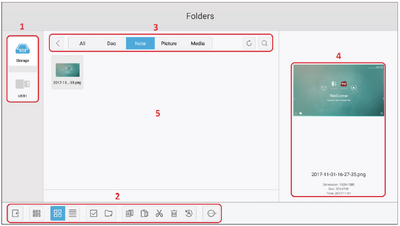 Folders Overview
 -
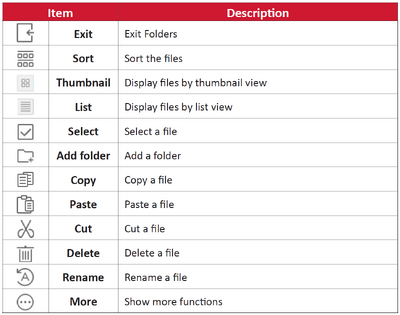 Folder Icons


| Number | Item |
|---|---|
| 1 | Storage Device Display |
| 2 | Icons |
| 3 | File Type Menu |
| 4 | File Information |
| 5 | Main Display Area |
File Type Menu
| Item | Description |
|---|---|
| All | All types |
| Doc | OFFICE files |
| Note | Image stored by myViewBoard, Side Tool Bar, and remote control Screen Capture button. |
| Picture | Image files |
| Media | Audio and Video files |
vSweeper
Clear unnecessary data and unwanted files.

Advanced Settings can also be customized to the user's needs.
