
LDM136-151 Introduction: Difference between revisions
From ViewSonic Documentation
Created page with "<noinclude> <div class="noprint"> <div style="top:1px;width:auto;" class="nomobile"> <div class="grid-container"> <div class="item1" style="text-align:center; font-size:16; background-color:#DB0025; font-weight:bold; color:#ffffff;">{{PAGENAME}}</div> <div class="grid-item">Introduction </div> <div class="grid-item">Remote Control </div> <div class="grid-item">LDM136-151_Wall_Installation|Wall Installati..." |
// via Wikitext Extension for VSCode |
||
| Line 23: | Line 23: | ||
</div> | </div> | ||
{{Top}} </noinclude> | {{Top}} </noinclude> | ||
=Package Contents= | |||
{{Note| | |||
:*This product is packed in a wooden crate. | |||
:*Due to the size and weight, it is recommended that two or more people handle it. | |||
:*You can identify the contents inside the case by the product labels on it. | |||
}} | |||
<gallery caption="Standard Installation (the System Control Box installed Under the Cabinets)"> | |||
LDM163-182 IG.png | <div style="font-style:normal; text-align:center;">Installation Guide</div> | |||
LDM163-182 Cabinets.svg | <div style="font-style:normal; text-align:center;"> 6 x Cabinet Sections<ref>One Left (F), four Middle (E, D, C, B), and one Right (A)</ref></div> | |||
LDS135-151_LED_Module.svg | <div style="font-style:normal; text-align:center;">148 x LED Modules<ref>The quantity of spare LED modules varies by country.</ref></div> | |||
LDM231-251 Screen Bezels Sides.svg | <div style="font-style:normal; text-align:center;">Screen Bezels,<br>5 x Left, 5 x Right<br>& 2 x Bottom</div> | |||
LDM231-251 SCB.svg | <div style="font-style:normal; text-align:center;">System Control Box</div> | |||
LDM231-251 Connector Plate.svg | <div style="font-style:normal; text-align:center;">1 x System Control Box Connector Plate</div> | |||
LD-MK-004.svg | <div style="font-style:normal; text-align:center;">Maintenance Tool<br>(P/N: LD-MK-004)</div> | |||
LD-MK-003.svg| <div style="font-style:normal; text-align:center;"> Vacuum Suction Tool<br>(P/N: LD-ML-003)</div> | |||
LDM163-182 Wall Mount Brackets STD.svg | <div style="font-style:normal; text-align:center;">Wall Mount Brackets,<br> 4 x 1799 mm</div> | |||
LDM231-251 Wall Mount Connector Plate.svg | <div style="font-style:normal; text-align:center;">2 x Wall Mount Connector Plates</div> | |||
LDM231-251 Nuts and Bolts.svg | <div style="font-style:normal; text-align:center;">Nuts and Bolts</div> | |||
LDM231-251 Hand Tools.svg | <div style="font-style:normal; text-align:center;">Hand Tools</div> | |||
LDS135-151_Gloves.svg| <div style="font-style:normal; text-align:center;">2 x Anti-Static Gloves</div> | |||
LDM 231-251 Remote Control.svg | <div style="font-style:normal; text-align:center;">1 x Romote Control<br>With two AAA batteries</div> | |||
LDP216-121_IR_Cable.svg| <div style="font-style:normal; text-align:center;">1 x IR Extension Cable</div> | |||
M2_Dongle.png| <div style="font-style:normal; text-align:center;"> 1 x USB Thumb Drive</div> | |||
</gallery> | |||
<gallery caption="Hidden Installation (the System Control Box installed Behind the Cabinets)"> | |||
LDM231-251 Screen Bezels Bottom.svg | <div style="font-style:normal; text-align:center;">Screen Bezels,<br> 4 x Bottom</div> | |||
LDM163-182 Wall Mount Brackets Hidden.svg | <div style="font-style:normal; text-align:center;">Wall Mount Brackets,<br>4 x 1335 mm</div> | |||
LDM231-251 Upper SCB Mount Brackets.svg | <div style="font-style:normal; text-align:center;">2 x Upper System Control Box Mount Brackets</div> | |||
LDM231-251 Lower SCB Mount Brackets.svg | <div style="font-style:normal; text-align:center;">2 x Lower System Control Box Mount Brackets</div> | |||
LDM231-251 Cable Zip Ties.svg | <div style="font-style:normal; text-align:center;">36 x Cable Zip Ties</div> | |||
LDM163-182 Extensions.svg | <div style="font-style:normal; text-align:center;">6 x Cabinet Cable Extensions</div> | |||
LDP216-121_LAN_Cable.svg| <div style="font-style:normal; text-align:center;">6 x Network Cables (3.5 m)</div> | |||
</gallery> | |||
===Notes=== | |||
<references/> | |||
=Product Overview= | |||
==Front Panel== | |||
<div class="res-img">[[File:LDM163-182 Front View.png |550px|alt=Front Panel View]]</div> | |||
==Rear Panel== | |||
<div class="res-img">[[File:LDM163-182 Rear View.png |550px|alt=Rear Panel View]]</div> | |||
=Control Panel and I/O= | |||
==Control Panel== | |||
<div class="res-img">[[File:LDM163-182 Control Panel and IO.png |550px|alt=LDM163-182's Control Panel and I/O]]</div> | |||
{| class="wikitable" style="text-align:center; background-color:#ffffff;" width="60%" | |||
|- | |||
! style="font-weight:bold; background-color:#DB0025; color:#ffffff; width:10%;"| Number | |||
! style="font-weight:bold; background-color:#DB0025; color:#ffffff; width:20%;"| Port | |||
! style="font-weight:bold; background-color:#DB0025; color:#ffffff;"| Description | |||
|- | |||
| style="font-weight:bold;" | 1 | |||
| '''Light Sensor''' | |||
| style="text-align:left;" | Ambient light sensor. | |||
|- | |||
| style="font-weight:bold;" | 2 | |||
| '''IR Receiver''' | |||
| style="text-align:left;" | Receiver for remote control signal. | |||
|- | |||
| style="font-weight:bold;" | 3 | |||
| '''USB Type C''' | |||
| style="text-align:left;" | USB 2.0 support (5V/1.0A). | |||
|- | |||
| style="font-weight:bold;" | 4 | |||
| '''USB 3.0''' | |||
| style="text-align:left;" | USB Reader (5V/0.9A). | |||
|- | |||
| style="font-weight:bold;" | 5 | |||
| '''USB 2.0''' | |||
| style="text-align:left;" | USB Reader (5V/0.5A). | |||
|- | |||
| style="font-weight:bold;" | 6 | |||
| '''Menu''' | |||
| style="text-align:left;" | Open the display settings or On-Screen Display (OSD) Menu. | |||
|- | |||
| style="font-weight:bold;" | 7 | |||
| '''Brightness/OK''' | |||
| style="text-align:left;" | | |||
*Brightness adjustment button. | |||
*Confirm selection when the OSD Menu is open. | |||
|- | |||
| style="font-weight:bold;" | 8 | |||
| '''Brightness Decrease''' | |||
| style="text-align:left;" | Decrease the brightness level. | |||
|- | |||
| style="font-weight:bold;" | 9 | |||
| '''Brightness Increase''' | |||
| style="text-align:left;" | Increase the brightness level. | |||
|- | |||
| style="font-weight:bold;" | 10 | |||
| '''Power''' | |||
| style="text-align:left;" | Power on, standby and wake button. | |||
|- | |||
| style="font-weight:bold;" | 11 | |||
| '''Indicator Light''' | |||
| style="text-align:left;" | Power status indicator light. | |||
|- | |||
| style="font-weight:bold;" | 12 | |||
| '''HDMI 4''' | |||
| style="text-align:left;" | 4 High definition input: PIP/PBP, connect to PC with HDMI output, set-top box, or other video device. | |||
|- | |||
| style="font-weight:bold;" | 13 | |||
| '''Audio Out''' | |||
| style="text-align:left;" | Audio output to an external audio device. | |||
|} | |||
==I/O Ports== | |||
<div class="res-img">[[File:LDM231-251 IO Ports.png |550px|alt=LDM231-251's I/O ports]]</div> | |||
{| class="wikitable" style="text-align:center; background-color:#ffffff;" width="60%" | |||
|- | |||
! colspan="2" style="font-weight:bold; background-color:#DB0025; color:#ffffff;" | Item | |||
! style="font-weight:bold; background-color:#DB0025; color:#ffffff;"| Description | |||
|- | |||
| style="font-weight:bold;" | 1 | |||
| '''S/PDIF Out''' | |||
| style="text-align:left;" | Multi-channel optical audio signal. | |||
|- | |||
| style="font-weight:bold;" | 2 | |||
| '''Audio OUT''' | |||
| style="text-align:left;" | Audio output to an external speaker. | |||
|- | |||
| style="font-weight:bold;" | 3 | |||
| '''LAN''' | |||
| style="text-align:left;" | Standard RJ45 (10M/100M/1000M) Internet connection interface. | |||
|- | |||
| style="font-weight:bold;" | 4 | |||
| '''RJ45''' | |||
| style="text-align:left;" | Standard RJ45 control connection interface. | |||
|- | |||
| style="font-weight:bold;" | 5 | |||
| '''HDMI 1/2/3''' | |||
| style="text-align:left;" | High definition input: PIP/PBP ,connect to PC with HDMI output, set-top box, or other video device. | |||
|- | |||
| style="font-weight:bold;" | 6 | |||
| '''HDMI Out''' | |||
| style="text-align:left;" | Extend the display's content out to another display device. | |||
|- | |||
| style="font-weight:bold;" | 7 | |||
| '''USB 2.0''' | |||
| style="text-align:left;" | USB Type A port for power (5V/2A). | |||
|- | |||
| style="font-weight:bold;" | 8 | |||
| '''HDMI 4'''<ref name="Reference01">This port can also be accessed without removing the System Control Box Cover.</ref> | |||
| style="text-align:left;" | High definition input: PIP/PBP ,connect to PC with HDMI output, set-top box, or other video device. | |||
|- | |||
| style="font-weight:bold;" | 9 | |||
| '''Audio Out'''<ref name="Reference01"></ref> | |||
| style="text-align:left;" | Audio output to an external audio device. | |||
|- | |||
| style="font-weight:bold;" | 10 | |||
| '''IR Extension''' | |||
| style="text-align:left;" | Connection point for an extended IR receiver. | |||
|- | |||
| style="font-weight:bold;" | 11 | |||
| '''RS-232''' | |||
| style="text-align:left;" | Serial control port. | |||
|- | |||
| style="font-weight:bold;" | 12 | |||
| '''Control Board Switch'''<ref>Make sure to switch to the left for RS-232 control.</ref> | |||
| style="text-align:left;" | Control switch for the control board. | |||
|- | |||
|} | |||
===Notes=== | |||
<references/> | |||
{{#seo: | |||
|title=ViewSonic Direct View LED Display | |||
|title_mode=append | |||
|keywords=LDM136-151, Direct View LED, Introduction, Package Contents, Product Overview, I/O, Control Panel | |||
|description=An introduction to the LDM136-151 Direct View LED display. | |||
}} | |||
[[Category:LDM136-151]] | |||
Revision as of 07:41, 28 August 2024
Package Contents
Note:
- This product is packed in a wooden crate.
- Due to the size and weight, it is recommended that two or more people handle it.
- You can identify the contents inside the case by the product labels on it.
- Standard Installation (the System Control Box installed Under the Cabinets)
-
 Installation Guide
 -
![6 x Cabinet Sections[1]](/images/4/4f/LDM163-182_Cabinets.svg) 6 x Cabinet Sections[1]
6 x Cabinet Sections[1] -
![148 x LED Modules[2]](/images/9/9d/LDS135-151_LED_Module.svg) 148 x LED Modules[2]
148 x LED Modules[2] -
 Screen Bezels,
5 x Left, 5 x Right
& 2 x Bottom -
 System Control Box
 -
 1 x System Control Box Connector Plate
 -
 Maintenance Tool
(P/N: LD-MK-004) -
 Vacuum Suction Tool
(P/N: LD-ML-003) -
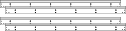 Wall Mount Brackets,
4 x 1799 mm -
 2 x Wall Mount Connector Plates
 -
 Nuts and Bolts
 -
 Hand Tools
 -
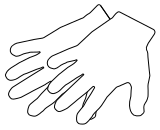 2 x Anti-Static Gloves
 -
 1 x Romote Control
With two AAA batteries -
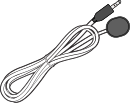 1 x IR Extension Cable
 -
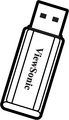 1 x USB Thumb Drive

![6 x Cabinet Sections[1]](/File:LDM163-182_Cabinets.svg)
![148 x LED Modules[2]](/File:LDS135-151_LED_Module.svg)


- Hidden Installation (the System Control Box installed Behind the Cabinets)
-
 Screen Bezels,
4 x Bottom -
 Wall Mount Brackets,
4 x 1335 mm -
 2 x Upper System Control Box Mount Brackets
 -
 2 x Lower System Control Box Mount Brackets
 -
 36 x Cable Zip Ties
 -
 6 x Cabinet Cable Extensions
 -
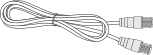 6 x Network Cables (3.5 m)


Notes
Product Overview
Front Panel

Rear Panel

Control Panel and I/O
Control Panel

| Number | Port | Description |
|---|---|---|
| 1 | Light Sensor | Ambient light sensor. |
| 2 | IR Receiver | Receiver for remote control signal. |
| 3 | USB Type C | USB 2.0 support (5V/1.0A). |
| 4 | USB 3.0 | USB Reader (5V/0.9A). |
| 5 | USB 2.0 | USB Reader (5V/0.5A). |
| 6 | Menu | Open the display settings or On-Screen Display (OSD) Menu. |
| 7 | Brightness/OK |
|
| 8 | Brightness Decrease | Decrease the brightness level. |
| 9 | Brightness Increase | Increase the brightness level. |
| 10 | Power | Power on, standby and wake button. |
| 11 | Indicator Light | Power status indicator light. |
| 12 | HDMI 4 | 4 High definition input: PIP/PBP, connect to PC with HDMI output, set-top box, or other video device. |
| 13 | Audio Out | Audio output to an external audio device. |
I/O Ports

| Item | Description | |
|---|---|---|
| 1 | S/PDIF Out | Multi-channel optical audio signal. |
| 2 | Audio OUT | Audio output to an external speaker. |
| 3 | LAN | Standard RJ45 (10M/100M/1000M) Internet connection interface. |
| 4 | RJ45 | Standard RJ45 control connection interface. |
| 5 | HDMI 1/2/3 | High definition input: PIP/PBP ,connect to PC with HDMI output, set-top box, or other video device. |
| 6 | HDMI Out | Extend the display's content out to another display device. |
| 7 | USB 2.0 | USB Type A port for power (5V/2A). |
| 8 | HDMI 4[1] | High definition input: PIP/PBP ,connect to PC with HDMI output, set-top box, or other video device. |
| 9 | Audio Out[1] | Audio output to an external audio device. |
| 10 | IR Extension | Connection point for an extended IR receiver. |
| 11 | RS-232 | Serial control port. |
| 12 | Control Board Switch[2] | Control switch for the control board. |