
PD1213 PD1213T Making Connections: Difference between revisions
From ViewSonic Documentation
No edit summary |
|||
| Line 13: | Line 13: | ||
=Installing Drivers and Software= | =Installing Drivers and Software= | ||
'''System Requirements:'''<br /> | '''System Requirements:'''<br /> | ||
Operating system: Windows XP/7/8/10 (32/64 bit) | Operating system: Windows XP/7/8/10 (32/64 bit)<br /> | ||
PC I/O: USB 2.0/above | PC I/O: USB 2.0/above | ||
Revision as of 07:31, 5 November 2021
Installing Drivers and Software
System Requirements:
Operating system: Windows XP/7/8/10 (32/64 bit)
PC I/O: USB 2.0/above
Before connecting and using the pen display, it is necessary to install the below
drivers and software. The drivers and software can be downloaded at:
http://www.viewsonicglobal.com/q/PD1213

DisplayLink Driver
Open the DisplayLink installation file and install the driver.


- NOTE: DisplayLink Driver can be installed through Windows Update.
Pen Display Driver
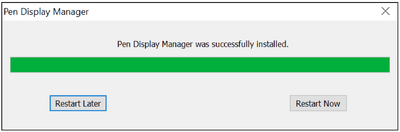
- Open the ViewSign Console installation file and install the driver.
- After the installation completes, you will need to restart the computer.
- NOTE: For further ViewSign Console information, please visit: https://manuals.viewsonic.com/ViewSign_Software

Connecting the Pen Display
- Turn the device over so the bottom side is facing up.
- Plug the Micro USB end of the USB cable into the Micro USB Port on the device.
- Connect the Main USB A cable to the computer. The Secondary USB A cable can be connected to a fully powered USB port on the computer, or to an AC outlet using the supplied power adapter.


- NOTE: When connecting the USB cable directly to the computer, the screen of the tablet may flicker if the computer power is insufficient. In this case, please connect the secondary USB A cable (shown in red) to the power adapter and plug the adapter into an AC outlet to ensure that there is enough power for the pen display.