
VB-STND-007 Introduction: Difference between revisions
From ViewSonic Documentation
Created page with "<noinclude> {{Top}} {{Sticky_Menu_VB-STND-007 |1=VB-STND-007_Introduction |2=VB-STND-007_Initial_Setup |3=VB-STND-007_Making_Connections |4=VB-STND-007_Using_the_Camera |5=VB..." |
|||
| (28 intermediate revisions by 2 users not shown) | |||
| Line 1: | Line 1: | ||
<noinclude> | <noinclude> | ||
{{Sticky_Menu_VB-STND-007 | {{Sticky_Menu_VB-STND-007 | ||
|1=VB-STND-007_Introduction | |1=VB-STND-007_Introduction | ||
|2=VB-STND-007_Initial_Setup | |2=VB-STND-007_Initial_Setup | ||
|3=VB-STND-007_Making_Connections | |3=VB-STND-007_Making_Connections | ||
|4=VB-STND- | |4=VB-STND-007_Controlling_the_Lift | ||
|5=VB-STND- | |5=VB-STND-007_Appendix | ||
|6 | |6=VB-STND-007_Regulatory_and_Service_Information | ||
}} | }} | ||
</noinclude> | </noinclude> | ||
=Package Contents= | =Package Contents= | ||
[[File:VB-STND-007_Package_Content.svg|thumb|300px]] | |||
{| class="wikitable" style="text-align:center;background-color:#ffffff;" | |||
{| class="wikitable" style="text-align:center;" | |||
|- style="font-weight:bold; background-color:#c41230; color:#ffffff;" | |- style="font-weight:bold; background-color:#c41230; color:#ffffff;" | ||
! Letter | !style="text-align: center; font-weight:bold; background-color:#c41230; color:#ffffff;" | Letter | ||
! | !style="text-align: center; font-weight:bold; background-color:#c41230; color:#ffffff;" | Quantity | ||
!style="text-align: center; font-weight:bold; background-color:#c41230; color:#ffffff;" | Description | |||
! Description | !style="text-align: center; font-weight:bold; background-color:#c41230; color:#ffffff;" | Note | ||
! style="text-align: | |||
|- | |- | ||
| style="font-weight:bold;" | A | | style="font-weight:bold;" | A | ||
| style="color:#333333;" | 2 | | style="color:#333333;" | 2 | ||
| Bolts | | Bolts | ||
| Line 37: | Line 24: | ||
|- | |- | ||
| style="font-weight:bold;" | B | | style="font-weight:bold;" | B | ||
| 6 | | 6 | ||
| Nuts | | Nuts | ||
| Line 43: | Line 29: | ||
|- | |- | ||
| style="font-weight:bold;" | C | | style="font-weight:bold;" | C | ||
| 4 | | 4 | ||
| Bolts | | Bolts | ||
| Line 49: | Line 34: | ||
|- | |- | ||
| style="font-weight:bold;" | D | | style="font-weight:bold;" | D | ||
| 4 | | 4 | ||
| Bolts | | Bolts | ||
| Line 55: | Line 39: | ||
|- | |- | ||
| style="font-weight:bold;" | E | | style="font-weight:bold;" | E | ||
| 4 | | 4 | ||
| Bolts | | Bolts | ||
| Line 61: | Line 44: | ||
|- | |- | ||
| style="font-weight:bold;" | F | | style="font-weight:bold;" | F | ||
| 4 | | 4 | ||
| Bolts | | Bolts | ||
| Line 67: | Line 49: | ||
|- | |- | ||
| style="font-weight:bold;" | G | | style="font-weight:bold;" | G | ||
| 1 | | 1 | ||
| Hex Tool | | Hex Tool | ||
| Line 73: | Line 54: | ||
|- | |- | ||
| style="font-weight:bold;" | H | | style="font-weight:bold;" | H | ||
| 1 | | 1 | ||
| Wrench | | Wrench | ||
| Line 79: | Line 59: | ||
|- | |- | ||
| style="font-weight:bold;" | I | | style="font-weight:bold;" | I | ||
| 4 | | 4 | ||
| Caster Covers | | Caster Covers | ||
| Left Covers (x2)<br />Right Covers (x2) | |||
|- | |- | ||
| style="font-weight:bold;" | J | | style="font-weight:bold;" | J | ||
| 2 | | 2 | ||
| Attachable Cord Clamps | | Attachable Cord Clamps | ||
| Line 91: | Line 69: | ||
|- | |- | ||
| style="font-weight:bold;" | K | | style="font-weight:bold;" | K | ||
| 1 | | 1 | ||
| Control Pad | | Control Pad | ||
| Line 97: | Line 74: | ||
|- | |- | ||
| style="font-weight:bold;" | L | | style="font-weight:bold;" | L | ||
| 1 | | 1 | ||
| USB Type A to <br />USB Type A cable | | USB Type A to <br />USB Type A cable | ||
| Line 103: | Line 79: | ||
|- | |- | ||
| style="font-weight:bold;" | M | | style="font-weight:bold;" | M | ||
| 2 | | 2 | ||
| Trolley Bases | | Trolley Bases | ||
| Line 109: | Line 84: | ||
|- | |- | ||
| style="font-weight:bold;" | N | | style="font-weight:bold;" | N | ||
| 2 | | 2 | ||
| Mounting Brackets | | Mounting Brackets | ||
| Line 115: | Line 89: | ||
|- | |- | ||
| style="font-weight:bold;" | O | | style="font-weight:bold;" | O | ||
| 1 | | 1 | ||
| Power Extension Cord | | Power Extension Cord | ||
| Line 121: | Line 94: | ||
|- | |- | ||
| style="font-weight:bold;" | P | | style="font-weight:bold;" | P | ||
| 1 | | 1 | ||
| Power Cord | | Power Cord | ||
| Line 127: | Line 99: | ||
|- | |- | ||
| style="font-weight:bold;" | Q | | style="font-weight:bold;" | Q | ||
| 1 | | 1 | ||
| Keyboard Tray | | Keyboard Tray | ||
| style="text-align:left;" | | | style="text-align:left;" | | ||
|} | |} | ||
{{Note|The power cord included in your package may vary depending on your country. Please contact your local reseller for more information.}} | |||
== | =Product Overview= | ||
< | ===Front and Side View=== | ||
<gallery widths=300px heights=300px mode="nolines"> | |||
VB-STND-007_Front_View.svg|Front View | |||
VB-STND-007_Side_View.svg|Side View | |||
</gallery> | |||
==I/O Ports== | ===I/O Ports and Controls=== | ||
<div class="res-img">[[File:VB- | <div class="res-img">[[File:VB-STND-007_IO_Ports.svg|200px]]</div> | ||
{| class="wikitable" style="text-align:center; width: | {| class="wikitable" style="text-align:center; width: 50%;background-color:#ffffff;" | ||
! style="background-color:#c41230; color:#ffffff;" | Number !! style="background-color:#c41230; color:#ffffff;" | | ! style="background-color:#c41230; color:#ffffff;" | Number | ||
!! style="background-color:#c41230; color:#ffffff;" | Port | |||
!! style="background-color:#c41230; color:#ffffff;" | Description | |||
|- | |- | ||
|'''1''' || | |'''1''' || USB A <ref>Only use the USB-A port to connect with IFP. Lift can be controlled via the app on the IFP.</ref> ||| USB A Port | ||
|- | |- | ||
|'''2''' || | |'''2''' || Lift Up/Down Buttons ||| Adjust Lift Height | ||
|- | |- | ||
|'''3''' || | |'''3''' || RJ45 <ref>Only use the RJ45 port to connect with the Control Pad.</ref> ||| RJ45 Port | ||
|- | |- | ||
|'''4''' || | |'''4''' || AC Out ||| Power Output Socket | ||
| | |||
| | |||
| | |||
|- | |- | ||
|'''5''' || AC In ||| Power Input Socket | |||
|} | |} | ||
<references /> | <references /> | ||
<noinclude> | |||
== | ===Control Pad=== | ||
[[File:VB-STND-007 Control Pad.PNG|300px|Control Pad]] | |||
{{#seo: | {{#seo: | ||
|title=ViewBoard Accessory | |title=ViewBoard Accessory | ||
|title_mode=append | |title_mode=append | ||
|keywords=ViewBoard | |keywords=ViewBoard, VB-STND-007, stand | ||
|description=Introduction to the ViewBoard VB- | |description=Introduction to the ViewBoard VB-STND-007 Stand. | ||
}} | }} | ||
[[Category:ViewBoard]] | |||
[[Category:VB-STND]] | |||
[[Category:VB-STND-007]] | |||
Latest revision as of 05:33, 27 September 2024
Package Contents

| Letter | Quantity | Description | Note |
|---|---|---|---|
| A | 2 | Bolts | M6 x 14mm |
| B | 6 | Nuts | M8 |
| C | 4 | Bolts | M5 x 25mm |
| D | 4 | Bolts | M6 x 25mm |
| E | 4 | Bolts | M8 x 25mm |
| F | 4 | Bolts | M4 x 8mm |
| G | 1 | Hex Tool | 4mm |
| H | 1 | Wrench | |
| I | 4 | Caster Covers | Left Covers (x2) Right Covers (x2) |
| J | 2 | Attachable Cord Clamps | |
| K | 1 | Control Pad | |
| L | 1 | USB Type A to USB Type A cable |
|
| M | 2 | Trolley Bases | |
| N | 2 | Mounting Brackets | |
| O | 1 | Power Extension Cord | |
| P | 1 | Power Cord | |
| Q | 1 | Keyboard Tray |
Note: The power cord included in your package may vary depending on your country. Please contact your local reseller for more information.
Product Overview
Front and Side View
-
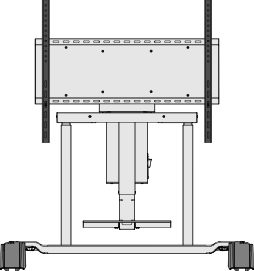 Front View
 -
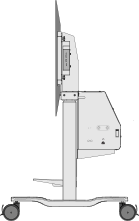 Side View


I/O Ports and Controls

| Number | Port | Description |
|---|---|---|
| 1 | USB A [1] | USB A Port |
| 2 | Lift Up/Down Buttons | Adjust Lift Height |
| 3 | RJ45 [2] | RJ45 Port |
| 4 | AC Out | Power Output Socket |
| 5 | AC In | Power Input Socket |
Control Pad
