PS502W Remote Control
From ViewSonic Documentation
Overview

| Number | Button | Description |
|---|---|---|
| 1 | AV Mute | Hide and recover the screen picture and volume mute. |
| 2 | Power | Turns the projector On or Off. |
| 3 | Auto Sync | Automatically synchronize the projector to the input source. |
| 4 | Source | Toggle to the next input source. |
| 5 | Navigation Buttons | Navigates and selects the desired menu items and make adjustments when the On-Screen Display (OSD) Menu is activated. |
| 6 | Enter | Confirm the selection when the On-Screen Display (OSD) Menu is activated. |
| 7 | Menu/Exit |
|
| 8 | Brightness | Displays the brightness selection bar. |
| 9 | Volume Up | Increase the volume level. |
| 10 | Keystone | Manually correct distorted images. |
| 11 | Volume Down | Decrease the volume level. |
| 12 | Video | Unsupported Button |
| 13 | VGA | Selects COMPUTER IN port for display. |
| 14 | HDMI | Selects the HDMI 1 or HDMI 2 input source. |
| 15 | Aspect | Displays the format selection bar. |
| 16 | Page Up | Operates your display software program (on a connected PC) which responds to page up commands (like Microsoft PowerPoint).
|
| 17 | Zoom In | Increase the projected image size. |
| 18 | Freeze | Freeze/un-freeze the projected image. |
| 19 | Zoom Out | Reduce the projected image size. |
| 20 | Page Down | Operates your display software program (on a connected PC) which responds to page down commands (like Microsoft PowerPoint).
|
| 21 | Display Mode | Displays the display mode selection bar. |
| 22 | Mouse Mode | Enable/disable the mouse function. |
| 23 | Mute | Mute/Unmute. |
Using the Remote Control Mouse Mode and Page Up/Down Function
- Connect the PC/Notebook to the projector via the COMPUTER and USB ports.
- Set the input source to PC.
- Now you can operate your display software program which responds to page up/down commands (like Microsoft PowerPoint).
Remote Control - Receiver Range
|
To ensure proper function of the remote control follow the steps below:
|
 |
Replacing the Batteries
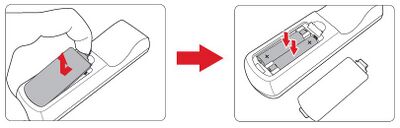
- Remove the battery cover from the bottom of the remote control by pressing the finger grip and sliding it across.
- Remove any existing batteries (if necessary) and install two AAA batteries.
- NOTE: Observe the battery’s polarities as indicated.
- Replace the battery cover by aligning it with the base and pushing it back into position.

- NOTE:
- Avoid leaving the remote control and batteries in excessive heat or a humid environment.
- Replace only with the same or equivalent type recommended by the battery manufacturer.
- If the battery is drained or if you will not be using the remote control for an extended period of time, remove the battery to avoid damage to the remote control.
- Dispose of used batteries according to the manufacturer’s instructions and local environment regulations for your region.
- NOTE: