
TD1656-2K Using the Monitor
From ViewSonic Documentation
Turning the Monitor On/Off
- Press the Power Button to turn on the monitor.
- To turn the monitor off, press the Power Button again.
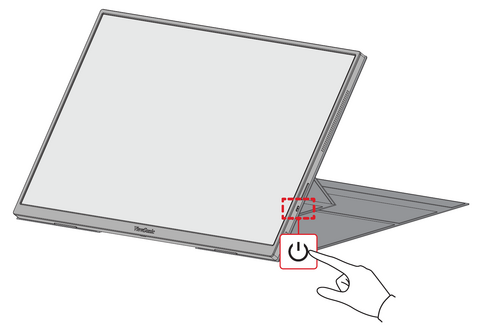 Note: The monitor will still consume some power as long as the power cord is connected to the power outlet. If the monitor is not being used for a long period of time, please disconnect the power plug from the power outlet.

Using the Control Panel Keys
Use the Control Panel Keys to access the Quick Menu and navigate the On-Screen Display (OSD) Menu.

On-Screen Display (OSD) Menu
Press the 1 key to activate the On-Screen Display (OSD) Menu. Follow the key guide that appears on the screen to select options or make adjustments.

Note: Follow the key guide that appears on the bottom of the screen to select the option, then make adjustments with the [▼] and [▲] keys.
| Icon | Name | Description |
|---|---|---|

|
Auto Image Adjust | Automatically adjust the screen position. |

|
Contrast/Brightness | Adjust the contrast or brightness level. |

|
Input Select | Select the input source. |

|
Audio Adjust | Adjust the level, or mute the volume. |

|
Color Adjust | Select one of the preset color settings. |

|
Information | Displays the timing mode coming from the graphics card in the computer, the LCD model number, the serial number, and the ViewSonic® website URL. |

|
Manual Image Adjust | Manually set a variety of image quality adjustments. |

|
Setup Menu | Adjust On-Screen Display (OSD) settings. |

|
Memory Recall | Returns the adjustments back to factory settings. |