
IFP62 Embedded Applications
From ViewSonic Documentation
Air Class
Display quiz questions on the ViewBoard and allow up to 30 mobile users to submit answers remotely. Whether deploying single or multiple choice questions, the ViewBoard will record the results for each device being used.

Network Information
- PC (Windows/Mac/Chromebook) and tablet/mobile (iOS/Android) devices, as well as the ViewBoard need to be linked to the same LAN network subnet.
- Ports: TCP 8080
To launch Air Class:
-
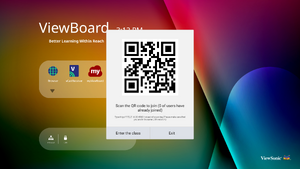 Select "Enter the class"
 -
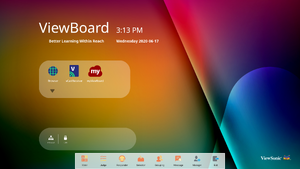 Choose a function


- Tap the tool bar trigger icon and select the more tools icon. Then select the Air Class icon.
- Select “Enter the class”.
- Choose from the available interactive functions at the bottom of the screen.
| Item | Description |
|---|---|
| Voter | Single and Multiple choice questions. |
| Judge | True/False questions. |
| Responder | Race to answer first |
| Selector | Randomly select a participant |
| Grouping | Assign participants to groups |
| Message | Allow/Deny participants to direct message the ViewBoard |
| Manager | Add participants |
| Exit | Exit Air Class |
Voter
- Select the Single choice or Multiple choice icon to select the preferred answer type.

- Tap BEGIN VOTING to let the participants start.
- After the participants are finished and press OK, the ViewBoard will show the participant‘s name on screen.
- Tap FINISH VOTING to close the quiz.
- Then the participants’ “Answer Statistics” will be displayed.
- Choose the right answer to show the correct rate.
- Click the Explain icon to further analyze the topic.


Judge
- Tap BEGIN VOTING to let the participants start a True/False questionnaire.
- After the participants are finished and press OK, the ViewBoard will show the participant‘s name on screen.
- Tap FINISH VOTING to close the quiz.
- Then the participants’ “Answer Statistics” will be displayed.
- Choose the right answer to show the correct rate.
- Click the Explain icon to further analyze the topic.


Responder
Participants race to select their answer and tap OK to submit their answer.

Selector
- Select the “Selector’ icon.
- Set the number of participants to be selected.
- NOTE: The number of participants that can be selected will be based on the total number of participants.
- Tap START to start the random selection.
- The selected participant’s name will then be displayed.
Grouping
Select the icon to assign participants to groups.
Message
-
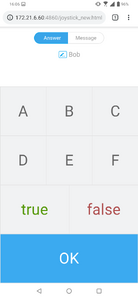 Select "Message"
 -
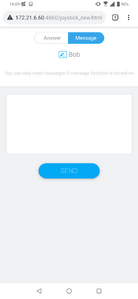 Change the interface
 -
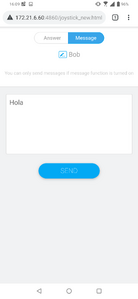 Enter your message


To allow messaging:
- Tap the “Message” icon to enable the function.
- Participants select “Message” to change to the message interface.
- Participants key in their message then select SEND.
- The message will scroll across the top of the ViewBoard.
Manager
Select the icon to let more participants join the class.
Exit
Select to exit the Air Class interface.
myViewBoard Display
Wirelessly mirror screens to a larger display.

To share a screen to a ViewBoard with myViewBoard Display:
- Open myViewBoard Display on the ViewBoard you want to share your screen to.
- On the device you want to share the screen from, go to: https://myviewboard.com/display.
- Enter the Display Code and One Time Password for the ViewBoard you wish to share to.
- NOTE: Note that the password refreshes every 30 seconds.