
VP2786a-4K: Difference between revisions
Created page with "=Introduction= ==Package Contents== <ol style="list-style-type:square;"> <li>Monitor</li> <li>Power Cord</li> <li>Video Cable</li> <li>Quick Start Guide</li> </ol> {{Note|The cables included in your package may vary depending on your country. Please contact your local reseller for more information.}} ==Product Overview== <gallery widths="400" heights="400" mode="nolines"> File:VP2786a-4K_Front_View.svg|Front View|<div style="font-style:normal; text-align:center">Front V..." |
No edit summary |
||
| Line 110: | Line 110: | ||
Additionally, fastening the monitor to a wall or fixed object using a security cable can help support the weight of the monitor in order to prevent the monitor from falling over. | Additionally, fastening the monitor to a wall or fixed object using a security cable can help support the weight of the monitor in order to prevent the monitor from falling over. | ||
=Making Connections= | |||
==Connecting to Power== | |||
<div class="res-img">[[File:VP2786a-4K_Connect_Power.png|400px|Connecting to power]]</div> | |||
<ol><li>Connect the power cord to the '''AC IN''' jack at the rear of the monitor.</li> | |||
<li>Plug the power cord plug into a power outlet.</li></ol> | |||
==Display Connection== | |||
===HDMI=== | |||
<div class="res-img">[[File:VP2786a-4K_Connect_HDMI.png|450px|Connecting through HDMI]]</div> | |||
<ol><li>Connect one end of an HDMI cable to an '''HDMI''' port of the monitor.</li> | |||
<li>Plug the other end of the cable into the HDMI port of your computer.</li></ol> | |||
===DisplayPort=== | |||
<div class="res-img">[[File:VP2786a-4K_Connect_DP.png|420px|Connecting through DisplayPort]]</div> | |||
<ol><li>Connect one end of a DisplayPort cable to the '''DP''' port of the monitor.</li> | |||
<li>Plug the other end of the cable into the DisplayPort or Mini DisplayPort port of your computer.</li></ol> | |||
{{Note|To connect the monitor to the Thunderbolt port (v. 1 & 2) on your Mac, connect the Mini DisplayPort end of a “Mini DisplayPort to DisplayPort cable” to the Thunderbolt output port of your Mac. Then connect the other end of the cable to the DisplayPort port of the monitor.}} | |||
===Type C=== | |||
<div class="res-img">[[File:VP2786a-4K_Connect_Type_C.png|450px|Connecting through USB Type C]]</div> | |||
<ol><li>Connect one end of a USB Type C cable to the '''Type C''' port of the monitor.</li> | |||
<li>Plug the other end of the cable into the USB Type C port of your computer.</li></ol> | |||
{{Note|For video output use, make sure your USB Type C output device (e.g., laptop) and cable support video signal transmission.}} | |||
==USB Connection== | |||
The monitor supports two types of USB ports, upstream and downstream. When making connection(s), observe the following guideline. | |||
<div class="res-img">[[File:VP2786a-4K_Connect_USB.png|500px|Connecting the VP27786a-4K to your PC via the upstream/downstream USB ports]]</div> | |||
{| class="wikitable" style=" text-align: center; width: 60%; background-color:#ffffff;" | |||
! style="background-color:#DB0025; color:#ffffff;" colspan="2" |USB Type | |||
! style="background-color:#DB0025; color:#ffffff;" | Connection Type | |||
! style="background-color:#DB0025; color:#ffffff;" | Description | |||
|- | |||
| style="background-color:#ffffff;" | [[File:Number1.svg|25px|link=|No. 1]] | |||
| style="background-color:#ffffff;" |'''Upstream''' | |||
| style="background-color:#ffffff;" |Type B | |||
| style="background-color:#ffffff; text-align:left;"| Transfers data between the computer and the USB devices connected to the monitor. | |||
|- | |||
| rowspan="2" style="background-color:#ffffff;" | [[File:Number2.svg|25px|link=|No. 2]] | |||
| rowspan="5" style="background-color:#ffffff;" |'''Downstream''' | |||
| rowspan="2" style="background-color:#ffffff;" |Type C | |||
| style="background-color:#ffffff; text-align:left;"|Transfers audio, video, and power. Enables the KVM function. | |||
|- | |||
| style="text-align:left; background-color:#ffffff;"| Supports 5V/3A, 9V/3A, 12V/3A, 15V/3A, 20V/3.25A (LPS) charging. | |||
|- | |||
| rowspan="2" style="background-color:#ffffff;" |[[File:Number3.svg|25px|link=|No. 3]] | |||
| rowspan="2" style="background-color:#ffffff;" |Type A | |||
| style="background-color:#ffffff; text-align:left;" |For peripheral device(s) (e.g., storage device, keyboard, mouse, etc.). | |||
|- | |||
|style="background-color:#ffffff; text-align:left;" |Supports 5V/2A charging. | |||
|- | |||
| style="background-color:#ffffff;" |[[File:Number4.svg|25px|link=|No. 4]] | |||
| style="background-color:#ffffff;" |Micro USB | |||
| style="background-color:#ffffff; text-align:left;" |For use with the ColorPro™ Wheel only. | |||
|} | |||
{{Note|To use peripheral devices with the USB Type A ports, please also connect your computer to the monitor’s USB '''Type B''' port.}} | |||
===Using the USB Ports=== | |||
<div class="res-img">[[File:VP2786a-4K_Upstream_Downstream.png|500px|Using the USB downstream ports]]</div> | |||
<ol><li>To use the downstream USB Type A ports, connect one end of the USB Type B cable to the upstream USB '''Type B''' port of the monitor. Plug the other end of the cable, USB Type A, into a USB port of your computer.</li> | |||
<li>Connect your peripheral device(s) to a downstream USB Type A port of the monitor.</li></ol> | |||
==Audio Connection== | |||
<div class="res-img">[[File:VP2786a-4K_Connect_Audio.png|450px|Connecting to audio]]</div><br /> | |||
Plug the audio jack of the audio device into the '''Audio Out''' port of the monitor. | |||
{{Note|The monitor is also equipped with dual speakers.}} | |||
=Using the Monitor= | |||
==Adjusting the Viewing Angle== | |||
===Height Adjustment=== | |||
<div class="res-img">[[File:VP2786a-4K_Adjust_Height.png|400px|Adjusting the height]]</div><br /> | |||
Lower or raise the monitor to the desired height (0 to 130 mm). | |||
{{Note|When adjusting, press down firmly along the adjustment track holding the monitor with both hands on the side.}} | |||
===Screen Orientation Adjustment (Monitor Pivot)=== | |||
<div class="table-responsive"> | |||
<table class="table table-borderless""> | |||
<tr> | |||
<td><div class="res-img">[[File:VP2786a-4K_Adjust_Pivot_1.svg|link=|Monitor Pivot]]</div></td> | |||
<td><div class="res-img">[[File:VP2786a-4K_Adjust_Pivot_2.svg|link=|Monitor Pivot]]</div></td> | |||
</tr> | |||
<tr> | |||
<td><div class="res-img">[[File:VP2786a-4K_Adjust_Pivot_3.svg|link=|Monitor Pivot]]</div></td> | |||
</tr> | |||
</table> | |||
</div> | |||
<ol><li>Adjust the monitor height to the highest position. Then tilt the monitor backwards to the full tilt position.</li> | |||
<li>Rotate the monitor 90° clockwise or counterclockwise (3) from landscape to portrait orientation.</li></ol> | |||
{{Note| | |||
:*When adjusting, make sure to hold both sides of your monitor firmly with both hands. | |||
:*If using the Auto Pivot function, the system can detect the screen orientation automatically. | |||
}} | |||
===Swivel Adjustment=== | |||
<div class="res-img">[[File:VP2786a-4K_Adjust_Swivel.png|450px|Swivel adjustment]]</div><br /> | |||
Swivel the monitor to the left or right for the desired viewing angle (60˚). | |||
===Tilt Adjustment=== | |||
<div class="res-img">[[File:VP2786a_Adjust_Tilt.png|250px|Adjusting the tilt]]</div><br /> | |||
Tilt the monitor forwards or backwards to the desired viewing angle (-5˚ to 21˚). | |||
{{Note| When adjusting, support the stand firmly with one hand while tilting the monitor forwards or backwards with the other hand.}} | |||
==Turning the Monitor On/Off== | |||
<div class="res-img">[[File:VP2786a-4K_Power_Button.png|400px|VP2786a-4K's Power Button is at the rear of the monitor, below the Joy Key]]</div> | |||
<ol><li>Plug the connected power adapter into a power outlet.</li> | |||
<li>Press the '''Power ( <i class='fas fa-power-off'></i> ) ''' button to turn on the monitor.</li> | |||
<li>To turn the monitor off, press the '''Power ( <i class='fas fa-power-off'></i> ) ''' button again.</li></ol> | |||
{{Note| | |||
:*If the OSD Menu is still on screen, press and hold the '''Power ( {{Icon_Power}} )''' button for three seconds to power off. | |||
:*The monitor will still consume some power as long as the power cord is connected to the power outlet. If the monitor is not being used for a long period of time, please disconnect the power plug from the power outlet. | |||
}} | |||
==Using the Joy Key== | |||
Use the '''Joy Key''' to activate Hot Keys, navigate the On-Screen Display (OSD) Menu, and change settings. | |||
<div class="res-img">[[File:VP2786a-4K_Joy_Key.svg|400px|VP2786a-4K's Joy Key is above the Power botton]]</div> | |||
==Startup Menu== | |||
Move the '''Joy Key''' ( [[File:Icon_Joy_Key_Left.svg|25px|link=|Move to the left]] ) to activate the Startup Menu. | |||
<div class="res-img">[[File:VP2786a-4K_Startup_Menu.png|250px|VP2786a-4K's Startup Menu]]</div> | |||
{{Note|Follow the key guide that appears on the screen to select the option or make adjustments.}} | |||
===Main Menu=== | |||
Enter the On-Screen Display (OSD) Menu. | |||
<div class="res-img">[[File:VP2786a-4K_OSD_Main_Menu.png|600px|Press the Joy Key to enter the VP2786a-4K's OSD Menu.]]</div> | |||
===Color Mode=== | |||
Select one of the preset standard color settings. | |||
<div class="res-img">[[File:VP2786a-4K_Color_Mode.png|400px|There are several preset color settings to choose from.]]</div> | |||
===ViewMode=== | |||
Select one of the preset display settings. | |||
<div class="res-img">[[File:VP2786a-4K_ViewMode.png|400px|There are several preset display settings to choose from.]]</div> | |||
===Brightness=== | |||
Adjust the brightness level. | |||
<div class="res-img">[[File:VP2786a-4K_Brightness.png|400px|Move the Joy Key up or down to adjust the Brightness level.]]</div> | |||
===Input=== | |||
Select the input source. | |||
<div class="res-img">[[File:VP2786a-4K_OSD_Input.png|400px|There are sevearl input sources to choose from.]]</div> | |||
===Volume=== | |||
Adjust the volume settings. | |||
<div class="res-img">[[File:VP2786a-4K_Volume.png|400px]]</div> | |||
{{Note|Move the '''Joy Key''' ( [[File:Icon_Joy_Key_Left.svg|25px|Move to the left]] ) to return to the previous menu.}} | |||
==Hot Keys== | |||
When the On-Screen Display (OSD) Menu is off, you can quickly access special functions by using the '''Joy Key'''. | |||
{| class="wikitable" style="text-align:left;" width="60%" | |||
|- | |||
! style="background-color:#DB0025; color:#ffffff; width:20%;"|Key | |||
! style="background-color:#DB0025; color:#ffffff;"|Description | |||
|- | |||
|style="background-color:#ffffff; text-align:center;"|<div class="res-img">[[File:Joy_Key_Middle.png|Press on the Joy Key]]</div> | |||
|style="background-color:#ffffff;"|Press and hold the key for five seconds to activate/deactivate LED lighting. | |||
<div class="res-img" style="text-align:center;">[[File:VP2776_Hot_Key_LED.png|250px]]</div> | |||
|- | |||
|style="background-color:#ffffff; text-align:center;"|<div class="res-img">[[File:Joy_Key_Down.png|200px|slide Joy Key down]]</div> | |||
|style="background-color:#ffffff;"|<p>Press and hold the key to lock/unlock the OSD Menu.</p> | |||
<p>When the menu appears on the screen, continue holding the key for 10 seconds to lock/unlock the OSD Menu.<p> | |||
<div class="res-img" style="text-align:center;">[[File:VP2776_Hot_Key_OSD.png|250px]]</div> | |||
<p>If the OSD Menu is locked, the below message will appear on the screen:</p> | |||
<div class="res-img" style="text-align:center;">[[File:VP2776T-4K_OSD_Locked.png|250px]]</div> | |||
|- | |||
|style="background-color:#ffffff; text-align:center;"|<div class="res-img">[[File:Joy_Key_Up.svg|200px|link=]]</div> | |||
|style="background-color:#ffffff;"|<p>Press and hold the key to lock/unlock the '''Power ( <i class='fas fa-power-off'></i> )''' button.</p> | |||
<p>When the menu appears on the screen, continue holding the key for 10 seconds to lock/unlock the '''Power ( <i class='fas fa-power-off'></i> )''' button.</p> | |||
<div class="res-img" style="text-align:center;">[[File:VP2776_Hot_Key_Power.png|250px]]</div> | |||
<p>If the '''Power ( <i class='fas fa-power-off'></i> )''' button is locked, the below message will appear on the screen. | |||
<div class="res-img" style="text-align:center;">[[File:VP2776T-4K_OSD_Power_Button_Locked.png|250px]]</div> | |||
|- | |||
|style="background-color:#ffffff; text-align:center;"|<div class="res-img">[[File:Joy_Key_Left.svg|200px|link=]]</div> | |||
|style="background-color:#ffffff;"|<p>Press and hold the key for 10 seconds to display/hide the boot up screen when the device is turned on.</p> | |||
<div class="res-img" style="text-align:center;">[[File:VP2776_Hot_Key_Boot.png|250px]]</div> | |||
|- | |||
|style="background-color:#ffffff; text-align:center;"|<div class="res-img">[[File:Joy_Key_Right.svg|200px|link=]]</div> | |||
|style="background-color:#ffffff;"|<p>Press and hold the key for 10 seconds to activate/deactivate Ultra Fast.</p> | |||
<div class="res-img" style="text-align:center;">[[File:VP2776_Hot_Key_Ultra_Fast.png|250px]]</div> | |||
|} | |||
Revision as of 08:33, 9 September 2024
Introduction
Package Contents
- Monitor
- Power Cord
- Video Cable
- Quick Start Guide
Product Overview
-
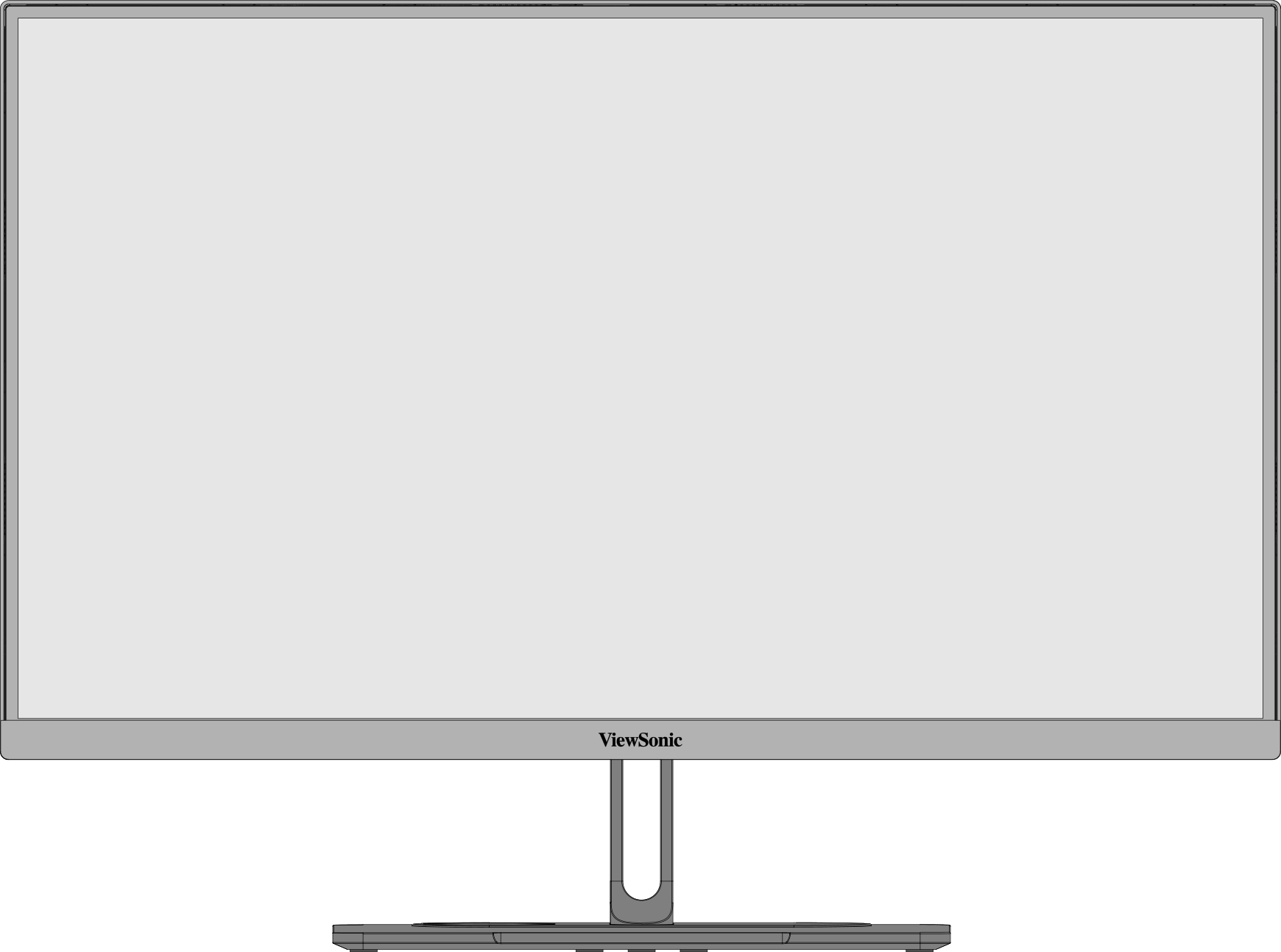 Front View
 -
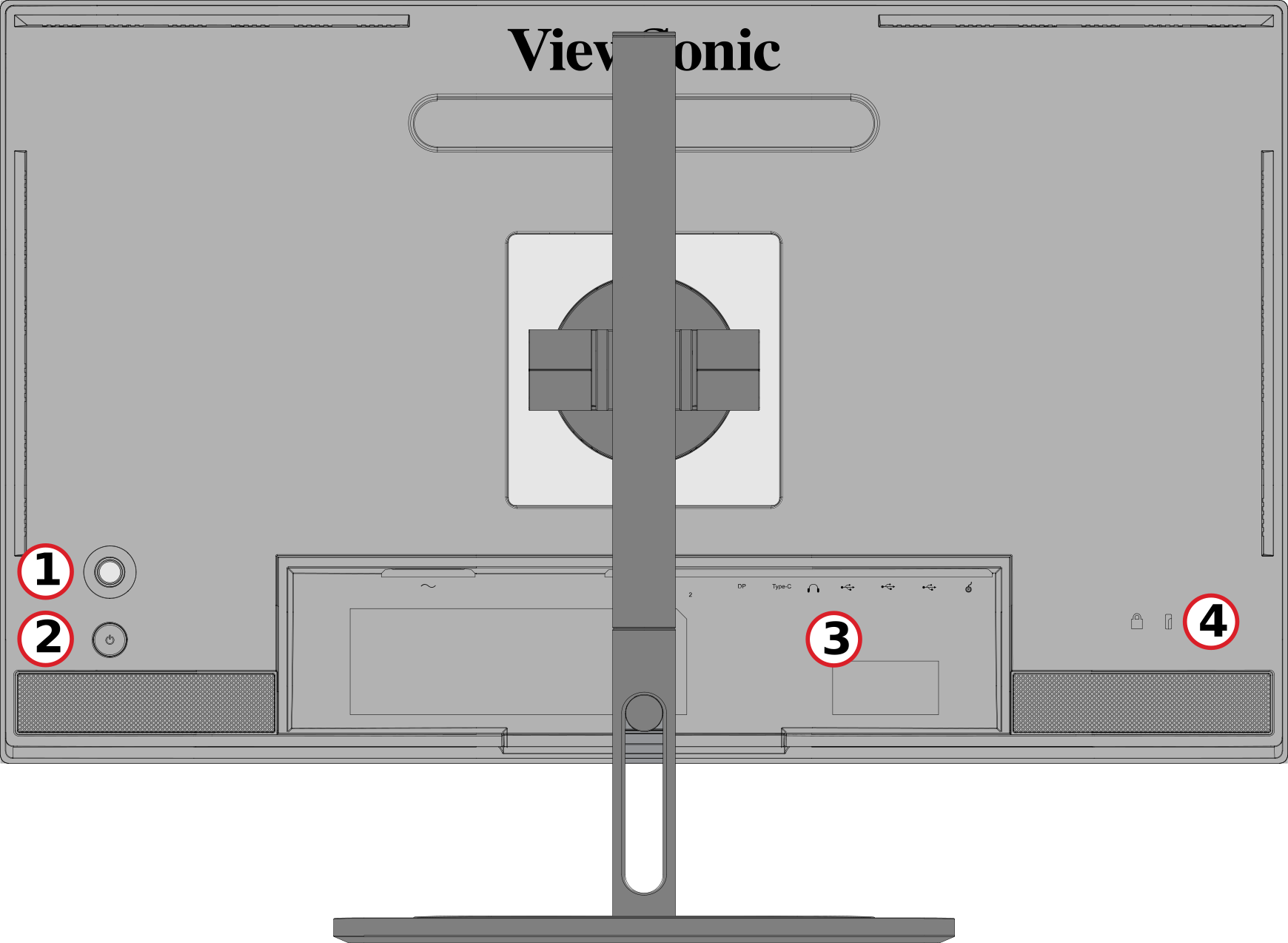 Rear View


| Number | Description |
|---|---|
| 1 | Joy Key |
| 2 | Power Button |
| 3 | I/O Ports |
| 4 | Security Lock Slot |
I/O Ports

| Number | Description |
|---|---|
| 1 | AC IN |
| 2 | HDMI |
| 3 | DisplayPort |
| 4 | USB Type C |
| 5 | Audio Out |
| 6 | USB Upstream |
| 7 | USb Downstream |
| 8 | Micro USB |


Initial Setup
Installing the Stand
 |
 |
- Place the monitor on a flat, stable surface with the screen facing down.
- Align and slide the upper hooks of the monitor stand into the stand mounting slots.
- Lift the monitor into its upright position on a flat, stable surface.
Removing the Stand and Mounting the Monitor
Refer to the table below for the standard dimensions for mounting kits.
| Maximum Loading | Pad Hole | Screw Specification | Screw Quantity |
|---|---|---|---|
| 14 kg | 100 x 100 mm | M4 x 10 mm | 4 screws |
 |
 |
 |
- Press and hold the quick release tab and carefully lift the stand.
- Pull down slightly to disengage the hooks and remove the stand.
- Attach the mounting bracket to the VESA mounting holes at the rear of the monitor. Then secure it with four screws (M4 x 10 mm).
- Follow the instructions that come with the purchased or optional mounting kit to mount the monitor.
Using the Security Slot

To help prevent the monitor from being stolen, use a security slot locking device to secure the monitor to a fixed object.
Additionally, fastening the monitor to a wall or fixed object using a security cable can help support the weight of the monitor in order to prevent the monitor from falling over.
Making Connections
Connecting to Power

- Connect the power cord to the AC IN jack at the rear of the monitor.
- Plug the power cord plug into a power outlet.
Display Connection
HDMI

- Connect one end of an HDMI cable to an HDMI port of the monitor.
- Plug the other end of the cable into the HDMI port of your computer.
DisplayPort

- Connect one end of a DisplayPort cable to the DP port of the monitor.
- Plug the other end of the cable into the DisplayPort or Mini DisplayPort port of your computer.
Type C

- Connect one end of a USB Type C cable to the Type C port of the monitor.
- Plug the other end of the cable into the USB Type C port of your computer.
USB Connection
The monitor supports two types of USB ports, upstream and downstream. When making connection(s), observe the following guideline.

| USB Type | Connection Type | Description | |
|---|---|---|---|

|
Upstream | Type B | Transfers data between the computer and the USB devices connected to the monitor. |

|
Downstream | Type C | Transfers audio, video, and power. Enables the KVM function. |
| Supports 5V/3A, 9V/3A, 12V/3A, 15V/3A, 20V/3.25A (LPS) charging. | |||

|
Type A | For peripheral device(s) (e.g., storage device, keyboard, mouse, etc.). | |
| Supports 5V/2A charging. | |||

|
Micro USB | For use with the ColorPro™ Wheel only. | |
Using the USB Ports

- To use the downstream USB Type A ports, connect one end of the USB Type B cable to the upstream USB Type B port of the monitor. Plug the other end of the cable, USB Type A, into a USB port of your computer.
- Connect your peripheral device(s) to a downstream USB Type A port of the monitor.
Audio Connection

Plug the audio jack of the audio device into the Audio Out port of the monitor.
Using the Monitor
Adjusting the Viewing Angle
Height Adjustment

Lower or raise the monitor to the desired height (0 to 130 mm).
Screen Orientation Adjustment (Monitor Pivot)
 |
 |
 |
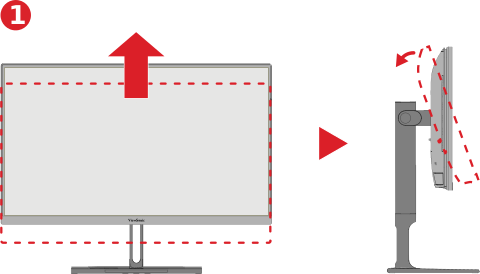
- Adjust the monitor height to the highest position. Then tilt the monitor backwards to the full tilt position.
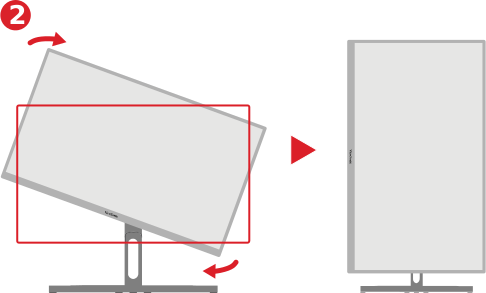
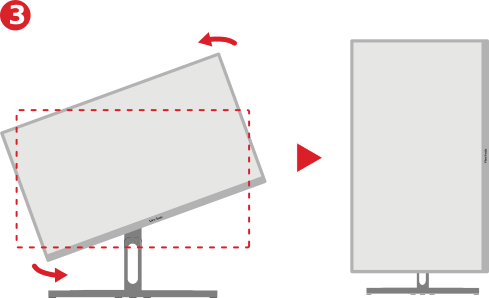
- Rotate the monitor 90° clockwise or counterclockwise (3) from landscape to portrait orientation.
- When adjusting, make sure to hold both sides of your monitor firmly with both hands.
- If using the Auto Pivot function, the system can detect the screen orientation automatically.
Swivel Adjustment

Swivel the monitor to the left or right for the desired viewing angle (60˚).
Tilt Adjustment

Tilt the monitor forwards or backwards to the desired viewing angle (-5˚ to 21˚).
Turning the Monitor On/Off

- Plug the connected power adapter into a power outlet.
- Press the Power ( ) button to turn on the monitor.
- To turn the monitor off, press the Power ( ) button again.
- If the OSD Menu is still on screen, press and hold the Power ( ) button for three seconds to power off.
- The monitor will still consume some power as long as the power cord is connected to the power outlet. If the monitor is not being used for a long period of time, please disconnect the power plug from the power outlet.
Using the Joy Key
Use the Joy Key to activate Hot Keys, navigate the On-Screen Display (OSD) Menu, and change settings.

Startup Menu
Move the Joy Key (  ) to activate the Startup Menu.

Main Menu
Enter the On-Screen Display (OSD) Menu.

Color Mode
Select one of the preset standard color settings.

ViewMode
Select one of the preset display settings.

Brightness
Adjust the brightness level.

Input
Select the input source.

Volume
Adjust the volume settings.

 ) to return to the previous menu.
Hot Keys
When the On-Screen Display (OSD) Menu is off, you can quickly access special functions by using the Joy Key.
| Key | Description |
|---|---|
 |
Press and hold the key for five seconds to activate/deactivate LED lighting.
 |
 |
Press and hold the key to lock/unlock the OSD Menu. When the menu appears on the screen, continue holding the key for 10 seconds to lock/unlock the OSD Menu.
 If the OSD Menu is locked, the below message will appear on the screen:  |
 |
Press and hold the key to lock/unlock the Power ( ) button. When the menu appears on the screen, continue holding the key for 10 seconds to lock/unlock the Power ( ) button.  If the Power ( ) button is locked, the below message will appear on the screen.  |
 |
Press and hold the key for 10 seconds to display/hide the boot up screen when the device is turned on.  |
 |
Press and hold the key for 10 seconds to activate/deactivate Ultra Fast.  |