


| Sub-menu | Menu Option | |
|---|---|---|
| DisplayPort | Color Format | Auto |
| RGB (Full Range) | ||
| RGB (Limited Range) | ||
| YUV (Full Range) | ||
| YUV (Limited Range) | ||
| DisplayPort 1.4 | On | |
| Off | ||
| HDMI 1 | Color Format | Auto |
| RGB (Full Range) | ||
| RGB (Limited Range) | ||
| YUV (Full Range) | ||
| YUV (Limited Range) | ||
| HDMI 2.0 | On | |
| Off | ||
| HDMI 2 | Color Format | Auto |
| RGB (Full Range) | ||
| RGB (Limited Range) | ||
| YUV (Full Range) | ||
| YUV (Limited Range) | ||
| HDMI 2.0 | On | |
| Off | ||
| Type C | Color Format | Auto |
| RGB (Full Range) | ||
| RGB (Limited Range) | ||
| YUV (Full Range) | ||
| YUV (Limited Range) | ||
| USB 3.2 | On | |
| Off | ||
| DisplayPort 1.4 | On | |
| Off | ||
| Auto Detect | On | |
| Off | ||
VP2786a-4K: Difference between revisions
From ViewSonic Documentation
No edit summary |
Marked this version for translation |
||
| Line 1: | Line 1: | ||
=<translate>Introduction</translate>= | =<translate><!--T:105--> Introduction</translate>= | ||
==<translate>Package Contents</translate>== | ==<translate><!--T:106--> Package Contents</translate>== | ||
<ol style="list-style-type:square;"> | <ol style="list-style-type:square;"> | ||
<li><translate>Monitor</translate></li> | <li><translate><!--T:107--> Monitor</translate></li> | ||
<li><translate>Power Cord</translate></li> | <li><translate><!--T:108--> Power Cord</translate></li> | ||
<li><translate>Video Cable</translate></li> | <li><translate><!--T:109--> Video Cable</translate></li> | ||
<li><translate>Quick Start Guide</translate></li> | <li><translate><!--T:110--> Quick Start Guide</translate></li> | ||
</ol> | </ol> | ||
{{Note|<translate>The cables included in your package may vary depending on your country. Please contact your local reseller for more information.</translate>}} | {{Note|<translate><!--T:111--> The cables included in your package may vary depending on your country. Please contact your local reseller for more information.</translate>}} | ||
==<translate>Product Overview</translate>== | ==<translate><!--T:112--> Product Overview</translate>== | ||
<gallery widths="400" heights="400" mode="nolines"> | <gallery widths="400" heights="400" mode="nolines"> | ||
File:VP2786a-4K_Front_View.svg|<translate>Front View</translate>|<div style="font-style:normal; text-align:center"><translate>Front View</translate></div> | File:VP2786a-4K_Front_View.svg|<translate><!--T:113--> Front View</translate>|<div style="font-style:normal; text-align:center"><translate><!--T:114--> Front View</translate></div> | ||
File:VP2786a-4K_Rear_View.svg|<translate>Rear View</translate>|<div style="font-style:normal; text-align:center"><translate>Rear View</translate></div> | File:VP2786a-4K_Rear_View.svg|<translate><!--T:115--> Rear View</translate>|<div style="font-style:normal; text-align:center"><translate><!--T:116--> Rear View</translate></div> | ||
</gallery> | </gallery> | ||
{| class="wikitable" style="text-align:center; width:50%; background-color:#ffffff;" | {| class="wikitable" style="text-align:center; width:50%; background-color:#ffffff;" | ||
! style="background-color:#DB0025; color:#ffffff; width:20%;" | <translate>Number</translate> !! style="background-color:#DB0025; color:#ffffff;" | <translate>Description</translate> | ! style="background-color:#DB0025; color:#ffffff; width:20%;" | <translate><!--T:117--> Number</translate> !! style="background-color:#DB0025; color:#ffffff;" | <translate><!--T:118--> Description</translate> | ||
|- | |- | ||
|'''1''' | |'''1''' | ||
| <translate>Joy Key</translate> | | <translate><!--T:119--> Joy Key</translate> | ||
|- | |- | ||
|'''2''' | |'''2''' | ||
| <translate>Power Button</translate> | | <translate><!--T:120--> Power Button</translate> | ||
|- | |- | ||
|'''3''' | |'''3''' | ||
| <translate>I/O Ports</translate> | | <translate><!--T:121--> I/O Ports</translate> | ||
|- | |- | ||
|'''4''' | |'''4''' | ||
| <translate>Security Lock Slot</translate> | | <translate><!--T:122--> Security Lock Slot</translate> | ||
|- | |- | ||
|} | |} | ||
==<translate>I/O Ports</translate>== | ==<translate><!--T:123--> I/O Ports</translate>== | ||
<div class="res-img">[[File:VP2786a-4K_IO.png|700px|<translate>VP2786a-4K's I/O Ports</translate>]]</div> | <div class="res-img">[[File:VP2786a-4K_IO.png|700px|<translate><!--T:124--> VP2786a-4K's I/O Ports</translate>]]</div> | ||
{| class="wikitable" style="text-align:center; width:50%; background-color:#ffffff;" | {| class="wikitable" style="text-align:center; width:50%; background-color:#ffffff;" | ||
! style="background-color:#DB0025; color:#ffffff; width:20%;" | <translate>Number</translate> !! style="background-color:#DB0025; color:#ffffff;" | <translate>Description</translate> | ! style="background-color:#DB0025; color:#ffffff; width:20%;" | <translate><!--T:125--> Number</translate> !! style="background-color:#DB0025; color:#ffffff;" | <translate><!--T:126--> Description</translate> | ||
|- | |- | ||
|'''1''' || <translate>AC IN</translate> | |'''1''' || <translate><!--T:127--> AC IN</translate> | ||
|- | |- | ||
|'''2''' || <translate>HDMI</translate> | |'''2''' || <translate><!--T:128--> HDMI</translate> | ||
|- | |- | ||
|'''3''' || <translate>DisplayPort</translate> | |'''3''' || <translate><!--T:129--> DisplayPort</translate> | ||
|- | |- | ||
|'''4''' || <translate>USB Type C</translate> | |'''4''' || <translate><!--T:130--> USB Type C</translate> | ||
|- | |- | ||
|'''5''' || <translate>Audio Out</translate> | |'''5''' || <translate><!--T:131--> Audio Out</translate> | ||
|- | |- | ||
|'''6''' || <translate>USB Upstream</translate> | |'''6''' || <translate><!--T:132--> USB Upstream</translate> | ||
|- | |- | ||
|'''7''' || <translate>USb Downstream</translate> | |'''7''' || <translate><!--T:133--> USb Downstream</translate> | ||
|- | |- | ||
|'''8''' || <translate>Micro USB</translate> | |'''8''' || <translate><!--T:134--> Micro USB</translate> | ||
|- | |- | ||
|} | |} | ||
{{Note|<translate>For more information about the</translate> ( [[File:Icon_Joy_Key_Press.svg|25px|link=]] / [[File:Icon_Joy_Key_Up.svg|25px|link=]] / [[File:Icon_Joy_Key_Down.svg|25px|link=]] / [[File:Icon_Joy_Key_Left.svg|25px|link=]] / [[File:Icon_Joy_Key_Right.svg|25px|link=]] ) <translate>key and its functions, refer to</translate> [[VP2786a-4K_Hot_Keys|<translate>Hot Keys</translate>]].}} | {{Note|<translate><!--T:135--> For more information about the</translate> ( [[File:Icon_Joy_Key_Press.svg|25px|link=]] / [[File:Icon_Joy_Key_Up.svg|25px|link=]] / [[File:Icon_Joy_Key_Down.svg|25px|link=]] / [[File:Icon_Joy_Key_Left.svg|25px|link=]] / [[File:Icon_Joy_Key_Right.svg|25px|link=]] ) <translate><!--T:136--> key and its functions, refer to</translate> [[VP2786a-4K_Hot_Keys|<translate><!--T:137--> Hot Keys</translate>]].}} | ||
=<translate>Initial Setup</translate>= | =<translate><!--T:138--> Initial Setup</translate>= | ||
==<translate>Installing the Stand</translate>== | ==<translate><!--T:139--> Installing the Stand</translate>== | ||
<div class="table-responsive"> | <div class="table-responsive"> | ||
<table class="table table-borderless"> | <table class="table table-borderless"> | ||
<tr> | <tr> | ||
<td><div class="res-img">[[File:VP2786a-4K_Stand_Installation_1.svg|400px|<translate>Stand Installation</translate>]]</div></td> | <td><div class="res-img">[[File:VP2786a-4K_Stand_Installation_1.svg|400px|<translate><!--T:140--> Stand Installation</translate>]]</div></td> | ||
<td><div class="res-img">[[File:VP2786a-4K_Stand_Installation_2.svg|400px|<translate>Stand Installation</translate>]]</div></td> | <td><div class="res-img">[[File:VP2786a-4K_Stand_Installation_2.svg|400px|<translate><!--T:141--> Stand Installation</translate>]]</div></td> | ||
</tr> | </tr> | ||
</table> | </table> | ||
</div> | </div> | ||
<ol> | <ol> | ||
<li><translate>Place the monitor on a flat, stable surface with the screen facing down.</translate></li> | <li><translate><!--T:142--> Place the monitor on a flat, stable surface with the screen facing down.</translate></li> | ||
<li><translate>Align and slide the upper hooks of the monitor stand into the stand mounting slots.</translate></li> | <li><translate><!--T:143--> Align and slide the upper hooks of the monitor stand into the stand mounting slots.</translate></li> | ||
<li><translate>Lift the monitor into its upright position on a flat, stable surface.</translate></li></ol> | <li><translate><!--T:144--> Lift the monitor into its upright position on a flat, stable surface.</translate></li></ol> | ||
{{Note|<translate>For safety and to ensure optimal performance, please position the monitor on a flat, stable surface. Failure to do so may lead to the monitor falling, causing damage to the monitor itself and/or posing a risk of personal injury.</translate>}} | {{Note|<translate><!--T:145--> For safety and to ensure optimal performance, please position the monitor on a flat, stable surface. Failure to do so may lead to the monitor falling, causing damage to the monitor itself and/or posing a risk of personal injury.</translate>}} | ||
==<translate>Removing the Stand and Mounting the Monitor</translate>== | ==<translate><!--T:146--> Removing the Stand and Mounting the Monitor</translate>== | ||
<translate>Refer to the table below for the standard dimensions for mounting kits.</translate> | <translate><!--T:147--> Refer to the table below for the standard dimensions for mounting kits.</translate> | ||
{{Note|<translate>For use only with a UL certified mounting kit/bracket. To obtain a wall mounting kit or height adjustment base, contact ViewSonic® or your local dealer.</translate>}} | {{Note|<translate><!--T:148--> For use only with a UL certified mounting kit/bracket. To obtain a wall mounting kit or height adjustment base, contact ViewSonic® or your local dealer.</translate>}} | ||
{| class="wikitable" style="text-align: center; width:60%; background-color:#ffffff;" | {| class="wikitable" style="text-align: center; width:60%; background-color:#ffffff;" | ||
! style="background-color:#DB0025; color:#ffffff;" | <translate>Maximum Loading</translate> | ! style="background-color:#DB0025; color:#ffffff;" | <translate><!--T:149--> Maximum Loading</translate> | ||
! style="background-color:#DB0025; color:#ffffff;" | <translate>Pad Hole</translate> | ! style="background-color:#DB0025; color:#ffffff;" | <translate><!--T:150--> Pad Hole</translate> | ||
! style="background-color:#DB0025; color:#ffffff;" | <translate>Screw Specification</translate> | ! style="background-color:#DB0025; color:#ffffff;" | <translate><!--T:151--> Screw Specification</translate> | ||
! style="background-color:#DB0025; color:#ffffff;" | <translate>Screw Quantity</translate> | ! style="background-color:#DB0025; color:#ffffff;" | <translate><!--T:152--> Screw Quantity</translate> | ||
|- | |- | ||
|<translate>14 kg</translate> | |<translate><!--T:153--> 14 kg</translate> | ||
|<translate>100 x 100 mm</translate> | |<translate><!--T:154--> 100 x 100 mm</translate> | ||
|<translate>M4 x 10 mm</translate> | |<translate><!--T:155--> M4 x 10 mm</translate> | ||
|<translate>4 screws</translate> | |<translate><!--T:156--> 4 screws</translate> | ||
|} | |} | ||
{{Note|<translate>Mounting kits are sold separately.</translate>}} | {{Note|<translate><!--T:157--> Mounting kits are sold separately.</translate>}} | ||
<div class="table-responsive"> | <div class="table-responsive"> | ||
<table class="table table-borderless"> | <table class="table table-borderless"> | ||
<tr> | <tr> | ||
<td><div class="res-img">[[File:VP2786a-4K_Stand_Disassembly_1.svg|400px|<translate>Stand Disassembly</translate>]]</div></td> | <td><div class="res-img">[[File:VP2786a-4K_Stand_Disassembly_1.svg|400px|<translate><!--T:158--> Stand Disassembly</translate>]]</div></td> | ||
<td><div class="res-img">[[File:VP2786a-4K_Stand_Disassembly_2.svg|400px|<translate>Stand Disassembly</translate>]]</div></td> | <td><div class="res-img">[[File:VP2786a-4K_Stand_Disassembly_2.svg|400px|<translate><!--T:159--> Stand Disassembly</translate>]]</div></td> | ||
</tr> | </tr> | ||
<tr> | <tr> | ||
<td><div class="res-img">[[File:VP2786a-4K_Stand_Disassembly_3.svg|400px|<translate>Stand Disassembly</translate>]]</div></td> | <td><div class="res-img">[[File:VP2786a-4K_Stand_Disassembly_3.svg|400px|<translate><!--T:160--> Stand Disassembly</translate>]]</div></td> | ||
</tr> | </tr> | ||
</table> | </table> | ||
</div> | </div> | ||
{{Important|<translate>Before removing the stand, turn off the monitor, disconnect all cables, and place the monitor on a flat, stable surface with the screen facing down.</translate>}} | {{Important|<translate><!--T:161--> Before removing the stand, turn off the monitor, disconnect all cables, and place the monitor on a flat, stable surface with the screen facing down.</translate>}} | ||
<ol> | <ol> | ||
<li><translate>Press and hold the quick release tab and carefully lift the stand.</translate></li> | <li><translate><!--T:162--> Press and hold the quick release tab and carefully lift the stand.</translate></li> | ||
<li><translate>Pull down slightly to disengage the hooks and remove the stand.</translate></li> | <li><translate><!--T:163--> Pull down slightly to disengage the hooks and remove the stand.</translate></li> | ||
<li><translate>Attach the mounting bracket to the VESA mounting holes at the rear of the monitor. Then secure it with four screws (M4 x 10 mm).</translate></li> | <li><translate><!--T:164--> Attach the mounting bracket to the VESA mounting holes at the rear of the monitor. Then secure it with four screws (M4 x 10 mm).</translate></li> | ||
<li><translate>Follow the instructions that come with the purchased or optional mounting kit to mount the monitor.</translate></li> | <li><translate><!--T:165--> Follow the instructions that come with the purchased or optional mounting kit to mount the monitor.</translate></li> | ||
</ol> | </ol> | ||
==<translate>Using the Security Slot</translate>== | ==<translate><!--T:166--> Using the Security Slot</translate>== | ||
<div class="res-img">[[File:VP2786a-4K_Security_Slot.png|500px|<translate>Using the security slot</translate>]]</div> | <div class="res-img">[[File:VP2786a-4K_Security_Slot.png|500px|<translate><!--T:167--> Using the security slot</translate>]]</div> | ||
<translate>To help prevent the monitor from being stolen, use a security slot locking device to secure the monitor to a fixed object.</translate> | <translate><!--T:168--> To help prevent the monitor from being stolen, use a security slot locking device to secure the monitor to a fixed object.</translate> | ||
<translate>Additionally, fastening the monitor to a wall or fixed object using a security cable can help support the weight of the monitor in order to prevent the monitor from falling over.</translate> | <translate><!--T:169--> Additionally, fastening the monitor to a wall or fixed object using a security cable can help support the weight of the monitor in order to prevent the monitor from falling over.</translate> | ||
=<translate>Making Connections</translate>= | =<translate><!--T:170--> Making Connections</translate>= | ||
==<translate>Connecting to Power</translate>== | ==<translate><!--T:171--> Connecting to Power</translate>== | ||
<div class="res-img">[[File:VP2786a-4K_Connect_Power.png|400px|<translate>Connecting to power</translate>]]</div> | <div class="res-img">[[File:VP2786a-4K_Connect_Power.png|400px|<translate><!--T:172--> Connecting to power</translate>]]</div> | ||
<ol><li><translate>Connect the power cord to the '''AC IN''' jack at the rear of the monitor.</translate></li> | <ol><li><translate><!--T:173--> Connect the power cord to the '''AC IN''' jack at the rear of the monitor.</translate></li> | ||
<li><translate>Plug the power cord plug into a power outlet.</translate></li></ol> | <li><translate><!--T:174--> Plug the power cord plug into a power outlet.</translate></li></ol> | ||
==<translate>Display Connection</translate>== | ==<translate><!--T:175--> Display Connection</translate>== | ||
===<translate>HDMI</translate>=== | ===<translate><!--T:176--> HDMI</translate>=== | ||
<div class="res-img">[[File:VP2786a-4K_Connect_HDMI.png|450px|<translate>Connecting through HDMI</translate>]]</div> | <div class="res-img">[[File:VP2786a-4K_Connect_HDMI.png|450px|<translate><!--T:177--> Connecting through HDMI</translate>]]</div> | ||
<ol><li><translate>Connect one end of an HDMI cable to an '''HDMI''' port of the monitor.</translate></li> | <ol><li><translate><!--T:178--> Connect one end of an HDMI cable to an '''HDMI''' port of the monitor.</translate></li> | ||
<li><translate>Plug the other end of the cable into the HDMI port of your computer.</translate></li></ol> | <li><translate><!--T:179--> Plug the other end of the cable into the HDMI port of your computer.</translate></li></ol> | ||
===<translate>DisplayPort</translate>=== | ===<translate><!--T:180--> DisplayPort</translate>=== | ||
<div class="res-img">[[File:VP2786a-4K_Connect_DP.png|420px|<translate>Connecting through DisplayPort</translate>]]</div> | <div class="res-img">[[File:VP2786a-4K_Connect_DP.png|420px|<translate><!--T:181--> Connecting through DisplayPort</translate>]]</div> | ||
<ol><li><translate>Connect one end of a DisplayPort cable to the '''DP''' port of the monitor.</translate></li> | <ol><li><translate><!--T:182--> Connect one end of a DisplayPort cable to the '''DP''' port of the monitor.</translate></li> | ||
<li><translate>Plug the other end of the cable into the DisplayPort or Mini DisplayPort port of your computer.</translate></li></ol> | <li><translate><!--T:183--> Plug the other end of the cable into the DisplayPort or Mini DisplayPort port of your computer.</translate></li></ol> | ||
{{Note|<translate>To connect the monitor to the Thunderbolt port (v. 1 & 2) on your Mac, connect the Mini DisplayPort end of a “Mini DisplayPort to DisplayPort cable” to the Thunderbolt output port of your Mac. Then connect the other end of the cable to the DisplayPort port of the monitor.</translate>}} | {{Note|<translate><!--T:184--> To connect the monitor to the Thunderbolt port (v. 1 & 2) on your Mac, connect the Mini DisplayPort end of a “Mini DisplayPort to DisplayPort cable” to the Thunderbolt output port of your Mac. Then connect the other end of the cable to the DisplayPort port of the monitor.</translate>}} | ||
===<translate>Type C</translate>=== | ===<translate><!--T:185--> Type C</translate>=== | ||
<div class="res-img">[[File:VP2786a-4K_Connect_Type_C.png|450px|<translate>Connecting through USB Type C</translate>]]</div> | <div class="res-img">[[File:VP2786a-4K_Connect_Type_C.png|450px|<translate><!--T:186--> Connecting through USB Type C</translate>]]</div> | ||
<ol><li><translate>Connect one end of a USB Type C cable to the '''Type C''' port of the monitor.</translate></li> | <ol><li><translate><!--T:187--> Connect one end of a USB Type C cable to the '''Type C''' port of the monitor.</translate></li> | ||
<li><translate>Plug the other end of the cable into the USB Type C port of your computer.</translate></li></ol> | <li><translate><!--T:188--> Plug the other end of the cable into the USB Type C port of your computer.</translate></li></ol> | ||
{{Note|<translate>For video output use, make sure your USB Type C output device (e.g., laptop) and cable support video signal transmission.</translate>}} | {{Note|<translate><!--T:189--> For video output use, make sure your USB Type C output device (e.g., laptop) and cable support video signal transmission.</translate>}} | ||
==<translate>USB Connection</translate>== | ==<translate><!--T:190--> USB Connection</translate>== | ||
<translate>The monitor supports two types of USB ports, upstream and downstream. When making connection(s), observe the following guideline.</translate> | <translate><!--T:191--> The monitor supports two types of USB ports, upstream and downstream. When making connection(s), observe the following guideline.</translate> | ||
<div class="res-img">[[File:VP2786a-4K_Connect_USB.png|500px|<translate>Connecting the VP27786a-4K to your PC via the upstream/downstream USB ports</translate>]]</div> | <div class="res-img">[[File:VP2786a-4K_Connect_USB.png|500px|<translate><!--T:192--> Connecting the VP27786a-4K to your PC via the upstream/downstream USB ports</translate>]]</div> | ||
{| class="wikitable" style=" text-align: center; width: 60%; background-color:#ffffff;" | {| class="wikitable" style=" text-align: center; width: 60%; background-color:#ffffff;" | ||
! style="background-color:#DB0025; color:#ffffff;" colspan="2" |<translate>USB Type</translate> | ! style="background-color:#DB0025; color:#ffffff;" colspan="2" |<translate><!--T:193--> USB Type</translate> | ||
! style="background-color:#DB0025; color:#ffffff;" | <translate>Connection Type</translate> | ! style="background-color:#DB0025; color:#ffffff;" | <translate><!--T:194--> Connection Type</translate> | ||
! style="background-color:#DB0025; color:#ffffff;" | <translate>Description</translate> | ! style="background-color:#DB0025; color:#ffffff;" | <translate><!--T:195--> Description</translate> | ||
|- | |- | ||
| style="background-color:#ffffff;" | [[File:Number1.svg|25px|link=|<translate>No. 1</translate>]] | | style="background-color:#ffffff;" | [[File:Number1.svg|25px|link=|<translate><!--T:196--> No. 1</translate>]] | ||
| style="background-color:#ffffff;" |'''<translate>Upstream</translate>''' | | style="background-color:#ffffff;" |'''<translate><!--T:197--> Upstream</translate>''' | ||
| style="background-color:#ffffff;" |<translate>Type B</translate> | | style="background-color:#ffffff;" |<translate><!--T:198--> Type B</translate> | ||
| style="background-color:#ffffff; text-align:left;"| <translate>Transfers data between the computer and the USB devices connected to the monitor.</translate> | | style="background-color:#ffffff; text-align:left;"| <translate><!--T:199--> Transfers data between the computer and the USB devices connected to the monitor.</translate> | ||
|- | |- | ||
| rowspan="2" style="background-color:#ffffff;" | [[File:Number2.svg|25px|link=|<translate>No. 2</translate>]] | | rowspan="2" style="background-color:#ffffff;" | [[File:Number2.svg|25px|link=|<translate><!--T:200--> No. 2</translate>]] | ||
| rowspan="5" style="background-color:#ffffff;" |'''<translate>Downstream</translate>''' | | rowspan="5" style="background-color:#ffffff;" |'''<translate><!--T:201--> Downstream</translate>''' | ||
| rowspan="2" style="background-color:#ffffff;" |<translate>Type C</translate> | | rowspan="2" style="background-color:#ffffff;" |<translate><!--T:202--> Type C</translate> | ||
| style="background-color:#ffffff; text-align:left;"|<translate>Transfers audio, video, and power. Enables the KVM function.</translate> | | style="background-color:#ffffff; text-align:left;"|<translate><!--T:203--> Transfers audio, video, and power. Enables the KVM function.</translate> | ||
|- | |- | ||
| style="text-align:left; background-color:#ffffff;"| <translate>Supports 5V/3A, 9V/3A, 12V/3A, 15V/3A, 20V/3.25A (LPS) charging.</translate> | | style="text-align:left; background-color:#ffffff;"| <translate><!--T:204--> Supports 5V/3A, 9V/3A, 12V/3A, 15V/3A, 20V/3.25A (LPS) charging.</translate> | ||
|- | |- | ||
| rowspan="2" style="background-color:#ffffff;" |[[File:Number3.svg|25px|link=|<translate>No. 3</translate>]] | | rowspan="2" style="background-color:#ffffff;" |[[File:Number3.svg|25px|link=|<translate><!--T:205--> No. 3</translate>]] | ||
| rowspan="2" style="background-color:#ffffff;" |<translate>Type A</translate> | | rowspan="2" style="background-color:#ffffff;" |<translate><!--T:206--> Type A</translate> | ||
| style="background-color:#ffffff; text-align:left;" |<translate>For peripheral device(s) (e.g., storage device, keyboard, mouse, etc.).</translate> | | style="background-color:#ffffff; text-align:left;" |<translate><!--T:207--> For peripheral device(s) (e.g., storage device, keyboard, mouse, etc.).</translate> | ||
|- | |- | ||
|style="background-color:#ffffff; text-align:left;" |<translate>Supports 5V/2A charging.</translate> | |style="background-color:#ffffff; text-align:left;" |<translate><!--T:208--> Supports 5V/2A charging.</translate> | ||
|- | |- | ||
| style="background-color:#ffffff;" |[[File:Number4.svg|25px|link=|<translate>No. 4</translate>]] | | style="background-color:#ffffff;" |[[File:Number4.svg|25px|link=|<translate><!--T:209--> No. 4</translate>]] | ||
| style="background-color:#ffffff;" |<translate>Micro USB</translate> | | style="background-color:#ffffff;" |<translate><!--T:210--> Micro USB</translate> | ||
| style="background-color:#ffffff; text-align:left;" |<translate>For use with the ColorPro™ Wheel only.</translate> | | style="background-color:#ffffff; text-align:left;" |<translate><!--T:211--> For use with the ColorPro™ Wheel only.</translate> | ||
|} | |} | ||
{{Note|<translate>To use peripheral devices with the USB Type A ports, please also connect your computer to the monitor’s USB '''Type B''' port.</translate>}} | {{Note|<translate><!--T:212--> To use peripheral devices with the USB Type A ports, please also connect your computer to the monitor’s USB '''Type B''' port.</translate>}} | ||
===<translate>Using the USB Ports</translate>=== | ===<translate><!--T:213--> Using the USB Ports</translate>=== | ||
<div class="res-img">[[File:VP2786a-4K_Upstream_Downstream.png|500px|<translate>Using the USB downstream ports</translate>]]</div> | <div class="res-img">[[File:VP2786a-4K_Upstream_Downstream.png|500px|<translate><!--T:214--> Using the USB downstream ports</translate>]]</div> | ||
<ol><li><translate>To use the downstream USB Type A ports, connect one end of the USB Type B cable to the upstream USB '''Type B''' port of the monitor. Plug the other end of the cable, USB Type A, into a USB port of your computer.</translate></li> | <ol><li><translate><!--T:215--> To use the downstream USB Type A ports, connect one end of the USB Type B cable to the upstream USB '''Type B''' port of the monitor. Plug the other end of the cable, USB Type A, into a USB port of your computer.</translate></li> | ||
<li><translate>Connect your peripheral device(s) to a downstream USB Type A port of the monitor.</translate></li></ol> | <li><translate><!--T:216--> Connect your peripheral device(s) to a downstream USB Type A port of the monitor.</translate></li></ol> | ||
==<translate>Audio Connection</translate>== | ==<translate><!--T:217--> Audio Connection</translate>== | ||
<div class="res-img">[[File:VP2786a-4K_Connect_Audio.png|450px|<translate>Connecting to audio</translate>]]</div><br /> | <div class="res-img">[[File:VP2786a-4K_Connect_Audio.png|450px|<translate><!--T:218--> Connecting to audio</translate>]]</div><br /> | ||
<translate>Plug the audio jack of the audio device into the '''Audio Out''' port of the monitor.</translate> | <translate><!--T:219--> Plug the audio jack of the audio device into the '''Audio Out''' port of the monitor.</translate> | ||
{{Note|<translate>The monitor is also equipped with dual speakers.</translate>}} | {{Note|<translate><!--T:220--> The monitor is also equipped with dual speakers.</translate>}} | ||
=<translate>Using the Monitor</translate>= | =<translate><!--T:221--> Using the Monitor</translate>= | ||
==<translate>Adjusting the Viewing Angle</translate>== | ==<translate><!--T:222--> Adjusting the Viewing Angle</translate>== | ||
===<translate>Height Adjustment</translate>=== | ===<translate><!--T:223--> Height Adjustment</translate>=== | ||
<div class="res-img">[[File:VP2786a-4K_Adjust_Height.png|400px|<translate>Adjusting the height</translate>]]</div><br /> | <div class="res-img">[[File:VP2786a-4K_Adjust_Height.png|400px|<translate><!--T:224--> Adjusting the height</translate>]]</div><br /> | ||
<translate>Lower or raise the monitor to the desired height (0 to 130 mm).</translate> | <translate><!--T:225--> Lower or raise the monitor to the desired height (0 to 130 mm).</translate> | ||
{{Note|<translate>When adjusting, press down firmly along the adjustment track holding the monitor with both hands on the side.</translate>}} | {{Note|<translate><!--T:226--> When adjusting, press down firmly along the adjustment track holding the monitor with both hands on the side.</translate>}} | ||
===<translate>Screen Orientation Adjustment (Monitor Pivot)</translate>=== | ===<translate><!--T:227--> Screen Orientation Adjustment (Monitor Pivot)</translate>=== | ||
<div class="table-responsive"> | <div class="table-responsive"> | ||
<table class="table table-borderless"> | <table class="table table-borderless"> | ||
<tr> | <tr> | ||
<td><div class="res-img">[[File:VP2786a-4K_Adjust_Pivot_1.svg|link=|<translate>Monitor Pivot</translate>]]</div></td> | <td><div class="res-img">[[File:VP2786a-4K_Adjust_Pivot_1.svg|link=|<translate><!--T:228--> Monitor Pivot</translate>]]</div></td> | ||
<td><div class="res-img">[[File:VP2786a-4K_Adjust_Pivot_2.svg|link=|<translate>Monitor Pivot</translate>]]</div></td> | <td><div class="res-img">[[File:VP2786a-4K_Adjust_Pivot_2.svg|link=|<translate><!--T:229--> Monitor Pivot</translate>]]</div></td> | ||
</tr> | </tr> | ||
<tr> | <tr> | ||
<td><div class="res-img">[[File:VP2786a-4K_Adjust_Pivot_3.svg|link=|<translate>Monitor Pivot</translate>]]</div></td> | <td><div class="res-img">[[File:VP2786a-4K_Adjust_Pivot_3.svg|link=|<translate><!--T:230--> Monitor Pivot</translate>]]</div></td> | ||
</tr> | </tr> | ||
</table> | </table> | ||
</div> | </div> | ||
<ol><li><translate>Adjust the monitor height to the highest position. Then tilt the monitor backwards to the full tilt position.</translate></li> | <ol><li><translate><!--T:231--> Adjust the monitor height to the highest position. Then tilt the monitor backwards to the full tilt position.</translate></li> | ||
<li><translate>Rotate the monitor 90° clockwise or counterclockwise (3) from landscape to portrait orientation.</translate></li></ol> | <li><translate><!--T:232--> Rotate the monitor 90° clockwise or counterclockwise (3) from landscape to portrait orientation.</translate></li></ol> | ||
{{Note| | {{Note| | ||
:*<translate>When adjusting, make sure to hold both sides of your monitor firmly with both hands.</translate> | :*<translate><!--T:233--> When adjusting, make sure to hold both sides of your monitor firmly with both hands.</translate> | ||
:*<translate>If using the Auto Pivot function, the system can detect the screen orientation automatically.</translate> | :*<translate><!--T:234--> If using the Auto Pivot function, the system can detect the screen orientation automatically.</translate> | ||
}} | }} | ||
===<translate>Swivel Adjustment</translate>=== | ===<translate><!--T:235--> Swivel Adjustment</translate>=== | ||
<div class="res-img">[[File:VP2786a-4K_Adjust_Swivel.png|450px|<translate>Swivel adjustment</translate>]]</div><br /> | <div class="res-img">[[File:VP2786a-4K_Adjust_Swivel.png|450px|<translate><!--T:236--> Swivel adjustment</translate>]]</div><br /> | ||
<translate>Swivel the monitor to the left or right for the desired viewing angle (60˚).</translate> | <translate><!--T:237--> Swivel the monitor to the left or right for the desired viewing angle (60˚).</translate> | ||
===<translate>Tilt Adjustment</translate>=== | ===<translate><!--T:238--> Tilt Adjustment</translate>=== | ||
<div class="res-img">[[File:VP2786a_Adjust_Tilt.png|250px|<translate>Adjusting the tilt</translate>]]</div><br /> | <div class="res-img">[[File:VP2786a_Adjust_Tilt.png|250px|<translate><!--T:239--> Adjusting the tilt</translate>]]</div><br /> | ||
<translate>Tilt the monitor forwards or backwards to the desired viewing angle (-5˚ to 21˚).</translate> | <translate><!--T:240--> Tilt the monitor forwards or backwards to the desired viewing angle (-5˚ to 21˚).</translate> | ||
{{Note| <translate>When adjusting, support the stand firmly with one hand while tilting the monitor forwards or backwards with the other hand.</translate>}} | {{Note| <translate><!--T:241--> When adjusting, support the stand firmly with one hand while tilting the monitor forwards or backwards with the other hand.</translate>}} | ||
==<translate>Turning the Monitor On/Off</translate>== | ==<translate><!--T:242--> Turning the Monitor On/Off</translate>== | ||
<div class="res-img">[[File:VP2786a-4K_Power_Button.png|400px|<translate>VP2786a-4K's Power Button is at the rear of the monitor, below the Joy Key</translate>]]</div> | <div class="res-img">[[File:VP2786a-4K_Power_Button.png|400px|<translate><!--T:243--> VP2786a-4K's Power Button is at the rear of the monitor, below the Joy Key</translate>]]</div> | ||
<ol><li><translate>Plug the connected power adapter into a power outlet.</translate></li> | <ol><li><translate><!--T:244--> Plug the connected power adapter into a power outlet.</translate></li> | ||
<li><translate>Press the '''Power</translate> ( <i class='fas fa-power-off'></i> ) ''' <translate>button to turn on the monitor.</translate></li> | <li><translate><!--T:245--> Press the '''Power</translate> ( <i class='fas fa-power-off'></i> ) ''' <translate><!--T:246--> button to turn on the monitor.</translate></li> | ||
<li><translate>To turn the monitor off, press the '''Power</translate> ( <i class='fas fa-power-off'></i> ) ''' <translate>button again.</translate></li></ol> | <li><translate><!--T:247--> To turn the monitor off, press the '''Power</translate> ( <i class='fas fa-power-off'></i> ) ''' <translate><!--T:248--> button again.</translate></li></ol> | ||
{{Note| | {{Note| | ||
:*<translate>If the OSD Menu is still on screen, press and hold the '''Power</translate> ( {{Icon_Power}} )''' <translate>button for three seconds to power off.</translate> | :*<translate><!--T:249--> If the OSD Menu is still on screen, press and hold the '''Power</translate> ( {{Icon_Power}} )''' <translate><!--T:250--> button for three seconds to power off.</translate> | ||
:*<translate>The monitor will still consume some power as long as the power cord is connected to the power outlet. If the monitor is not being used for a long period of time, please disconnect the power plug from the power outlet.</translate> | :*<translate><!--T:251--> The monitor will still consume some power as long as the power cord is connected to the power outlet. If the monitor is not being used for a long period of time, please disconnect the power plug from the power outlet.</translate> | ||
}} | }} | ||
==<translate>Using the Joy Key</translate>== | ==<translate><!--T:252--> Using the Joy Key</translate>== | ||
<translate>Use the '''Joy Key''' to activate Hot Keys, navigate the On-Screen Display (OSD) Menu, and change settings.</translate> | <translate><!--T:253--> Use the '''Joy Key''' to activate Hot Keys, navigate the On-Screen Display (OSD) Menu, and change settings.</translate> | ||
<div class="res-img">[[File:VP2786a-4K_Joy_Key.svg|400px|<translate>VP2786a-4K's Joy Key is above the Power botton</translate>]]</div> | <div class="res-img">[[File:VP2786a-4K_Joy_Key.svg|400px|<translate><!--T:254--> VP2786a-4K's Joy Key is above the Power botton</translate>]]</div> | ||
==<translate>Startup Menu</translate>== | ==<translate><!--T:255--> Startup Menu</translate>== | ||
<translate>Move the '''Joy Key'''</translate> ( [[File:Icon_Joy_Key_Left.svg|25px|link=|<translate>Move to the left</translate>]] ) <translate>to activate the Startup Menu.</translate> | <translate><!--T:256--> Move the '''Joy Key'''</translate> ( [[File:Icon_Joy_Key_Left.svg|25px|link=|<translate><!--T:257--> Move to the left</translate>]] ) <translate><!--T:258--> to activate the Startup Menu.</translate> | ||
<div class="res-img">[[File:VP2786a-4K_Startup_Menu.png|250px|<translate>VP2786a-4K's Startup Menu</translate>]]</div> | <div class="res-img">[[File:VP2786a-4K_Startup_Menu.png|250px|<translate><!--T:259--> VP2786a-4K's Startup Menu</translate>]]</div> | ||
{{Note|<translate>Follow the key guide that appears on the screen to select the option or make adjustments.</translate>}} | {{Note|<translate><!--T:260--> Follow the key guide that appears on the screen to select the option or make adjustments.</translate>}} | ||
===<translate>Main Menu</translate>=== | ===<translate><!--T:261--> Main Menu</translate>=== | ||
<translate>Enter the On-Screen Display (OSD) Menu.</translate> | <translate><!--T:262--> Enter the On-Screen Display (OSD) Menu.</translate> | ||
<div class="res-img">[[File:VP2786a-4K_OSD_Main_Menu.png|600px|<translate>Press the Joy Key to enter the VP2786a-4K's OSD Menu.</translate>]]</div> | <div class="res-img">[[File:VP2786a-4K_OSD_Main_Menu.png|600px|<translate><!--T:263--> Press the Joy Key to enter the VP2786a-4K's OSD Menu.</translate>]]</div> | ||
===<translate>Color Mode</translate>=== | ===<translate><!--T:264--> Color Mode</translate>=== | ||
<translate>Select one of the preset standard color settings.</translate> | <translate><!--T:265--> Select one of the preset standard color settings.</translate> | ||
<div class="res-img">[[File:VP2786a-4K_Color_Mode.png|400px|<translate>There are several preset color settings to choose from.</translate>]]</div> | <div class="res-img">[[File:VP2786a-4K_Color_Mode.png|400px|<translate><!--T:266--> There are several preset color settings to choose from.</translate>]]</div> | ||
===<translate>ViewMode</translate>=== | ===<translate><!--T:267--> ViewMode</translate>=== | ||
<translate>Select one of the preset display settings.</translate> | <translate><!--T:268--> Select one of the preset display settings.</translate> | ||
<div class="res-img">[[File:VP2786a-4K_ViewMode.png|400px|<translate>There are several preset display settings to choose from.</translate>]]</div> | <div class="res-img">[[File:VP2786a-4K_ViewMode.png|400px|<translate><!--T:269--> There are several preset display settings to choose from.</translate>]]</div> | ||
===<translate>Brightness</translate>=== | ===<translate><!--T:270--> Brightness</translate>=== | ||
<translate>Adjust the brightness level.</translate> | <translate><!--T:271--> Adjust the brightness level.</translate> | ||
<div class="res-img">[[File:VP2786a-4K_Brightness.png|400px|<translate>Move the Joy Key up or down to adjust the Brightness level.</translate>]]</div> | <div class="res-img">[[File:VP2786a-4K_Brightness.png|400px|<translate><!--T:272--> Move the Joy Key up or down to adjust the Brightness level.</translate>]]</div> | ||
===<translate>Input</translate>=== | ===<translate><!--T:273--> Input</translate>=== | ||
<translate>Select the input source.</translate> | <translate><!--T:274--> Select the input source.</translate> | ||
<div class="res-img">[[File:VP2786a-4K_OSD_Input.png|400px|<translate>There are several input sources to choose from.</translate>]]</div> | <div class="res-img">[[File:VP2786a-4K_OSD_Input.png|400px|<translate><!--T:275--> There are several input sources to choose from.</translate>]]</div> | ||
===<translate>Volume</translate>=== | ===<translate><!--T:276--> Volume</translate>=== | ||
<translate>Adjust the volume settings.</translate> | <translate><!--T:277--> Adjust the volume settings.</translate> | ||
<div class="res-img">[[File:VP2786a-4K_Volume.png|400px]]</div> | <div class="res-img">[[File:VP2786a-4K_Volume.png|400px]]</div> | ||
{{Note|<translate>Move the '''Joy Key'''</translate> ( [[File:Icon_Joy_Key_Left.svg|25px|<translate>Move to the left</translate>]] ) <translate>to return to the previous menu.</translate>}} | {{Note|<translate><!--T:278--> Move the '''Joy Key'''</translate> ( [[File:Icon_Joy_Key_Left.svg|25px|<translate><!--T:279--> Move to the left</translate>]] ) <translate><!--T:280--> to return to the previous menu.</translate>}} | ||
==<translate>Hot Keys</translate>== | ==<translate><!--T:281--> Hot Keys</translate>== | ||
<translate>When the On-Screen Display (OSD) Menu is off, you can quickly access special functions by using the '''Joy Key'''.</translate> | <translate><!--T:282--> When the On-Screen Display (OSD) Menu is off, you can quickly access special functions by using the '''Joy Key'''.</translate> | ||
{| class="wikitable" style="text-align:left; width:60%;" | {| class="wikitable" style="text-align:left; width:60%;" | ||
|- | |- | ||
! style="background-color:#DB0025; color:#ffffff; width:20%;"|<translate>Key</translate> | ! style="background-color:#DB0025; color:#ffffff; width:20%;"|<translate><!--T:283--> Key</translate> | ||
! style="background-color:#DB0025; color:#ffffff;"|<translate>Description</translate> | ! style="background-color:#DB0025; color:#ffffff;"|<translate><!--T:284--> Description</translate> | ||
|- | |- | ||
|style="background-color:#ffffff; text-align:center;"|<div class="res-img">[[File:Joy_Key_Middle.png|<translate>Press and hold the Joy Key</translate>]]</div> | |style="background-color:#ffffff; text-align:center;"|<div class="res-img">[[File:Joy_Key_Middle.png|<translate><!--T:285--> Press and hold the Joy Key</translate>]]</div> | ||
|style="background-color:#ffffff;"|<translate>Press and hold the key for five seconds to activate/deactivate LED lighting.</translate> | |style="background-color:#ffffff;"|<translate><!--T:286--> Press and hold the key for five seconds to activate/deactivate LED lighting.</translate> | ||
<div class="res-img" style="text-align:center;">[[File:VP2776_Hot_Key_LED.png|250px]]</div> | <div class="res-img" style="text-align:center;">[[File:VP2776_Hot_Key_LED.png|250px]]</div> | ||
|- | |- | ||
|style="background-color:#ffffff; text-align:center;"|<div class="res-img">[[File:Joy_Key_Down.png|200px|<translate>Move and hold the Joy Key down</translate>]]</div> | |style="background-color:#ffffff; text-align:center;"|<div class="res-img">[[File:Joy_Key_Down.png|200px|<translate><!--T:287--> Move and hold the Joy Key down</translate>]]</div> | ||
|style="background-color:#ffffff;"|<p><translate>Press and hold the key to lock/unlock the OSD Menu.</translate></p> | |style="background-color:#ffffff;"|<p><translate><!--T:288--> Press and hold the key to lock/unlock the OSD Menu.</translate></p> | ||
<p><translate>When the menu appears on the screen, continue holding the key for 10 seconds to lock/unlock the OSD Menu.</translate><p> | <p><translate><!--T:289--> When the menu appears on the screen, continue holding the key for 10 seconds to lock/unlock the OSD Menu.</translate><p> | ||
<div class="res-img" style="text-align:center;">[[File:VP2776_Hot_Key_OSD.png|250px]]</div> | <div class="res-img" style="text-align:center;">[[File:VP2776_Hot_Key_OSD.png|250px]]</div> | ||
<p><translate>If the OSD Menu is locked, the below message will appear on the screen:</translate></p> | <p><translate><!--T:290--> If the OSD Menu is locked, the below message will appear on the screen:</translate></p> | ||
<div class="res-img" style="text-align:center;">[[File:VP2776T-4K_OSD_Locked.png|250px]]</div> | <div class="res-img" style="text-align:center;">[[File:VP2776T-4K_OSD_Locked.png|250px]]</div> | ||
|- | |- | ||
|style="background-color:#ffffff; text-align:center;"|<div class="res-img">[[File:Joy_Key_Up.svg|200px|link=]]</div> | |style="background-color:#ffffff; text-align:center;"|<div class="res-img">[[File:Joy_Key_Up.svg|200px|link=]]</div> | ||
|style="background-color:#ffffff;"|<p><translate>Press and hold the key to lock/unlock the '''Power</translate> ( <i class='fas fa-power-off'></i> )''' <translate>button.</translate></p> | |style="background-color:#ffffff;"|<p><translate><!--T:291--> Press and hold the key to lock/unlock the '''Power</translate> ( <i class='fas fa-power-off'></i> )''' <translate><!--T:292--> button.</translate></p> | ||
<p><translate>When the menu appears on the screen, continue holding the key for 10 seconds to lock/unlock the '''Power</translate> ( <i class='fas fa-power-off'></i> )''' <translate>button.</translate></p> | <p><translate><!--T:293--> When the menu appears on the screen, continue holding the key for 10 seconds to lock/unlock the '''Power</translate> ( <i class='fas fa-power-off'></i> )''' <translate><!--T:294--> button.</translate></p> | ||
<div class="res-img" style="text-align:center;">[[File:VP2776_Hot_Key_Power.png|250px]]</div> | <div class="res-img" style="text-align:center;">[[File:VP2776_Hot_Key_Power.png|250px]]</div> | ||
<p><translate>If the '''Power</translate> ( <i class='fas fa-power-off'></i> )''' <translate>button is locked, the below message will appear on the screen.</translate> | <p><translate><!--T:295--> If the '''Power</translate> ( <i class='fas fa-power-off'></i> )''' <translate><!--T:296--> button is locked, the below message will appear on the screen.</translate> | ||
<div class="res-img" style="text-align:center;">[[File:VP2776T-4K_OSD_Power_Button_Locked.png|250px]]</div> | <div class="res-img" style="text-align:center;">[[File:VP2776T-4K_OSD_Power_Button_Locked.png|250px]]</div> | ||
|- | |- | ||
|style="background-color:#ffffff; text-align:center;"|<div class="res-img">[[File:Joy_Key_Left.svg|200px|link=]]</div> | |style="background-color:#ffffff; text-align:center;"|<div class="res-img">[[File:Joy_Key_Left.svg|200px|link=]]</div> | ||
|style="background-color:#ffffff;"|<p><translate>Press and hold the key for 10 seconds to display/hide the boot up screen when the device is turned on.</translate></p> | |style="background-color:#ffffff;"|<p><translate><!--T:297--> Press and hold the key for 10 seconds to display/hide the boot up screen when the device is turned on.</translate></p> | ||
<div class="res-img" style="text-align:center;">[[File:VP2776_Hot_Key_Boot.png|250px]]</div> | <div class="res-img" style="text-align:center;">[[File:VP2776_Hot_Key_Boot.png|250px]]</div> | ||
|- | |- | ||
|style="background-color:#ffffff; text-align:center;"|<div class="res-img">[[File:Joy_Key_Right.svg|200px|link=]]</div> | |style="background-color:#ffffff; text-align:center;"|<div class="res-img">[[File:Joy_Key_Right.svg|200px|link=]]</div> | ||
|style="background-color:#ffffff;"|<p><translate>Press and hold the key for 10 seconds to activate/deactivate Ultra Fast.</translate></p> | |style="background-color:#ffffff;"|<p><translate><!--T:298--> Press and hold the key for 10 seconds to activate/deactivate Ultra Fast.</translate></p> | ||
<div class="res-img" style="text-align:center;">[[File:VP2776_Hot_Key_Ultra_Fast.png|250px]]</div> | <div class="res-img" style="text-align:center;">[[File:VP2776_Hot_Key_Ultra_Fast.png|250px]]</div> | ||
|} | |} | ||
==<translate>Configuring the Settings</translate>== | ==<translate><!--T:299--> Configuring the Settings</translate>== | ||
===<translate>General Operations</translate>=== | ===<translate><!--T:300--> General Operations</translate>=== | ||
<ol> | <ol> | ||
<li><translate>Move the '''Joy Key'''</translate> ( [[File:Icon_Joy_Key_Left.svg|25px|link=|<translate>Move the Joy Key to the left</translate>]] ) <translate>to display the Startup Menu. Then navigate to '''Main Menu''' and press the '''Joy Key'''</translate> ( [[File:Icon_Joy_Key_Press.svg|25px|link=|<translate>Press the Joy Key</translate>]] ) <translate>to display the OSD Menu.</translate></div></li> | <li><translate><!--T:301--> Move the '''Joy Key'''</translate> ( [[File:Icon_Joy_Key_Left.svg|25px|link=|<translate><!--T:302--> Move the Joy Key to the left</translate>]] ) <translate><!--T:303--> to display the Startup Menu. Then navigate to '''Main Menu''' and press the '''Joy Key'''</translate> ( [[File:Icon_Joy_Key_Press.svg|25px|link=|<translate><!--T:304--> Press the Joy Key</translate>]] ) <translate><!--T:305--> to display the OSD Menu.</translate></div></li> | ||
<div class="res-img">[[File:VP2786a-4K_Main_Menu.png|500px|<translate>Display the OSD Menu</translate>]]</div> | <div class="res-img">[[File:VP2786a-4K_Main_Menu.png|500px|<translate><!--T:306--> Display the OSD Menu</translate>]]</div> | ||
<li><translate>Move the '''Joy Key'''</translate> ( [[File:Icon_Joy_Key_Up.svg|25px|link=|<translate>Move the Joy Key up</translate>]] ) <translate>or</translate> ( [[File:Icon_Joy_Key_Down.svg|25px|link=|<translate>Move the Joy Key down</translate>]] ) <translate>to select the main menu. Then press the '''Joy Key'''</translate> ( [[File:Icon_Joy_Key_Press.svg|25px|link=|<translate>Press the Joy Key</translate>]] ) <translate>to enter the selected menu.</translate></li> | <li><translate><!--T:307--> Move the '''Joy Key'''</translate> ( [[File:Icon_Joy_Key_Up.svg|25px|link=|<translate><!--T:308--> Move the Joy Key up</translate>]] ) <translate><!--T:309--> or</translate> ( [[File:Icon_Joy_Key_Down.svg|25px|link=|<translate><!--T:310--> Move the Joy Key down</translate>]] ) <translate><!--T:311--> to select the main menu. Then press the '''Joy Key'''</translate> ( [[File:Icon_Joy_Key_Press.svg|25px|link=|<translate><!--T:312--> Press the Joy Key</translate>]] ) <translate><!--T:313--> to enter the selected menu.</translate></li> | ||
<div class="res-img">[[File:VP2786a-4K_OSD_Operation_2.png|500px|<translate>Navigate the OSD Menu</translate>]]</div> | <div class="res-img">[[File:VP2786a-4K_OSD_Operation_2.png|500px|<translate><!--T:314--> Navigate the OSD Menu</translate>]]</div> | ||
<li><translate>Move the '''Joy Key'''</translate> ( [[File:Icon_Joy_Key_Up.svg|25px|link=|<translate>Move the Joy Key up</translate>]] ) <translate>or</translate> ( [[File:Icon_Joy_Key_Down.svg|25px|Link=|<translate>Move the Joy Key down</translate>]] ) <translate>to select the desired menu option. Then press the '''Joy Key'''</translate> ( [[File:Icon_Joy_Key_Press.svg|25px|link=|<translate>Press the Joy Key</translate>]] ) <translate>to enter the sub-menu.</translate></li> | <li><translate><!--T:315--> Move the '''Joy Key'''</translate> ( [[File:Icon_Joy_Key_Up.svg|25px|link=|<translate><!--T:316--> Move the Joy Key up</translate>]] ) <translate><!--T:317--> or</translate> ( [[File:Icon_Joy_Key_Down.svg|25px|Link=|<translate><!--T:318--> Move the Joy Key down</translate>]] ) <translate><!--T:319--> to select the desired menu option. Then press the '''Joy Key'''</translate> ( [[File:Icon_Joy_Key_Press.svg|25px|link=|<translate><!--T:320--> Press the Joy Key</translate>]] ) <translate><!--T:321--> to enter the sub-menu.</translate></li> | ||
<div class="res-img">[[File:VP2786a-4K_OSD_Operation_3.png|500px|<translate>Navigate the OSD Menu</translate>]]</div> | <div class="res-img">[[File:VP2786a-4K_OSD_Operation_3.png|500px|<translate><!--T:322--> Navigate the OSD Menu</translate>]]</div> | ||
<li><translate>Move the '''Joy Key'''</translate> ( [[File:Icon_Joy_Key_Up.svg|25px|link=|<translate>Move the Joy Key up</translate>]] ) <translate>or</translate> ( [[File:Icon_Joy_Key_Down.svg|25px|link=|<translate>Move the Joy Key down</translate>]] ) <translate>to adjust/select the setting. Then press the '''Joy Key'''</translate> ( [[File:Icon_Joy_Key_Press.svg|25px|link=|<translate>Press the Joy Key</translate>]] ) <translate>to confirm.</translate></li> | <li><translate><!--T:323--> Move the '''Joy Key'''</translate> ( [[File:Icon_Joy_Key_Up.svg|25px|link=|<translate><!--T:324--> Move the Joy Key up</translate>]] ) <translate><!--T:325--> or</translate> ( [[File:Icon_Joy_Key_Down.svg|25px|link=|<translate><!--T:326--> Move the Joy Key down</translate>]] ) <translate><!--T:327--> to adjust/select the setting. Then press the '''Joy Key'''</translate> ( [[File:Icon_Joy_Key_Press.svg|25px|link=|<translate><!--T:328--> Press the Joy Key</translate>]] ) <translate><!--T:329--> to confirm.</translate></li> | ||
<div class="res-img">[[File:VP2786a-4K_OSD_Operation_4.png|500px|<translate>Make adjustments as needed</translate>]]</div> | <div class="res-img">[[File:VP2786a-4K_OSD_Operation_4.png|500px|<translate><!--T:330--> Make adjustments as needed</translate>]]</div> | ||
<li><translate>Move the '''Joy Key'''</translate> ( [[File:Icon_Joy_Key_Left.svg|25px|link=|<translate>Move the Joy Key left</translate>]] ) <translate>to return to the previous menu.</translate></li> | <li><translate><!--T:331--> Move the '''Joy Key'''</translate> ( [[File:Icon_Joy_Key_Left.svg|25px|link=|<translate><!--T:332--> Move the Joy Key left</translate>]] ) <translate><!--T:333--> to return to the previous menu.</translate></li> | ||
</ol> | </ol> | ||
===<translate>Menu Options</translate>=== | ===<translate><!--T:334--> Menu Options</translate>=== | ||
====<translate>Input</translate>==== | ====<translate><!--T:335--> Input</translate>==== | ||
<div style="res-img">[[File:VP2786a-4K_Main_Menu.png|600px|<translate>The Input Menu options of the VP2786a-4K monitor.</translate>]]</div> | <div style="res-img">[[File:VP2786a-4K_Main_Menu.png|600px|<translate><!--T:336--> The Input Menu options of the VP2786a-4K monitor.</translate>]]</div> | ||
<ol> | <ol> | ||
<li><translate>Move the '''Joy Key'''</translate> ( [[File:Icon_Joy_Key_Left.svg|25px|link=|<translate>Move the Joy Key left</translate>]] ) <translate>to display the Startup Menu. Then navigate to '''Main Menu''' and press the '''Joy Key'''</translate> ( [[File:Icon_Joy_Key_Press.svg|25px|link=|<translate>Press the Joy Key</translate>]] ) <translate>to display the OSD Menu.</translate></li> | <li><translate><!--T:337--> Move the '''Joy Key'''</translate> ( [[File:Icon_Joy_Key_Left.svg|25px|link=|<translate><!--T:338--> Move the Joy Key left</translate>]] ) <translate><!--T:339--> to display the Startup Menu. Then navigate to '''Main Menu''' and press the '''Joy Key'''</translate> ( [[File:Icon_Joy_Key_Press.svg|25px|link=|<translate><!--T:340--> Press the Joy Key</translate>]] ) <translate><!--T:341--> to display the OSD Menu.</translate></li> | ||
<li><translate>Move the '''Joy Key'''</translate> ( [[File:Icon_Joy_Key_Up.svg|25px|link=|<translate>Move the Joy Key Up</translate>]] ) <translate>or</translate> ( [[File:Icon_Joy_Key_Down.svg|25px|link=|<translate>Move the Joy Key down</translate>]] ) <translate>to select '''Input'''. Then press the '''Joy Key'''</translate> ( [[File:Icon_Joy_Key_Press.svg|25px|link=|<translate>Press the Joy Key</translate>]] ) <translate>to enter the '''Input''' menu.</translate></li> | <li><translate><!--T:342--> Move the '''Joy Key'''</translate> ( [[File:Icon_Joy_Key_Up.svg|25px|link=|<translate><!--T:343--> Move the Joy Key Up</translate>]] ) <translate><!--T:344--> or</translate> ( [[File:Icon_Joy_Key_Down.svg|25px|link=|<translate><!--T:345--> Move the Joy Key down</translate>]] ) <translate><!--T:346--> to select '''Input'''. Then press the '''Joy Key'''</translate> ( [[File:Icon_Joy_Key_Press.svg|25px|link=|<translate><!--T:347--> Press the Joy Key</translate>]] ) <translate><!--T:348--> to enter the '''Input''' menu.</translate></li> | ||
<li><translate>Move the '''Joy Key''' </translate>( [[File:Icon_Joy_Key_Up.svg|25px|link=|<translate>Move the Joy Key up</translate>]] ) <translate>or</translate> ( [[File:Icon_Joy_Key_Down.svg|25px|link=|<translate>Move the Joy Key down</translate>]] ) <translate>to select the desired input source. Then press the '''Joy Key'''</translate> ( [[File:Icon_Joy_Key_Press.svg|25px|link=|<translate>Press the Joy Key</translate>]] ) <translate>to confirm the selection.</translate></li> | <li><translate><!--T:349--> Move the '''Joy Key''' </translate>( [[File:Icon_Joy_Key_Up.svg|25px|link=|<translate><!--T:350--> Move the Joy Key up</translate>]] ) <translate><!--T:351--> or</translate> ( [[File:Icon_Joy_Key_Down.svg|25px|link=|<translate><!--T:352--> Move the Joy Key down</translate>]] ) <translate><!--T:353--> to select the desired input source. Then press the '''Joy Key'''</translate> ( [[File:Icon_Joy_Key_Press.svg|25px|link=|<translate><!--T:354--> Press the Joy Key</translate>]] ) <translate><!--T:355--> to confirm the selection.</translate></li> | ||
</ol> | </ol> | ||
====<translate>Color Mode</translate>==== | ====<translate><!--T:356--> Color Mode</translate>==== | ||
<div style="res-img">[[File:VP2786a-4K_OSD_Color_Mode.png|600px|<translate>The Color Mode menu of the VP2786a-4K monitor.</translate>]]</div> | <div style="res-img">[[File:VP2786a-4K_OSD_Color_Mode.png|600px|<translate><!--T:357--> The Color Mode menu of the VP2786a-4K monitor.</translate>]]</div> | ||
<ol> | <ol> | ||
<li><translate>Move the '''Joy Key'''</translate> ( [[File:Icon_Joy_Key_Left.svg|25px|link=|<translate>Move the Joy Key left</translate>]] ) <translate>to display the Startup Menu. Then navigate to '''Main Menu''' and press the '''Joy Key'''</translate> ( [[File:Icon_Joy_Key_Press.svg|25px|link=|<translate>Press the Joy Key</translate>]] <translate>to display the OSD Menu.</translate></li> | <li><translate><!--T:358--> Move the '''Joy Key'''</translate> ( [[File:Icon_Joy_Key_Left.svg|25px|link=|<translate><!--T:359--> Move the Joy Key left</translate>]] ) <translate><!--T:360--> to display the Startup Menu. Then navigate to '''Main Menu''' and press the '''Joy Key'''</translate> ( [[File:Icon_Joy_Key_Press.svg|25px|link=|<translate><!--T:361--> Press the Joy Key</translate>]] <translate><!--T:362--> to display the OSD Menu.</translate></li> | ||
<li><translate>Move the '''Joy Key'''</translate> ( [[File:Icon_Joy_Key_Up.svg|25px|link=|<translate>Move the Joy Key up</translate>]] ) <translate>or</translate> ( [[File:Icon_Joy_Key_Down.svg|25px|link=|<translate>Move the Joy Key down</translate>]] ) <translate>to select '''Color Mode'''. Then press the '''Joy Key'''</translate> ( [[File:Icon_Joy_Key_Press.svg|25px|link=|<translate>Press the Joy Key</translate>]] ) <translate>to enter the '''Color Mode''' menu.</translate></li> | <li><translate><!--T:363--> Move the '''Joy Key'''</translate> ( [[File:Icon_Joy_Key_Up.svg|25px|link=|<translate><!--T:364--> Move the Joy Key up</translate>]] ) <translate><!--T:365--> or</translate> ( [[File:Icon_Joy_Key_Down.svg|25px|link=|<translate><!--T:366--> Move the Joy Key down</translate>]] ) <translate><!--T:367--> to select '''Color Mode'''. Then press the '''Joy Key'''</translate> ( [[File:Icon_Joy_Key_Press.svg|25px|link=|<translate><!--T:368--> Press the Joy Key</translate>]] ) <translate><!--T:369--> to enter the '''Color Mode''' menu.</translate></li> | ||
<li><translate>Move the '''Joy Key'''</translate> ( [[File:Icon_Joy_Key_Up.svg|25px|link=|<translate>Move the Joy Key up</translate>]] ) <translate>or</translate> ( [[File:Icon_Joy_Key_Down.svg|25px|link=|<translate>Move the Joy Key down</translate>]] ) <translate>to select the desired option. Then press the '''Joy Key'''</translate> ( [[File:Icon_Joy_Key_Press.svg|25px|link=|<translate>Press the Joy Key</translate>]] ) <translate>to enter its sub-menu.</translate></li> | <li><translate><!--T:370--> Move the '''Joy Key'''</translate> ( [[File:Icon_Joy_Key_Up.svg|25px|link=|<translate><!--T:371--> Move the Joy Key up</translate>]] ) <translate><!--T:372--> or</translate> ( [[File:Icon_Joy_Key_Down.svg|25px|link=|<translate><!--T:373--> Move the Joy Key down</translate>]] ) <translate><!--T:374--> to select the desired option. Then press the '''Joy Key'''</translate> ( [[File:Icon_Joy_Key_Press.svg|25px|link=|<translate><!--T:375--> Press the Joy Key</translate>]] ) <translate><!--T:376--> to enter its sub-menu.</translate></li> | ||
<li><translate>Move the '''Joy Key'''</translate> ( [[File:Icon_Joy_Key_Up.svg|25px|link=|<translate>Move the Joy Key up</translate>]] ) <translate>or</translate> ( [[File:Icon_Joy_Key_Down.svg|25px|link=|<translate>Move the Joy Key down</translate>]] ) <translate>to adjust/select the setting, and press the '''Joy Key'''</translate> ( [[File:Icon_Joy_Key_Press.svg|25px|link=|<translate>Press the Joy Key</translate>]] ) <translate>to confirm the selection (if applicable).</translate></li></ol> | <li><translate><!--T:377--> Move the '''Joy Key'''</translate> ( [[File:Icon_Joy_Key_Up.svg|25px|link=|<translate><!--T:378--> Move the Joy Key up</translate>]] ) <translate><!--T:379--> or</translate> ( [[File:Icon_Joy_Key_Down.svg|25px|link=|<translate><!--T:380--> Move the Joy Key down</translate>]] ) <translate><!--T:381--> to adjust/select the setting, and press the '''Joy Key'''</translate> ( [[File:Icon_Joy_Key_Press.svg|25px|link=|<translate><!--T:382--> Press the Joy Key</translate>]] ) <translate><!--T:383--> to confirm the selection (if applicable).</translate></li></ol> | ||
{| class="wikitable" style="background-color:#ffffff; width:60%;" | {| class="wikitable" style="background-color:#ffffff; width:60%;" | ||
! style="background-color:#DB0025; color:#ffffff; width:20%;" | <translate>Menu Option</translate> | ! style="background-color:#DB0025; color:#ffffff; width:20%;" | <translate><!--T:384--> Menu Option</translate> | ||
! style="background-color:#DB0025; color:#ffffff;" | <translate>Description</translate> | ! style="background-color:#DB0025; color:#ffffff;" | <translate><!--T:385--> Description</translate> | ||
|- | |- | ||
|style="font-weight:bold; text-align:center;" | <translate>Adobe RGB</translate> | |style="font-weight:bold; text-align:center;" | <translate><!--T:386--> Adobe RGB</translate> | ||
|<translate>Precise color gamut and gamma of Adobe RGB standard.</translate> | |<translate><!--T:387--> Precise color gamut and gamma of Adobe RGB standard.</translate> | ||
|- | |- | ||
| style="font-weight:bold; text-align:center;" | <translate>DCI-P3</translate> | | style="font-weight:bold; text-align:center;" | <translate><!--T:388--> DCI-P3</translate> | ||
|<translate>Precise color gamut and gamma of DCI-P3 standard.</translate> | |<translate><!--T:389--> Precise color gamut and gamma of DCI-P3 standard.</translate> | ||
|- | |- | ||
| style="font-weight:bold; text-align:center;" | <translate>sRGB</translate> | | style="font-weight:bold; text-align:center;" | <translate><!--T:390--> sRGB</translate> | ||
|<translate>Precise color gamut and gamma of sRGB standard.</translate> | |<translate><!--T:391--> Precise color gamut and gamma of sRGB standard.</translate> | ||
|- | |- | ||
| style="font-weight:bold; text-align:center;" | <translate>REC709</translate> | | style="font-weight:bold; text-align:center;" | <translate><!--T:392--> REC709</translate> | ||
|<translate>Precise color gamut and gamma of ITU-R Rec. 709 standard.</translate> | |<translate><!--T:393--> Precise color gamut and gamma of ITU-R Rec. 709 standard.</translate> | ||
|- | |- | ||
| style="font-weight:bold; text-align:center;" | <translate>DICOM-SIM</translate> | | style="font-weight:bold; text-align:center;" | <translate><!--T:394--> DICOM-SIM</translate> | ||
|<translate>Gamma curves are set to a DICOM simulation.</translate> | |<translate><!--T:395--> Gamma curves are set to a DICOM simulation.</translate> | ||
|- | |- | ||
| style="font-weight:bold; text-align:center;" | <translate>User</translate> | | style="font-weight:bold; text-align:center;" | <translate><!--T:396--> User</translate> | ||
|<translate>Custom, user-defined settings.</translate> | |<translate><!--T:397--> Custom, user-defined settings.</translate> | ||
|- | |- | ||
| style="font-weight:bold; text-align:center;" | <translate>CAL1/CAL2/CAL3</translate> | | style="font-weight:bold; text-align:center;" | <translate><!--T:398--> CAL1/CAL2/CAL3</translate> | ||
|<translate>Display with the 1st/2nd/3rd user calibration mode.</translate> | |<translate><!--T:399--> Display with the 1st/2nd/3rd user calibration mode.</translate> | ||
|- | |- | ||
| style="font-weight:bold; text-align:center;" | <translate>HDR</translate> | | style="font-weight:bold; text-align:center;" | <translate><!--T:400--> HDR</translate> | ||
|<translate>Reduce the overall contrast of a given scene so that detail in the highlights and shadows can be seen.</translate> | |<translate><!--T:401--> Reduce the overall contrast of a given scene so that detail in the highlights and shadows can be seen.</translate> | ||
|} | |} | ||
====<translate>ViewMode</translate>==== | ====<translate><!--T:402--> ViewMode</translate>==== | ||
<div style="res-img">[[File:VP2786a-4K_OSD_ViewMode.png|600px|<translate>The ViewMode menu of the VP2786a-4K monitor.</translate>]]</div> | <div style="res-img">[[File:VP2786a-4K_OSD_ViewMode.png|600px|<translate><!--T:403--> The ViewMode menu of the VP2786a-4K monitor.</translate>]]</div> | ||
<ol> | <ol> | ||
<li><translate>Move the '''Joy Key'''</translate> ( [[File:Icon_Joy_Key_Left.svg|25px|link=|<translate>Move the Joy Key left</translate>]] ) <translate>to display the Startup Menu. Then navigate to '''Main Menu''' and press the '''Joy Key'''</translate> ( [[File:Icon_Joy_Key_Press.svg|25px|link=|<translate>Press the Joy Key</translate>]] ) <translate>to display the OSD Menu.</translate></li> | <li><translate><!--T:404--> Move the '''Joy Key'''</translate> ( [[File:Icon_Joy_Key_Left.svg|25px|link=|<translate><!--T:405--> Move the Joy Key left</translate>]] ) <translate><!--T:406--> to display the Startup Menu. Then navigate to '''Main Menu''' and press the '''Joy Key'''</translate> ( [[File:Icon_Joy_Key_Press.svg|25px|link=|<translate><!--T:407--> Press the Joy Key</translate>]] ) <translate><!--T:408--> to display the OSD Menu.</translate></li> | ||
<li><translate>Move the '''Joy Key'''</translate> ( [[File:Icon_Joy_Key_Up.svg|25px|link=|<translate>Move the Joy Key up</translate>]] ) <translate>or</translate> ( [[File:Icon_Joy_Key_Down.svg|25px|link=|<translate>Move the Joy Key down</translate>]] ) <translate>to select '''ViewMode'''. Then press the '''Joy Key'''</translate> ( [[File:Icon_Joy_Key_Press.svg|25px|link=|<translate>Press the Joy Key</translate>]] ) <translate>to enter the '''ViewMode''' menu.</translate></li> | <li><translate><!--T:409--> Move the '''Joy Key'''</translate> ( [[File:Icon_Joy_Key_Up.svg|25px|link=|<translate><!--T:410--> Move the Joy Key up</translate>]] ) <translate><!--T:411--> or</translate> ( [[File:Icon_Joy_Key_Down.svg|25px|link=|<translate><!--T:412--> Move the Joy Key down</translate>]] ) <translate><!--T:413--> to select '''ViewMode'''. Then press the '''Joy Key'''</translate> ( [[File:Icon_Joy_Key_Press.svg|25px|link=|<translate><!--T:414--> Press the Joy Key</translate>]] ) <translate><!--T:415--> to enter the '''ViewMode''' menu.</translate></li> | ||
<li><translate>Move the '''Joy Key'''</translate> ( [[File:Icon_Joy_Key_Up.svg|25px|link=|<translate>Move the Joy Key up</translate>]] ) <translate>or</translate> ( [[File:Icon_Joy_Key_Down.svg|25px|link=|<translate>Move the Joy Key down</translate>]] ) <translate>to select the desired option. Then press the '''Joy Key'''</translate> ( [[File:Icon_Joy_Key_Press.svg|25px|link=|<translate>Press the Joy Key</translate>]] ) <translate>to enter its sub-menu.</translate></li></ol> | <li><translate><!--T:416--> Move the '''Joy Key'''</translate> ( [[File:Icon_Joy_Key_Up.svg|25px|link=|<translate><!--T:417--> Move the Joy Key up</translate>]] ) <translate><!--T:418--> or</translate> ( [[File:Icon_Joy_Key_Down.svg|25px|link=|<translate><!--T:419--> Move the Joy Key down</translate>]] ) <translate><!--T:420--> to select the desired option. Then press the '''Joy Key'''</translate> ( [[File:Icon_Joy_Key_Press.svg|25px|link=|<translate><!--T:421--> Press the Joy Key</translate>]] ) <translate><!--T:422--> to enter its sub-menu.</translate></li></ol> | ||
{| class="wikitable" style="background-color:#ffffff; width:60%;" | {| class="wikitable" style="background-color:#ffffff; width:60%;" | ||
! style="background-color:#DB0025; color:#ffffff; width:20%;" | <translate>Menu Option</translate> | ! style="background-color:#DB0025; color:#ffffff; width:20%;" | <translate><!--T:423--> Menu Option</translate> | ||
! style="background-color:#DB0025; color:#ffffff;" | <translate>Description</translate> | ! style="background-color:#DB0025; color:#ffffff;" | <translate><!--T:424--> Description</translate> | ||
|- | |- | ||
| style="font-weight:bold; text-align:center;" | <translate>CAD/CAM</translate> | | style="font-weight:bold; text-align:center;" | <translate><!--T:425--> CAD/CAM</translate> | ||
|<translate>Select this option for viewing graphic design files.</translate> | |<translate><!--T:426--> Select this option for viewing graphic design files.</translate> | ||
|- | |- | ||
| style="font-weight:bold; text-align:center;" | <translate>Video Edit</translate> | | style="font-weight:bold; text-align:center;" | <translate><!--T:427--> Video Edit</translate> | ||
|<translate>Select this option for video editing.</translate> | |<translate><!--T:428--> Select this option for video editing.</translate> | ||
|- | |- | ||
| style="font-weight:bold; text-align:center;" | <translate>Animation</translate> | | style="font-weight:bold; text-align:center;" | <translate><!--T:429--> Animation</translate> | ||
|<translate>Select this option for animation.</translate> | |<translate><!--T:430--> Select this option for animation.</translate> | ||
|- | |- | ||
| style="font-weight:bold; text-align:center;" | <translate>Photographer</translate> | | style="font-weight:bold; text-align:center;" | <translate><!--T:431--> Photographer</translate> | ||
|<translate>Select this option for viewing photo files.</translate> | |<translate><!--T:432--> Select this option for viewing photo files.</translate> | ||
|- | |- | ||
| style="font-weight:bold; text-align:center;" | <translate>FPS 1</translate> | | style="font-weight:bold; text-align:center;" | <translate><!--T:433--> FPS 1</translate> | ||
|<translate>Ideal for First-Person Shooter games.</translate> | |<translate><!--T:434--> Ideal for First-Person Shooter games.</translate> | ||
|- | |- | ||
| style="font-weight:bold; text-align:center;" | <translate>FPS 2</translate> | | style="font-weight:bold; text-align:center;" | <translate><!--T:435--> FPS 2</translate> | ||
|<translate>Ideal for First-Person Shooter games.</translate> | |<translate><!--T:436--> Ideal for First-Person Shooter games.</translate> | ||
|- | |- | ||
| style="font-weight:bold; text-align:center;" | <translate>RTS</translate> | | style="font-weight:bold; text-align:center;" | <translate><!--T:437--> RTS</translate> | ||
|<translate>Ideal for Real-Time Strategy games.</translate> | |<translate><!--T:438--> Ideal for Real-Time Strategy games.</translate> | ||
|- | |- | ||
| style="font-weight:bold; text-align:center;" | <translate>MOBA</translate> | | style="font-weight:bold; text-align:center;" | <translate><!--T:439--> MOBA</translate> | ||
|<translate>Select this option for Multiplayer Online Battle Arena games.</translate> | |<translate><!--T:440--> Select this option for Multiplayer Online Battle Arena games.</translate> | ||
|} | |} | ||
====<translate>Audio Adjust</translate>==== | ====<translate><!--T:441--> Audio Adjust</translate>==== | ||
<div style="res-img">[[File:VP2786a-4K_OSD_Audio_Adjust.png|600px|<translate>The Audio Adjust menu of the VP2786a-4K monitor.</translate>]]</div> | <div style="res-img">[[File:VP2786a-4K_OSD_Audio_Adjust.png|600px|<translate><!--T:442--> The Audio Adjust menu of the VP2786a-4K monitor.</translate>]]</div> | ||
<ol> | <ol> | ||
<li><translate>Move the '''Joy Key'''</translate> ( [[File:Icon_Joy_Key_Left.svg|25px|link=|<translate>Move the Joy Key left</translate>]] ) <translate>to display the Startup Menu. Then navigate to '''Main Menu''' and press the '''Joy Key'''</translate> ( [[File:Icon_Joy_Key_Press.svg|25px|link=|<translate>Press the Joy Key</translate>]] ) <translate>to display the OSD Menu.</translate></li> | <li><translate><!--T:443--> Move the '''Joy Key'''</translate> ( [[File:Icon_Joy_Key_Left.svg|25px|link=|<translate><!--T:444--> Move the Joy Key left</translate>]] ) <translate><!--T:445--> to display the Startup Menu. Then navigate to '''Main Menu''' and press the '''Joy Key'''</translate> ( [[File:Icon_Joy_Key_Press.svg|25px|link=|<translate><!--T:446--> Press the Joy Key</translate>]] ) <translate><!--T:447--> to display the OSD Menu.</translate></li> | ||
<li><translate>Move the '''Joy Key'''</translate> ( [[File:Icon_Joy_Key_Up.svg|25px|link=|<translate>Move the Joy Key up</translate>]] ) <translate>or</translate> ( [[File:Icon_Joy_Key_Down.svg|25px|link=|<translate>Move the Joy Key down</translate>]] ) <translate>to select '''Audio Adjust'''. Then press the '''Joy Key'''</translate> ( [[File:Icon_Joy_Key_Press.svg|25px|link=|<translate>Press the Joy Key</translate>]] ) <translate>to enter the '''Audio Adjust''' menu.</translate></li> | <li><translate><!--T:448--> Move the '''Joy Key'''</translate> ( [[File:Icon_Joy_Key_Up.svg|25px|link=|<translate><!--T:449--> Move the Joy Key up</translate>]] ) <translate><!--T:450--> or</translate> ( [[File:Icon_Joy_Key_Down.svg|25px|link=|<translate><!--T:451--> Move the Joy Key down</translate>]] ) <translate><!--T:452--> to select '''Audio Adjust'''. Then press the '''Joy Key'''</translate> ( [[File:Icon_Joy_Key_Press.svg|25px|link=|<translate><!--T:453--> Press the Joy Key</translate>]] ) <translate><!--T:454--> to enter the '''Audio Adjust''' menu.</translate></li> | ||
<li><translate>Move the '''Joy Key'''</translate> ( [[File:Icon_Joy_Key_Up.svg|25px|link=|<translate>Move the Joy Key up</translate>]] ) <translate>or</translate> ( [[File:Icon_Joy_Key_Down.svg|25px|link=|<translate>Move the Joy Key down</translate>]] ) <translate>to select the desired option. Then press the '''Joy Key'''</translate> ( [[File:Icon_Joy_Key_Press.svg|25px|link=|<translate>Press the Joy Key</translate>]] ) <translate>to enter its sub-menu.</translate></li> | <li><translate><!--T:455--> Move the '''Joy Key'''</translate> ( [[File:Icon_Joy_Key_Up.svg|25px|link=|<translate><!--T:456--> Move the Joy Key up</translate>]] ) <translate><!--T:457--> or</translate> ( [[File:Icon_Joy_Key_Down.svg|25px|link=|<translate><!--T:458--> Move the Joy Key down</translate>]] ) <translate><!--T:459--> to select the desired option. Then press the '''Joy Key'''</translate> ( [[File:Icon_Joy_Key_Press.svg|25px|link=|<translate><!--T:460--> Press the Joy Key</translate>]] ) <translate><!--T:461--> to enter its sub-menu.</translate></li> | ||
<li><translate>Move the '''Joy Key'''</translate> ( [[File:Icon_Joy_Key_Up.svg|25px|link=|<translate>Move the Joy Key up</translate>]] ) <translate>or</translate> ( [[File:Icon_Joy_Key_Down.svg|25px|link=|<translate>Move the Joy Key down</translate>]] ) <translate>to adjust/select the setting, and press the '''Joy Key'''</translate> ( [[File:Icon_Joy_Key_Press.svg|25px|link=|<translate>Press the Joy Key</translate>]] ) <translate>to confirm the selection (if applicable).</translate></li></ol> | <li><translate><!--T:462--> Move the '''Joy Key'''</translate> ( [[File:Icon_Joy_Key_Up.svg|25px|link=|<translate><!--T:463--> Move the Joy Key up</translate>]] ) <translate><!--T:464--> or</translate> ( [[File:Icon_Joy_Key_Down.svg|25px|link=|<translate><!--T:465--> Move the Joy Key down</translate>]] ) <translate><!--T:466--> to adjust/select the setting, and press the '''Joy Key'''</translate> ( [[File:Icon_Joy_Key_Press.svg|25px|link=|<translate><!--T:467--> Press the Joy Key</translate>]] ) <translate><!--T:468--> to confirm the selection (if applicable).</translate></li></ol> | ||
{| class="wikitable" style="background-color:#ffffff; width:60%;" | {| class="wikitable" style="background-color:#ffffff; width:60%;" | ||
! style="background-color:#DB0025; color:#ffffff; width:20%;" | <translate>Menu Option</translate> | ! style="background-color:#DB0025; color:#ffffff; width:20%;" | <translate><!--T:469--> Menu Option</translate> | ||
! style="background-color:#DB0025; color:#ffffff;" | <translate>Description</translate> | ! style="background-color:#DB0025; color:#ffffff;" | <translate><!--T:470--> Description</translate> | ||
|- | |- | ||
|style="text-align:center;" | '''<translate>Volume</translate>''' | |style="text-align:center;" | '''<translate><!--T:471--> Volume</translate>''' | ||
|<translate>Adjust the monitor’s sound level.</translate> | |<translate><!--T:472--> Adjust the monitor’s sound level.</translate> | ||
|- | |- | ||
|style="text-align:center;" | '''<translate>Mute</translate>''' | |style="text-align:center;" | '''<translate><!--T:473--> Mute</translate>''' | ||
|<translate>Turn off the monitor's sound.</translate> | |<translate><!--T:474--> Turn off the monitor's sound.</translate> | ||
|- | |- | ||
|style="text-align:center;" | '''<translate>Audio Input</translate>''' | |style="text-align:center;" | '''<translate><!--T:475--> Audio Input</translate>''' | ||
|<translate>Select the audio input source.</translate> | |<translate><!--T:476--> Select the audio input source.</translate> | ||
|} | |} | ||
====<translate>Setup Menu</translate>==== | ====<translate><!--T:477--> Setup Menu</translate>==== | ||
<div style="res-img">[[File:VP2786a-4K_OSD_Setup_Menu.png|600px|<translate>The Setup Menu of the VP2786a-4K monitor.</translate>]]</div> | <div style="res-img">[[File:VP2786a-4K_OSD_Setup_Menu.png|600px|<translate><!--T:478--> The Setup Menu of the VP2786a-4K monitor.</translate>]]</div> | ||
<ol> | <ol> | ||
<li><translate>Move the '''Joy Key'''</translate> ( [[File:Icon_Joy_Key_Left.svg|25px|link=|<translate>Move the Joy Key left</translate>]] ) <translate>to display the Startup Menu. Then navigate to '''Main Menu''' and press the '''Joy Key'''</translate> ( [[File:Icon_Joy_Key_Press.svg|25px|link=|<translate>Press the Joy Key</translate>]] ) <translate>to display the OSD Menu.</translate></li> | <li><translate><!--T:479--> Move the '''Joy Key'''</translate> ( [[File:Icon_Joy_Key_Left.svg|25px|link=|<translate><!--T:480--> Move the Joy Key left</translate>]] ) <translate><!--T:481--> to display the Startup Menu. Then navigate to '''Main Menu''' and press the '''Joy Key'''</translate> ( [[File:Icon_Joy_Key_Press.svg|25px|link=|<translate><!--T:482--> Press the Joy Key</translate>]] ) <translate><!--T:483--> to display the OSD Menu.</translate></li> | ||
<li><translate>Move the '''Joy Key'''</translate> ( [[File:Icon_Joy_Key_Up.svg|25px|link=|<translate>Move the Joy Key up</translate>]] ) <translate>or</translate> ( [[File:Icon_Joy_Key_Down.svg|25px|link=|<translate>Move the Joy Key down</translate>]] ) <translate>to select '''Setup Menu'''. Then press the '''Joy Key'''</translate> ( [[File:Icon_Joy_Key_Press.svg|25px|link=|<translate>Press the Joy Key</translate>]] ) <translate>to enter the '''Setup Menu''' menu.</translate></li> | <li><translate><!--T:484--> Move the '''Joy Key'''</translate> ( [[File:Icon_Joy_Key_Up.svg|25px|link=|<translate><!--T:485--> Move the Joy Key up</translate>]] ) <translate><!--T:486--> or</translate> ( [[File:Icon_Joy_Key_Down.svg|25px|link=|<translate><!--T:487--> Move the Joy Key down</translate>]] ) <translate><!--T:488--> to select '''Setup Menu'''. Then press the '''Joy Key'''</translate> ( [[File:Icon_Joy_Key_Press.svg|25px|link=|<translate><!--T:489--> Press the Joy Key</translate>]] ) <translate><!--T:490--> to enter the '''Setup Menu''' menu.</translate></li> | ||
<li><translate>Move the '''Joy Key'''</translate> ( [[File:Icon_Joy_Key_Up.svg|25px|link=|<translate>Move the Joy Key up</translate>]] ) <translate>or</translate> ( [[File:Icon_Joy_Key_Down.svg|25px|link=|<translate>Move the Joy Key down</translate>]] ) <translate>to select the desired option. Then press the '''Joy Key'''</translate> ( [[File:Icon_Joy_Key_Press.svg|25px|link=|<translate>Press the Joy Key</translate>]] ) <translate>to enter its sub-menu.</translate></li> | <li><translate><!--T:491--> Move the '''Joy Key'''</translate> ( [[File:Icon_Joy_Key_Up.svg|25px|link=|<translate><!--T:492--> Move the Joy Key up</translate>]] ) <translate><!--T:493--> or</translate> ( [[File:Icon_Joy_Key_Down.svg|25px|link=|<translate><!--T:494--> Move the Joy Key down</translate>]] ) <translate><!--T:495--> to select the desired option. Then press the '''Joy Key'''</translate> ( [[File:Icon_Joy_Key_Press.svg|25px|link=|<translate><!--T:496--> Press the Joy Key</translate>]] ) <translate><!--T:497--> to enter its sub-menu.</translate></li> | ||
<li><translate>Move the '''Joy Key'''</translate> ( [[File:Icon_Joy_Key_Up.svg|25px|link=|<translate>Move the Joy Key up</translate>]] ) <translate>or</translate> ( [[File:Icon_Joy_Key_Down.svg|25px|link=|<translate>Move the Joy Key down</translate>]] ) <translate>to adjust/select the setting, and press the '''Joy Key'''</translate> ( [[File:Icon_Joy_Key_Press.svg|25px|link=|<translate>Press the Joy Key</translate>]] ) <translate>to confirm the selection (if applicable).</translate></li></ol> | <li><translate><!--T:498--> Move the '''Joy Key'''</translate> ( [[File:Icon_Joy_Key_Up.svg|25px|link=|<translate><!--T:499--> Move the Joy Key up</translate>]] ) <translate><!--T:500--> or</translate> ( [[File:Icon_Joy_Key_Down.svg|25px|link=|<translate><!--T:501--> Move the Joy Key down</translate>]] ) <translate><!--T:502--> to adjust/select the setting, and press the '''Joy Key'''</translate> ( [[File:Icon_Joy_Key_Press.svg|25px|link=|<translate><!--T:503--> Press the Joy Key</translate>]] ) <translate><!--T:504--> to confirm the selection (if applicable).</translate></li></ol> | ||
{| class="wikitable" style="background-color:#ffffff; width:60%;" | {| class="wikitable" style="background-color:#ffffff; width:60%;" | ||
! style="background-color:#DB0025; color:#ffffff; width:20%;" | <translate>Menu Option</translate> | ! style="background-color:#DB0025; color:#ffffff; width:20%;" | <translate><!--T:505--> Menu Option</translate> | ||
! style="background-color:#DB0025; color:#ffffff;" | <translate>Description</translate> | ! style="background-color:#DB0025; color:#ffffff;" | <translate><!--T:506--> Description</translate> | ||
|- | |- | ||
| style="text-align:center;" | '''<translate>Language Select</translate>''' | | style="text-align:center;" | '''<translate><!--T:507--> Language Select</translate>''' | ||
|<translate>Select an available language for the OSD Menu.</translate> | |<translate><!--T:508--> Select an available language for the OSD Menu.</translate> | ||
|- | |- | ||
| style="text-align:center;" | '''<translate>Adaptive Sync</translate>''' | | style="text-align:center;" | '''<translate><!--T:509--> Adaptive Sync</translate>''' | ||
|<translate>Eliminates stuttering and tearing during gameplay.</translate> | |<translate><!--T:510--> Eliminates stuttering and tearing during gameplay.</translate> | ||
|- | |- | ||
| style="text-align:center;" | '''<translate>Resolution Notice</translate>''' | | style="text-align:center;" | '''<translate><!--T:511--> Resolution Notice</translate>''' | ||
|<translate>Enable this option to allow the system to inform users that the current viewing resolution is not the correct native resolution.</translate> | |<translate><!--T:512--> Enable this option to allow the system to inform users that the current viewing resolution is not the correct native resolution.</translate> | ||
|- | |- | ||
| style="text-align:center;" | '''PureXP™''' | | style="text-align:center;" | '''PureXP™''' | ||
|<translate>Short for “Pure Experience”, this feature can enhance the visual quality of moving objects, making them less vague with a clearer view.</translate> | |<translate><!--T:513--> Short for “Pure Experience”, this feature can enhance the visual quality of moving objects, making them less vague with a clearer view.</translate> | ||
|- | |- | ||
| style="text-align:center;" | '''<translate>Information</translate>''' | | style="text-align:center;" | '''<translate><!--T:514--> Information</translate>''' | ||
|<translate>Display the monitor information.</translate> | |<translate><!--T:515--> Display the monitor information.</translate> | ||
|- | |- | ||
| style="text-align:center;" | '''<translate>OSD Timeout</translate>''' | | style="text-align:center;" | '''<translate><!--T:516--> OSD Timeout</translate>''' | ||
|<translate>Set the length of time the OSD Menu remains on screen.</translate> | |<translate><!--T:517--> Set the length of time the OSD Menu remains on screen.</translate> | ||
|- | |- | ||
| style="text-align:center;" | '''<translate>OSD Background</translate>''' | | style="text-align:center;" | '''<translate><!--T:518--> OSD Background</translate>''' | ||
|<translate>Show/Hide the OSD background when the OSD Menu appears on the screen.</translate> | |<translate><!--T:519--> Show/Hide the OSD background when the OSD Menu appears on the screen.</translate> | ||
|- | |- | ||
| style="text-align:center;" | '''<translate>OSD Pivot</translate>''' | | style="text-align:center;" | '''<translate><!--T:520--> OSD Pivot</translate>''' | ||
|<translate>Set the OSD Menu orientation.</translate> | |<translate><!--T:521--> Set the OSD Menu orientation.</translate> | ||
<ul> | <ul> | ||
<li><translate>Auto: With the built-in G sensor, the OSD Menu can automatically pivot when the monitor is positioned vertically.</translate><li> | <li><translate><!--T:522--> Auto: With the built-in G sensor, the OSD Menu can automatically pivot when the monitor is positioned vertically.</translate><li> | ||
<li><translate>0°: Sets the OSD Menu without a pivot.</translate><li> | <li><translate><!--T:523--> 0°: Sets the OSD Menu without a pivot.</translate><li> | ||
<li><translate>+90°: Sets the OSD Menu with a +90° pivot.</translate><li> | <li><translate><!--T:524--> +90°: Sets the OSD Menu with a +90° pivot.</translate><li> | ||
<li><translate>90°: Sets the OSD Menu with a -90° pivot.</translate><li> | <li><translate><!--T:525--> 90°: Sets the OSD Menu with a -90° pivot.</translate><li> | ||
<li><translate>180°: Sets the OSD Menu with a 180° pivot.</translate><li> | <li><translate><!--T:526--> 180°: Sets the OSD Menu with a 180° pivot.</translate><li> | ||
</ul> | </ul> | ||
|- | |- | ||
| style="text-align:center;" | '''<translate>Power Indicator</translate>''' | | style="text-align:center;" | '''<translate><!--T:527--> Power Indicator</translate>''' | ||
|<translate>Set the Power Indicator On or Off. If the setting is set to On, the power indicator lights blue when the device is turned on.</translate> | |<translate><!--T:528--> Set the Power Indicator On or Off. If the setting is set to On, the power indicator lights blue when the device is turned on.</translate> | ||
|- | |- | ||
| style="text-align:center;" | '''<translate>Auto Power Off</translate>''' | | style="text-align:center;" | '''<translate><!--T:529--> Auto Power Off</translate>''' | ||
|<translate>Enable this option to allow the monitor to automatically turn off after a certain amount of time.</translate> | |<translate><!--T:530--> Enable this option to allow the monitor to automatically turn off after a certain amount of time.</translate> | ||
|- | |- | ||
| style="text-align:center;" | '''<translate>Sleep</translate>''' | | style="text-align:center;" | '''<translate><!--T:531--> Sleep</translate>''' | ||
|<translate>Set the amount of idle time before the monitor enters Sleep mode.</translate> | |<translate><!--T:532--> Set the amount of idle time before the monitor enters Sleep mode.</translate> | ||
|- | |- | ||
| style="text-align:center;" | '''<translate>Multi-Picture</translate>''' | | style="text-align:center;" | '''<translate><!--T:533--> Multi-Picture</translate>''' | ||
|<u><translate>Off</translate></u><br /> | |<u><translate><!--T:534--> Off</translate></u><br /> | ||
:<translate>Disable this function.</translate><br /> | :<translate><!--T:535--> Disable this function.</translate><br /> | ||
<u><translate>PBP Left-Right</translate></u><br /> | <u><translate><!--T:536--> PBP Left-Right</translate></u><br /> | ||
:<translate>Display two windows, a 1x1 split screen, side-by-side on the left and right of the screen. User can specify the input source for each screen.</translate><br /> | :<translate><!--T:537--> Display two windows, a 1x1 split screen, side-by-side on the left and right of the screen. User can specify the input source for each screen.</translate><br /> | ||
<u><translate>PIP</translate></u><br /> | <u><translate><!--T:538--> PIP</translate></u><br /> | ||
:<translate>Split the screen into two parts, a main window and an inset window. User can specify the input source for each screen.</translate><br /> | :<translate><!--T:539--> Split the screen into two parts, a main window and an inset window. User can specify the input source for each screen.</translate><br /> | ||
<u><translate>Dual Color</translate></u><br /> | <u><translate><!--T:540--> Dual Color</translate></u><br /> | ||
:<translate>Display two different color settings in PIP or PBP mode.</translate> | :<translate><!--T:541--> Display two different color settings in PIP or PBP mode.</translate> | ||
|- | |- | ||
| style="text-align:center;" | '''<translate>ECO Mode</translate>''' | | style="text-align:center;" | '''<translate><!--T:542--> ECO Mode</translate>''' | ||
|<translate>Choose between various modes, based on power consumption.</translate> | |<translate><!--T:543--> Choose between various modes, based on power consumption.</translate> | ||
|- | |- | ||
| style="text-align:center;" | '''<translate>Overscan</translate>''' | | style="text-align:center;" | '''<translate><!--T:544--> Overscan</translate>''' | ||
|<translate>Enable this option to automatically enlarge the original picture horizontally and vertically to an equal aspect ratio that fills the screen.</translate> | |<translate><!--T:545--> Enable this option to automatically enlarge the original picture horizontally and vertically to an equal aspect ratio that fills the screen.</translate> | ||
|- | |- | ||
| style="text-align:center;" | '''<translate>Response Time</translate>''' | | style="text-align:center;" | '''<translate><!--T:546--> Response Time</translate>''' | ||
|<translate>Adjust the response time, creating smooth images without streaking, blurring or ghosting. A low response time is perfect for the most graphic-intense gaming, and provides amazing visual quality while watching sports or action movies.</translate> | |<translate><!--T:547--> Adjust the response time, creating smooth images without streaking, blurring or ghosting. A low response time is perfect for the most graphic-intense gaming, and provides amazing visual quality while watching sports or action movies.</translate> | ||
|- | |- | ||
| style="text-align:center;" | '''<translate>USB Charging</translate>''' | | style="text-align:center;" | '''<translate><!--T:548--> USB Charging</translate>''' | ||
|<translate>Enable/disable usb charging.</translate> | |<translate><!--T:549--> Enable/disable usb charging.</translate> | ||
|- | |- | ||
| style="text-align:center;" | '''<translate>Backstage Lighting</translate>''' | | style="text-align:center;" | '''<translate><!--T:550--> Backstage Lighting</translate>''' | ||
|<translate>Adjust the LED lighting.</translate> | |<translate><!--T:551--> Adjust the LED lighting.</translate> | ||
|- | |- | ||
| style="text-align:center;" | '''<translate>Burn-in Eraser</translate>''' | | style="text-align:center;" | '''<translate><!--T:552--> Burn-in Eraser</translate>''' | ||
|<translate>Reduce image burn-in.</translate> | |<translate><!--T:553--> Reduce image burn-in.</translate> | ||
|- | |- | ||
| style="text-align:center;" | '''<translate>DDC/CI</translate>''' | | style="text-align:center;" | '''<translate><!--T:554--> DDC/CI</translate>''' | ||
|<translate>Enable this option to allow the monitor control via the graphics card.</translate> | |<translate><!--T:555--> Enable this option to allow the monitor control via the graphics card.</translate> | ||
|- | |- | ||
| style="text-align:center;" | '''<translate>Rename</translate>''' | | style="text-align:center;" | '''<translate><!--T:556--> Rename</translate>''' | ||
|<translate>Rename the personalized custom profile.</translate> | |<translate><!--T:557--> Rename the personalized custom profile.</translate> | ||
|- | |- | ||
| style="text-align:center;" | '''<translate>All Recall</translate>''' | | style="text-align:center;" | '''<translate><!--T:558--> All Recall</translate>''' | ||
|<translate>Resets all settings to their default values.</translate> | |<translate><!--T:559--> Resets all settings to their default values.</translate> | ||
|- | |- | ||
|} | |} | ||
=<translate>Advanced Features and Settings</translate>= | =<translate><!--T:560--> Advanced Features and Settings</translate>= | ||
==<translate>Auto Pivot</translate>== | ==<translate><!--T:561--> Auto Pivot</translate>== | ||
<translate>With the Auto Pivot function, the monitor can detect the image display and adjust the image’s orientation on the screen automatically when pivoting the screen vertically or horizontally.</translate> | <translate><!--T:562--> With the Auto Pivot function, the monitor can detect the image display and adjust the image’s orientation on the screen automatically when pivoting the screen vertically or horizontally.</translate> | ||
{{Note|<translate>The Auto Pivot function uses DDC/CI to communicate with the monitor. Before applying the Auto Pivot function, please make sure the DDC/CI setting is set to '''On'''.</translate>}} | {{Note|<translate><!--T:563--> The Auto Pivot function uses DDC/CI to communicate with the monitor. Before applying the Auto Pivot function, please make sure the DDC/CI setting is set to '''On'''.</translate>}} | ||
<translate>To enable the DDC/CI setting:</translate> | <translate><!--T:564--> To enable the DDC/CI setting:</translate> | ||
<ol> | <ol> | ||
<li><translate>Open the OSD Menu and select the '''Setup Menu''' menu. Then press the '''Joy Key'''</translate> ( [[File:Icon_Joy_Key_Press.svg|25px|<translate>Press the Joy Key</translate>]] ) <translate>to enter the menu.</translate></li> | <li><translate><!--T:565--> Open the OSD Menu and select the '''Setup Menu''' menu. Then press the '''Joy Key'''</translate> ( [[File:Icon_Joy_Key_Press.svg|25px|<translate><!--T:566--> Press the Joy Key</translate>]] ) <translate><!--T:567--> to enter the menu.</translate></li> | ||
<li><translate>Move the '''Joy Key'''</translate> ( [[File:Icon_Joy_Key_Up.svg|25px|<translate>Move the Joy Key up</translate>]] ) <translate>or</translate> ( [[File:Icon_Joy_Key_Down.svg|25px|<translate>Move the Joy Key down</translate>]] ) <translate>to select '''DDC/CI'''. Then press the '''Joy Key'''</translate> ( [[File:Icon_Joy_Key_Press.svg|25px|<translate>Press the Joy Key</translate>]] ) <translate>to enter its sub-menu.</translate></li> | <li><translate><!--T:568--> Move the '''Joy Key'''</translate> ( [[File:Icon_Joy_Key_Up.svg|25px|<translate><!--T:569--> Move the Joy Key up</translate>]] ) <translate><!--T:570--> or</translate> ( [[File:Icon_Joy_Key_Down.svg|25px|<translate><!--T:571--> Move the Joy Key down</translate>]] ) <translate><!--T:572--> to select '''DDC/CI'''. Then press the '''Joy Key'''</translate> ( [[File:Icon_Joy_Key_Press.svg|25px|<translate><!--T:573--> Press the Joy Key</translate>]] ) <translate><!--T:574--> to enter its sub-menu.</translate></li> | ||
<li><p><translate>Move the '''Joy Key'''</translate> ( [[File:Icon_Joy_Key_Up.svg|25px|<translate>Move the Joy Key up</translate>]] ) <translate>or</translate> ( [[File:Icon_Joy_Key_Down.svg|25px|<translate>Move the Joy Key down</translate>]] ) <translate>to select '''On'''. Then press the '''Joy Key'''</translate> ( [[File:Icon_Joy_Key_Press.svg|25px|<translate>Press the Joy Key</translate>]] ) <translate>to confirm.</translate></li> | <li><p><translate><!--T:575--> Move the '''Joy Key'''</translate> ( [[File:Icon_Joy_Key_Up.svg|25px|<translate><!--T:576--> Move the Joy Key up</translate>]] ) <translate><!--T:577--> or</translate> ( [[File:Icon_Joy_Key_Down.svg|25px|<translate><!--T:578--> Move the Joy Key down</translate>]] ) <translate><!--T:579--> to select '''On'''. Then press the '''Joy Key'''</translate> ( [[File:Icon_Joy_Key_Press.svg|25px|<translate><!--T:580--> Press the Joy Key</translate>]] ) <translate><!--T:581--> to confirm.</translate></li> | ||
<div class="res-img">[[File:VP2786a-4K_Auto_Pivot.png|500px|<translate>Enabling Auto Pivot</translate>]]</div> | <div class="res-img">[[File:VP2786a-4K_Auto_Pivot.png|500px|<translate><!--T:582--> Enabling Auto Pivot</translate>]]</div> | ||
</ol> | </ol> | ||
<translate>After making sure '''DDC/CI''' is '''On''', proceed to set '''OSD Pivot''' to '''Auto''':</translate> | <translate><!--T:583--> After making sure '''DDC/CI''' is '''On''', proceed to set '''OSD Pivot''' to '''Auto''':</translate> | ||
<ol> | <ol> | ||
<li><translate>Open the OSD Menu and select the '''Setup Menu''' menu. Then press the '''Joy Key'''</translate> ( [[File:Icon_Joy_Key_Press.svg|25px|<translate>Press the Joy Key</translate>]] ) <translate>to enter the menu.</translate></li> | <li><translate><!--T:584--> Open the OSD Menu and select the '''Setup Menu''' menu. Then press the '''Joy Key'''</translate> ( [[File:Icon_Joy_Key_Press.svg|25px|<translate><!--T:585--> Press the Joy Key</translate>]] ) <translate><!--T:586--> to enter the menu.</translate></li> | ||
<li><translate>Move the '''Joy Key'''</translate> ( [[File:Icon_Joy_Key_Up.svg|25px|<translate>Move the Joy Key up</translate>]] ) <translate>or</translate> ( [[File:Icon_Joy_Key_Down.svg|25px|<translate>Move the Joy Key down</translate>]] ) <translate>to select '''OSD Pivot'''. Then press the '''Joy Key'''</translate> ( [[File:Icon_Joy_Key_Press.svg|25px|<translate>Press the Joy Key</translate>]] ) <translate>to enter its sub-menu.</translate></li> | <li><translate><!--T:587--> Move the '''Joy Key'''</translate> ( [[File:Icon_Joy_Key_Up.svg|25px|<translate><!--T:588--> Move the Joy Key up</translate>]] ) <translate><!--T:589--> or</translate> ( [[File:Icon_Joy_Key_Down.svg|25px|<translate><!--T:590--> Move the Joy Key down</translate>]] ) <translate><!--T:591--> to select '''OSD Pivot'''. Then press the '''Joy Key'''</translate> ( [[File:Icon_Joy_Key_Press.svg|25px|<translate><!--T:592--> Press the Joy Key</translate>]] ) <translate><!--T:593--> to enter its sub-menu.</translate></li> | ||
<li><translate>Move the '''Joy Key'''</translate> ( [[File:Icon_Joy_Key_Up.svg|25px|<translate>Move the Joy Key up</translate>]] ) <translate>or</translate> ( [[File:Icon_Joy_Key_Down.svg|25px|<translate>Move the Joy Key down</translate>]] ) <translate>to select '''Auto'''. Then press the '''Joy Key'''</translate> ( [[File:Icon_Joy_Key_Press.svg|25px|<translate>Press the Joy Key</translate>]] ) <translate>to confirm.</translate></li> | <li><translate><!--T:594--> Move the '''Joy Key'''</translate> ( [[File:Icon_Joy_Key_Up.svg|25px|<translate><!--T:595--> Move the Joy Key up</translate>]] ) <translate><!--T:596--> or</translate> ( [[File:Icon_Joy_Key_Down.svg|25px|<translate><!--T:597--> Move the Joy Key down</translate>]] ) <translate><!--T:598--> to select '''Auto'''. Then press the '''Joy Key'''</translate> ( [[File:Icon_Joy_Key_Press.svg|25px|<translate><!--T:599--> Press the Joy Key</translate>]] ) <translate><!--T:600--> to confirm.</translate></li> | ||
</ol> | </ol> | ||
==<translate>Backstage Lighting</translate>== | ==<translate><!--T:601--> Backstage Lighting</translate>== | ||
With the Backstage Lighting function, the monitor can adjust the LED brightness to the optimal settings. | With the Backstage Lighting function, the monitor can adjust the LED brightness to the optimal settings. | ||
| Line 535: | Line 535: | ||
</ol> | </ol> | ||
==<translate>Colorbration+</translate>== | ==<translate><!--T:602--> Colorbration+</translate>== | ||
<translate>To ensure long-term color accuracy, some specific models support the hardware color calibration function. The Colorbration+ application installation file can be found at our [https://color.viewsonic.com/support/software/ website]. | <translate><!--T:603--> | ||
To ensure long-term color accuracy, some specific models support the hardware color calibration function. The Colorbration+ application installation file can be found at our [https://color.viewsonic.com/support/software/ website]. | |||
<!--T:604--> | |||
Standard monitor packing does not include the color sensor, which the Colorbration+ application needs for the calibration process. | Standard monitor packing does not include the color sensor, which the Colorbration+ application needs for the calibration process. | ||
<!--T:605--> | |||
Compatible color sensors include:</translate> | Compatible color sensors include:</translate> | ||
<ul><li>X-Rite i1 Display Pro</li> | <ul><li>X-Rite i1 Display Pro</li> | ||
| Line 549: | Line 552: | ||
<li>ColorPro™ Wheel</li></ul> | <li>ColorPro™ Wheel</li></ul> | ||
==<translate>Dual Color</translate>== | ==<translate><!--T:606--> Dual Color</translate>== | ||
<translate>The monitor comes with a dual color engine to display two different color settings in PIP (Picture-in-Picture) or PBP (Picture-by-Picture) mode. You can set different color presets in both windows (The Main Window and Secondary Window).</translate> | <translate><!--T:607--> The monitor comes with a dual color engine to display two different color settings in PIP (Picture-in-Picture) or PBP (Picture-by-Picture) mode. You can set different color presets in both windows (The Main Window and Secondary Window).</translate> | ||
{{Note|<translate>To enable PIP or PBP mode, refer to the [[VP2786a-4K_Advanced_Features_and_Settings#Multi-Picture|Multi-Picture]] section.</translate>}} | {{Note|<translate><!--T:608--> To enable PIP or PBP mode, refer to the [[VP2786a-4K_Advanced_Features_and_Settings#Multi-Picture|Multi-Picture]] section.</translate>}} | ||
:<div class="res-img">[[File:VP2786a-4K_Dual_Color.png|400px|<translate>Dual Color</translate>]]</div> | :<div class="res-img">[[File:VP2786a-4K_Dual_Color.png|400px|<translate><!--T:609--> Dual Color</translate>]]</div> | ||
<translate>To configure Dual Color:</translate> | <translate><!--T:610--> To configure Dual Color:</translate> | ||
<ol><li><translate>Move the '''Joy Key'''</translate> ( [[File:Icon_Joy_Key_Left.svg|25px|link=|<translate>Move the Joy Key left</translate>]] ) <translate>to display the '''Startup Menu'''. Then navigate to '''Main Menu''' and press the '''Joy Key'''</translate> ( [[File:Icon_Joy_Key_Press.svg|25px|link=|<translate>Press the Joy Key</translate>]] ) <translate>to display the OSD Menu.</translate></li> | <ol><li><translate><!--T:611--> Move the '''Joy Key'''</translate> ( [[File:Icon_Joy_Key_Left.svg|25px|link=|<translate><!--T:612--> Move the Joy Key left</translate>]] ) <translate><!--T:613--> to display the '''Startup Menu'''. Then navigate to '''Main Menu''' and press the '''Joy Key'''</translate> ( [[File:Icon_Joy_Key_Press.svg|25px|link=|<translate><!--T:614--> Press the Joy Key</translate>]] ) <translate><!--T:615--> to display the OSD Menu.</translate></li> | ||
<li><translate>Move the '''Joy Key'''</translate> ( [[File:Icon_Joy_Key_Up.svg|25px|link=|<translate>Move the Joy Key up</translate>]] ) <translate>or</translate> ( [[File:Icon_Joy_Key_Down.svg|25px|link=|<translate>Move the Joy Key down</translate>]] ) <translate>to select the '''Setup Menu''' menu. Then press the '''Joy Key'''</translate> ( [[File:Icon_Joy_Key_Press.svg|25px|link=|<translate>Press the Joy Key</translate>]] ) <translate>to enter the menu.</translate></li> | <li><translate><!--T:616--> Move the '''Joy Key'''</translate> ( [[File:Icon_Joy_Key_Up.svg|25px|link=|<translate><!--T:617--> Move the Joy Key up</translate>]] ) <translate><!--T:618--> or</translate> ( [[File:Icon_Joy_Key_Down.svg|25px|link=|<translate><!--T:619--> Move the Joy Key down</translate>]] ) <translate><!--T:620--> to select the '''Setup Menu''' menu. Then press the '''Joy Key'''</translate> ( [[File:Icon_Joy_Key_Press.svg|25px|link=|<translate><!--T:621--> Press the Joy Key</translate>]] ) <translate><!--T:622--> to enter the menu.</translate></li> | ||
<li><translate>Move the '''Joy Key'''</translate> ( [[File:Icon_Joy_Key_Up.svg|25px|link=|<translate>Move the Joy Key up</translate>]] ) <translate>or</translate> ( [[File:Icon_Joy_Key_Down.svg|25px|link=|<translate>Move the Joy Key down</translate>]] ) <translate>to select '''Multi-Picture'''. Then press the '''Joy Key'''</translate> ( [[File:Icon_Joy_Key_Press.svg|25px|link=|<translate>Press the Joy Key</translate>]] ) <translate>to enter its sub-menu.</translate></li> | <li><translate><!--T:623--> Move the '''Joy Key'''</translate> ( [[File:Icon_Joy_Key_Up.svg|25px|link=|<translate><!--T:624--> Move the Joy Key up</translate>]] ) <translate><!--T:625--> or</translate> ( [[File:Icon_Joy_Key_Down.svg|25px|link=|<translate><!--T:626--> Move the Joy Key down</translate>]] ) <translate><!--T:627--> to select '''Multi-Picture'''. Then press the '''Joy Key'''</translate> ( [[File:Icon_Joy_Key_Press.svg|25px|link=|<translate><!--T:628--> Press the Joy Key</translate>]] ) <translate><!--T:629--> to enter its sub-menu.</translate></li> | ||
<li><translate>Move the '''Joy Key'''</translate> ( [[File:Icon_Joy_Key_Up.svg|25px|link=|<translate>Move the Joy Key up</translate>]] ) <translate>or</translate> ( [[File:Icon_Joy_Key_Down.svg|25px|link=|<translate>Move the Joy Key down</translate>]] ) <translate>to select '''Dual Color'''. Then press the '''Joy Key'''</translate> ( [[File:Icon_Joy_Key_Press.svg|25px|link=|<translate>Press the Joy Key</translate>]] ) <translate>to enter its sub-menu.</translate></li> | <li><translate><!--T:630--> Move the '''Joy Key'''</translate> ( [[File:Icon_Joy_Key_Up.svg|25px|link=|<translate><!--T:631--> Move the Joy Key up</translate>]] ) <translate><!--T:632--> or</translate> ( [[File:Icon_Joy_Key_Down.svg|25px|link=|<translate><!--T:633--> Move the Joy Key down</translate>]] ) <translate><!--T:634--> to select '''Dual Color'''. Then press the '''Joy Key'''</translate> ( [[File:Icon_Joy_Key_Press.svg|25px|link=|<translate><!--T:635--> Press the Joy Key</translate>]] ) <translate><!--T:636--> to enter its sub-menu.</translate></li> | ||
<li><translate>Move the '''Joy Key'''</translate> ( [[File:Icon_Joy_Key_Up.svg|25px|link=|<translate>Move the Joy Key up</translate>]] ) <translate>or</translate> ( [[File:Icon_Joy_Key_Down.svg|25px|link=|<translate>Move the Joy Key down</translate>]] ) <translate>to select the desired color setting. Then press the '''Joy Key'''</translate> ( [[File:Icon_Joy_Key_Press.svg|25px|link=|<translate>Press the Joy Key</translate>]] ) <translate>to confirm.</translate></li></ol> | <li><translate><!--T:637--> Move the '''Joy Key'''</translate> ( [[File:Icon_Joy_Key_Up.svg|25px|link=|<translate><!--T:638--> Move the Joy Key up</translate>]] ) <translate><!--T:639--> or</translate> ( [[File:Icon_Joy_Key_Down.svg|25px|link=|<translate><!--T:640--> Move the Joy Key down</translate>]] ) <translate><!--T:641--> to select the desired color setting. Then press the '''Joy Key'''</translate> ( [[File:Icon_Joy_Key_Press.svg|25px|link=|<translate><!--T:642--> Press the Joy Key</translate>]] ) <translate><!--T:643--> to confirm.</translate></li></ol> | ||
==<translate>Firmware Update</translate>== | ==<translate><!--T:644--> Firmware Update</translate>== | ||
<translate>For the best display performance and to resolve any known issues, it is best to keep your monitor updated with the latest firmware version. With the supplied USB cable and the vDisplayManager application, you can easily update your monitor’s firmware. | <translate><!--T:645--> | ||
For the best display performance and to resolve any known issues, it is best to keep your monitor updated with the latest firmware version. With the supplied USB cable and the vDisplayManager application, you can easily update your monitor’s firmware. | |||
<!--T:646--> | |||
To update the firmware:</translate> | To update the firmware:</translate> | ||
<ol><li><translate>Download and install the vDisplayManager application from our</translate> [https://color.viewsonic.com/support/software/ <translate>website</translate>].</li> | <ol><li><translate><!--T:647--> Download and install the vDisplayManager application from our</translate> [https://color.viewsonic.com/support/software/ <translate><!--T:648--> website</translate>].</li> | ||
<li><translate>Connect one end of a USB Type B cable to the USB Type B port of the monitor. Then connect the other end of the cable to a USB port of the computer.</translate></li> | <li><translate><!--T:649--> Connect one end of a USB Type B cable to the USB Type B port of the monitor. Then connect the other end of the cable to a USB port of the computer.</translate></li> | ||
<div class="res-img">[[File:VP2786a-4K_FW_Update.png|500px|<translate>Connect the Monitor to the computer with the USB Type B cable.</translate>]]</div> | <div class="res-img">[[File:VP2786a-4K_FW_Update.png|500px|<translate><!--T:650--> Connect the Monitor to the computer with the USB Type B cable.</translate>]]</div> | ||
<li><translate>Launch vDisplayManager. Select the '''Advanced''' tab in the side menu.</translate></li> | <li><translate><!--T:651--> Launch vDisplayManager. Select the '''Advanced''' tab in the side menu.</translate></li> | ||
<li><translate>Click '''Update''' to check for any updates to your monitor’s firmware.</translate></li> | <li><translate><!--T:652--> Click '''Update''' to check for any updates to your monitor’s firmware.</translate></li> | ||
<li><translate>Wait until the update process is complete (if applicable).</translate></li></ol> | <li><translate><!--T:653--> Wait until the update process is complete (if applicable).</translate></li></ol> | ||
{{Note|<translate>Any interruptions during the firmware update process may permanently damage your monitor. Do not disconnect the USB cable or turn off your PC and monitor.</translate>}} | {{Note|<translate><!--T:654--> Any interruptions during the firmware update process may permanently damage your monitor. Do not disconnect the USB cable or turn off your PC and monitor.</translate>}} | ||
==HDR (High-Dynamic-Range)== | ==HDR (High-Dynamic-Range)== | ||
<translate>HDR reduces the overall contrast of a given scene so that detail in the highlights and shadows can be better seen.</translate> | <translate><!--T:655--> HDR reduces the overall contrast of a given scene so that detail in the highlights and shadows can be better seen.</translate> | ||
{{Note|<translate>Please make sure the HDR setting is turned on on your device first before enabling HDR on the monitor.</translate>}} | {{Note|<translate><!--T:656--> Please make sure the HDR setting is turned on on your device first before enabling HDR on the monitor.</translate>}} | ||
<translate>To enable the HDR function:</translate> | <translate><!--T:657--> To enable the HDR function:</translate> | ||
<ol> | <ol> | ||
<li><translate>Move the '''Joy Key'''</translate> ( [[File:Icon_Joy_Key_Left.svg|25px|link=|<translate>Move the Joy Key left</translate>]] ) <translate>to display the Startup Menu. Then navigate to '''Main Menu''' and press the '''Joy Key'''</translate> ( [[File:Icon_Joy_Key_Press.svg|25px|link=|<translate>Press the Joy Key</translate>]] ) <translate>to display the OSD Menu.</translate></li> | <li><translate><!--T:658--> Move the '''Joy Key'''</translate> ( [[File:Icon_Joy_Key_Left.svg|25px|link=|<translate><!--T:659--> Move the Joy Key left</translate>]] ) <translate><!--T:660--> to display the Startup Menu. Then navigate to '''Main Menu''' and press the '''Joy Key'''</translate> ( [[File:Icon_Joy_Key_Press.svg|25px|link=|<translate><!--T:661--> Press the Joy Key</translate>]] ) <translate><!--T:662--> to display the OSD Menu.</translate></li> | ||
<li><translate>Move the '''Joy Key'''</translate> ( [[File:Icon_Joy_Key_Up.svg|25px|link=|<translate>Move the Joy Key up</translate>]] ) <translate>or</translate> ( [[File:Icon_Joy_Key_Down.svg|25px|link=|<translate>Move the Joy Key down</translate>]] ) <translate>to select '''Color Mode'''. Then press the '''Joy Key'''</translate> ( [[File:Icon_Joy_Key_Press.svg|25px|link=|<translate>Press the Joy Key</translate>]] ) <translate>to enter the '''Color Mode''' menu.</translate></li> | <li><translate><!--T:663--> Move the '''Joy Key'''</translate> ( [[File:Icon_Joy_Key_Up.svg|25px|link=|<translate><!--T:664--> Move the Joy Key up</translate>]] ) <translate><!--T:665--> or</translate> ( [[File:Icon_Joy_Key_Down.svg|25px|link=|<translate><!--T:666--> Move the Joy Key down</translate>]] ) <translate><!--T:667--> to select '''Color Mode'''. Then press the '''Joy Key'''</translate> ( [[File:Icon_Joy_Key_Press.svg|25px|link=|<translate><!--T:668--> Press the Joy Key</translate>]] ) <translate><!--T:669--> to enter the '''Color Mode''' menu.</translate></li> | ||
<li><translate>Move the '''Joy Key'''</translate> ( [[File:Icon_Joy_Key_Up.svg|25px|link=|<translate>Move the Joy Key up</translate>]] ) <translate>or</translate> ( [[File:Icon_Joy_Key_Down.svg|25px|link=|<translate>Move the Joy Key down</translate>]] ) <translate>to select '''HDR'''. Then press the '''Joy Key'''</translate> ( [[File:Icon_Joy_Key_Press.svg|25px|link=|<translate>Press the Joy Key</translate>]] ) <translate>to enter its sub-menu.</translate></li> | <li><translate><!--T:670--> Move the '''Joy Key'''</translate> ( [[File:Icon_Joy_Key_Up.svg|25px|link=|<translate><!--T:671--> Move the Joy Key up</translate>]] ) <translate><!--T:672--> or</translate> ( [[File:Icon_Joy_Key_Down.svg|25px|link=|<translate><!--T:673--> Move the Joy Key down</translate>]] ) <translate><!--T:674--> to select '''HDR'''. Then press the '''Joy Key'''</translate> ( [[File:Icon_Joy_Key_Press.svg|25px|link=|<translate><!--T:675--> Press the Joy Key</translate>]] ) <translate><!--T:676--> to enter its sub-menu.</translate></li> | ||
<li><translate>Move the '''Joy Key'''</translate> ( [[File:Icon_Joy_Key_Up.svg|25px|link=|<translate>Move the Joy Key up</translate>]] ) <translate>or</translate> ( [[File:Icon_Joy_Key_Down.svg|25px|link=|<translate>Move the Joy Key down</translate>]] ) <translate>to select one of the options . Then press the '''Joy Key'''</translate> ( [[File:Icon_Joy_Key_Press.svg|25px|link=|<translate>Press the Joy Key</translate>]] ) <translate>to confirm.</translate></li> | <li><translate><!--T:677--> Move the '''Joy Key'''</translate> ( [[File:Icon_Joy_Key_Up.svg|25px|link=|<translate><!--T:678--> Move the Joy Key up</translate>]] ) <translate><!--T:679--> or</translate> ( [[File:Icon_Joy_Key_Down.svg|25px|link=|<translate><!--T:680--> Move the Joy Key down</translate>]] ) <translate><!--T:681--> to select one of the options . Then press the '''Joy Key'''</translate> ( [[File:Icon_Joy_Key_Press.svg|25px|link=|<translate><!--T:682--> Press the Joy Key</translate>]] ) <translate><!--T:683--> to confirm.</translate></li> | ||
<div class="res-img">[[File:VP2786a-4K_HDR.png|500px|HDR (High-Dynamic-Range)]]</div></ol> | <div class="res-img">[[File:VP2786a-4K_HDR.png|500px|HDR (High-Dynamic-Range)]]</div></ol> | ||
==KVM== | ==KVM== | ||
<translate>The KVM function allows the user to control two computers connected to the same monitor from a single keyboard and mouse.</translate> | <translate><!--T:684--> The KVM function allows the user to control two computers connected to the same monitor from a single keyboard and mouse.</translate> | ||
{{Note|<translate>Only applicable in PBP (Picture-by-Picture) mode.</translate>}} | {{Note|<translate><!--T:685--> Only applicable in PBP (Picture-by-Picture) mode.</translate>}} | ||
<translate>To connect the two computers to the monitor:</translate> | <translate><!--T:686--> To connect the two computers to the monitor:</translate> | ||
<ol> | <ol> | ||
<li><translate>Connect one end of a USB Type C cable to the USB Type C port of the monitor. Then connect the other end of the cable to the USB Type C port of the laptop.</translate></li> | <li><translate><!--T:687--> Connect one end of a USB Type C cable to the USB Type C port of the monitor. Then connect the other end of the cable to the USB Type C port of the laptop.</translate></li> | ||
<li><translate>Connect one end of a DisplayPort cable to the DisplayPort port of the monitor. Then connect the other end of the cable to the DisplayPort or Mini DisplayPort of the computer.</translate></li> | <li><translate><!--T:688--> Connect one end of a DisplayPort cable to the DisplayPort port of the monitor. Then connect the other end of the cable to the DisplayPort or Mini DisplayPort of the computer.</translate></li> | ||
<li><translate>Connect one end of a USB Type B cable to the USB Type B port of the monitor. Then connect the other end of the cable to a USB port of the computer.</translate></li> | <li><translate><!--T:689--> Connect one end of a USB Type B cable to the USB Type B port of the monitor. Then connect the other end of the cable to a USB port of the computer.</translate></li> | ||
<div class="res-img">[[File:VP2786a-4K_KVM_1.png|500px|<translate>Connect the moniter to the computer for KVM</translate>]]</div> | <div class="res-img">[[File:VP2786a-4K_KVM_1.png|500px|<translate><!--T:690--> Connect the moniter to the computer for KVM</translate>]]</div> | ||
</li> | </li> | ||
</ol> | </ol> | ||
<translate>To enable PBP mode:</translate> | <translate><!--T:691--> To enable PBP mode:</translate> | ||
<ol> | <ol> | ||
<li><translate>Move the '''Joy Key'''</translate> ( [[File:Icon_Joy_Key_Left.svg|25px|link=|<translate>Move the Joy Key left</translate>]] ) <translate>to display the Startup Menu. Then navigate to '''Main Menu''' and press the '''Joy Key'''</translate> ( [[File:Icon_Joy_Key_Press.svg|25px|link=|<translate>Press the Joy Key</translate>]] ) <translate>to display the OSD Menu.</translate></li> | <li><translate><!--T:692--> Move the '''Joy Key'''</translate> ( [[File:Icon_Joy_Key_Left.svg|25px|link=|<translate><!--T:693--> Move the Joy Key left</translate>]] ) <translate><!--T:694--> to display the Startup Menu. Then navigate to '''Main Menu''' and press the '''Joy Key'''</translate> ( [[File:Icon_Joy_Key_Press.svg|25px|link=|<translate><!--T:695--> Press the Joy Key</translate>]] ) <translate><!--T:696--> to display the OSD Menu.</translate></li> | ||
<li><translate>Move the '''Joy Key'''</translate> ( [[File:Icon_Joy_Key_Up.svg|25px|link=|<translate>Move the Joy Key up</translate>]] ) <translate>or</translate> ( [[File:Icon_Joy_Key_Down.svg|25px|link=|<translate>Move the Joy Key down</translate>]] ) <translate>to select the '''Setup Menu''' menu. Then press the '''Joy Key'''</translate> ( [[File:Icon_Joy_Key_Press.svg|25px|link=|<translate>Press the Joy Key</translate>]] ) <translate>to enter the menu.</translate></li> | <li><translate><!--T:697--> Move the '''Joy Key'''</translate> ( [[File:Icon_Joy_Key_Up.svg|25px|link=|<translate><!--T:698--> Move the Joy Key up</translate>]] ) <translate><!--T:699--> or</translate> ( [[File:Icon_Joy_Key_Down.svg|25px|link=|<translate><!--T:700--> Move the Joy Key down</translate>]] ) <translate><!--T:701--> to select the '''Setup Menu''' menu. Then press the '''Joy Key'''</translate> ( [[File:Icon_Joy_Key_Press.svg|25px|link=|<translate><!--T:702--> Press the Joy Key</translate>]] ) <translate><!--T:703--> to enter the menu.</translate></li> | ||
<li><translate>Move the '''Joy Key'''</translate> ( [[File:Icon_Joy_Key_Up.svg|25px|link=|<translate>Move the Joy Key up</translate>]] ) <translate>or</translate> ( [[File:Icon_Joy_Key_Down.svg|25px|link=|<translate>Move the Joy Key down</translate>]] ) <translate>to select '''Multi-Picture'''. Then press the '''Joy Key'''</translate> ( [[File:Icon_Joy_Key_Press.svg|25px|link=|<translate>Press the Joy Key</translate>]] ) <translate>to enter its sub-menu.</translate></li> | <li><translate><!--T:704--> Move the '''Joy Key'''</translate> ( [[File:Icon_Joy_Key_Up.svg|25px|link=|<translate><!--T:705--> Move the Joy Key up</translate>]] ) <translate><!--T:706--> or</translate> ( [[File:Icon_Joy_Key_Down.svg|25px|link=|<translate><!--T:707--> Move the Joy Key down</translate>]] ) <translate><!--T:708--> to select '''Multi-Picture'''. Then press the '''Joy Key'''</translate> ( [[File:Icon_Joy_Key_Press.svg|25px|link=|<translate><!--T:709--> Press the Joy Key</translate>]] ) <translate><!--T:710--> to enter its sub-menu.</translate></li> | ||
<li><translate>Move the '''Joy Key'''</translate> ( [[File:Icon_Joy_Key_Up.svg|25px|link=|<translate>Move the Joy Key up</translate>]] ) <translate>or</translate> ( [[File:Icon_Joy_Key_Down.svg|25px|link=|<translate>Move the Joy Key down</translate>]] ) <translate>to select '''PBP Left-Right'''. Then press the '''Joy Key'''</translate> ( [[File:Icon_Joy_Key_Press.svg|25px|link=|<translate>Press the Joy Key</translate>]] ) <translate>to enable PBP mode.</translate></li> | <li><translate><!--T:711--> Move the '''Joy Key'''</translate> ( [[File:Icon_Joy_Key_Up.svg|25px|link=|<translate><!--T:712--> Move the Joy Key up</translate>]] ) <translate><!--T:713--> or</translate> ( [[File:Icon_Joy_Key_Down.svg|25px|link=|<translate><!--T:714--> Move the Joy Key down</translate>]] ) <translate><!--T:715--> to select '''PBP Left-Right'''. Then press the '''Joy Key'''</translate> ( [[File:Icon_Joy_Key_Press.svg|25px|link=|<translate><!--T:716--> Press the Joy Key</translate>]] ) <translate><!--T:717--> to enable PBP mode.</translate></li> | ||
<div class="res-img">[[File:VP2786a-4K_PBP.png|500px|<translate>Enable PBP Mode</translate>]]</div> | <div class="res-img">[[File:VP2786a-4K_PBP.png|500px|<translate><!--T:718--> Enable PBP Mode</translate>]]</div> | ||
</ol> | </ol> | ||
<translate>To activate the KVM function:</translate> | <translate><!--T:719--> To activate the KVM function:</translate> | ||
<ol> | <ol> | ||
<li><translate>Move and hold the '''Joy Key'''</translate> ( [[File:Icon_Joy_Key_Right.svg|25px|link=|<translate>Move the Joy Key right</translate>]] ) <translate>for two seconds to activate the KVM function.</translate></li> | <li><translate><!--T:720--> Move and hold the '''Joy Key'''</translate> ( [[File:Icon_Joy_Key_Right.svg|25px|link=|<translate><!--T:721--> Move the Joy Key right</translate>]] ) <translate><!--T:722--> for two seconds to activate the KVM function.</translate></li> | ||
<li><translate>Then you will be able to switch the cursor between the two screens (left/right window).</translate></li> | <li><translate><!--T:723--> Then you will be able to switch the cursor between the two screens (left/right window).</translate></li> | ||
<div class="res-img">[[File:VP2786a-4K_KVM_2.png|500px|<translate>Activating and using KVM</translate>]]</div> | <div class="res-img">[[File:VP2786a-4K_KVM_2.png|500px|<translate><!--T:724--> Activating and using KVM</translate>]]</div> | ||
</ol> | </ol> | ||
==<translate>Multi-Picture</translate>== | ==<translate><!--T:725--> Multi-Picture</translate>== | ||
<translate>Multi-Picture allows users to further customize their work space by allowing up to four split windows from different inputs, displaying high resolution content with different aspect ratios, without distortion from the original input sources.</translate> | <translate><!--T:726--> Multi-Picture allows users to further customize their work space by allowing up to four split windows from different inputs, displaying high resolution content with different aspect ratios, without distortion from the original input sources.</translate> | ||
<div class="res-img">[[File:VP2776T-4K_Multi-Picture.png|600px|<translate>Enable Multi-Picture</translate>]]</div> | <div class="res-img">[[File:VP2776T-4K_Multi-Picture.png|600px|<translate><!--T:727--> Enable Multi-Picture</translate>]]</div> | ||
<translate>To enable Multi-Picture mode:</translate> | <translate><!--T:728--> To enable Multi-Picture mode:</translate> | ||
<ol> | <ol> | ||
<li><translate>Move the '''Joy Key'''</translate> ( [[File:Icon_Joy_Key_Left.svg|25px|link=|<translate>Move the Joy Key left</translate>]] ) <translate>to display the '''Startup Menu'''. Then navigate to '''Main Menu''' and press the '''Joy Key'''</translate> ( [[File:Icon_Joy_Key_Press.svg|25px|link=|<translate>Press the Joy Key</translate>]] ) <translate>to display the OSD Menu.</translate></li> | <li><translate><!--T:729--> Move the '''Joy Key'''</translate> ( [[File:Icon_Joy_Key_Left.svg|25px|link=|<translate><!--T:730--> Move the Joy Key left</translate>]] ) <translate><!--T:731--> to display the '''Startup Menu'''. Then navigate to '''Main Menu''' and press the '''Joy Key'''</translate> ( [[File:Icon_Joy_Key_Press.svg|25px|link=|<translate><!--T:732--> Press the Joy Key</translate>]] ) <translate><!--T:733--> to display the OSD Menu.</translate></li> | ||
<li><translate>Move the '''Joy Key'''</translate> ( [[File:Icon_Joy_Key_Up.svg|25px|link=|<translate>Move the Joy Key up</translate>]] ) <translate>or</translate> ( [[File:Icon_Joy_Key_Down.svg|25px|link=|<translate>Move the Joy Key down</translate>]] ) <translate>to select '''Color Mode'''. Then press the '''Joy Key'''</translate> ( [[File:Icon_Joy_Key_Press.svg|25px|link=|<translate>Press the Joy Key</translate>]] ) <translate>to enter the Color Mode menu.</translate></li> | <li><translate><!--T:734--> Move the '''Joy Key'''</translate> ( [[File:Icon_Joy_Key_Up.svg|25px|link=|<translate><!--T:735--> Move the Joy Key up</translate>]] ) <translate><!--T:736--> or</translate> ( [[File:Icon_Joy_Key_Down.svg|25px|link=|<translate><!--T:737--> Move the Joy Key down</translate>]] ) <translate><!--T:738--> to select '''Color Mode'''. Then press the '''Joy Key'''</translate> ( [[File:Icon_Joy_Key_Press.svg|25px|link=|<translate><!--T:739--> Press the Joy Key</translate>]] ) <translate><!--T:740--> to enter the Color Mode menu.</translate></li> | ||
<li><translate>Move the '''Joy Key'''</translate> ( [[File:Icon_Joy_Key_Up.svg|25px|link=|<translate>Move the Joy Key up</translate>]] ) <translate>or</translate> ( [[File:Icon_Joy_Key_Down.svg|25px|link=|<translate>Move the Joy Key down</translate>]] ) <translate>to select '''Multi-Picture'''. Then press the '''Joy Key'''</translate> ( [[File:Icon_Joy_Key_Press.svg|25px|link=|<translate>Press the Joy Key</translate>]] ) <translate>to enter its sub-menu.</translate></li> | <li><translate><!--T:741--> Move the '''Joy Key'''</translate> ( [[File:Icon_Joy_Key_Up.svg|25px|link=|<translate><!--T:742--> Move the Joy Key up</translate>]] ) <translate><!--T:743--> or</translate> ( [[File:Icon_Joy_Key_Down.svg|25px|link=|<translate><!--T:744--> Move the Joy Key down</translate>]] ) <translate><!--T:745--> to select '''Multi-Picture'''. Then press the '''Joy Key'''</translate> ( [[File:Icon_Joy_Key_Press.svg|25px|link=|<translate><!--T:746--> Press the Joy Key</translate>]] ) <translate><!--T:747--> to enter its sub-menu.</translate></li> | ||
<li><translate>Move the '''Joy Key'''</translate> ( [[File:Icon_Joy_Key_Up.svg|25px|link=|<translate>Move the Joy Key up</translate>]] ) <translate>or</translate> ( [[File:Icon_Joy_Key_Down.svg|25px|link=|<translate>Move the Joy Key down</translate>]] ) <translate>to select '''PBP Left-Right''' or '''PIP'''. Then press the '''Joy Key'''</translate> ( [[File:Icon_Joy_Key_Press.svg|25px|link=|<translate>Press the Joy Key</translate>]] ) <translate>to enter the selected mode.</translate></li> | <li><translate><!--T:748--> Move the '''Joy Key'''</translate> ( [[File:Icon_Joy_Key_Up.svg|25px|link=|<translate><!--T:749--> Move the Joy Key up</translate>]] ) <translate><!--T:750--> or</translate> ( [[File:Icon_Joy_Key_Down.svg|25px|link=|<translate><!--T:751--> Move the Joy Key down</translate>]] ) <translate><!--T:752--> to select '''PBP Left-Right''' or '''PIP'''. Then press the '''Joy Key'''</translate> ( [[File:Icon_Joy_Key_Press.svg|25px|link=|<translate><!--T:753--> Press the Joy Key</translate>]] ) <translate><!--T:754--> to enter the selected mode.</translate></li> | ||
</ol> | </ol> | ||
===PBP (Picture-by-Picture)=== | ===PBP (Picture-by-Picture)=== | ||
<div class="res-img">[[File:VP2776_PBP.png|400px|PBP (Picture-by-Picture)]]</div> | <div class="res-img">[[File:VP2776_PBP.png|400px|PBP (Picture-by-Picture)]]</div> | ||
{{Note|<translate>To display full-sized images in the windows, please adjust the screen resolution to 1920 x 1080 (PBP Left-Right).</translate>}} | {{Note|<translate><!--T:755--> To display full-sized images in the windows, please adjust the screen resolution to 1920 x 1080 (PBP Left-Right).</translate>}} | ||
<translate>To configure PBP:</translate> | <translate><!--T:756--> To configure PBP:</translate> | ||
<ol> | <ol> | ||
<li><translate>Move the '''Joy Key'''</translate> ( [[File:Icon_Joy_Key_Left.svg|25px|link=|<translate>Move the Joy Key left</translate>]] ) <translate>to display the '''Startup Menu'''. Then navigate to '''Main Menu''' and press the '''Joy Key'''</translate> ( [[File:Icon_Joy_Key_Press.svg|25px|link=|<translate>Press the Joy Key</translate>]] ) <translate>to display the OSD Menu.</translate></li> | <li><translate><!--T:757--> Move the '''Joy Key'''</translate> ( [[File:Icon_Joy_Key_Left.svg|25px|link=|<translate><!--T:758--> Move the Joy Key left</translate>]] ) <translate><!--T:759--> to display the '''Startup Menu'''. Then navigate to '''Main Menu''' and press the '''Joy Key'''</translate> ( [[File:Icon_Joy_Key_Press.svg|25px|link=|<translate><!--T:760--> Press the Joy Key</translate>]] ) <translate><!--T:761--> to display the OSD Menu.</translate></li> | ||
<li><translate>Move the '''Joy Key'''</translate> ( [[File:Icon_Joy_Key_Up.svg|25px|link=|<translate>Move the Joy Key up</translate>]] ) <translate>or</translate> ( [[File:Icon_Joy_Key_Down.svg|25px|link=|<translate>Move the Joy Key down</translate>]] ) <translate>to select '''Setup Menu'''. Then press the '''Joy Key'''</translate> ( [[File:Icon_Joy_Key_Press.svg|25px|link=|<translate>Press the Joy Key</translate>]] ) <translate>to enter the '''Setup Menu''' menu.</translate></li> | <li><translate><!--T:762--> Move the '''Joy Key'''</translate> ( [[File:Icon_Joy_Key_Up.svg|25px|link=|<translate><!--T:763--> Move the Joy Key up</translate>]] ) <translate><!--T:764--> or</translate> ( [[File:Icon_Joy_Key_Down.svg|25px|link=|<translate><!--T:765--> Move the Joy Key down</translate>]] ) <translate><!--T:766--> to select '''Setup Menu'''. Then press the '''Joy Key'''</translate> ( [[File:Icon_Joy_Key_Press.svg|25px|link=|<translate><!--T:767--> Press the Joy Key</translate>]] ) <translate><!--T:768--> to enter the '''Setup Menu''' menu.</translate></li> | ||
<li><translate>Move the '''Joy Key'''</translate> ( [[File:Icon_Joy_Key_Up.svg|25px|link=|<translate>Move the Joy Key up</translate>]] ) <translate>or</translate> ( [[File:Icon_Joy_Key_Down.svg|25px|link=|<translate>Move the Joy Key down</translate>]] ) <translate>to select '''Multi-Picture'''. Then press the '''Joy Key'''</translate> ( [[File:Icon_Joy_Key_Press.svg|25px|link=|<translate>Press the Joy Key</translate>]] ) <translate>to enter its sub-menu.</translate></li> | <li><translate><!--T:769--> Move the '''Joy Key'''</translate> ( [[File:Icon_Joy_Key_Up.svg|25px|link=|<translate><!--T:770--> Move the Joy Key up</translate>]] ) <translate><!--T:771--> or</translate> ( [[File:Icon_Joy_Key_Down.svg|25px|link=|<translate><!--T:772--> Move the Joy Key down</translate>]] ) <translate><!--T:773--> to select '''Multi-Picture'''. Then press the '''Joy Key'''</translate> ( [[File:Icon_Joy_Key_Press.svg|25px|link=|<translate><!--T:774--> Press the Joy Key</translate>]] ) <translate><!--T:775--> to enter its sub-menu.</translate></li> | ||
<li><translate>Move the '''Joy Key'''</translate> ( [[File:Icon_Joy_Key_Up.svg|25px|link=|<translate>Move the Joy Key up</translate>]] ) <translate>or</translate> ( [[File:Icon_Joy_Key_Down.svg|25px|link=|<translate>Move the Joy Key down</translate>]] ) <translate>to select '''PBP Left-Right'''. Then press the '''Joy Key'''</translate> ( [[File:Icon_Joy_Key_Press.svg|25px|link=|<translate>Press the Joy Key</translate>]] ) <translate>to enter its sub-menu.</translate></li> | <li><translate><!--T:776--> Move the '''Joy Key'''</translate> ( [[File:Icon_Joy_Key_Up.svg|25px|link=|<translate><!--T:777--> Move the Joy Key up</translate>]] ) <translate><!--T:778--> or</translate> ( [[File:Icon_Joy_Key_Down.svg|25px|link=|<translate><!--T:779--> Move the Joy Key down</translate>]] ) <translate><!--T:780--> to select '''PBP Left-Right'''. Then press the '''Joy Key'''</translate> ( [[File:Icon_Joy_Key_Press.svg|25px|link=|<translate><!--T:781--> Press the Joy Key</translate>]] ) <translate><!--T:782--> to enter its sub-menu.</translate></li> | ||
<li><translate>To change the input source, select the source location ('''Left Source Select'''/'''Right Source Select''') and press the '''Joy Key'''</translate> ( [[File:Icon_Joy_Key_Press.svg|25px|link=|<translate>Press the Joy Key</translate>]] ).</li> | <li><translate><!--T:783--> To change the input source, select the source location ('''Left Source Select'''/'''Right Source Select''') and press the '''Joy Key'''</translate> ( [[File:Icon_Joy_Key_Press.svg|25px|link=|<translate><!--T:784--> Press the Joy Key</translate>]] ).</li> | ||
<li><translate>Move the '''Joy Key'''</translate> ( [[File:Icon_Joy_Key_Up.svg|25px|link=|<translate>Move the Joy Key up</translate>]] ) <translate>or</translate> ( [[File:Icon_Joy_Key_Down.svg|25px|link=|<translate>Move the Joy Key down</translate>]] ) <translate>to select the desired input source and press the '''Joy Key'''</translate> ( [[File:Icon_Joy_Key_Press.svg|25px|link=|<translate>Press the Joy Key</translate>]] ) <translate>to confirm.</translate></li> | <li><translate><!--T:785--> Move the '''Joy Key'''</translate> ( [[File:Icon_Joy_Key_Up.svg|25px|link=|<translate><!--T:786--> Move the Joy Key up</translate>]] ) <translate><!--T:787--> or</translate> ( [[File:Icon_Joy_Key_Down.svg|25px|link=|<translate><!--T:788--> Move the Joy Key down</translate>]] ) <translate><!--T:789--> to select the desired input source and press the '''Joy Key'''</translate> ( [[File:Icon_Joy_Key_Press.svg|25px|link=|<translate><!--T:790--> Press the Joy Key</translate>]] ) <translate><!--T:791--> to confirm.</translate></li> | ||
<li><translate>To swap the two windows, select '''Swap''' and press the '''Joy Key'''</translate> ( [[File:Icon_Joy_Key_Press.svg|25px|link=|<translate>Press the Joy Key</translate>]] ) <translate>to confirm.</translate></li> | <li><translate><!--T:792--> To swap the two windows, select '''Swap''' and press the '''Joy Key'''</translate> ( [[File:Icon_Joy_Key_Press.svg|25px|link=|<translate><!--T:793--> Press the Joy Key</translate>]] ) <translate><!--T:794--> to confirm.</translate></li> | ||
</ol> | </ol> | ||
===PIP (Picture-in-Picture)=== | ===PIP (Picture-in-Picture)=== | ||
<div class="res-img">[[File:VP2776_PIP.png|400px|PIP (Picture-in-Picture)]]</div> | <div class="res-img">[[File:VP2776_PIP.png|400px|PIP (Picture-in-Picture)]]</div> | ||
<translate>To configure PIP:</translate> | <translate><!--T:795--> To configure PIP:</translate> | ||
<ol> | <ol> | ||
<li><translate>Move the '''Joy Key'''</translate> ( [[File:Icon_Joy_Key_Left.svg|25px|link=|<translate>Move the Joy Key left</translate>]] ) <translate>to display the '''Startup Menu'''. Then navigate to '''Main Menu''' and press the '''Joy Key'''</translate> ( [[File:Icon_Joy_Key_Press.svg|25px|link=|<translate> | <li><translate><!--T:796--> Move the '''Joy Key'''</translate> ( [[File:Icon_Joy_Key_Left.svg|25px|link=|<translate><!--T:797--> Move the Joy Key left</translate>]] ) <translate><!--T:798--> to display the '''Startup Menu'''. Then navigate to '''Main Menu''' and press the '''Joy Key'''</translate> ( [[File:Icon_Joy_Key_Press.svg|25px|link=|<translate><!--T:799--> Press the Joy Key</translate>]] ) <translate><!--T:800--> to display the OSD Menu.</translate></li> | ||
<li><translate>Move the '''Joy Key'''</translate> ( [[File:Icon_Joy_Key_Up.svg|25px|link=|<translate> | <li><translate><!--T:801--> Move the '''Joy Key'''</translate> ( [[File:Icon_Joy_Key_Up.svg|25px|link=|<translate><!--T:802--> Move the Joy Key up</translate>]] ) <translate><!--T:803--> or</translate> ( [[File:Icon_Joy_Key_Down.svg|25px|link=|<translate><!--T:804--> Move the Joy Key down</translate>]] ) <translate><!--T:805--> to select '''Setup Menu'''. Then press the '''Joy Key'''</translate> ( [[File:Icon_Joy_Key_Press.svg|25px|link=|<translate><!--T:806--> Press the Joy Key</translate>]] ) <translate><!--T:807--> to enter the '''Setup Menu''' menu.</translate></li> | ||
<li><translate> | <li><translate><!--T:808--> Move the '''Joy Key'''</translate> ( [[File:Icon_Joy_Key_Up.svg|25px|link=|<translate><!--T:809--> Move the Joy Key up</translate>]] ) <translate><!--T:810--> or</translate> ( [[File:Icon_Joy_Key_Down.svg|25px|link=|<translate><!--T:811--> Move the Joy Key down</translate>]] ) <translate><!--T:812--> to select '''Multi-Picture'''. Then press the '''Joy Key'''</translate> ( [[File:Icon_Joy_Key_Press.svg|25px|link=|<translate><!--T:813--> Press the Joy Key</translate>]] ) <translate><!--T:814--> to enter its sub-menu.</translate></li> | ||
<li><translate>Move the '''Joy Key'''</translate> ( [[File:Icon_Joy_Key_Up.svg|25px|link=|<translate>Move the Joy Key up</translate>]] ) <translate> | <li><translate><!--T:815--> Move the '''Joy Key'''</translate> ( [[File:Icon_Joy_Key_Up.svg|25px|link=|<translate><!--T:816--> Move the Joy Key up</translate>]] ) <translate><!--T:817--> or</translate> ( [[File:Icon_Joy_Key_Down.svg|25px|link=|<translate><!--T:818--> Move the Joy Key down</translate>]] ) <translate><!--T:819--> to select '''PIP'''. Then press the '''Joy Key'''</translate> ( [[File:Icon_Joy_Key_Press.svg|25px|link=|<translate><!--T:820--> Press the Joy Key</translate>]] ) <translate><!--T:821--> to enter its sub-menu.</translate></li> | ||
<li><translate>To change the input source for the Inset Window, select '''PIP Source Select''' and press the '''Joy Key'''</translate> ( [[File:Icon_Joy_Key_Press.svg|25px|link=|<translate> | <li><translate><!--T:822--> To change the input source for the Inset Window, select '''PIP Source Select''' and press the '''Joy Key'''</translate> ( [[File:Icon_Joy_Key_Press.svg|25px|link=|<translate><!--T:823--> Press the Joy Key</translate>]] ). <translate><!--T:824--> Then move the '''Joy Key'''</translate> ( [[File:Icon_Joy_Key_Up.svg|25px|link=|<translate><!--T:825--> Move the Joy Key up</translate>]] ) <translate><!--T:826--> or</translate> ( [[File:Icon_Joy_Key_Down.svg|25px|link=|<translate><!--T:827--> Move the Joy Key down</translate>]] ) <translate><!--T:828--> to select the desired input source and press the '''Joy Key'''</translate> ( [[File:Icon_Joy_Key_Press.svg|25px|link=|<translate><!--T:829--> Press the Joy Key</translate>]] ) <translate><!--T:830--> to confirm.</translate></li> | ||
<li><translate>To adjust the Inset Window position, select '''PIP Position''' and press the '''Joy Key'''</translate> ( [[File:Icon_Joy_Key_Press.svg|25px|link=|<translate> | <li><translate><!--T:831--> To adjust the Inset Window position, select '''PIP Position''' and press the '''Joy Key'''</translate> ( [[File:Icon_Joy_Key_Press.svg|25px|link=|<translate><!--T:832--> Press the Joy Key</translate>]] ).</li> | ||
*<translate>Press the '''Joy Key'''</translate> ( [[File:Icon_Joy_Key_Press.svg|25px|link=|<translate>Press the Joy Key</translate>]] ) <translate> | *<translate><!--T:833--> Press the '''Joy Key'''</translate> ( [[File:Icon_Joy_Key_Press.svg|25px|link=|<translate><!--T:834--> Press the Joy Key</translate>]] ) <translate><!--T:835--> to select '''PIP H.Position''' or '''PIP V.Position'''.</translate> | ||
*<translate>Move the '''Joy Key'''</translate> ( [[File:Icon_Joy_Key_Up.svg|25px|link=|<translate>Move the Joy Key up</translate>]] ) <translate> | *<translate><!--T:836--> Move the '''Joy Key'''</translate> ( [[File:Icon_Joy_Key_Up.svg|25px|link=|<translate><!--T:837--> Move the Joy Key up</translate>]] ) <translate><!--T:838--> or</translate> ( [[File:Icon_Joy_Key_Down.svg|25px|link=|<translate><!--T:839--> Move the Joy Key down</translate>]] ) <translate><!--T:840--> to adjust the setting and press the '''Joy Key'''</translate> ( [[File:Icon_Joy_Key_Press.svg|25px|link=|<translate><!--T:841--> Press the Joy Key</translate>]] ) <translate><!--T:842--> to confirm.</translate> | ||
<li><translate>To adjust the Inset Window size, select '''PIP Size''' and press the '''Joy Key'''</translate> ( [[File:Icon_Joy_Key_Press.svg|25px|link=|<translate> | <li><translate><!--T:843--> To adjust the Inset Window size, select '''PIP Size''' and press the '''Joy Key'''</translate> ( [[File:Icon_Joy_Key_Press.svg|25px|link=|<translate><!--T:844--> Press the Joy Key</translate>]] ). <translate><!--T:845--> Then move the '''Joy Key'''</translate> ( [[File:Icon_Joy_Key_Up.svg|25px|link=|<translate><!--T:846--> Move the Joy Key up</translate>]] ) <translate><!--T:847--> or</translate> ( [[File:Icon_Joy_Key_Down.svg|25px|link=|<translate><!--T:848--> Move the Joy Key down</translate>]] ) <translate><!--T:849--> to adjust the setting.</translate></li> | ||
<li><translate>To swap the two windows, select '''Swap''' and press the '''Joy Key'''</translate> ( [[File:Icon_Joy_Key_Press.svg|25px|link=|<translate>Press the Joy Key</translate>]] ) <translate>to confirm.</translate></li></ol> | <li><translate><!--T:850--> To swap the two windows, select '''Swap''' and press the '''Joy Key'''</translate> ( [[File:Icon_Joy_Key_Press.svg|25px|link=|<translate><!--T:851--> Press the Joy Key</translate>]] ) <translate><!--T:852--> to confirm.</translate></li></ol> | ||
=<translate>Color Calibration</translate>= | =<translate><!--T:853--> Color Calibration</translate>= | ||
==<translate>What is</translate> Colorbration⁺?== | ==<translate><!--T:854--> What is</translate> Colorbration⁺?== | ||
<translate>Color accuracy is one of the most important aspects of the creative workflow and ensuring that your monitor’s color accurately represents the color of your original image or digital file is essential. The software allows you to:</translate> | <translate><!--T:855--> Color accuracy is one of the most important aspects of the creative workflow and ensuring that your monitor’s color accurately represents the color of your original image or digital file is essential. The software allows you to:</translate> | ||
* <translate>Calibrate and profile your monitor quickly and easily.</translate> | * <translate><!--T:856--> Calibrate and profile your monitor quickly and easily.</translate> | ||
* <translate>Control white point, luminance, contrast ratio, gamma, and more.</translate> | * <translate><!--T:857--> Control white point, luminance, contrast ratio, gamma, and more.</translate> | ||
==<translate>Where to Get</translate> Colorbration⁺?== | ==<translate><!--T:858--> Where to Get</translate> Colorbration⁺?== | ||
<p><translate>The Colorbration⁺ software can be downloaded from our</translate> [https://color.viewsonic.com/support/software <translate>website</translate>].</p> | <p><translate><!--T:859--> The Colorbration⁺ software can be downloaded from our</translate> [https://color.viewsonic.com/support/software <translate><!--T:860--> website</translate>].</p> | ||
<p><translate>After the download completes, launch the Setup file and follow the on-screen directions to install the software.</translate></p> | <p><translate><!--T:861--> After the download completes, launch the Setup file and follow the on-screen directions to install the software.</translate></p> | ||
==<translate>Connection Methods</translate>== | ==<translate><!--T:862--> Connection Methods</translate>== | ||
<translate>In addition to downloading the software, make sure that your monitor, computer and colorimeter are properly connected. | <translate><!--T:863--> | ||
In addition to downloading the software, make sure that your monitor, computer and colorimeter are properly connected. | |||
<!--T:864--> | |||
There are two methods of connection for your monitor and computer:</translate> | There are two methods of connection for your monitor and computer:</translate> | ||
===HDMI <translate>or</translate> DisplayPort=== | ===HDMI <translate><!--T:865--> or</translate> DisplayPort=== | ||
<translate>Users with an HDMI or DisplayPort connection should also connect their monitor and computer via a USB Type C to USB Type A cable.</translate> | <translate><!--T:866--> Users with an HDMI or DisplayPort connection should also connect their monitor and computer via a USB Type C to USB Type A cable.</translate> | ||
<div class="res=img">[[File:VP2786a-4K_Connect_HDMI_DP.png|700px|<translate>Connect via DisplayPort or HDMI with USB Type B for data transfer.</translate>]]</div> | <div class="res=img">[[File:VP2786a-4K_Connect_HDMI_DP.png|700px|<translate><!--T:867--> Connect via DisplayPort or HDMI with USB Type B for data transfer.</translate>]]</div> | ||
===Type C=== | ===Type C=== | ||
<translate>Users with a USB Type C connection can connect their monitor and computer directly.</translate> | <translate><!--T:868--> Users with a USB Type C connection can connect their monitor and computer directly.</translate> | ||
<div class="res=img">[[File:VP2786a-4K_Connect_USB_Type_C.png|700px|<translate>Connect via USB Type C for data transfer.</translate>]]</div> | <div class="res=img">[[File:VP2786a-4K_Connect_USB_Type_C.png|700px|<translate><!--T:869--> Connect via USB Type C for data transfer.</translate>]]</div> | ||
===<translate>Colorimeter Connection</translate>=== | ===<translate><!--T:870--> Colorimeter Connection</translate>=== | ||
<translate>Connect the USB Type A cable of the colorimeter to the USB Type A port of the monitor.</translate> | <translate><!--T:871--> Connect the USB Type A cable of the colorimeter to the USB Type A port of the monitor.</translate> | ||
<div class="res-img">[[File:VP2786a-4K_Colorimeter_Connect.png|400px|<translate>Connect a colorimeter</translate>]]</div> | <div class="res-img">[[File:VP2786a-4K_Colorimeter_Connect.png|400px|<translate><!--T:872--> Connect a colorimeter</translate>]]</div> | ||
==<translate>Preparing for Color Calibration</translate>== | ==<translate><!--T:873--> Preparing for Color Calibration</translate>== | ||
<ol><li><translate>Please make sure all connections have been made and are correct.</translate></li> | <ol><li><translate><!--T:874--> Please make sure all connections have been made and are correct.</translate></li> | ||
<li><translate>Tilt your monitor upwards.</translate></li> | <li><translate><!--T:875--> Tilt your monitor upwards.</translate></li> | ||
<div class="res-img">[[File:VP2786a-4K_ColorPro_Wheel_Tilt.png|200px|<translate>Tilt the monitor upwards</translate>]]</div> | <div class="res-img">[[File:VP2786a-4K_ColorPro_Wheel_Tilt.png|200px|<translate><!--T:876--> Tilt the monitor upwards</translate>]]</div> | ||
<li><translate>Remove the lens cap (if applicable) and carefully place the measurement device in contact with the monitor’s screen.</translate></li> | <li><translate><!--T:877--> Remove the lens cap (if applicable) and carefully place the measurement device in contact with the monitor’s screen.</translate></li> | ||
<div class="res-img">[[File:VP2786a-4K_ColorPro_Wheel_Measurement.png|300px|<translate>Place the colorimeter on the monitor's screen.</translate>]]</div> | <div class="res-img">[[File:VP2786a-4K_ColorPro_Wheel_Measurement.png|300px|<translate><!--T:878--> Place the colorimeter on the monitor's screen.</translate>]]</div> | ||
</ol> | </ol> | ||
==<translate>Using</translate> Colorbration+== | ==<translate><!--T:879--> Using</translate> Colorbration+== | ||
<translate>Upon initially launching Colorbration⁺ the user will have two modes to choose from:</translate> | <translate><!--T:880--> Upon initially launching Colorbration⁺ the user will have two modes to choose from:</translate> | ||
* <translate>Basic Mode</translate> | * <translate><!--T:881--> Basic Mode</translate> | ||
* <translate>Advanced Mode</translate> | * <translate><!--T:882--> Advanced Mode</translate> | ||
:<div class="res-img">[[File:CB+_Introduction_Menu.png|500px]]</div> | :<div class="res-img">[[File:CB+_Introduction_Menu.png|500px]]</div> | ||
===<translate>General Operation</translate>=== | ===<translate><!--T:883--> General Operation</translate>=== | ||
<translate>To begin the Advanced Mode calibration process:</translate> | <translate><!--T:884--> To begin the Advanced Mode calibration process:</translate> | ||
<ol><li><translate>Select Device Selection, then the monitor you wish to calibrate from the available options.</translate></li> | <ol><li><translate><!--T:885--> Select Device Selection, then the monitor you wish to calibrate from the available options.</translate></li> | ||
<li><translate>Connect and select the measurement device you wish to use from the available options.</translate></li> | <li><translate><!--T:886--> Connect and select the measurement device you wish to use from the available options.</translate></li> | ||
<li><translate>Select Calibration on the Sidebar Menu.</translate></li> | <li><translate><!--T:887--> Select Calibration on the Sidebar Menu.</translate></li> | ||
<li><translate>Choose your desired calibration settings from the drop-down menu, or create a custom profile.</translate></li> | <li><translate><!--T:888--> Choose your desired calibration settings from the drop-down menu, or create a custom profile.</translate></li> | ||
<li><translate>Once the calibration settings have been chosen, select to begin the calibrating process.</translate></li> | <li><translate><!--T:889--> Once the calibration settings have been chosen, select to begin the calibrating process.</translate></li> | ||
<li><translate>Wait until the color calibration process is complete.</translate></li></ol> | <li><translate><!--T:890--> Wait until the color calibration process is complete.</translate></li></ol> | ||
{{Important|<translate>Any interruptions during the color calibration process may permanently damage your monitor color. Do not disconnect the USB cable or turn off your PC or monitor.</translate>}} | {{Important|<translate><!--T:891--> Any interruptions during the color calibration process may permanently damage your monitor color. Do not disconnect the USB cable or turn off your PC or monitor.</translate>}} | ||
=<translate>Appendix</translate>= | =<translate><!--T:892--> Appendix</translate>= | ||
==<translate>Product Specifications</translate>== | ==<translate><!--T:893--> Product Specifications</translate>== | ||
{| class="wikitable" style="background-color:#ffffff; width:auto%;" | {| class="wikitable" style="background-color:#ffffff; width:auto%;" | ||
! style="background-color:#DB0025; color:#ffffff; width:20%;" | <translate>Item</translate> | ! style="background-color:#DB0025; color:#ffffff; width:20%;" | <translate><!--T:894--> Item</translate> | ||
! style="background-color:#DB0025; color:#ffffff; width:20%;" | <translate>Category</translate> | ! style="background-color:#DB0025; color:#ffffff; width:20%;" | <translate><!--T:895--> Category</translate> | ||
! style="background-color:#DB0025; color:#ffffff;" | <translate>Specifications</translate> | ! style="background-color:#DB0025; color:#ffffff;" | <translate><!--T:896--> Specifications</translate> | ||
|- | |- | ||
| rowspan="5" style="font-weight:bold; text-align:center;" | LCD | | rowspan="5" style="font-weight:bold; text-align:center;" | LCD | ||
| Line 727: | Line 734: | ||
| Anti-Glare (Haze 25%), Hard Coating (3H) | | Anti-Glare (Haze 25%), Hard Coating (3H) | ||
|- | |- | ||
| style="font-weight:bold; text-align:center;" | <translate>Input Signal</translate> | | style="font-weight:bold; text-align:center;" | <translate><!--T:897--> Input Signal</translate> | ||
| style="text-align:center;"|Video Sync | | style="text-align:center;"|Video Sync | ||
| <u>TMDS digital (100 Ω)</u> | | <u>TMDS digital (100 Ω)</u> | ||
| Line 734: | Line 741: | ||
:'''Type C''': f<sub>h</sub>: 15~240 kHz, f<sub>v</sub>: 24~75 Hz | :'''Type C''': f<sub>h</sub>: 15~240 kHz, f<sub>v</sub>: 24~75 Hz | ||
|- | |- | ||
| rowspan="2" style="font-weight:bold; text-align:center;" | <translate>Compatibility</translate> | | rowspan="2" style="font-weight:bold; text-align:center;" | <translate><!--T:898--> Compatibility</translate> | ||
| style="text-align:center;"|PC | | style="text-align:center;"|PC | ||
| up to 3840 x 2160 | | up to 3840 x 2160 | ||
| Line 745: | Line 752: | ||
|3840 x 2160 @ 60 Hz | |3840 x 2160 @ 60 Hz | ||
|- | |- | ||
| style="text-align:center;"|<translate>Supported</translate> | | style="text-align:center;"|<translate><!--T:899--> Supported</translate> | ||
| | | | ||
* 4096 x 2160 @ 24, 25, 30, 50, 60 Hz | * 4096 x 2160 @ 24, 25, 30, 50, 60 Hz | ||
| Line 779: | Line 786: | ||
* 640 x 350 @ 70 Hz | * 640 x 350 @ 70 Hz | ||
|- | |- | ||
| style="font-weight:bold; text-align:center;" | <translate>Power</translate><ref>Please use the power adapter from ViewSonic® or an authorized source only.</ref> | | style="font-weight:bold; text-align:center;" | <translate><!--T:900--> Power</translate><ref>Please use the power adapter from ViewSonic® or an authorized source only.</ref> | ||
| style="text-align:center;"|Input Voltage | | style="text-align:center;"|Input Voltage | ||
| AC 100-240V, 50/60 Hz (auto switch) | | AC 100-240V, 50/60 Hz (auto switch) | ||
|- | |- | ||
| rowspan="2" style="font-weight:bold; text-align:center;" | <translate>Display Area</translate> | | rowspan="2" style="font-weight:bold; text-align:center;" | <translate><!--T:901--> Display Area</translate> | ||
| rowspan="2" style="text-align:center;" |Active Size<br />(H x V) | | rowspan="2" style="text-align:center;" |Active Size<br />(H x V) | ||
|596.74 x 335.66 mm | |596.74 x 335.66 mm | ||
| Line 789: | Line 796: | ||
|23.49” x 13.21” | |23.49” x 13.21” | ||
|- | |- | ||
| rowspan="5" style="font-weight:bold; text-align:center;" | <translate>Operating Conditons</translate> | | rowspan="5" style="font-weight:bold; text-align:center;" | <translate><!--T:902--> Operating Conditons</translate> | ||
| rowspan="2" style="text-align:center;" |Altitude | | rowspan="2" style="text-align:center;" |Altitude | ||
| 3.048 km | | 3.048 km | ||
| Line 803: | Line 810: | ||
|32° F to 104° F | |32° F to 104° F | ||
|- | |- | ||
| rowspan="5" style="font-weight:bold; text-align:center;" | <translate>Storage Conditions</translate> | | rowspan="5" style="font-weight:bold; text-align:center;" | <translate><!--T:903--> Storage Conditions</translate> | ||
| rowspan="2" style="text-align:center;" |Altitude | | rowspan="2" style="text-align:center;" |Altitude | ||
| 12 km | | 12 km | ||
| Line 817: | Line 824: | ||
| -4° F to 140° F | | -4° F to 140° F | ||
|- | |- | ||
| rowspan="2" style="font-weight:bold; text-align:center;" | <translate>Dimensions</translate> | | rowspan="2" style="font-weight:bold; text-align:center;" | <translate><!--T:904--> Dimensions</translate> | ||
(with stand) | (with stand) | ||
| rowspan="2" style="text-align:center;" |Physical<br />(W x H x D) | | rowspan="2" style="text-align:center;" |Physical<br />(W x H x D) | ||
| Line 824: | Line 831: | ||
|24.14” x 22.41~17.68” x 9.15” | |24.14” x 22.41~17.68” x 9.15” | ||
|- | |- | ||
| rowspan="2" style="font-weight:bold; text-align:center;" | <translate>Weight</translate> | | rowspan="2" style="font-weight:bold; text-align:center;" | <translate><!--T:905--> Weight</translate> | ||
(with stand) | (with stand) | ||
| rowspan="2" style="text-align:center;" | Physical | | rowspan="2" style="text-align:center;" | Physical | ||
| Line 831: | Line 838: | ||
|18.15 lb | |18.15 lb | ||
|- | |- | ||
| style="font-weight:bold; text-align:center;" | <translate>Wall Mount</translate> | | style="font-weight:bold; text-align:center;" | <translate><!--T:906--> Wall Mount</translate> | ||
| style="text-align:center;"|Dimensions | | style="text-align:center;"|Dimensions | ||
| 100 x 100 mm | | 100 x 100 mm | ||
|- | |- | ||
| rowspan="2" style="font-weight:bold; text-align:center;" | <translate>Power Consumption</translate> | | rowspan="2" style="font-weight:bold; text-align:center;" | <translate><!--T:907--> Power Consumption</translate> | ||
| style="text-align:center;" |On<ref>The test condition follows EEI standards.</ref> | | style="text-align:center;" |On<ref>The test condition follows EEI standards.</ref> | ||
| 45W (Typical) without Audio<br />74W (Maximum) with Audio | | 45W (Typical) without Audio<br />74W (Maximum) with Audio | ||
| Line 1,648: | Line 1,655: | ||
</tabber> | </tabber> | ||
=<translate>Safety Precautions</translate>= | =<translate><!--T:908--> Safety Precautions</translate>= | ||
<translate>Please read these instructions completely before using the equipment. | <translate><!--T:909--> | ||
Please read these instructions completely before using the equipment. | |||
* Keep this user guide in a safe place for later reference. | * Keep this user guide in a safe place for later reference. | ||
* Read all warnings and follow all instructions. | * Read all warnings and follow all instructions. | ||
| Line 1,692: | Line 1,700: | ||
:: | :: | ||
{{Note| | {{Note| | ||
::* <translate>Restraining device/cordage should be able to withstand 100N force. | ::* <translate><!--T:910--> | ||
Restraining device/cordage should be able to withstand 100N force. | |||
::* Make sure the cordage is straightened, and any slack is removed. The back of the device shall face the wall to ensure the device cannot tilt under external force. | ::* Make sure the cordage is straightened, and any slack is removed. The back of the device shall face the wall to ensure the device cannot tilt under external force. | ||
::* Make sure the display does not tilt under external force at any height and rotation angle of the device.</translate> | ::* Make sure the display does not tilt under external force at any height and rotation angle of the device.</translate> | ||
}} | }} | ||
* <translate>If the existing display is going to be retained and relocated, the same considerations as above should be applied.</translate> | * <translate><!--T:911--> If the existing display is going to be retained and relocated, the same considerations as above should be applied.</translate> | ||
=<translate>Regulatory and Service Information</translate>= | =<translate><!--T:912--> Regulatory and Service Information</translate>= | ||
==<translate>Compliance Information</translate>== | ==<translate><!--T:913--> Compliance Information</translate>== | ||
<translate>This section addresses all connected requirements and statements regarding regulations. Confirmed corresponding applications shall refer to nameplate labels and relevant markings on the unit.</translate> | <translate><!--T:914--> This section addresses all connected requirements and statements regarding regulations. Confirmed corresponding applications shall refer to nameplate labels and relevant markings on the unit.</translate> | ||
==FCC <translate>Compliance Statement</translate>== | ==FCC <translate><!--T:915--> Compliance Statement</translate>== | ||
<translate>This device complies with part 15 of FCC Rules. Operation is subject to the following two conditions: (1) this device may not cause harmful interference, and (2) this device must accept any interference received, including interference that may cause undesired operation. This equipment has been tested and found to comply with the limits for a Class B digital device, pursuant to part 15 of the FCC Rules. | <translate><!--T:916--> | ||
This device complies with part 15 of FCC Rules. Operation is subject to the following two conditions: (1) this device may not cause harmful interference, and (2) this device must accept any interference received, including interference that may cause undesired operation. This equipment has been tested and found to comply with the limits for a Class B digital device, pursuant to part 15 of the FCC Rules. | |||
<!--T:917--> | |||
These limits are designed to provide reasonable protection against harmful interference in a residential installation. This equipment generates, uses, and can radiate radio frequency energy, and if not installed and used in accordance with the instructions, may cause harmful interference to radio communications. However, there is no guarantee that interference will not occur in a particular installation. If this equipment does cause harmful interference to radio or television reception, which can be determined by turning the equipment off and on, the user is encouraged to try to correct the interference by one or more of the following measures: | These limits are designed to provide reasonable protection against harmful interference in a residential installation. This equipment generates, uses, and can radiate radio frequency energy, and if not installed and used in accordance with the instructions, may cause harmful interference to radio communications. However, there is no guarantee that interference will not occur in a particular installation. If this equipment does cause harmful interference to radio or television reception, which can be determined by turning the equipment off and on, the user is encouraged to try to correct the interference by one or more of the following measures: | ||
<!--T:918--> | |||
*Reorient or relocate the receiving antenna. | *Reorient or relocate the receiving antenna. | ||
*Increase the separation between the equipment and receiver. | *Increase the separation between the equipment and receiver. | ||
| Line 1,712: | Line 1,724: | ||
*Consult the dealer or an experienced radio/TV technician for help. | *Consult the dealer or an experienced radio/TV technician for help. | ||
<!--T:919--> | |||
'''Warning:''' You are cautioned that changes or modifications not expressly approved by the party responsible for compliance could void your authority to operate the equipment.</translate> | '''Warning:''' You are cautioned that changes or modifications not expressly approved by the party responsible for compliance could void your authority to operate the equipment.</translate> | ||
==<translate>Industry Canada Statement</translate>== | ==<translate><!--T:920--> Industry Canada Statement</translate>== | ||
CAN ICES (B) / NMB (B) | CAN ICES (B) / NMB (B) | ||
==CE <translate>Conformity for European Countries</translate>== | ==CE <translate><!--T:921--> Conformity for European Countries</translate>== | ||
{| style="width:auto;" | {| style="width:auto;" | ||
|<div class="res-img">[[File:Ce-mark.png|80px|link=]]</div> | |<div class="res-img">[[File:Ce-mark.png|80px|link=]]</div> | ||
|<translate>The device complies with the EMC Directive 2014/30/EU and Low Voltage Directive 2014/35/EU.</translate> | |<translate><!--T:922--> The device complies with the EMC Directive 2014/30/EU and Low Voltage Directive 2014/35/EU.</translate> | ||
|} | |} | ||
'''<translate>The following information is only for EU-member states:</translate>''' | '''<translate><!--T:923--> The following information is only for EU-member states:</translate>''' | ||
{| style="width:auto;" | {| style="width:auto;" | ||
|<translate>The mark shown to the right is in compliance with the Waste Electrical and Electronic Equipment Directive 2012/19/EU (WEEE). The mark indicates the requirement NOT to dispose of the equipment as unsorted municipal waste, but use the return and collection systems according to local law.</translate> | |<translate><!--T:924--> The mark shown to the right is in compliance with the Waste Electrical and Electronic Equipment Directive 2012/19/EU (WEEE). The mark indicates the requirement NOT to dispose of the equipment as unsorted municipal waste, but use the return and collection systems according to local law.</translate> | ||
|<div class="res-img">[[File:WEEE_Logo.gif|150px|link=]]</div> | |<div class="res-img">[[File:WEEE_Logo.gif|150px|link=]]</div> | ||
|} | |} | ||
| Line 1,730: | Line 1,743: | ||
{{RoHS2_Compliance_Short}} | {{RoHS2_Compliance_Short}} | ||
==<translate>Indian Restriction of Hazardous Substances</translate>== | ==<translate><!--T:925--> Indian Restriction of Hazardous Substances</translate>== | ||
<p><translate>Restriction on Hazardous Substances statement (India). This product complies with the “India E-waste Rule 2011” and prohibits use of lead, mercury, hexavalent chromium, polybrominated biphenyls or polybrominated diphenyl ethers in concentrations exceeding 0.1 weight % and 0.01 weight % for cadmium, except for the exemptions set in Schedule 2 of the Rule.</translate></p> | <p><translate><!--T:926--> Restriction on Hazardous Substances statement (India). This product complies with the “India E-waste Rule 2011” and prohibits use of lead, mercury, hexavalent chromium, polybrominated biphenyls or polybrominated diphenyl ethers in concentrations exceeding 0.1 weight % and 0.01 weight % for cadmium, except for the exemptions set in Schedule 2 of the Rule.</translate></p> | ||
{{Product_Disposal}} | {{Product_Disposal}} | ||
==<translate>Copyright Information</translate>== | ==<translate><!--T:927--> Copyright Information</translate>== | ||
<translate>Copyright© ViewSonic® Corporation, 2024. All rights reserved. | <translate><!--T:928--> | ||
Copyright© ViewSonic® Corporation, 2024. All rights reserved. | |||
<!--T:929--> | |||
Macintosh and Power Macintosh are registered trademarks of Apple Inc. | Macintosh and Power Macintosh are registered trademarks of Apple Inc. | ||
<!--T:930--> | |||
Microsoft, Windows, and the Windows logo are registered trademarks of Microsoft Corporation in the United States and other countries. | Microsoft, Windows, and the Windows logo are registered trademarks of Microsoft Corporation in the United States and other countries. | ||
<!--T:931--> | |||
ViewSonic® and the three birds logo are registered trademarks of ViewSonic® Corporation. | ViewSonic® and the three birds logo are registered trademarks of ViewSonic® Corporation. | ||
<!--T:932--> | |||
VESA is a registered trademark of the Video Electronics Standards Association. DPMS, DisplayPort, and DDC are trademarks of VESA. | VESA is a registered trademark of the Video Electronics Standards Association. DPMS, DisplayPort, and DDC are trademarks of VESA. | ||
<!--T:933--> | |||
ENERGY STAR® is a registered trademark of the U.S. Environmental Protection Agency (EPA). | ENERGY STAR® is a registered trademark of the U.S. Environmental Protection Agency (EPA). | ||
<!--T:934--> | |||
As an ENERGY STAR® partner, ViewSonic® Corporation has determined that this product meets the ENERGY STAR® guidelines for energy efficiency. | As an ENERGY STAR® partner, ViewSonic® Corporation has determined that this product meets the ENERGY STAR® guidelines for energy efficiency. | ||
<!--T:935--> | |||
<b>Disclaimer:</b> ViewSonic® Corporation shall not be liable for technical or editorial errors or omissions contained herein; nor for incidental or consequential damages resulting from furnishing this material, or the performance or use of this product. | <b>Disclaimer:</b> ViewSonic® Corporation shall not be liable for technical or editorial errors or omissions contained herein; nor for incidental or consequential damages resulting from furnishing this material, or the performance or use of this product. | ||
<!--T:936--> | |||
In the interest of continuing product improvement, ViewSonic® Corporation reserves the right to change product specifications without notice. Information in this document may change without notice. | In the interest of continuing product improvement, ViewSonic® Corporation reserves the right to change product specifications without notice. Information in this document may change without notice. | ||
<!--T:937--> | |||
No part of this document may be copied, reproduced, or transmitted by any means, for any purpose without prior written permission from ViewSonic® Corporation.</translate> | No part of this document may be copied, reproduced, or transmitted by any means, for any purpose without prior written permission from ViewSonic® Corporation.</translate> | ||
<br> | <br> | ||
Revision as of 09:00, 23 September 2024
Introduction
Package Contents
- Monitor
- Power Cord
- Video Cable
- Quick Start Guide
Note: The cables included in your package may vary depending on your country. Please contact your local reseller for more information.
Product Overview
-
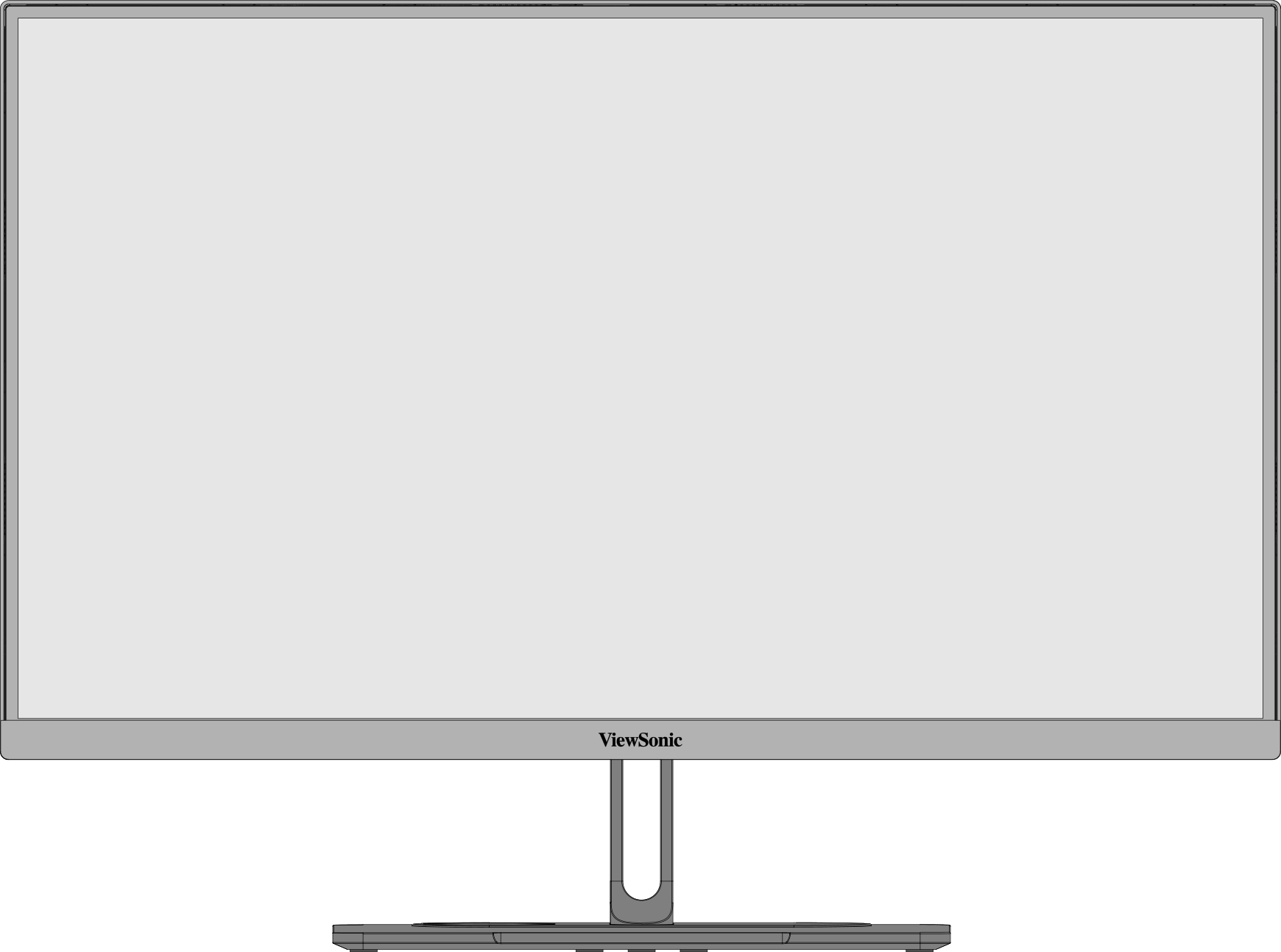 Front View
 -
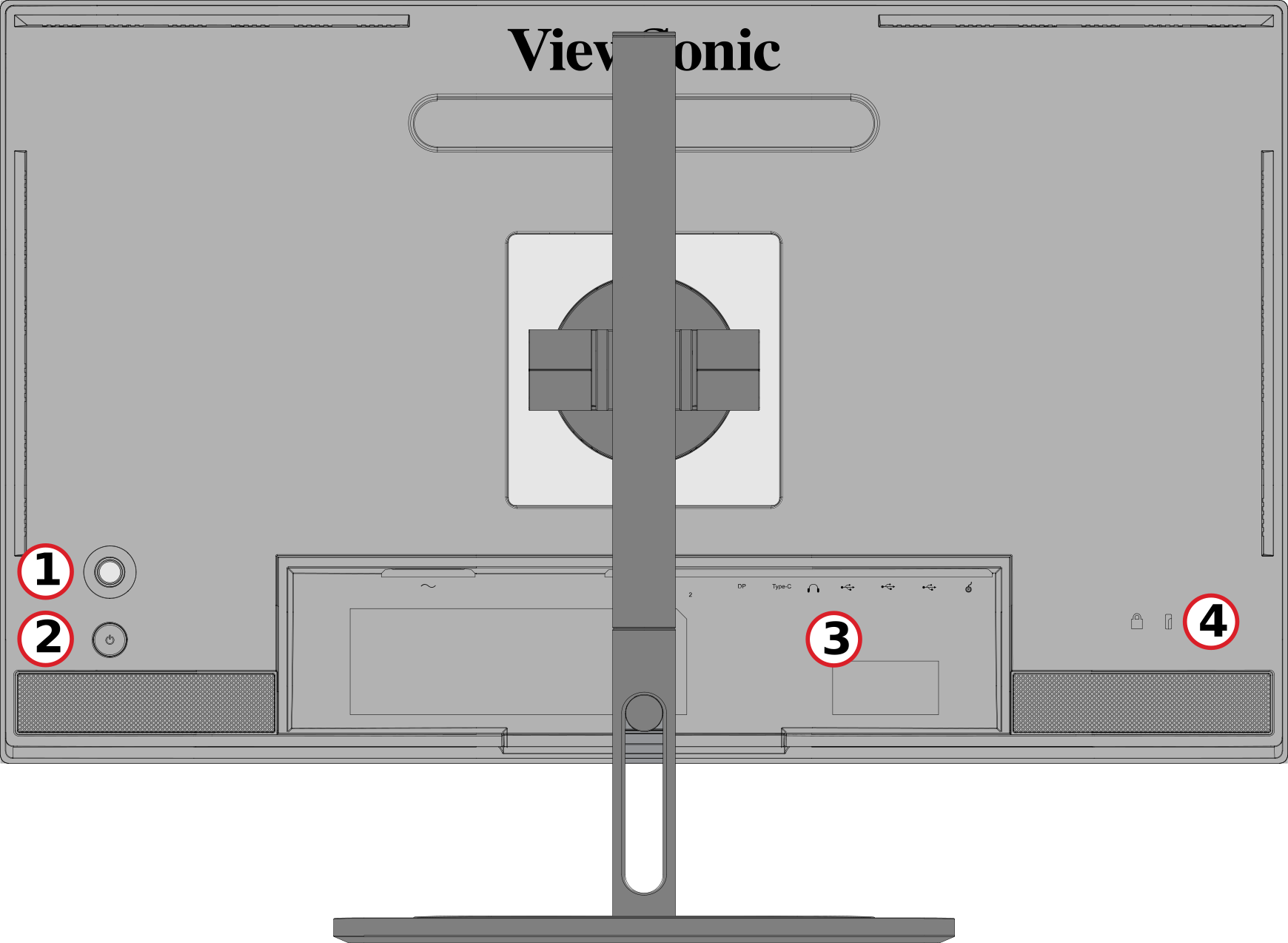 Rear View
| Number | Description |
|---|---|
| 1 | Joy Key |
| 2 | Power Button |
| 3 | I/O Ports |
| 4 | Security Lock Slot |
I/O Ports

| Number | Description |
|---|---|
| 1 | AC IN |
| 2 | HDMI |
| 3 | DisplayPort |
| 4 | USB Type C |
| 5 | Audio Out |
| 6 | USB Upstream |
| 7 | USb Downstream |
| 8 | Micro USB |
Initial Setup
Installing the Stand
 |
 |
- Place the monitor on a flat, stable surface with the screen facing down.
- Align and slide the upper hooks of the monitor stand into the stand mounting slots.
- Lift the monitor into its upright position on a flat, stable surface.
Note: For safety and to ensure optimal performance, please position the monitor on a flat, stable surface. Failure to do so may lead to the monitor falling, causing damage to the monitor itself and/or posing a risk of personal injury.
Removing the Stand and Mounting the Monitor
Refer to the table below for the standard dimensions for mounting kits.
Note: For use only with a UL certified mounting kit/bracket. To obtain a wall mounting kit or height adjustment base, contact ViewSonic® or your local dealer.
| Maximum Loading | Pad Hole | Screw Specification | Screw Quantity |
|---|---|---|---|
| 14 kg | 100 x 100 mm | M4 x 10 mm | 4 screws |
Note: Mounting kits are sold separately.
 |
 |
 |
Important: Before removing the stand, turn off the monitor, disconnect all cables, and place the monitor on a flat, stable surface with the screen facing down.
- Press and hold the quick release tab and carefully lift the stand.
- Pull down slightly to disengage the hooks and remove the stand.
- Attach the mounting bracket to the VESA mounting holes at the rear of the monitor. Then secure it with four screws (M4 x 10 mm).
- Follow the instructions that come with the purchased or optional mounting kit to mount the monitor.
Using the Security Slot

To help prevent the monitor from being stolen, use a security slot locking device to secure the monitor to a fixed object.
Additionally, fastening the monitor to a wall or fixed object using a security cable can help support the weight of the monitor in order to prevent the monitor from falling over.
Making Connections
Connecting to Power

- Connect the power cord to the AC IN jack at the rear of the monitor.
- Plug the power cord plug into a power outlet.
Display Connection
HDMI

- Connect one end of an HDMI cable to an HDMI port of the monitor.
- Plug the other end of the cable into the HDMI port of your computer.
DisplayPort

- Connect one end of a DisplayPort cable to the DP port of the monitor.
- Plug the other end of the cable into the DisplayPort or Mini DisplayPort port of your computer.
Note: To connect the monitor to the Thunderbolt port (v. 1 & 2) on your Mac, connect the Mini DisplayPort end of a “Mini DisplayPort to DisplayPort cable” to the Thunderbolt output port of your Mac. Then connect the other end of the cable to the DisplayPort port of the monitor.
Type C

- Connect one end of a USB Type C cable to the Type C port of the monitor.
- Plug the other end of the cable into the USB Type C port of your computer.
Note: For video output use, make sure your USB Type C output device (e.g., laptop) and cable support video signal transmission.
USB Connection
The monitor supports two types of USB ports, upstream and downstream. When making connection(s), observe the following guideline.

| USB Type | Connection Type | Description | |
|---|---|---|---|

|
Upstream | Type B | Transfers data between the computer and the USB devices connected to the monitor. |

|
Downstream | Type C | Transfers audio, video, and power. Enables the KVM function. |
| Supports 5V/3A, 9V/3A, 12V/3A, 15V/3A, 20V/3.25A (LPS) charging. | |||

|
Type A | For peripheral device(s) (e.g., storage device, keyboard, mouse, etc.). | |
| Supports 5V/2A charging. | |||

|
Micro USB | For use with the ColorPro™ Wheel only. | |
Note: To use peripheral devices with the USB Type A ports, please also connect your computer to the monitor’s USB Type B port.
Using the USB Ports

- To use the downstream USB Type A ports, connect one end of the USB Type B cable to the upstream USB Type B port of the monitor. Plug the other end of the cable, USB Type A, into a USB port of your computer.
- Connect your peripheral device(s) to a downstream USB Type A port of the monitor.
Audio Connection

Plug the audio jack of the audio device into the Audio Out port of the monitor.
Note: The monitor is also equipped with dual speakers.
Using the Monitor
Adjusting the Viewing Angle
Height Adjustment

Lower or raise the monitor to the desired height (0 to 130 mm).
Note: When adjusting, press down firmly along the adjustment track holding the monitor with both hands on the side.
Screen Orientation Adjustment (Monitor Pivot)
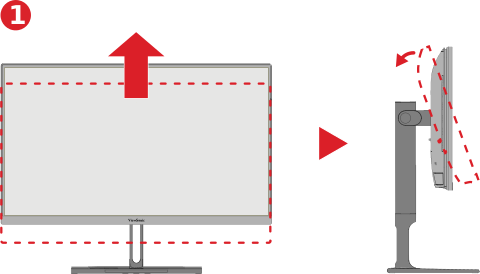 |
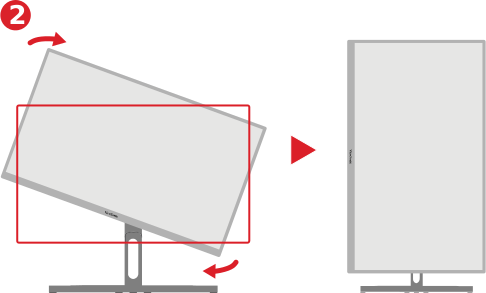 |
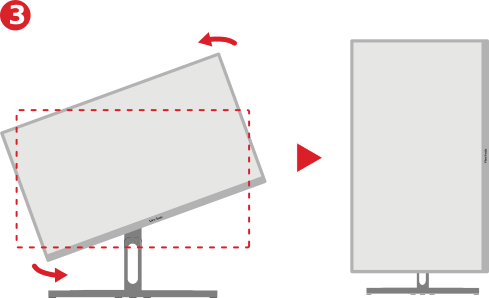 |
- Adjust the monitor height to the highest position. Then tilt the monitor backwards to the full tilt position.
- Rotate the monitor 90° clockwise or counterclockwise (3) from landscape to portrait orientation.
Note:
- When adjusting, make sure to hold both sides of your monitor firmly with both hands.
- If using the Auto Pivot function, the system can detect the screen orientation automatically.
Swivel Adjustment

Swivel the monitor to the left or right for the desired viewing angle (60˚).
Tilt Adjustment

Tilt the monitor forwards or backwards to the desired viewing angle (-5˚ to 21˚).
Note: When adjusting, support the stand firmly with one hand while tilting the monitor forwards or backwards with the other hand.
Turning the Monitor On/Off

- Plug the connected power adapter into a power outlet.
- Press the Power ( ) button to turn on the monitor.
- To turn the monitor off, press the Power ( ) button again.
Note:
- If the OSD Menu is still on screen, press and hold the Power ( ) button for three seconds to power off.
- The monitor will still consume some power as long as the power cord is connected to the power outlet. If the monitor is not being used for a long period of time, please disconnect the power plug from the power outlet.
Using the Joy Key
Use the Joy Key to activate Hot Keys, navigate the On-Screen Display (OSD) Menu, and change settings.

Startup Menu
Move the Joy Key (  ) to activate the Startup Menu.

Note: Follow the key guide that appears on the screen to select the option or make adjustments.
Main Menu
Enter the On-Screen Display (OSD) Menu.

Color Mode
Select one of the preset standard color settings.

ViewMode
Select one of the preset display settings.

Brightness
Adjust the brightness level.

Input
Select the input source.

Volume
Adjust the volume settings.

Note: Move the Joy Key ( ) to return to the previous menu.
 ) to return to the previous menu.
Hot Keys
When the On-Screen Display (OSD) Menu is off, you can quickly access special functions by using the Joy Key.
| Key | Description |
|---|---|
 |
Press and hold the key for five seconds to activate/deactivate LED lighting.
 |
 |
Press and hold the key to lock/unlock the OSD Menu. When the menu appears on the screen, continue holding the key for 10 seconds to lock/unlock the OSD Menu.
 If the OSD Menu is locked, the below message will appear on the screen:  |
 |
Press and hold the key to lock/unlock the Power ( ) button. When the menu appears on the screen, continue holding the key for 10 seconds to lock/unlock the Power ( ) button.  If the Power ( ) button is locked, the below message will appear on the screen.  |
 |
Press and hold the key for 10 seconds to display/hide the boot up screen when the device is turned on.  |
 |
Press and hold the key for 10 seconds to activate/deactivate Ultra Fast.  |
Configuring the Settings
General Operations
- Move the Joy Key ( ) to display the Startup Menu. Then navigate to Main Menu and press the Joy Key (
 ) to display the OSD Menu.
 - Move the Joy Key (
 ) or (
  ) to select the main menu. Then press the Joy Key ( ) to enter the selected menu.
 - Move the Joy Key ( ) or ( ) to select the desired menu option. Then press the Joy Key ( ) to enter the sub-menu.
- Move the Joy Key ( ) or ( ) to adjust/select the setting. Then press the Joy Key ( ) to confirm.
- Move the Joy Key ( ) to return to the previous menu.


Menu Options
Input
- Move the Joy Key ( ) to display the Startup Menu. Then navigate to Main Menu and press the Joy Key ( ) to display the OSD Menu.
- Move the Joy Key ( ) or ( ) to select Input. Then press the Joy Key ( ) to enter the Input menu.
- Move the Joy Key ( ) or ( ) to select the desired input source. Then press the Joy Key ( ) to confirm the selection.
Color Mode

- Move the Joy Key ( ) to display the Startup Menu. Then navigate to Main Menu and press the Joy Key ( to display the OSD Menu.
- Move the Joy Key ( ) or ( ) to select Color Mode. Then press the Joy Key ( ) to enter the Color Mode menu.
- Move the Joy Key ( ) or ( ) to select the desired option. Then press the Joy Key ( ) to enter its sub-menu.
- Move the Joy Key ( ) or ( ) to adjust/select the setting, and press the Joy Key ( ) to confirm the selection (if applicable).
| Menu Option | Description |
|---|---|
| Adobe RGB | Precise color gamut and gamma of Adobe RGB standard. |
| DCI-P3 | Precise color gamut and gamma of DCI-P3 standard. |
| sRGB | Precise color gamut and gamma of sRGB standard. |
| REC709 | Precise color gamut and gamma of ITU-R Rec. 709 standard. |
| DICOM-SIM | Gamma curves are set to a DICOM simulation. |
| User | Custom, user-defined settings. |
| CAL1/CAL2/CAL3 | Display with the 1st/2nd/3rd user calibration mode. |
| HDR | Reduce the overall contrast of a given scene so that detail in the highlights and shadows can be seen. |
ViewMode

- Move the Joy Key ( ) to display the Startup Menu. Then navigate to Main Menu and press the Joy Key ( ) to display the OSD Menu.
- Move the Joy Key ( ) or ( ) to select ViewMode. Then press the Joy Key ( ) to enter the ViewMode menu.
- Move the Joy Key ( ) or ( ) to select the desired option. Then press the Joy Key ( ) to enter its sub-menu.
| Menu Option | Description |
|---|---|
| CAD/CAM | Select this option for viewing graphic design files. |
| Video Edit | Select this option for video editing. |
| Animation | Select this option for animation. |
| Photographer | Select this option for viewing photo files. |
| FPS 1 | Ideal for First-Person Shooter games. |
| FPS 2 | Ideal for First-Person Shooter games. |
| RTS | Ideal for Real-Time Strategy games. |
| MOBA | Select this option for Multiplayer Online Battle Arena games. |
Audio Adjust

- Move the Joy Key ( ) to display the Startup Menu. Then navigate to Main Menu and press the Joy Key ( ) to display the OSD Menu.
- Move the Joy Key ( ) or ( ) to select Audio Adjust. Then press the Joy Key ( ) to enter the Audio Adjust menu.
- Move the Joy Key ( ) or ( ) to select the desired option. Then press the Joy Key ( ) to enter its sub-menu.
- Move the Joy Key ( ) or ( ) to adjust/select the setting, and press the Joy Key ( ) to confirm the selection (if applicable).
| Menu Option | Description |
|---|---|
| Volume | Adjust the monitor’s sound level. |
| Mute | Turn off the monitor's sound. |
| Audio Input | Select the audio input source. |
Setup Menu

- Move the Joy Key ( ) to display the Startup Menu. Then navigate to Main Menu and press the Joy Key ( ) to display the OSD Menu.
- Move the Joy Key ( ) or ( ) to select Setup Menu. Then press the Joy Key ( ) to enter the Setup Menu menu.
- Move the Joy Key ( ) or ( ) to select the desired option. Then press the Joy Key ( ) to enter its sub-menu.
- Move the Joy Key ( ) or ( ) to adjust/select the setting, and press the Joy Key ( ) to confirm the selection (if applicable).
| Menu Option | Description |
|---|---|
| Language Select | Select an available language for the OSD Menu. |
| Adaptive Sync | Eliminates stuttering and tearing during gameplay. |
| Resolution Notice | Enable this option to allow the system to inform users that the current viewing resolution is not the correct native resolution. |
| PureXP™ | Short for “Pure Experience”, this feature can enhance the visual quality of moving objects, making them less vague with a clearer view. |
| Information | Display the monitor information. |
| OSD Timeout | Set the length of time the OSD Menu remains on screen. |
| OSD Background | Show/Hide the OSD background when the OSD Menu appears on the screen. |
| OSD Pivot | Set the OSD Menu orientation.
|
| Power Indicator | Set the Power Indicator On or Off. If the setting is set to On, the power indicator lights blue when the device is turned on. |
| Auto Power Off | Enable this option to allow the monitor to automatically turn off after a certain amount of time. |
| Sleep | Set the amount of idle time before the monitor enters Sleep mode. |
| Multi-Picture | Off
PBP Left-Right
PIP
Dual Color
|
| ECO Mode | Choose between various modes, based on power consumption. |
| Overscan | Enable this option to automatically enlarge the original picture horizontally and vertically to an equal aspect ratio that fills the screen. |
| Response Time | Adjust the response time, creating smooth images without streaking, blurring or ghosting. A low response time is perfect for the most graphic-intense gaming, and provides amazing visual quality while watching sports or action movies. |
| USB Charging | Enable/disable usb charging. |
| Backstage Lighting | Adjust the LED lighting. |
| Burn-in Eraser | Reduce image burn-in. |
| DDC/CI | Enable this option to allow the monitor control via the graphics card. |
| Rename | Rename the personalized custom profile. |
| All Recall | Resets all settings to their default values. |
Advanced Features and Settings
Auto Pivot
With the Auto Pivot function, the monitor can detect the image display and adjust the image’s orientation on the screen automatically when pivoting the screen vertically or horizontally.
Note: The Auto Pivot function uses DDC/CI to communicate with the monitor. Before applying the Auto Pivot function, please make sure the DDC/CI setting is set to On.
To enable the DDC/CI setting:
- Open the OSD Menu and select the Setup Menu menu. Then press the Joy Key ( ) to enter the menu.
- Move the Joy Key ( ) or ( ) to select DDC/CI. Then press the Joy Key ( ) to enter its sub-menu.
Move the Joy Key (
) or ( ) to select On. Then press the Joy Key ( ) to confirm.

After making sure DDC/CI is On, proceed to set OSD Pivot to Auto:
- Open the OSD Menu and select the Setup Menu menu. Then press the Joy Key ( ) to enter the menu.
- Move the Joy Key ( ) or ( ) to select OSD Pivot. Then press the Joy Key ( ) to enter its sub-menu.
- Move the Joy Key ( ) or ( ) to select Auto. Then press the Joy Key ( ) to confirm.
Backstage Lighting
With the Backstage Lighting function, the monitor can adjust the LED brightness to the optimal settings.
To configure the Backstage Lighting settings:
- Open the OSD Menu and select the Setup Menu menu. Then press the Joy Key ( ) to enter the menu.
- Move the Joy Key ( ) or ( ) to select Backstage Lighting. Then press the Joy Key ( ) to enter its sub-menu.
- Move the Joy Key ( ) or ( ) to select Level 1, Level 2, or Level 3 to enable the function. Then press the Joy Key ( ) to confirm.
Colorbration+
To ensure long-term color accuracy, some specific models support the hardware color calibration function. The Colorbration+ application installation file can be found at our website.
Standard monitor packing does not include the color sensor, which the Colorbration+ application needs for the calibration process.
Compatible color sensors include:
- X-Rite i1 Display Pro
- X-Rite i1 Pro 2
- X-Rite i1 Studio
- Xrite Colormunki Photo
- Xrite Colormunki Design
- Datacolor SpyderX series
- ColorPro™ Wheel
Dual Color
The monitor comes with a dual color engine to display two different color settings in PIP (Picture-in-Picture) or PBP (Picture-by-Picture) mode. You can set different color presets in both windows (The Main Window and Secondary Window).
Note: To enable PIP or PBP mode, refer to the Multi-Picture section.
To configure Dual Color:
- Move the Joy Key ( ) to display the Startup Menu. Then navigate to Main Menu and press the Joy Key ( ) to display the OSD Menu.
- Move the Joy Key ( ) or ( ) to select the Setup Menu menu. Then press the Joy Key ( ) to enter the menu.
- Move the Joy Key ( ) or ( ) to select Multi-Picture. Then press the Joy Key ( ) to enter its sub-menu.
- Move the Joy Key ( ) or ( ) to select Dual Color. Then press the Joy Key ( ) to enter its sub-menu.
- Move the Joy Key ( ) or ( ) to select the desired color setting. Then press the Joy Key ( ) to confirm.
Firmware Update
For the best display performance and to resolve any known issues, it is best to keep your monitor updated with the latest firmware version. With the supplied USB cable and the vDisplayManager application, you can easily update your monitor’s firmware.
To update the firmware:
- Download and install the vDisplayManager application from our website.
- Connect one end of a USB Type B cable to the USB Type B port of the monitor. Then connect the other end of the cable to a USB port of the computer.
- Launch vDisplayManager. Select the Advanced tab in the side menu.
- Click Update to check for any updates to your monitor’s firmware.
- Wait until the update process is complete (if applicable).

Note: Any interruptions during the firmware update process may permanently damage your monitor. Do not disconnect the USB cable or turn off your PC and monitor.
HDR (High-Dynamic-Range)
HDR reduces the overall contrast of a given scene so that detail in the highlights and shadows can be better seen.
Note: Please make sure the HDR setting is turned on on your device first before enabling HDR on the monitor.
To enable the HDR function:
- Move the Joy Key ( ) to display the Startup Menu. Then navigate to Main Menu and press the Joy Key ( ) to display the OSD Menu.
- Move the Joy Key ( ) or ( ) to select Color Mode. Then press the Joy Key ( ) to enter the Color Mode menu.
- Move the Joy Key ( ) or ( ) to select HDR. Then press the Joy Key ( ) to enter its sub-menu.
- Move the Joy Key ( ) or ( ) to select one of the options . Then press the Joy Key ( ) to confirm.

KVM
The KVM function allows the user to control two computers connected to the same monitor from a single keyboard and mouse.
Note: Only applicable in PBP (Picture-by-Picture) mode.
To connect the two computers to the monitor:
- Connect one end of a USB Type C cable to the USB Type C port of the monitor. Then connect the other end of the cable to the USB Type C port of the laptop.
- Connect one end of a DisplayPort cable to the DisplayPort port of the monitor. Then connect the other end of the cable to the DisplayPort or Mini DisplayPort of the computer.
- Connect one end of a USB Type B cable to the USB Type B port of the monitor. Then connect the other end of the cable to a USB port of the computer.

To enable PBP mode:
- Move the Joy Key ( ) to display the Startup Menu. Then navigate to Main Menu and press the Joy Key ( ) to display the OSD Menu.
- Move the Joy Key ( ) or ( ) to select the Setup Menu menu. Then press the Joy Key ( ) to enter the menu.
- Move the Joy Key ( ) or ( ) to select Multi-Picture. Then press the Joy Key ( ) to enter its sub-menu.
- Move the Joy Key ( ) or ( ) to select PBP Left-Right. Then press the Joy Key ( ) to enable PBP mode.

To activate the KVM function:
- Move and hold the Joy Key (
 ) for two seconds to activate the KVM function.
 - Then you will be able to switch the cursor between the two screens (left/right window).

Multi-Picture
Multi-Picture allows users to further customize their work space by allowing up to four split windows from different inputs, displaying high resolution content with different aspect ratios, without distortion from the original input sources.

To enable Multi-Picture mode:
- Move the Joy Key ( ) to display the Startup Menu. Then navigate to Main Menu and press the Joy Key ( ) to display the OSD Menu.
- Move the Joy Key ( ) or ( ) to select Color Mode. Then press the Joy Key ( ) to enter the Color Mode menu.
- Move the Joy Key ( ) or ( ) to select Multi-Picture. Then press the Joy Key ( ) to enter its sub-menu.
- Move the Joy Key ( ) or ( ) to select PBP Left-Right or PIP. Then press the Joy Key ( ) to enter the selected mode.
PBP (Picture-by-Picture)

Note: To display full-sized images in the windows, please adjust the screen resolution to 1920 x 1080 (PBP Left-Right).
To configure PBP:
- Move the Joy Key ( ) to display the Startup Menu. Then navigate to Main Menu and press the Joy Key ( ) to display the OSD Menu.
- Move the Joy Key ( ) or ( ) to select Setup Menu. Then press the Joy Key ( ) to enter the Setup Menu menu.
- Move the Joy Key ( ) or ( ) to select Multi-Picture. Then press the Joy Key ( ) to enter its sub-menu.
- Move the Joy Key ( ) or ( ) to select PBP Left-Right. Then press the Joy Key ( ) to enter its sub-menu.
- To change the input source, select the source location (Left Source Select/Right Source Select) and press the Joy Key ( ).
- Move the Joy Key ( ) or ( ) to select the desired input source and press the Joy Key ( ) to confirm.
- To swap the two windows, select Swap and press the Joy Key ( ) to confirm.
PIP (Picture-in-Picture)

To configure PIP:
- Move the Joy Key ( ) to display the Startup Menu. Then navigate to Main Menu and press the Joy Key ( ) to display the OSD Menu.
- Move the Joy Key ( ) or ( ) to select Setup Menu. Then press the Joy Key ( ) to enter the Setup Menu menu.
- Move the Joy Key ( ) or ( ) to select Multi-Picture. Then press the Joy Key ( ) to enter its sub-menu.
- Move the Joy Key ( ) or ( ) to select PIP. Then press the Joy Key ( ) to enter its sub-menu.
- To change the input source for the Inset Window, select PIP Source Select and press the Joy Key ( ). Then move the Joy Key ( ) or ( ) to select the desired input source and press the Joy Key ( ) to confirm.
- To adjust the Inset Window position, select PIP Position and press the Joy Key ( ).
- Press the Joy Key ( ) to select PIP H.Position or PIP V.Position.
- Move the Joy Key ( ) or ( ) to adjust the setting and press the Joy Key ( ) to confirm.
- To adjust the Inset Window size, select PIP Size and press the Joy Key ( ). Then move the Joy Key ( ) or ( ) to adjust the setting.
- To swap the two windows, select Swap and press the Joy Key ( ) to confirm.
Color Calibration
What is Colorbration⁺?
Color accuracy is one of the most important aspects of the creative workflow and ensuring that your monitor’s color accurately represents the color of your original image or digital file is essential. The software allows you to:
- Calibrate and profile your monitor quickly and easily.
- Control white point, luminance, contrast ratio, gamma, and more.
Where to Get Colorbration⁺?
The Colorbration⁺ software can be downloaded from our website.
After the download completes, launch the Setup file and follow the on-screen directions to install the software.
Connection Methods
In addition to downloading the software, make sure that your monitor, computer and colorimeter are properly connected.
There are two methods of connection for your monitor and computer:
HDMI or DisplayPort
Users with an HDMI or DisplayPort connection should also connect their monitor and computer via a USB Type C to USB Type A cable.

Type C
Users with a USB Type C connection can connect their monitor and computer directly.

Colorimeter Connection
Connect the USB Type A cable of the colorimeter to the USB Type A port of the monitor.

Preparing for Color Calibration
- Please make sure all connections have been made and are correct.
- Tilt your monitor upwards.
- Remove the lens cap (if applicable) and carefully place the measurement device in contact with the monitor’s screen.


Using Colorbration+
Upon initially launching Colorbration⁺ the user will have two modes to choose from:
- Basic Mode
- Advanced Mode
General Operation
To begin the Advanced Mode calibration process:
- Select Device Selection, then the monitor you wish to calibrate from the available options.
- Connect and select the measurement device you wish to use from the available options.
- Select Calibration on the Sidebar Menu.
- Choose your desired calibration settings from the drop-down menu, or create a custom profile.
- Once the calibration settings have been chosen, select to begin the calibrating process.
- Wait until the color calibration process is complete.
Important: Any interruptions during the color calibration process may permanently damage your monitor color. Do not disconnect the USB cable or turn off your PC or monitor.
Appendix
Product Specifications
| Item | Category | Specifications |
|---|---|---|
| LCD | Type | IPS type, a-si TFT Active Matrix 3840 x 2160 LCD, 0.1554 (H) mm x 0.1554 (V) mm pixel pitch |
| Display Size | 68.47 cm | |
| 27" viewable | ||
| Color Filter | RGB Vertical Stripe | |
| Glass Surface | Anti-Glare (Haze 25%), Hard Coating (3H) | |
| Input Signal | Video Sync | TMDS digital (100 Ω)
|
| Compatibility | PC | up to 3840 x 2160 |
| Macintosh | up to 3840 x 2160 | |
| Resolution and Timings[1] | Recommended | 3840 x 2160 @ 60 Hz |
| Supported |
| |
| Power[2] | Input Voltage | AC 100-240V, 50/60 Hz (auto switch) |
| Display Area | Active Size (H x V) |
596.74 x 335.66 mm |
| 23.49” x 13.21” | ||
| Operating Conditons | Altitude | 3.048 km |
| 10,000 ft | ||
| Relative Humidity | 20% to 90% (non-condensing) | |
| Temperature | 0° C to 40° C | |
| 32° F to 104° F | ||
| Storage Conditions | Altitude | 12 km |
| 39,370.1 ft | ||
| Relative Humidity | 5% to 90% (non-condensing) | |
| Temperature | -20° C to 60° C | |
| -4° F to 140° F | ||
| Dimensions
(with stand) |
Physical (W x H x D) |
613.10 x 569.11~449.11 x 232.4 mm |
| 24.14” x 22.41~17.68” x 9.15” | ||
| Weight
(with stand) |
Physical | 8.23 kg |
| 18.15 lb | ||
| Wall Mount | Dimensions | 100 x 100 mm |
| Power Consumption | On[3] | 45W (Typical) without Audio 74W (Maximum) with Audio |
| Off | < 0.3W (Maximum) |
 |
The terms HDMI, HDMI High-Definition Multimedia Interface, HDMI trade dress and the HDMI Logos are trademarks or registered trademarks of HDMI Licensing Administrator, Inc. |
On-Screen Display (OSD) Menu Tree
On-Screen Display (OSD) Tree
| Sub-menu | Menu Option | ||
|---|---|---|---|
| Adobe RGB | Brightness | (-/+, 0~100)/1 | |
| Color Temperature | 9300K | ||
| 7500K | |||
| 6500K | |||
| 6300K | |||
| 5000K | |||
| Gamma | 1 | ||
| 1.4 | |||
| 1.8 | |||
| 2.2 | |||
| 2.4 | |||
| 2.6 | |||
| Sharpness | (-/+, 0~100)/1 | ||
| Aspect Ratio | 1:1 | ||
| 4:3 | |||
| Full Screen | |||
| Uniformity | On | ||
| Off | |||
| Recall | |||
| DCI-P3 | Brightness | (-/+, 0~100)/1 | |
| Color Temperature | 9300K | ||
| 7500K | |||
| 6500K | |||
| 6300K | |||
| 5000K | |||
| Gamma | 1 | ||
| 1.4 | |||
| 1.8 | |||
| 2.2 | |||
| 2.4 | |||
| 2.6 | |||
| Sharpness | (-/+, 0~100)/1 | ||
| Aspect Ratio | 1:1 | ||
| 4:3 | |||
| Full Screen | |||
| Uniformity | On | ||
| Off | |||
| Recall | |||
| sRGB | Brightness | (-/+, 0~100)/1 | |
| Color Temperature | 9300K | ||
| 7500K | |||
| 6500K | |||
| 6300K | |||
| 5000K | |||
| Gamma | 1 | ||
| 1.4 | |||
| 1.8 | |||
| 2.2 | |||
| 2.4 | |||
| 2.6 | |||
| Sharpness | (-/+, 0~100)/1 | ||
| Aspect Ratio | 1:1 | ||
| 4:3 | |||
| Full Screen | |||
| Uniformity | On | ||
| Off | |||
| Recall | |||
| REC709 | Brightness | (-/+, 0~100)/1 | |
| Color Temperature | 9300K | ||
| 7500K | |||
| 6500K | |||
| 6300K | |||
| 5000K | |||
| Gamma | 1 | ||
| 1.4 | |||
| 1.8 | |||
| 2.2 | |||
| 2.4 | |||
| 2.6 | |||
| Sharpness | (-/+, 0~100)/1 | ||
| Aspect Ratio | 1:1 | ||
| 4:3 | |||
| Full Screen | |||
| Uniformity | On | ||
| Off | |||
| Recall | |||
| DICOM-SIM | Sharpness | (-/+, 0~100)/1 | |
| Aspect Ratio | 1:1 | ||
| 4:3 | |||
| Full Screen | |||
| Recall | |||
| Soft Proofing | Contrast | (-/+, 0~100)/1 | |
| Brightness | (-/+, 0~100)/1 | ||
| Color Temperature | 9300K | ||
| 7500K | |||
| 6500K | |||
| 6300K | |||
| 5000K | |||
| Gamma | 1 | ||
| 1.4 | |||
| 1.8 | |||
| 2.2 | |||
| 2.4 | |||
| 2.6 | |||
| Sharpness | (-/+, 0~100)/1 | ||
| Aspect Ratio | 1:1 | ||
| 4:3 | |||
| Full Screen | |||
| Uniformity | On | ||
| Off | |||
| Recall | |||
| User | Contrast | (-/+, 0~100)/1 | |
| Brightness | (-/+, 0~100)/1 | ||
| Color Temperature | 9300K | ||
| 7500K | |||
| 6500K | |||
| 6300K | |||
| 5000K | |||
| Gamma | 1 | ||
| 1.4 | |||
| 1.8 | |||
| 2.2 | |||
| 2.4 | |||
| 2.6 | |||
| Advanced DCR | (-/+, 0~100)/25 | ||
| Gain | Red | (-/+, 0~100) | |
| Green | (-/+, 0~100) | ||
| Blue | (-/+, 0~100) | ||
| Offset | Red | (-/+, 0~100) | |
| Green | (-/+, 0~100) | ||
| Blue | (-/+, 0~100) | ||
| Hue | Red | (-/+, 0~100) | |
| Green | (-/+, 0~100) | ||
| Blue | (-/+, 0~100) | ||
| Cyan | (-/+, 0~100) | ||
| Magenta | (-/+, 0~100) | ||
| Yellow | (-/+, 0~100) | ||
| Sharpness | (-/+, 0~100)/1 | ||
| Aspect Ratio | 1:1 | ||
| 4:3 | |||
| Full Screen | |||
| Blue Light Filter | (-/+, 0~5) | ||
| Uniformity | On | ||
| Off | |||
| Recall | |||
| CAL1/CAL2/CAL3 | Brightness | (-/+, 0~100)/1 | |
| Color Calibration Notice | Result | ||
| Remind Schedule Hour | |||
| Counter Hour | |||
| Recall | |||
| Sharpness | (-/+, 0~100)/1 | ||
| Aspect Ratio | 1:1 | ||
| 4:3 | |||
| Full Screen | |||
| Uniformity | On | ||
| Off | |||
| Recall | |||
| HDR | Standard | ||
| HDR_M | |||
| HDR_H | |||
| Smooth | |||
| Off | |||
| Sub-menu | Menu Option | |
|---|---|---|
| CAD/CAM | Ultra Clear | (-/+, 0~4) |
| Advanced-Sharpness | (-/+, 0~100) | |
| Advanced-Gamma | (-/+, 1.8~2.6) | |
| Video Edit | Ultra Clear | (-/+, 0~4) |
| Advanced-Sharpness | (-/+, 0~100) | |
| Advanced-Gamma | (-/+, 1.8~2.6) | |
| Animation | Ultra Clear | (-/+, 0~4) |
| Advanced-Sharpness | (-/+, 0~100) | |
| Black Stabilization | (-/+, 0~10) | |
| Photographer | Ultra Clear | (-/+, 0~4) |
| Advaned-Sharpness | (-/+, 0~100) | |
| Advanced-Gamma | (-/+, 1.8~2.6) | |
| FPS 1 | ||
| FPS 2 | ||
| RTS | ||
| MOBA | ||
| Sub-menu | Menu Option |
|---|---|
| Volume | (-/+, 0~100)/1 |
| Mute | On |
| Off | |
| Audio Input | DisplayPort |
| HDMI 1 | |
| HDMI 2 | |
| Type C |
| Sub-menu | Menu Option | ||
|---|---|---|---|
| Language Select | English | ||
| Français | |||
| Deutsch | |||
| Español | |||
| Italiano | |||
| Suomi | |||
| Русский | |||
| Türkçe | |||
| 日本語 | |||
| 한국어 | |||
| 繁體中文 | |||
| 简体中文 | |||
| Resolution Notice | On | ||
| Off | |||
| Information | |||
| OSD Timeout | (-/+, 5/15/30/60) | ||
| OSD Background | On | ||
| Off | |||
| OSD Pivot | Auto | ||
| 0° | |||
| +90° | |||
| -90° | |||
| 180° | |||
| Power Indicator | On | ||
| Off | |||
| Auto Power Off | On | ||
| Off | |||
| Sleep | 30 minutes | ||
| 45 minutes | |||
| 60 minutes | |||
| 120 minutes | |||
| Off | |||
| Multi-Picture | Off | ||
| PBP Left-Right | Left Source Select | DisplayPort | |
| HDMI 1 | |||
| HDMI 2 | |||
| Type C | |||
| Right Source Select | DisplayPort | ||
| HDMI 1 | |||
| HDMI 2 | |||
| Type C | |||
| Swap | |||
| PIP | PIP Source Select | DisplayPort | |
| HDMI 1 | |||
| HDMI 2 | |||
| Type C | |||
| PIP Position | PIP H. Position | ||
| PIP V. Position | |||
| PIP Size | (-/+, 0~100) | ||
| Swap | |||
| Dual Color | DCI-P3 | ||
| sRGB | |||
| REC709 | |||
| DICOM-SIM | |||
| User | |||
| CAL 1 | |||
| CAL 2 | |||
| CAL 3 | |||
| CAD/CAM | |||
| Video Edit | |||
| Animation | |||
| Photographer | |||
| FPS 1 | |||
| FPS 2 | |||
| RTS | |||
| MOBA | |||
| ECO Mode | Standard | ||
| Optimize | |||
| Conserve | |||
| Energy Saving | On | ||
| Off | |||
| Overscan | On | ||
| Off | |||
| Response Time | Standard | ||
| Advanced | |||
| Ultra Fast | |||
| USB Charging | On | ||
| Off | |||
| Backstage Lighting | Level 1 | ||
| Level 2 | |||
| Level 3 | |||
| Off | |||
| Burn-in Eraser | On | ||
| Off | |||
| DDC/CI | On | ||
| Off | |||
| Rename | |||
| All Recall | |||
Safety Precautions
Please read these instructions completely before using the equipment.
- Keep this user guide in a safe place for later reference.
- Read all warnings and follow all instructions.
- Sit at least 18" (45 cm) away from the device.
- Allow at least 4" (10 cm) clearance around the device to ensure proper ventilation.
- Place the device in a well-ventilated area. Do not place anything on the device that prevents heat dissipation.
- Do not use the device near water. To reduce the risk of fire or electric shock, do not expose the device to moisture.
- Avoid exposing the device to direct sunlight or other sources of sustained heat.
- Do not install near any heat sources such as radiators, heat registers, stoves, or other devices (including amplifiers) that may increase the temperature of the device to dangerous levels.
- Use a soft, dry cloth to clean the external housing. For more information, refer to the "Maintenance" section of this manual.
- Avoid touching the screen, as oil may collect on the screen if you touch it.
- Do not touch the screen surface with sharp or hard objects, as it may cause damage to the screen.
- Do not place the device on cloth or other materials that may be placed between the product and supporting furniture.
- When moving the device, be careful not to drop or bump the device on anything.
- Do not place the device on an uneven or unstable surface. The device may fall over resulting in an injury or a malfunction.
- Do not place any heavy objects on the device or connection cables.
- Always use cabinets, stands, or installation methods recommended by the manufacturer of the device set.
- Always use furniture that can safely support the device.
- Always ensure the device is not overhanging the edge of the supporting furniture.
- Do not place the device on tall furniture, such as cupboards or bookcases, without anchoring both the furniture and the device to a suitable support.
- Always educate children about the dangers of climbing on furniture to reach the device or related equipment.
- Do not place the monitor where children are likely to be present.
- Do not place items that might tempt children to climb, such as toys and remote controls, on the top of the device or furniture on which the product is placed.
- If smoke, an abnormal noise, or a strange odor is present, immediately turn the device off and call your dealer or ViewSonic®. It is dangerous to continue using the device.
- Do not attempt to circumvent the safety provisions of the polarized or grounding-type plug. A polarized plug has two blades with one wider than the other. A grounding-type plug has two blades and a third grounding prong. The wide blade and the third prong are provided for your safety. If the plug does not fit into your outlet, obtain an adapter and do not attempt to force the plug into the outlet.
- When connecting to a power outlet, Do not remove the grounding prong. Please ensure grounding prongs are never removed.
- Always route and manage cords and cables connected to your device so they cannot be tripped over, pulled, or grabbed.
- Protect the power cord from being treaded upon or pinched, particularly at the plug, and at the point where it emerges from the equipment. Ensure that the power outlet is located near the equipment so that it is easily accessible.
- Disconnect the power plug from the power outlet if the device is not being used for a long period of time.
- Please confirm the distribution system installed in the building. The system should provide a circuit breaker rated at 120/240V, 20A.
- Only use attachments/accessories, such as carts, stands, tripods, brackets or tables, specified by the manufacturer.
- When a cart is used, use with caution when moving the cart/equipment combination to avoid injury from tipping over.
- Refer all servicing to qualified service personnel. Service will be required when the unit has been damaged in any way, such as:
- if the power-supply cord or plug is damaged.
- if liquid is spilled onto or objects fall into the unit.
- if the unit is exposed to rain or moisture.
- if the unit does not operate normally or has been dropped.
- When using ear-/headphones, adjust the volume to appropriate levels, or hearing damage may result.
- Stability Hazard: The display may fall, causing serious personal injury or death. To prevent injury, this display must be securely attached to the floor/wall in accordance with the installation instructions.
- Fastening the display to a wall or fixed object using cordage or other restraining devices can help support the weight of the display in order to prevent the display from falling over.
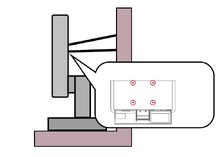
Note:
- Restraining device/cordage should be able to withstand 100N force.
- Make sure the cordage is straightened, and any slack is removed. The back of the device shall face the wall to ensure the device cannot tilt under external force.
- Make sure the display does not tilt under external force at any height and rotation angle of the device.
- If the existing display is going to be retained and relocated, the same considerations as above should be applied.
Regulatory and Service Information
Compliance Information
This section addresses all connected requirements and statements regarding regulations. Confirmed corresponding applications shall refer to nameplate labels and relevant markings on the unit.
FCC Compliance Statement
This device complies with part 15 of FCC Rules. Operation is subject to the following two conditions: (1) this device may not cause harmful interference, and (2) this device must accept any interference received, including interference that may cause undesired operation. This equipment has been tested and found to comply with the limits for a Class B digital device, pursuant to part 15 of the FCC Rules.
These limits are designed to provide reasonable protection against harmful interference in a residential installation. This equipment generates, uses, and can radiate radio frequency energy, and if not installed and used in accordance with the instructions, may cause harmful interference to radio communications. However, there is no guarantee that interference will not occur in a particular installation. If this equipment does cause harmful interference to radio or television reception, which can be determined by turning the equipment off and on, the user is encouraged to try to correct the interference by one or more of the following measures:
- Reorient or relocate the receiving antenna.
- Increase the separation between the equipment and receiver.
- Connect the equipment into an outlet on a circuit different from that to which the receiver is connected.
- Consult the dealer or an experienced radio/TV technician for help.
Warning: You are cautioned that changes or modifications not expressly approved by the party responsible for compliance could void your authority to operate the equipment.
Industry Canada Statement
CAN ICES (B) / NMB (B)
CE Conformity for European Countries
 |
The device complies with the EMC Directive 2014/30/EU and Low Voltage Directive 2014/35/EU. |
The following information is only for EU-member states:
| The mark shown to the right is in compliance with the Waste Electrical and Electronic Equipment Directive 2012/19/EU (WEEE). The mark indicates the requirement NOT to dispose of the equipment as unsorted municipal waste, but use the return and collection systems according to local law. |  |
Declaration of RoHS2 Compliance
This product has been designed and manufactured in compliance with Directive 2011/65/EU of the European Parliament and the Council on restriction of the use of certain hazardous substances in electrical and electronic equipment (RoHS2 Directive) and is deemed to comply with the maximum concentration values issued by the European Technical Adaptation Committee (TAC) as shown below.
| Substance | Proposed Maximum Concentration | Actual Concentration |
|---|---|---|
| Lead (Pb) | 0.1% | < 0.1% |
| Mercury (Hg) | 0.1% | < 0.1% |
| Cadmium (Cd) | 0.01% | < 0.01% |
| Hexavalent Chromium (Cr6⁺) | 0.1% | < 0.1% |
| Polybrominated biphenyls (PBB) | 0.1% | < 0.1% |
| Polybrominated diphenyl ethers (PBDE) | 0.1% | < 0.1% |
| Bis (2-ethylhexyl) phthalate (DEHP) | 0.1% | < 0.1% |
| Butyl benzyl phthalate (BBP) | 0.1% | < 0.1% |
| Dibutyl phthalate (DBP) | 0.1% | < 0.1% |
| Diisobutyl phthalate (DIBP) | 0.1% | < 0.1% |
Certain components of products as stated above are exempted under the Annex III of the RoHS2 Directives as noted below. Examples of exempted components are:
- Copper alloy containing up to 4% lead by weight.
- Lead in high melting temperature type solders (i.e. lead-based alloys containing 85% by weight or more lead).
- Electrical and electronic components containing lead in a glass or ceramic other than dielectric ceramic in capacitors, e.g. piezoelectronic devices, or in a glass or ceramic matrix compound.
- Lead in dielectric ceramic in capacitors for a rated voltage of 125 V AC or 250 V DC or higher.
Indian Restriction of Hazardous Substances
Restriction on Hazardous Substances statement (India). This product complies with the “India E-waste Rule 2011” and prohibits use of lead, mercury, hexavalent chromium, polybrominated biphenyls or polybrominated diphenyl ethers in concentrations exceeding 0.1 weight % and 0.01 weight % for cadmium, except for the exemptions set in Schedule 2 of the Rule.
Indian Restriction of Hazardous Substances
Restriction on Hazardous Substances statement (India). This product complies with the “India E-waste Rule 2011” and prohibits use of lead, mercury, hexavalent chromium, polybrominated biphenyls or polybrominated diphenyl ethers in concentrations exceeding 0.1 weight % and 0.01 weight % for cadmium, except for the exemptions set in Schedule 2 of the Rule.
Product Disposal at End of Product Life
ViewSonic® respects the environment and is committed to working and living green. Thank you for being part of Smarter, Greener Computing. Please visit the ViewSonic® website to learn more.
USA & Canada:
https://www.viewsonic.com/us/go-green-with-viewsonic
Europe:
https://www.viewsonic.com/eu/environmental-social-governance/recycle
Taiwan:
https://recycle.moenv.gov.tw/
For EU users, please contact us for any safety/accident issue experienced with this product:
 |
ViewSonic Europe Limited Flevolaan 38, 1382JZ, Weesp the Netherlands |
 |
+31 08000232999 |
 |
EPREL@viewsoniceurope.com |
 |
https://www.viewsonic.com/eu/ |
Copyright Information
Copyright© ViewSonic® Corporation, 2024. All rights reserved.
Macintosh and Power Macintosh are registered trademarks of Apple Inc.
Microsoft, Windows, and the Windows logo are registered trademarks of Microsoft Corporation in the United States and other countries.
ViewSonic® and the three birds logo are registered trademarks of ViewSonic® Corporation.
VESA is a registered trademark of the Video Electronics Standards Association. DPMS, DisplayPort, and DDC are trademarks of VESA.
ENERGY STAR® is a registered trademark of the U.S. Environmental Protection Agency (EPA).
As an ENERGY STAR® partner, ViewSonic® Corporation has determined that this product meets the ENERGY STAR® guidelines for energy efficiency.
Disclaimer: ViewSonic® Corporation shall not be liable for technical or editorial errors or omissions contained herein; nor for incidental or consequential damages resulting from furnishing this material, or the performance or use of this product.
In the interest of continuing product improvement, ViewSonic® Corporation reserves the right to change product specifications without notice. Information in this document may change without notice.
No part of this document may be copied, reproduced, or transmitted by any means, for any purpose without prior written permission from ViewSonic® Corporation.
VP2786a-4K_UG_ENG_1a_20240531
Important: Please visit: ViewSonic Support & Service
This page has been archived and is no longer maintained.
For technical support or product service, see the table below or contact your reseller.
Important: You will need the product’s serial number
Americas
| Country/Region | Website |
|---|---|
| Canada | https://www.viewsonic.com/us |
| Latin America | https://www.viewsonic.com/la |
| United States | https://www.viewsonic.com/us |
Asia Pacific & Africa
| Country/Region | Website |
|---|---|
| Australia | https://viewsonic.com/au/ |
| Bangladesh | https://www.viewsonic.com/bd/ |
| 中国 (China) | https://www.viewsonic.com.cn |
| 香港 (繁體中文) | https://www.viewsonic.com/hk/ |
| Hong Kong (English) | https://www.viewsonic.com/hk-en/ |
| India | https://www.viewsonic.com/in/ |
| Indonesia | https://www.viewsonic.com/id/ |
| Israel | https://www.viewsonic.com/il/ |
| 日本 (Japan) | https://www.viewsonic.com/jp/ |
| Korea | https://www.viewsonic.com/kr/ |
| Malaysia | https://www.viewsonic.com/my/ |
| Middle East | https://www.viewsonic.com/me/ |
| Myanmar | https://www.viewsonic.com/mm/ |
| Nepal | https://www.viewsonic.com/np/ |
| New Zealand | https://www.viewsonic.com/nz/ |
| Pakistan | https://www.viewsonic.com/pk/ |
| Philippines | https://www.viewsonic.com/ph/ |
| Singapore | https://www.viewsonic.com/sg/ |
| 臺灣 (Taiwan) | https://www.viewsonic.com/tw/ |
| ประเทศไทย | https://www.viewsonic.com/th/ |
| Việt Nam | https://www.viewsonic.com/vn/ |
| South Africa & Mauritius | https://www.viewsonic.com/za/ |
Europe
| Country/Region | Website |
|---|---|
| Europe | https://www.viewsonic.com/eu/ |
| France | https://www.viewsonic.com/fr/ |
| Deutschland | https://www.viewsonic.com/de/ |
| Қазақстан | https://www.viewsonic.com/kz/ |
| Россия | https://www.viewsonic.com/ru/ |
| España | https://www.viewsonic.com/es/ |
| Türkiye | https://www.viewsonic.com/tr/ |
| Україна | https://www.viewsonic.com/ua/ |
| United Kingdom | https://www.viewsonic.com/uk/ |
Limited Warranty
ViewSonic® Display
What the warranty covers:
ViewSonic® warrants its products to be free from defects in material and workmanship during the warranty period. If a product proves to be defective in material or workmanship during the warranty period, ViewSonic® will, at its sole option, and as your sole remedy, repair or replace the product with a similar product. Replacement Product or parts may include remanufactured or refurbished parts or components. The repair or replacement unit or parts or components will be covered by the balance of the time remaining on the customer’s original limited warranty and the warranty period will not be extended. ViewSonic® provides no warranty for any third-party software whether included with the product or installed by the customer, installation of any unauthorized hardware parts or components (e.g. Projector Lamps). (Please refer to: “What the warranty excludes and does not cover” section).
How long the warranty is effective:
ViewSonic® displays are warranted for between 1 and 3 years, depending on your country of purchase, for all parts including the light source and for all labor from the date of the first consumer purchase.
Who the warranty protects:
This warranty is valid only for the first consumer purchaser.
What the warranty excludes and does not cover:
- Any product on which the serial number has been defaced, modified, or removed.
- Damage, deterioration, or malfunction resulting from:
- Accident, misuse, neglect, fire, water, lightning, or other acts of nature, unauthorized product modification, or failure to follow instructions supplied with the product.
- Repair or attempted repair by anyone not authorized by ViewSonic®.
- Damage to or loss of any programs, data, or removable storage media.
- Normal wear and tear.
- Removal or installation of the product.
- Software or data loss occurring during repair or replacement.
- Any damage of the product due to shipment.
- Causes external to the product, such as electric power fluctuations or failure.
- Use of supplies or parts not meeting ViewSonic’s specifications.
- Failure of owner to perform periodic product maintenance as stated in the User Guide.
- Any other cause which does not relate to a product defect.
- Damage caused by static (non-moving) images displayed for lengthy periods of time (also referred to as image burn-in).
- Software - Any third-party software included with the product or installed by the customer.
- Hardware/Accessories/Parts/Components – Installation of any unauthorized hardware, accessories, consumable parts or components (e.g. Projector Lamps).
- Damage to, or abuse of, the coating on the surface of the display through inappropriate cleaning as described in the product User Guide.
- Removal, installation, and set-up service charges, including wall-mounting of the product.
How to get service:
- For information about receiving service under warranty, contact ViewSonic® Customer Support (Please refer to the “Customer Service” page). You will need to provide your product’s serial number.
- To obtain warranty service, you will be required to provide: (a) the original dated sales slip, (b) your name, (c) your address, (d) a description of the problem, and (e) the serial number of the product.
- Take or ship the product, freight prepaid, in the original container to an authorized ViewSonic® service center or ViewSonic®.
- For additional information or the name of the nearest ViewSonic® service center, contact ViewSonic®.
Limitation of implied warranties:
There are no warranties, express or implied, which extend beyond the description contained herein including the implied warranty of merchantability and fitness for a particular purpose.
Exclusion of damages:
ViewSonic’s liability is limited to the cost of repair or replacement of the product. ViewSonic® shall not be liable for:
- Damage to other property caused by any defects in the product, damages based upon inconvenience, loss of use of the product, loss of time, loss of profits, loss of business opportunity, loss of goodwill, interference with business relationships, or other commercial loss, even if advised of the possibility of such damages.
- Any other damages, whether incidental, consequential or otherwise.
- Any claim against the customer by any other party.
- Repair or attempted repair by anyone not authorized by ViewSonic®.
Effect of state law:
This warranty gives you specific legal rights, and you may also have other rights which vary from state to state. Some states do not allow limitations on implied warranties and/or do not allow the exclusion of incidental or consequential damages, so the above limitations and exclusions may not apply to you.
Sales outside the U.S.A. and Canada:
For warranty information and service on ViewSonic® products sold outside of the U.S.A. and Canada, contact ViewSonic® or your local ViewSonic® dealer.
The warranty period for this product in mainland China (Hong Kong, Macao, and Taiwan Excluded) is subject to the terms and conditions of the Maintenance Guarantee Card.
For users in Europe and Russia, full details of warranty provided can be found at: ViewSonic EU under “Support/Warranty Information”.
Mexico Limited Warranty
ViewSonic® Display
What the warranty covers:
ViewSonic® warrants its products to be free from defects in material and workmanship, under normal use, during the warranty period. If a product proves to be defective in material or workmanship during the warranty period, ViewSonic® will, at its sole option, repair or replace the product with a like product. Replacement product or parts may include remanufactured or refurbished parts or components & accessories.
How long the warranty is effective:
ViewSonic® LCD displays are warranted for between 1 and 3 years, depending on your country of purchase, for all parts including the light source and for all labour from the date of the first consumer purchase.
Who the warranty protects:
This warranty is valid only for the first consumer purchaser.
What the warranty excludes and does not cover:
- Any product on which the serial number has been defaced, modified, or removed.
- Damage, deterioration, or malfunction resulting from:
- Accident, misuse, neglect, fire, water, lightning, or other acts of nature, unauthorized product modification, or failure to follow instructions supplied with the product.
- Causes external to the product, such as electrical power fluctuations or failure.
- Use of supplies or parts not meeting ViewSonic®’s specifications.
- Normal wear and tear.
- Any other cause which does not relate to a product defect.
- Any product exhibiting a condition commonly known as “image burn-in” which results when a static image is displayed on the product for an extended period of time.
- Removal or installation of the product.
How to get service:
For information about receiving service under warranty, contact ViewSonic® Customer Support (Please refer to the “Customer Service” page). You will need to provide your product’s serial number, so please record the product information in the space provided below on your purchase for your future use. Please retain your receipt of proof of purchase to support your warranty claim.
| For Your Records | |
|---|---|
| Product Name:___________________ | Model Number:___________________ |
| Document Number:___________________ | Serial Number:___________________ |
| Purchase Date:___________________ | Extended Warranty Purchase?__________(Y/N) |
| If so, what date does the warranty expire?___________________ | |
- To obtain warranty service, you will be required to provide: (a) the original dated sales slip, (b) your name, (c) your address, (d) a description of the problem, and (e) the serial number of the product.
- Take or ship the product, freight prepaid, in the original container to an authorized ViewSonic® service center.
- Round trip transportation costs for in-warranty products will be paid by ViewSonic®.
Limitation of implied warranties:
There are no warranties, express or implied, which extend beyond the description contained herein including the implied warranty of merchantability and fitness for a particular purpose.
Exclusion of damages:
ViewSonic®’s liability is limited to the cost of repair or replacement of the product. ViewSonic® shall not be liable for:
- Damage to other property caused by any defects in the product, damages based upon inconvenience, loss of use of the product, loss of time, loss of profits, loss of business opportunity, loss of goodwill, interference with business relationships, or other commercial loss, even if advised of the possibility of such damages.
- Any other damages, whether incidental, consequential or otherwise.
- Any claim against the customer by any other party.
- Repair or attempted repair by anyone not authorized by ViewSonic®.
| Contact Information for Sales & Authorized Service (Centro Autorizado de Servicio) within Mexico | |
|---|---|
|
Name, address, of manufacturer and importers: | |
| NÚMERO GRATIS DE ASISTENCIA TÉCNICA PARA TODO MÉXICO: 001.866.823.2004 | |
|
Chihuahua |
Cuernavaca |
|
Distrito Federal |
Guadalajara, Jal |
|
Guerrero Acapulco |
Hermosillo
Distribuciones y Servicios Computacionales SA de CV. |
|
Merida |
Monterrey |
|
Oaxaca, Oax. |
Puebla, Pue. (Matriz) |
|
Tijuana |
Veracruz, Ver. |
|
Vilahermosa |
For USA Support |