
IFP62 Using the ViewBoard: Difference between revisions
From ViewSonic Documentation
| Line 24: | Line 24: | ||
When you first turn on your ViewBoard, an initial setup wizard will launch. | When you first turn on your ViewBoard, an initial setup wizard will launch. | ||
<gallery mode="nolines" heights=300px widths=300px> | <gallery mode="nolines" heights=300px widths=300px> | ||
File: | File:IFP62_Initial_Launch_1.png| Language Select | ||
File: | File:IFP62_Initial_Launch_2.png| Network Connection | ||
File: | File:IFP62_Initial_Launch_3.png| Date and Time | ||
File:IFP62_Initial_Launch_4.png| System Mode | |||
File:IFP62_Initial_Launch_5.png| Privacy and Copyright Protection | |||
</gallery> | </gallery> | ||
# Select your Language. | # Select your Language. | ||
# Setup and verify your LAN connection. | # Setup and verify your LAN connection. | ||
# Select your Time Zone to set the Date and Time. | # Select your Time Zone to set the Date and Time. | ||
# Select your preferred System Mode. | |||
# Accept or Decline the Privacy and Copyright Protection Terms. | |||
=Toolbar= | =Toolbar= | ||
Revision as of 08:57, 9 June 2022
Power On/Off your ViewBoard
- Ensure the power cord is connected, plugged into a power outlet, and the power switch is in the “On” position.
- Press the Power button to turn on the ViewBoard.
- To turn the ViewBoard off, press and hold the Power button.

Initial Launch Setup
When you first turn on your ViewBoard, an initial setup wizard will launch.
-
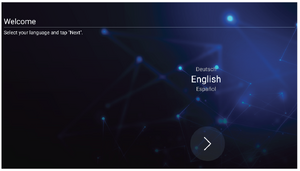 Language Select
 -
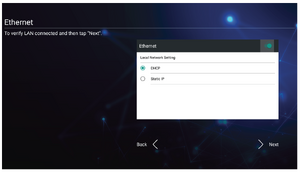 Network Connection
 -
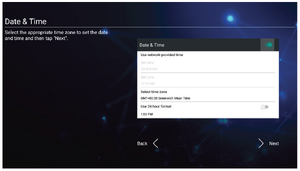 Date and Time
 -
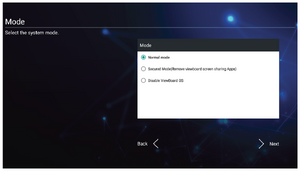 System Mode
 -
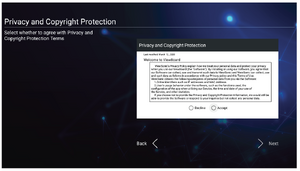 Privacy and Copyright Protection


- Select your Language.
- Setup and verify your LAN connection.
- Select your Time Zone to set the Date and Time.
- Select your preferred System Mode.
- Accept or Decline the Privacy and Copyright Protection Terms.
Toolbar
Toolbar trigger icons are on the edge of the ViewBoard launcher providing access to your tools.

To launch a tool:
- Tap a Toolbar trigger icon.
- Tap on your desired tool icon.

Toolbar Icons
| Icon | Description |
|---|---|
 |
Access the Pen, Highlighter, Clear, and Save options |
| 1. Digital Pen Annotate the overlay of any input source with red, black, blue, or green ink.
| |
| 2. Digital Highlighter Mark and highlight with four colors: yellow, orange, blue, and green.
| |
| 3. Brush Clears all the digital ink on the screen. | |
| 4. Pen Color Setting Set the pen color. Choose from 4 settings. | |
| 5. Close Close the digital pen icon. | |
 |
Convert the currently displayed content into a still image; then you can zoom in or zoom out
 |
| 1. Zoom In Enlarge the captured image.
| |
| 2. Zoom Out Shrink the captured image. | |
| 3. Back to Full Screen Reset the Zoom In/Zoom Out effects to the original full screen. | |
| 4. Close Close the icon. | |
 |
View more applications within the ViewBoard tool bar
 |
| 1. Spotlight Highlight the focus content zone. Tap the Setting icon to adjust the spotlight size and alpha blending effect. | |
2. Countdown
| |
3. Stopwatch
|
