
VP3481 Quick Menu: Difference between revisions
From ViewSonic Documentation
| Line 37: | Line 37: | ||
! style="text-align: center; font-weight:bold; background-color:#c41230; color:#ffffff;" | Description | ! style="text-align: center; font-weight:bold; background-color:#c41230; color:#ffffff;" | Description | ||
|- | |- | ||
| [[File:Icon_Standard_Color.png|50px| Standard Color]] | | [[File:Icon_Standard_Color.png|50px|link=| Standard Color]] | ||
| style="text-align: center; font-weight:bold;" | Standard Color | | style="text-align: center; font-weight:bold;" | Standard Color | ||
| style="text-align: center;" | Select one of the preset standard color settings. | | style="text-align: center;" | Select one of the preset standard color settings. | ||
|- | |- | ||
| [[File:Icon_Contrast_Brightness.png|50px |Contrast/Brightness]] | | [[File:Icon_Contrast_Brightness.png|50px|link= |Contrast/Brightness]] | ||
| style="text-align: center; font-weight:bold;" | Contrast / Brightness | | style="text-align: center; font-weight:bold;" | Contrast / Brightness | ||
| style="text-align: center;" | Adjust the contrast or brightness. | | style="text-align: center;" | Adjust the contrast or brightness. | ||
|- | |- | ||
| [[File:Icon_Input_Select.png|50px| Input Select]] | | [[File:Icon_Input_Select.png|50px|link=| Input Select]] | ||
| style="text-align: center; font-weight:bold;" | Input Select | | style="text-align: center; font-weight:bold;" | Input Select | ||
| style="text-align: center;" | Select the input source. | | style="text-align: center;" | Select the input source. | ||
|- | |- | ||
| [[File:Icon_Main_Menu.png|50px| Main Menu]] | | [[File:Icon_Main_Menu.png|50px|link=| Main Menu]] | ||
| style="text-align: center; font-weight:bold;" | Main Menu | | style="text-align: center; font-weight:bold;" | Main Menu | ||
| style="text-align: center;" | Enter the On-Screen Display (OSD) Menu. | | style="text-align: center;" | Enter the On-Screen Display (OSD) Menu. | ||
|- | |- | ||
| [[File:Icon_Exit.png|50px| Exit]] | | [[File:Icon_Exit.png|50px|link=| Exit]] | ||
| style="text-align: center; font-weight:bold;" | Exit | | style="text-align: center; font-weight:bold;" | Exit | ||
| style="text-align: center;" | Exit the Quick Menu. | | style="text-align: center;" | Exit the Quick Menu. | ||
Latest revision as of 08:42, 14 August 2020
Using the Control Panel Keys
Use the control panel keys to access the Quick Access Menu, navigate the On-Screen Display (OSD) Menu, and change the settings.

Quick Menu
Touch the 1/2/3/4 key to activate the Quick menu. Follow the key guide that appears on the screen to select options or make adjustments.

-
 Standard Color
 -
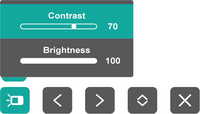 Contrast / Brightness
 -
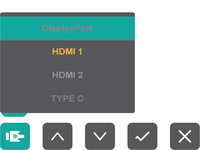 Input Select
 -
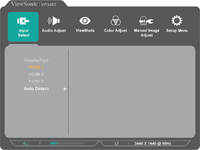 Main Menu


| Icon | Name | Description |
|---|---|---|

|
Standard Color | Select one of the preset standard color settings. |

|
Contrast / Brightness | Adjust the contrast or brightness. |

|
Input Select | Select the input source. |

|
Main Menu | Enter the On-Screen Display (OSD) Menu. |

|
Exit | Exit the Quick Menu. |