ViewSign Dossier
User Guide
Introduction
ViewSign Dossier is a desktop software application that allows various mechanisms to utilize PDF files. With this client, it is possible to: edit, compile, print, send through email or ftp, and digitally sign a document. It is integrated with Windows context menu and it is also available from Microsoft Office Word application through a dedicated Office plugin. A virtual printer named "GraphoSign Virtual Printer" is also installed with a default installation, which can generate PDF files from any application running on the desktop PC. Using this virtual printer is simple: just open a generic printable document and print on "ViewSign Dossier Virtual Printer". After that the virtual printer will convert the document into pdf, open ViewSign Dossier client and automatically import the converted document. This client is a desktop solution with a complete set of functions optimized for utilizing a digital process to create, edit, share and sign any document within your business or personal workflows.
User Guide
In order to starting using the software it is necessary to know basic terminology and concepts. Below, there is a list of concepts and terminology to be aware of.
| Acrofield | A form field within the PDF standard. An acrofield is a specific area inside a pdf document. The software user can interact with acrofields within a document. Signature, TextBox, CheckBox, ComboBox list are all subtypes of acrofield. PDF documents containing acrofields can be filled with entry of specific data before signing the PDF. |
| Dossier | In ViewSign Dossier a dossier is a collection of PDF files, named and grouped properly in a single dossier file. The PDF file can be digitally signed but not the dossier. The dossier is a link container to a file stored into a local disk storage or into a network storage. If a file is moved or deleted outside ViewSign Dossier the dossier file is not updated and the link will not work anymore. The dossier is useful when files are stored permanently and the users wants to reference or review the signed files. ViewSign Dossier manages two kind of Dossiers: Simple and Advanced
Simple dossier is a simple collection of generic pdf document. If users do not need to organize a set of files he can choose simple dossier in order to edit, compile or sign document. Advanced dossier is a logical tree file organization. The root is named Dossier and has two subnodes Documents and Attach. In this case, subnodes Documents will contain all files categorized for digital signature, but these documents also need reference attachments. Attach will contain all of these attachments, including examples like a copy of identity card, or file annotation. In general, an attachment is a file that has to be merged with document so the resultant dossier is ready to sign and remain associated with the attachment(s). In the advanced dossier the user can sign only the finally merged document, and its components (single document node or attachment file). |
| PDF File | PDF (Portable Document Format) is a file format that has captured all the elements of a printed document as an electronic image that you can view, navigate, print, or forward to someone else. PDF files are especially useful for documents such as magazine articles, product brochures, or flyers in which you want to preserve the original graphic appearance online. A PDF file contains one or more pages of images and text, each of which you can zoom in on or out from. You can page forward and backward. |
| Signature Area | An orange rectangular area that can be placed anywhere inside document. This area defines the physical space into a document where a digital signature will be placed. Signature area can also be created and removed if the pdf is already signed. |
| Signature Field | Is a specific kind of acrofield. It is similar to the signature area but once it has been created cannot be moved in pdf, and if a document is signed cannot be deleted. |
| Signature Template | Is a collection of signature areas in a document. This collection is used when it is necessary to sign a specific sequence of signature fields, or in the case of a pdf model. This template can be saved in memory or in a file.
|
| Software License | In order to use ViewSign Dossier the user needs a valid digital certificate and a license related to the certificate. |
Advanced Guide
ViewSign Dossier has the following sections:
File Menu
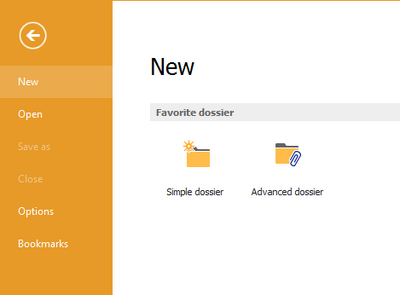
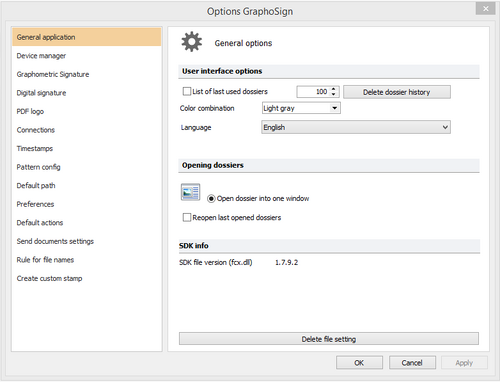
Options Menu
Tabs or Ribbons

Quick Access Toolbar


Signature Manager Panel
Status Bar

Document Preview Area

User Interface
User Interface
The buttons in this section are used to speed up some basic actions.

| Icon | Item | Description | Status Rules |
|---|---|---|---|
 |
New Simple Dossier | Create a new tree structure of documents composed in this way:
|
Always Available |
 |
New Advanced Dossier | Create a new tree structure of documents composed in this way:
|
Always Available |
 |
Close the File | Closes the current file. | Only available if there is an open file. |
 |
Save | Save the current file to a file with a proprietary extension, "Namsign". | Only available if there is an open file. |
 |
Open | Opens a file with the extension "Namsign" | Always Available |
 |
Confirm Changes | Same function of HOME > Confirm Changes | Available if a change is made. |
 |
Undo Changes | Same function of HOME > Cancel Changes | Available if a change is made. |
 |
Signature Full Flow | Same function of GRAPHOMETRIC SIGNATURE > Sign all |
This section explains how to open and browse PDF documents.
Each open document is displayed in the center of ViewSign Dossier. Every operation on this document can only be done if the document was correctly imported and is displayed in the center.

The components for document navigation are:
- Document Navigation Tree
- Document Display Area
The left panel is the document navigation tree. This structure varies depending on the type of selected file.
In the simple file structure is a single layer. See below.

In the advanced dossier the structure has three levels. See below.

To move from one document to another simply click on the name of the document in the tree structure.
Display Area
This middle section shows the PDF document and you can interact with it.

To move between the various pages of the document and increase or decrease the page zoom detail you need to use the document navigation bar.

| Item | Description | Status Rules |
|---|---|---|
| Go to the First Page | Moves the document view to the first page. | Available if the document has at least two pages and the current page is not the first. |
| Previous Page | Moves the display of the current document to the previous page. | Available if the document has at least two pages and the current page is not the first. |
| Next Page | Moves the display of the current document to the next page. | Available if the document has at least two pages and the current page is not the last. |
| Go to the Last Page | Moves the display to the last page of the current document. | Available if the document has at least two pages and the current page is not the last. |
| Go to Page | This indicates the current page number. You can specify any page number fewer than or equal to the maximum number of pages. | Available if the document has at least two pages. |
| Zoom In | Zoom in on the current page. | Available if the zoom does not exceed the permitted value of 6400% |
| Zoom Out | Zoom out of the current page. | Available if the zoom is not lower than the permitted value of 10%. |
| Current Zoom | List box indicating the current zoom. The following values are available:
10%, 25%, 50%, 75%, 100%, 125%, 150%, 200%, 400%, 800%, 1600%, 3200%, 6400%. |
Always Available. |
| Fit Horizontal Page | Fit the document width to the maximum width available in the document display. | Always Available. |
| Fit Vertical Page | Fit the document height to maximum available in the document display. | Always Available. |
Signature Field Management
ViewSign Dossier allows creation and editing of signature acrofields. It is also possible to specify several properties for each signature acrofield.
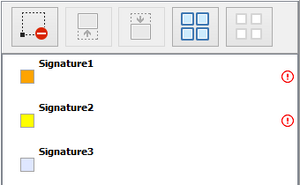
This panel displays all signature areas, the empty signature fields and signed fields. You can also select, alter the properties, delete or change the order of a signature area and/or a signature field.

There are three items shown in this panel:
- A single Signature Area
- Empty Signature Field
- Signed Signature Fields
Free Signature Area
Are the orange areas. These areas can be resized and moved around inside the document page.

Empty Signature Field
Signature fields are saved in the PDF document. The signature fields can not be moved but only resized and deleted, provided that the PDF is not already digitally signed.

Signed Signature Field
These fields cannot be edited or deleted because they are embedded into the PDF document.

Properties of Signature Fields and Areas Signature field and signature area have the same properties, which are:

| Field Name | This value must be unique for the entire document. There cannot be two signature fields and / or areas with the same name in the same document. |
| Signature Required | If it is set true, the signing process does not continue until this field is signed. The check box next to the signature field indicates whether this property is set. |
| Append Timestamp | If it is set true, ViewSign Dossier affixes a time stamp in the specified field. |
| Detect Biometric Data | If it is set true, the signature capture process includes the signature image combined with biometric data such as pressure, time and acceleration. These data are then encrypted and the information is embedded into the PDF. |
| Capture Photo | If it is set true, will also include the picture of who is signing along with biometric data. During the signing workflow ViewSign Dossier launches the default camera and captures a photo that will fit with the other encrypted data in the document. |
| Pattern | Applies only to signature areas. If set indicates the keyword that was used to generate the signature area. |
| Description | If this is set true, this is text that will be shown in the capture window of signature. |
Panel Buttons

| Icon | Item | Description | Status Rules |
|---|---|---|---|
 |
Remove Area/Field Signature | Delete the memory field / selected area from the document. | Available only if a signature field or signature area is selected. |
 |
Move Up | Change the order of fields / area selected signature. Moves up one position. | Available if a signature field / signature area and is not selected is the first in the list. |
 |
Move Down | Change the order of fields / area selected signature. Moves down one position. | Available if a signature field / signature area is not the last selected. |
 |
Select All Fields in the List | Select all fields. | Always Available. |
 |
Uncheck All Fields | Deselect all fields. | Always Available. |
}