
ID1230 Pen Input Area Mapping
From ViewSonic Documentation
Pen Input Settings (Windows)
To adjust the pen input settings:
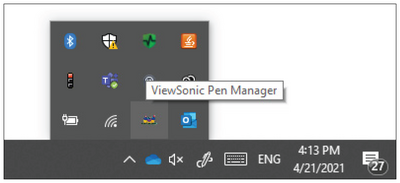
- Open ViewSonic Pen Manager either by going to: Start > ViewSonic Pen Manager or selecting the ViewSonic Pen Manager icon from the System Tray.
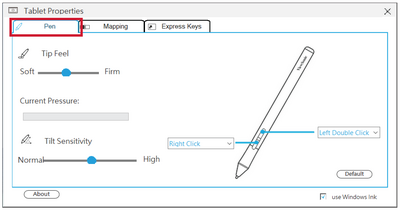
- Adjustments to the pen can be made by selecting the Pen tab.
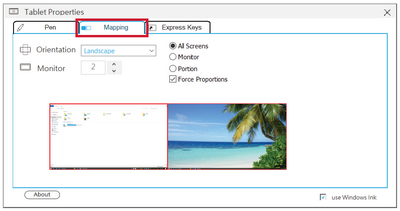
- Select the Mapping tab to adjust screen orientation and display.
- Select the Express Keys tab to customize the six (6) express keys on the pen display.


Pen Input Settings (macOS)
To adjust the pen input settings:
- Open ViewSonic Pen Manager by going to: System Settings > ViewSonic Pen Manager
- Adjustments to the pen can be made by selecting the Pen tab.

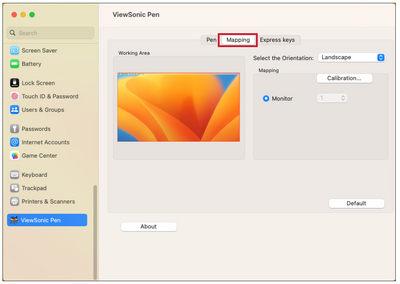
- Select the Mapping tab to adjust screen orientation and display format.
- Select the Express Keys tab to customize the six (6) express keys on the pen display.


