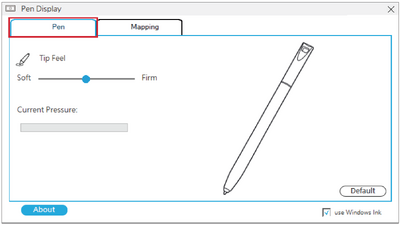
PD1233 PD1233T Pen Input Area Mapping
From ViewSonic Documentation
Pen Input Area
To set the proper pen input area,
- Open Pen Display Manager either by going to: Start > Pen Display Manager or selecting the Pen Display Manager icon from the System Tray.
Additionally, the driver can also be accessed from ViewSign Console - either the widget or by right-clicking the ViewSign Console icon in the system tray and selecting Pen Display Driver. 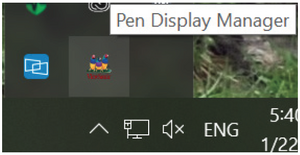
- Select the Mapping tab.
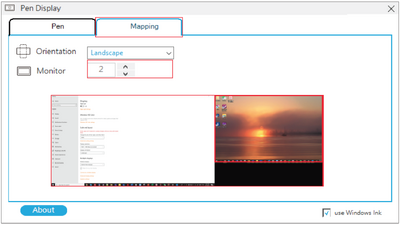
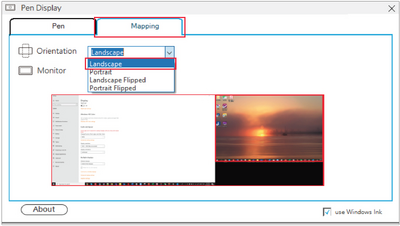
- Select the correct Orientation, and the correct display.
- Further adjustments can be made by selecting the Pen tab.