LD108-121 Using the Display
Power On/Off your LED Display
- Ensure the power cord is connected and plugged into a power outlet.
- Press the Power button to turn on the LED display.
- To turn the LED display off, press the Power button again.
Home Screen
| Number
|
Item
|
Description
|
| 1
|
Main Menu
|
Access the Home Screen, APP Center, Settings, and Input Source.
|
| 2
|
Time of Day Indicator
|
The sky will change over the day between morning, noon, afternoon, and night.
|
| 3
|
Quick Access
|
Quick access to LAN, Wi-Fi, Brightness, and Power.
NOTE: Only supported by keyboard and mouse.
|
| 4
|
Date & Time
|
Automatic time adjustment, time zone selection, and 24-hour format can all be adjusted. The Date & Time can also be hidden from the Home Screen under:
Settings > Display > Launcher Settings
|
| 5
|
ViewSonic Logo
|
The logo can be hidden from the Home Screen under:
Settings > Display > Launcher Settings
|
Navigating the Home Screen
Remote Control
The remote control can be used to easily navigate the Home Screen. When using the remote control, ensure it is kept within the IR receiver range as shown below:
Keyboard and Mouse
When connected to the USB Type-A port of the display, a keyboard and mouse can also be used to navigate the Home Screen.
The mouse pointer will appear as an orange dot on the display when used:
- The left mouse button will confirm actions.
- The right mouse button will go back to the previous layer.
- Keyboard shortcuts and hot keys are also supported, including: audio adjustment, mute, and back to the Home Screen.
APP Center
NOTE: Preloaded applications are subject to change without a notice.
| Icon
|
Name
|
Description
|
|
|
Browser
|
Web browser
|
|
|
Display
|
Wirelessly mirror your desktop
|
|
|
EAirplay
|
AirPlay mirroring
|
|
|
EnterpriseAgent
|
Device management
|
|
|
File Manager
|
File explorer
|
|
|
Manager
|
Remote device management
|
|
|
Revel Digital Signage
|
Manage digital signage
|
|
|
Settings
|
View and adjust the display’s settings
|
|
|
SureMDM Nix
|
Secure, monitor, and manage devices
|
|
|
WPS Office
|
Create documents, spreadsheets, and presentations
|
|
|
vCastReceiver
|
Receive casted content from devices
|
|
|
vSweeper
|
Clear up storage space
|
Input Source
The display supports two input sources: HDMI 1 and HDMI 2.
- NOTE: Both input sources support HDMI 2.0.
Settings
Adjust and view the display's settings.
| Menu
|
Description
|
| Network & Internet
|
View and adjust Wi-Fi, Data Usage, Ethernet, Potable Hotspot, and VPN
|
| Connected Devices
|
View and adjust Connected Devices
|
| Apps & Notifications
|
View and adjust App Info., Notifications, App Permissions, Default Apps, and Special App Access
|
| Display
|
View and adjust Brightness Level, Ambient Light Sensor, Font Size, Startup & Shutdown, Input Setting, and Launcher Settings
|
| Sound
|
View and adjust Media Volume
|
| Storage
|
View and adjust Device Storage
|
| System
|
View and adjust Languages & Input, Date & Time, Reset, and About Device
|
| Upgrade
|
View and adjust OTA Upgrade and Local Update
|
Network & Internet
| Sub-menu
|
Menu Option
|
| Wi-Fi
|
Wi-Fi
|
On
|
|
| Off
|
| Wi-Fi List
|
Add Network
|
|
| Wi-Fi Preference
|
Open Network Notification
|
On
|
| Off
|
| Keep Wi-Fi On During Sleep
|
|
| Advanced
|
| Data Usage
|
Wi-Fi Data Usage
|
|
| Network Restrictions
|
Meter Wi-Fi Network
|
On
|
| Off
|
| Ethernet
|
Ethernet
|
On
|
|
| Off
|
| Ethernet IP Mode
|
|
| Ethernet Details
|
| Portable Hotspot
|
Portable Wi-Fi Hotspot
|
On
|
|
| Off
|
| Set up Wi-Fi Hotspot
|
|
| VPN
|
|
Connected Devices
| Sub-menu
|
Menu Option
|
| Connected Devices
|
On
|
|
| Off
|
Apps & Notifications
| Sub-menu
|
Menu Option
|
| App Info.
|
Installed Apps
|
Disable
|
|
| Force Stop
|
| Notifications
|
Allow Notifications Dots
|
On
|
| Off
|
| On the Lock Screen
|
Don't Show Notifications at All
|
| Show All Notification's Content
|
| App Permissions
|
Body Sensors
|
|
| Calendar
|
| Camera
|
| Contacts
|
| Location
|
| Microphone
|
| Phone
|
| SMS
|
| Storage
|
| Default Apps
|
Assist & Voice Input
|
|
| Browser
|
| Home
|
| Opening Links
|
| Special App Access
|
Battery Optimization
|
| Device Admin Apps
|
| Do No Disturb Access
|
| Display Over other Apps
|
| VR Helper Services
|
| Modify System Settings
|
| Notification Access
|
| Picture-in-Picture
|
| Premium SMS Access
|
| Unrestricted Data Access
|
| Usage Access
|
| Install Unknown Apps
|
Display
| Sub-menu
|
Menu Option
|
| Brightness Level
|
(-/+, 1~8)
|
|
| Ambient Light Sensor
|
On
|
| Off
|
| Font Size
|
(-/+, 1~4)
|
| Other Display Settings
|
Display Settings
|
Custom Resolution
|
W: 800~1920
|
| H: 600~1080
|
| Custom DPI
|
(-/+, 100~240)
|
| Custom Wallpaper
|
|
| Boot Logo Settings
|
Video Logo
|
| Startup & Shutdown
|
Last Shutdown Channel
|
|
|
| Default Startup Channel
|
Home
|
| HDMI 1
|
| HDMI 2
|
| APP (Display)
|
| APP (vCastReceiver)
|
| Standby Mode
|
Hibernate
|
| Sleep
|
| Splash Screen
|
ViewSonic
|
| Black
|
| Blue
|
| Input Setting
|
Input Alias
|
HDMI 1
|
Display
|
| Hide
|
| HDMI 2
|
Display
|
| Hide
|
| Signal Source Detect
|
HDMI
|
Enable
|
| Disable
|
| Launcher Settings
|
ViewSonic Logo
|
On
|
|
| Off
|
| Date & Time
|
On
|
| Off
|
| Theme
|
|
Sound
| Sub-menu
|
Menu Option
|
| Media Volume
|
(-/+, 0~100)
|
Storage
| Sub-menu
|
Menu Option
|
| Device Storage
|
Internal Shared Storage
|
Storage Manager
|
On
|
| Off
|
| Photos & Videos
|
|
| Music & Audio
|
| Games
|
| Movie & TV
|
| Portable Storage
|
|
System
| Sub-menu
|
Menu Option
|
| Language & Input
|
Languages
|
|
|
| Virtual Keyboard
|
Remote Controller Input Method
|
| Manage Keyboards
|
| Physical Keyboard
|
Hi Keyboard
|
| Hi Keypad
|
| Keyboard Assistance
|
| Gestures
|
| Advanced
|
Preferred Engine
|
| Language
|
| Speech Rate
|
| Pitch
|
| Date & Time
|
Automatic Date & Time
|
On
|
| Off
|
| Select Time Zone
|
|
| Use 24-hour Format
|
On
|
| Off
|
| Reset
|
Network Settings Reset
|
|
| Reset App Preferences
|
| Factory Data Reset
|
| About Device
|
Status
|
| Legal Information
|
| Model
|
| Kernel Version
|
| Build Number
|
| Total Time
|
Upgrade
| Sub-menu
|
Menu Option
|
| OTA Upgrade
|
OTA Cloud Server
|
|
| Local Update
|
sda1
|
| SDcard
|
Network & Internet
| Sub-menu
|
Description
|
| Wi-Fi
|
- Select Wi-Fi to enter the Wi-Fi selection interface. Then select the desired Wi-Fi network and enter the password.
- You can select Add Network in the Wi-Fi selection screen to manually add a Wi-Fi network.
- Select Wi-Fi Preferences to view Wi-Fi usage preferences, Wi-Fi connection tips, etc.
|
| Data Usage
|
- Select Data Usage to review data usage and network restrictions.
- Specific App’s traffic can be reviewed as well in Wi-Fi Data Usage.
- Restrictions can be placed on specific network traffic under Network Restrictions.
|
| Ethernet
|
Select Ethernet to enable/disable Ethernet, review DNS, and IP mode.
|
| Portable Hotspot
|
Enable/disable Portable Wi-Fi Hotspot under Portable Hotspot.
|
| VPN
|
Review and add VPNs.
|
Connected Devices
Enable/disable device connection, review connected devices, and search and connect to other devices.
Apps & Notifications
| Sub-menu
|
Description
|
| App Info.
|
- Select App Info to view installed applications and their detailed information.
- You can also disable the app, review notifications and permissions, and adjust further settings.
|
| Notifications
|
- Under Notifications, you can adjust each applications notification settings.
- You can also allow/disallow notification dots and notifications on the lock screen.
|
| App Permissions
|
Select App Permissions to manage various application permissions.
|
| Default Apps
|
Select your default applications.
|
| Special App Access
|
Manage additional application settings.
|
Display
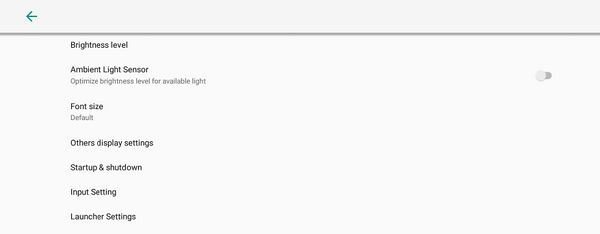
| Sub-menu
|
Description
|
| Brightness Level
|
Adjust the brightness level by eight (8) levels.
|
| Ambient Light Sensor
|
Detects ambient light and adjusts brightness levels automatically.
|
| Font Size
|
Preview and adjust the font size on the display.
|
| Others Display Settings
|
Adjust the Resolution, DPI, wallpaper and other display settings.
|
| Startup & Shutdown
|
Startup Channel
- Last Shutdown Channel: Start in the channel that was last used before the previous shutdown.
- Default Startup Channel: Select a specific startup channel (Home, HDMI 1/2, APP(Display), APP(vCastReceiver)).
Standby Mode
- Hibernate: Power off the screen only.
- Sleep: Power down the display to minimal power consumption (0.5W).
Splash Screen
Change the boot screen to black, blue, or the ViewSonic logo.
|
| Input Setting
|
Input Alias Switch
Display or hide HDMI 1 or HDMI 2 input source.
Signal Source Detect
Enable or disable HDMI input detection.
|
| Launcher Settings
|
ViewSonic Logo
Display or hide the ViewSonic logo on the Home Screen.
Date & Time
Display or hide the date and time on the Home Screen.
Theme
Choose from seven (7) included themes for the Home Screen.
|
Sound
| Sub-menu
|
Description
|
| Media Volume
|
Adjust the volume level of the display.
|
Storage
System
Upgrade


