ViewBoard Cast Button Pairing: Difference between revisions
From ViewSonic Documentation
No edit summary |
|||
| Line 16: | Line 16: | ||
*For VB-WPS-003: Please plug-in to both the HDMI out and USB Type A ports (Figure 2).</li> | *For VB-WPS-003: Please plug-in to both the HDMI out and USB Type A ports (Figure 2).</li> | ||
<li>If it is the first time to pair the ViewBoard® Cast Button with your Windows PC, please double click “ViewBoard Cast.exe” in: '''PC > CD Drive > ViewBoard Cast.''' | <li>If it is the first time to pair the ViewBoard® Cast Button with your Windows PC, please double click “ViewBoard Cast.exe” in: '''PC > CD Drive > ViewBoard Cast.''' | ||
{{Note|If running on a MacBook, please enter the user password to access the application installation permission.}} | |||
</li> | </li> | ||
<li>For PC, with the application installed, ViewBoard® Cast will launch automatically after the ViewBoard® Cast Button is plugged into the PC.</li> | <li>For PC, with the application installed, ViewBoard® Cast will launch automatically after the ViewBoard® Cast Button is plugged into the PC.</li> | ||
| Line 29: | Line 29: | ||
:<div class="res-img">[[File:ViewBoard_Cast_Button_Pairing_6.png|350px]]</div> | :<div class="res-img">[[File:ViewBoard_Cast_Button_Pairing_6.png|350px]]</div> | ||
<li>After the ViewBoard® Cast Button is re-paired, please remove it and plug it in again to start sharing.</li></ol> | <li>After the ViewBoard® Cast Button is re-paired, please remove it and plug it in again to start sharing.</li></ol> | ||
=ViewBoard IFP/CDE Pairing= | =ViewBoard IFP/CDE Pairing= | ||
You can also plug-in the ViewBoard Cast Button into IFP/CDE device to pair if the IFP/CDE device is connected to a LAN (Ethernet cable). | You can also plug-in the ViewBoard Cast Button into IFP/CDE device to pair if the IFP/CDE device is connected to a LAN (Ethernet cable). | ||
==For VB-WPS-001:== | |||
<ol><li>Attach the USB Type C to USB Type A adapter to the VB-WPS-001 ViewBoard® Cast Button</li> | <ol><li>Attach the USB Type C to USB Type A adapter to the VB-WPS-001 ViewBoard® Cast Button</li> | ||
:<div class="res-img">[[File:ViewBoard_Cast_Button_Pairing_7.png|350px]]</div> | :<div class="res-img">[[File:ViewBoard_Cast_Button_Pairing_7.png|350px]]</div> | ||
<li>Then plug the ViewBoard® Cast Button into the IFP/CDE device’s USB port for pairing. | <li>Then plug the ViewBoard® Cast Button into the IFP/CDE device’s USB port for pairing. | ||
{{Note|If running on a MacBook, please enter the user password to access the application installation permission.}}</li></ol> | |||
==For VB-WPS-003:== | |||
<ol><li>Plug the USB Type A cable into the IFP/CDE device’s USB port for pairing.</li> | <ol><li>Plug the USB Type A cable into the IFP/CDE device’s USB port for pairing.</li> | ||
<li>A “Pairing” dialogue box will appear.</li> | <li>A “Pairing” dialogue box will appear.</li> | ||
| Line 42: | Line 45: | ||
:<div class="res-img">[[File:ViewBoard_Cast_Button_Pairing_8.png|500px]]</div> | :<div class="res-img">[[File:ViewBoard_Cast_Button_Pairing_8.png|500px]]</div> | ||
</ol> | </ol> | ||
{{#seo: | {{#seo: | ||
|title=ViewBoard | |title=ViewBoard | ||
Latest revision as of 03:46, 27 September 2024
Windows PC and MacBook Pairing


- Plug-in the ViewBoard® Cast Button into your Windows PC or MacBook to pair.
- For VB-WPS-001: Please plug-in to the USB Type C port (Figure 1).
- For VB-WPS-003: Please plug-in to both the HDMI out and USB Type A ports (Figure 2).
- If it is the first time to pair the ViewBoard® Cast Button with your Windows PC, please double click “ViewBoard Cast.exe” in: PC > CD Drive > ViewBoard Cast.
Note: If running on a MacBook, please enter the user password to access the application installation permission.
- For PC, with the application installed, ViewBoard® Cast will launch automatically after the ViewBoard® Cast Button is plugged into the PC.
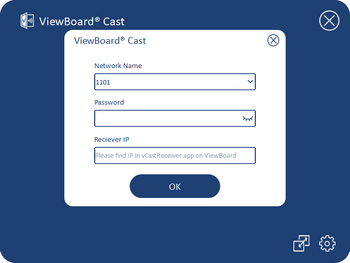
- The pairing dialogue box will pop up on your PC. Please enter the Network Name, Password, and the vCastReceiver IP address shown on the IFP/CDE device home screen.
- Click OK to complete the pairing of the ViewBoard® Cast Button and the IFP/CDE device.
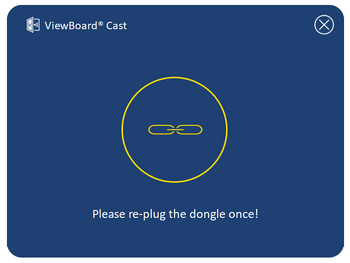
- Remove the ViewBoard® Cast Button and then plug it in again to start sharing
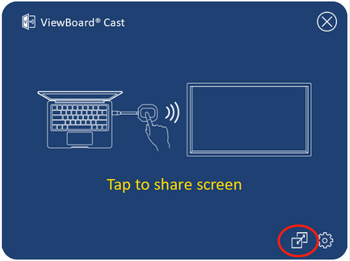
- If the ViewBoard® Cast Button has been paired, and you would like to pair it with another IFP/CDE device, please click the “Pairing-Switch Button” at the bottom right corner.
- Re-enter the network information to re-pair the ViewBoard® Cast Button.
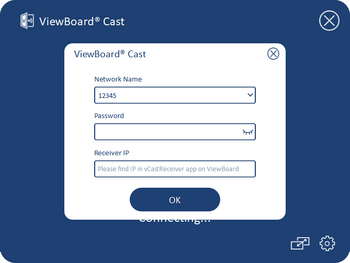
- After the ViewBoard® Cast Button is re-paired, please remove it and plug it in again to start sharing.


ViewBoard IFP/CDE Pairing
You can also plug-in the ViewBoard Cast Button into IFP/CDE device to pair if the IFP/CDE device is connected to a LAN (Ethernet cable).
For VB-WPS-001:
- Attach the USB Type C to USB Type A adapter to the VB-WPS-001 ViewBoard® Cast Button
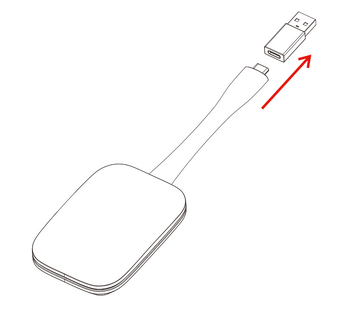
- Then plug the ViewBoard® Cast Button into the IFP/CDE device’s USB port for pairing.
Note: If running on a MacBook, please enter the user password to access the application installation permission.

For VB-WPS-003:
- Plug the USB Type A cable into the IFP/CDE device’s USB port for pairing.
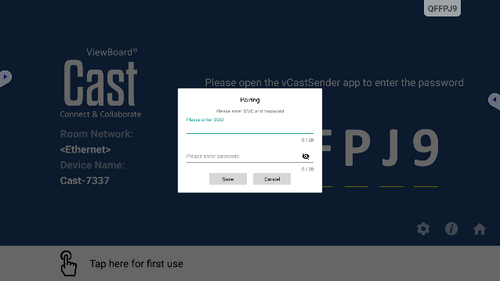
- A “Pairing” dialogue box will appear.
- Enter the Network Name and Password, then select Save to pair.