
VG2208A On-Screen Display Menu: Difference between revisions
From ViewSonic Documentation
// via Wikitext Extension for VSCode |
// via Wikitext Extension for VSCode |
||
| Line 18: | Line 18: | ||
<li> | <li> | ||
<p>Press the '''2/3/4''' key to display the OSD Menu.</p> | <p>Press the '''2/3/4''' key to display the OSD Menu.</p> | ||
<div class="res-img">[[File:VX2416_Main_Menu.png|350px| | <div class="res-img">[[File:VX2416_Main_Menu.png|350px| alt=displayed OSD menu]]</div> | ||
</li> | </li> | ||
<li> | <li> | ||
<p>Press the '''1 (<span style="font-size:20px;">★</span>) ''' or '''2''' key to select the main menu. Then press the '''3''' key to enter the selected menu.</p> | <p>Press the '''1 (<span style="font-size:20px;">★</span>) ''' or '''2''' key to select the main menu. Then press the '''3''' key to enter the selected menu.</p> | ||
<div class="res-img">[[File:VX2416_OSD_Operation_2.png|350px| | <div class="res-img">[[File:VX2416_OSD_Operation_2.png|350px| alt=Selected OSD menu]]</div> | ||
</li> | </li> | ||
<li> | <li> | ||
<p>Press the '''1 (<span style="font-size:20px;">★</span>) ''' or '''2''' key to select the desired menu option. Then press the '''3''' key to enter the sub-menu.</p> | <p>Press the '''1 (<span style="font-size:20px;">★</span>) ''' or '''2''' key to select the desired menu option. Then press the '''3''' key to enter the sub-menu.</p> | ||
<div class="res-img">[[File:VX2416_OSD_Operation_3.png|350px| | <div class="res-img">[[File:VX2416_OSD_Operation_3.png|350px| alt=Down the selected OSD menu]]</div> | ||
</li> | </li> | ||
<li> | <li> | ||
<p>Press the '''1 (<span style="font-size:20px;">★</span>) ''' or '''2''' key to adjust/select the setting. Then press the '''3''' key to confirm.</p> | <p>Press the '''1 (<span style="font-size:20px;">★</span>) ''' or '''2''' key to adjust/select the setting. Then press the '''3''' key to confirm.</p> | ||
<div class="res-img">[[File:VX2416_OSD_Operation_4.png|350px| | <div class="res-img">[[File:VX2416_OSD_Operation_4.png|350px| alt=setting adjustment]]</div> | ||
{{Note|Certain menu option adjustments do not require the user to press the '''3''' key to confirm the selection. Follow the key guide that appears on the screen to select the option or make adjustments.}} | {{Note|Certain menu option adjustments do not require the user to press the '''3''' key to confirm the selection. Follow the key guide that appears on the screen to select the option or make adjustments.}} | ||
</li> | </li> | ||
Revision as of 03:30, 2 September 2024
General Operation
-
Press the 2/3/4 key to display the OSD Menu.

-
Press the 1 (★) or 2 key to select the main menu. Then press the 3 key to enter the selected menu.
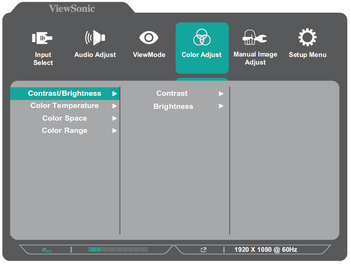
-
Press the 1 (★) or 2 key to select the desired menu option. Then press the 3 key to enter the sub-menu.
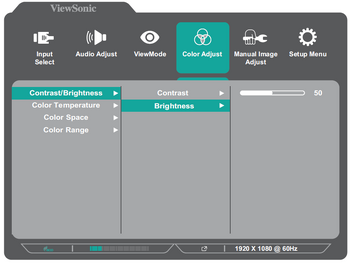
-
Press the 1 (★) or 2 key to adjust/select the setting. Then press the 3 key to confirm.
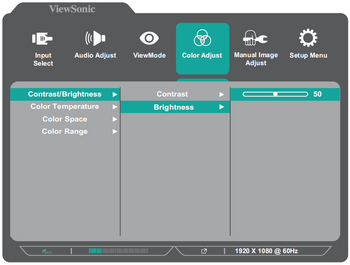 Note: Certain menu option adjustments do not require the user to press the 3 key to confirm the selection. Follow the key guide that appears on the screen to select the option or make adjustments.
 -
Press the 4 key to return to the previous menu.
- NOTE: To exit the OSD Menu, press the 5 key.


