
PD2211 PD2211T Pen Input Area Mapping: Difference between revisions
From ViewSonic Documentation
| Line 14: | Line 14: | ||
}} | }} | ||
</noinclude> | </noinclude> | ||
=Pen Input Area= | =Pen Input Area Mapping= | ||
To set the proper pen input area | To set the proper pen input area: | ||
<ol> | <ol> | ||
<li>Open Pen | <li>Open '''ViewSonic Pen Manager''' either from the Start menu, by going to: '''Start''' > '''ViewSonic Pen Manager''', or by selecting the ViewSonic Pen Manager icon from the System Tray. | ||
<div class="res-img">[[File:MA14_12_Pen_Input_Start.png|500px]]</div></li> | |||
<li>Select the '''Mapping''' tab.</li> | <li>Select the '''Mapping''' tab.</li> | ||
:<div class="res-img">[[File: | :<div class="res-img">[[File:MA14_12_Pen_Display_Manager_Mapping.png|400px]]</div> | ||
<li>Select the | <li>Select the correct '''Orientation''' (Landscape), and '''Monitor'''.</li> | ||
:<div class="res-img">[[File: | :<div class="res-img">[[File:MA14_12_Pen_Display_Manager_Mapping_Orientation.png|400px]]</div> | ||
<li> | <li>Further adjustments can be made by selecting the '''Pen''' tab.</li> | ||
:<div class="res-img">[[File: | :<div class="res-img">[[File:MA14_12_Pen_Display_Manager_Pen.png|400px]]</div></ol> | ||
{{#seo: | {{#seo: | ||
Latest revision as of 05:50, 24 May 2024
Pen Input Area Mapping
To set the proper pen input area:
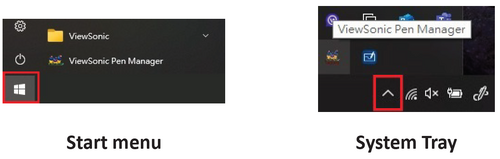
- Open ViewSonic Pen Manager either from the Start menu, by going to: Start > ViewSonic Pen Manager, or by selecting the ViewSonic Pen Manager icon from the System Tray.
- Select the Mapping tab.

- Select the correct Orientation (Landscape), and Monitor.

- Further adjustments can be made by selecting the Pen tab.


