
GD1330 Pen Input Area Mapping: Difference between revisions
From ViewSonic Documentation
No edit summary |
|||
| Line 14: | Line 14: | ||
To adjust the pen input settings: | To adjust the pen input settings: | ||
<ol><li>Open ViewSonic Pen Manager either by going to: '''Start''' > '''ViewSonic Pen Manager''' or selecting the ViewSonic Pen Manager icon from the System Tray.</li> | <ol><li>Open ViewSonic Pen Manager either by going to: '''Start''' > '''ViewSonic Pen Manager''' or selecting the ViewSonic Pen Manager icon from the System Tray.</li> | ||
<div class="res-img">[[File:GD1330_Pen_Input_Start.png|400px]]</div> | :<div class="res-img">[[File:GD1330_Pen_Input_Start.png|400px]]</div> | ||
<li>Adjustments to the pen can be made by selecting the '''Pen''' tab.</li> | <li>Adjustments to the pen can be made by selecting the '''Pen''' tab.</li> | ||
:<div class="res-img">[[File:GD1330_Pen_Display_Manager_Pen.png|400px]]</div> | :<div class="res-img">[[File:GD1330_Pen_Display_Manager_Pen.png|400px]]</div> | ||
Revision as of 10:35, 18 April 2023
Pen Input Settings (Windows)
To adjust the pen input settings:
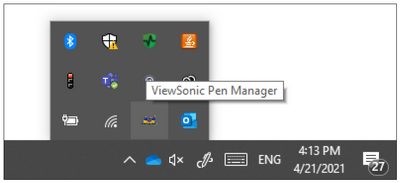
- Open ViewSonic Pen Manager either by going to: Start > ViewSonic Pen Manager or selecting the ViewSonic Pen Manager icon from the System Tray.
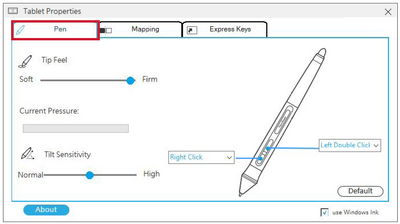
- Adjustments to the pen can be made by selecting the Pen tab.
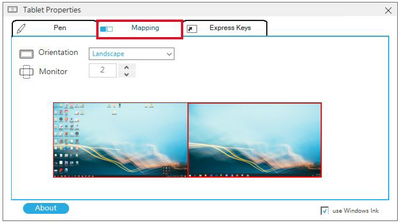
- Select the Mapping tab to adjust screen orientation and display.
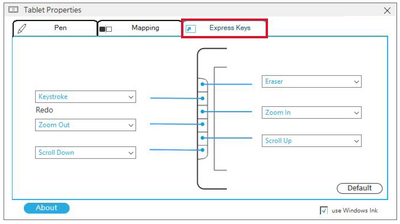
- Select the Express Keys tab to customize the six (6) express keys on the pen display.


Pen Input Settings (macOSX)
To adjust the pen input settings:
- Open ViewSonic Pen Manager either by going to: Start > ViewSonic Pen Manager or selecting the ViewSonic Pen Manager icon from the System Tray.
- Adjustments to the pen can be made by selecting the Pen tab.

- Select the Mapping tab to adjust screen orientation and display.

- Select the Express Keys tab to customize the six (6) express keys on the pen display.


