
VP3456a Connecting Power and Devices: Difference between revisions
From ViewSonic Documentation
| Line 47: | Line 47: | ||
|- | |- | ||
|Type A | |Type A | ||
| | |Two (2) | ||
|Connection for your Type A peripheral device(s) | |Connection for your Type A peripheral device(s) (e.g., storage device, keyboard, mouse). | ||
: | :'''NOTE:''' To use some peripherals, please ensure your computer is also connected to the monitor’s USB Type B port. | ||
|- | |- | ||
|Type B | |Type B | ||
| Line 57: | Line 57: | ||
|Type C | |Type C | ||
|One (1) | |One (1) | ||
|Make sure your Type C output device and cable support video signal transmission. | |Make sure your Type C output device and cable support video signal transmission for video output use. | ||
|- | |- | ||
|} | |} | ||
Revision as of 06:35, 24 August 2022
Connecting to Power

- Connect the power cord to the AC IN jack at the rear of the device.
- Connect the power cord plug to a power outlet.
Connecting External Devices
-
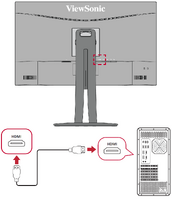 HDMI Connection
 -
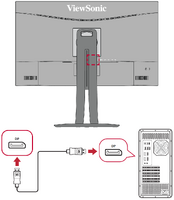 DisplayPort Connection
 -
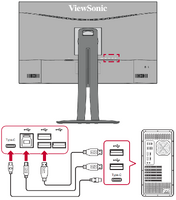 USB Connection


HDMI
Connect one end of an HDMI cable to the HDMI port of your monitor. Then connect the other end of the cable to the HDMI port of your computer.
- NOTE: The monitor is equipped with two HDMI ports.
DisplayPort
Connect one end of a DisplayPort cable to the DisplayPort port. Then connect the other end of the cable to the DisplayPort or mini DP port of your computer.
- NOTE: To connect the monitor to the Thunderbolt port (v. 1&2) on your Mac, connect the mini DP end of the “mini DP to DisplayPort cable” to the Thunderbolt output of your Mac. Then connect the other end of the cable to the DisplayPort port of the monitor.
USB
Connect one end of a USB cable to a USB port of the monitor. Then connect the other end of the cable to a USB port of your computer.
USB Number Description Type A Two (2) Connection for your Type A peripheral device(s) (e.g., storage device, keyboard, mouse). - NOTE: To use some peripherals, please ensure your computer is also connected to the monitor’s USB Type B port.
Type B One (1) Connect the USB Type B male cable (square with 2 cut corners) to this port, and then connect the other end of the cable to the USB downstream port of your computer. Type C One (1) Make sure your Type C output device and cable support video signal transmission for video output use.