
PD1233 PD1233T Pen Input Area Mapping: Difference between revisions
From ViewSonic Documentation
Created page with "<noinclude> {{Sticky_Menu_Pen_Display |1=PD1233_PD1233T_Introduction |2=PD1233_PD1233T_Making_Connections |3=PD1233_PD1233T_Adjusting_the_Viewing_Angle |4=PD1233_PD1233T_Usin..." |
No edit summary |
||
| Line 14: | Line 14: | ||
To set the proper pen input area, | To set the proper pen input area, | ||
<ol> | <ol> | ||
<li>Open Pen Display Manager either by going to: '''Start''' > '''Pen Display Manager''' or selecting the Pen Display Manager icon from the System Tray. | <li>Open Pen Display Manager either by going to: '''Start''' > '''ViewSonic''' > '''Pen Display Manager''' or selecting the Pen Display Manager icon from the System Tray. | ||
<br />Additionally, the driver can also be accessed from ViewSign Console - either the widget or by right-clicking the ViewSign Console icon in the system tray and selecting Pen Display Driver.</li> | <br />Additionally, the driver can also be accessed from ViewSign Console - either the widget or by right-clicking the ViewSign Console icon in the system tray and selecting Pen Display Driver.</li> | ||
:<div class="res-img">[[File:Pen_Display_Manager.png|300px]]</div> | :<div class="res-img">[[File:Pen_Display_Manager.png|300px]]</div> | ||
<li>Select the '''Mapping''' tab.</li> | <li>Select the '''Mapping''' tab.</li> | ||
:<div class="res-img">[[File: | :<div class="res-img">[[File:PenDisplayManager2.png|400px]]</div> | ||
<li>Select the | <li>Select the preferred ''Orientation'', and the correct ''Monitor''.</li> | ||
:<div class="res-img">[[File: | :<div class="res-img">[[File:PenDisplayManager3.png|400px]]</div> | ||
<li> | <li>Select the '''Pen''' tab to adjust ''Tip Feel'' and check the ''Current Pressure''.</li> | ||
:<div class="res-img">[[File: | :<div class="res-img">[[File:PenDisplayManager1.png|400px]]</div></ol> | ||
::<small>'''NOTE:''' ''Tip Feel'' alters how much actual pressure it takes to achieve maximum pressure. | |||
::*Soft - requires less actual pressure to see a difference in pen pressure levels. | |||
::*Firm - more force is needed to see changes in pen pressure.</small> | |||
{{#seo: | {{#seo: | ||
Revision as of 07:40, 5 November 2021
Pen Input Area
To set the proper pen input area,
- Open Pen Display Manager either by going to: Start > ViewSonic > Pen Display Manager or selecting the Pen Display Manager icon from the System Tray.
Additionally, the driver can also be accessed from ViewSign Console - either the widget or by right-clicking the ViewSign Console icon in the system tray and selecting Pen Display Driver. 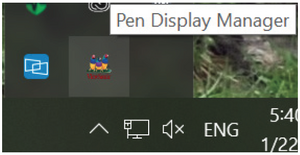
- Select the Mapping tab.
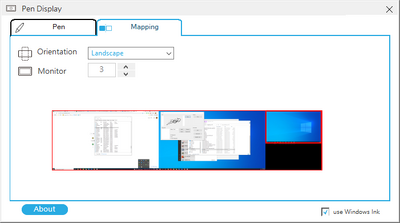
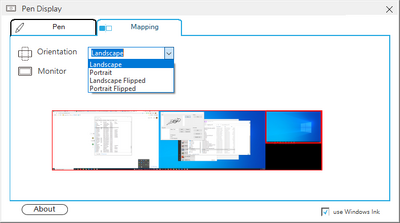
- Select the preferred Orientation, and the correct Monitor.
- Select the Pen tab to adjust Tip Feel and check the Current Pressure.
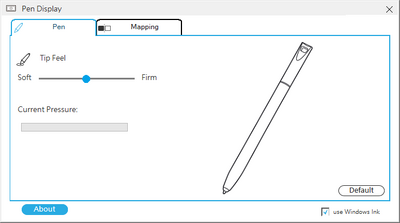


- NOTE: Tip Feel alters how much actual pressure it takes to achieve maximum pressure.
- Soft - requires less actual pressure to see a difference in pen pressure levels.
- Firm - more force is needed to see changes in pen pressure.