
XG270QG Adjusting the Viewing Angle: Difference between revisions
From ViewSonic Documentation
Created page with "{{Sticky_Menu |1=XG270QG_Introduction |2=XG270QG_Initial_Setup |3=XG270QG_Connecting_Power_and_Devices |4=XG270QG_Adjusting_the_Viewing_Angle |5=XG270QG_Quick_Menu |6=XG270QG_..." |
No edit summary |
||
| Line 14: | Line 14: | ||
}}__NOTOC__ | }}__NOTOC__ | ||
<gallery> | <gallery> | ||
XG270QG_Adjust_Height.png|Height Adjustment | XG270QG_Adjust_Height.png| Height Adjustment | ||
XG270QG_Adjust_Swivel.png|Swivel Adjustment | XG270QG_Adjust_Swivel.png| Swivel Adjustment | ||
XG270QG_Adjust_Tilt.png| | XG270QG_Adjust_Tilt.png| Tilt Angle Adjustment | ||
</gallery> | </gallery> | ||
===Height Adjustment=== | ===Height Adjustment=== | ||
| Line 33: | Line 33: | ||
<small> | <small> | ||
:'''NOTE:''' When adjusting, support the stand firmly with one hand while tilting the monitor forwards or backwards with the other hand. | :'''NOTE:''' When adjusting, support the stand firmly with one hand while tilting the monitor forwards or backwards with the other hand. | ||
</small> | |||
===Screen Orientation Adjustment (Monitor Pivot)=== | |||
<gallery> | |||
XG270QG_Pivot_1.png| Height Adjustment | |||
XG270QG_Pivot_2.png| Swivel Adjustment | |||
XG270QG_Pivot_3.png| Tilt Angle Adjustment | |||
</gallery> | |||
# Adjust the monitor height to the highest position. Then tilt the monitor backwards to the full tilt position. | |||
# Rotate the monitor 90° from landscape to portrait orientation. | |||
<small> | |||
:'''NOTE:''' | |||
::* Ensure the Elite Hood is removed or folded in prior to pivoting. | |||
::* To rotate the screen image, manually change the computer system’s display orientation settings. | |||
::* When adjusting, make sure to hold both sides of your monitor firmly with both hands. | |||
</small> | </small> | ||
[[Category:XG270QG]] | [[Category:XG270QG]] | ||
[[Category:XG Series]] | [[Category:XG Series]] | ||
Revision as of 03:24, 22 April 2020
-
 Height Adjustment
 -
 Swivel Adjustment
 -
 Tilt Angle Adjustment


Height Adjustment
Lower or raise the monitor to the desired height (0 to 120 mm).
- NOTE: When adjusting, press down firmly along the adjustment track holding the monitor with both hands on the side.
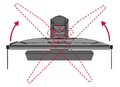
Swivel Adjustment
Swivel the monitor to the left or right for the desired viewing angle (45˚).
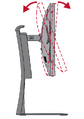
Tilt Angle Adjustment
Tilt the monitor forwards or backwards to the desired viewing angle (-5˚ to 20˚).
- NOTE: When adjusting, support the stand firmly with one hand while tilting the monitor forwards or backwards with the other hand.
Screen Orientation Adjustment (Monitor Pivot)
-
 Height Adjustment
 -
 Swivel Adjustment
 -
 Tilt Angle Adjustment


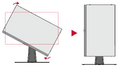
- Adjust the monitor height to the highest position. Then tilt the monitor backwards to the full tilt position.
- Rotate the monitor 90° from landscape to portrait orientation.
- NOTE:
- Ensure the Elite Hood is removed or folded in prior to pivoting.
- To rotate the screen image, manually change the computer system’s display orientation settings.
- When adjusting, make sure to hold both sides of your monitor firmly with both hands.