
TD1656-2K Using the Monitor: Difference between revisions
From ViewSonic Documentation
// via Wikitext Extension for VSCode |
|||
| Line 40: | Line 40: | ||
<ol> | <ol> | ||
<li>Press the '''Power <i class='fas fa-power-off' style="font-size:18px"></i> Button''' to open the On-Screen Display (OSD) Menu. | <li>Press the '''Power <i class='fas fa-power-off' style="font-size:18px"></i> Button''' to open the On-Screen Display (OSD) Menu. | ||
<div class="res-img">[[File:TD1656-2K_OSD_Menu-1.png|400px| OSD Menu]]</div> | <div class="res-img">[[File:TD1656-2K_OSD_Menu-1.png|400px|alt=OSD Menu displayed]]</div> | ||
</li> | </li> | ||
<li>Press '''Up''' [▲] or '''Down''' [▼] to select a menu option. Then press the '''Power <i class='fas fa-power-off' style="font-size:18px"></i> Button''' to enter the selected menu | <li>Press '''Up''' [▲] or '''Down''' [▼] to select a menu option. Then press the '''Power <i class='fas fa-power-off' style="font-size:18px"></i> Button''' to enter the selected menu | ||
<div class="res-img">[[File:TD1656- | <div class="res-img">[[File:TD1656-2K_OSD_Menu-2.png|500px|alt=setting adjustment]]</div> | ||
</li> | </li> | ||
Revision as of 02:47, 13 September 2024
Turning the Monitor On/Off
- Press the Power Button to turn on the monitor.
- To turn the monitor off, press the Power Button again.
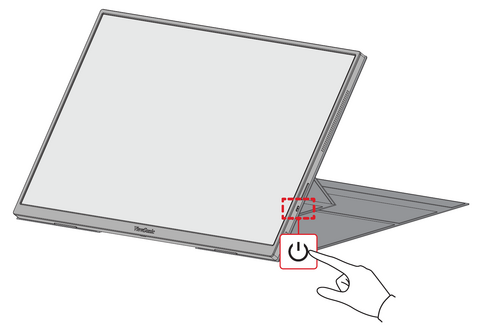 Note: The monitor will still consume some power as long as the power cord is connected to the power outlet. If the monitor is not being used for a long period of time, please disconnect the power plug from the power outlet.

Quick Menu
Press Up [▲] to adjust the Brightness level, and Down [▼] to adjust the Volume level.
-
Brightness Adjustments
-
Volume Adjustments
Note: Follow the key guide that appears on the screen to select the option or make adjustments.
On-Screen Display (OSD) Menu
General Operation
- Press the Power Button to open the On-Screen Display (OSD) Menu.
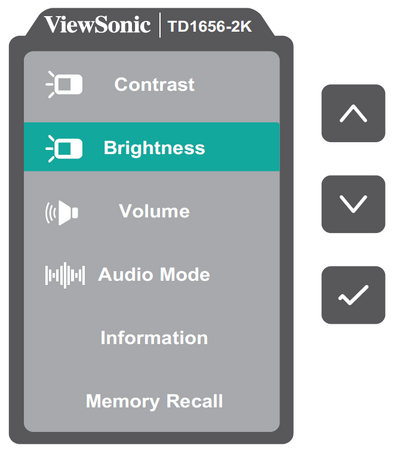
- Press Up [▲] or Down [▼] to select a menu option. Then press the Power Button to enter the selected menu
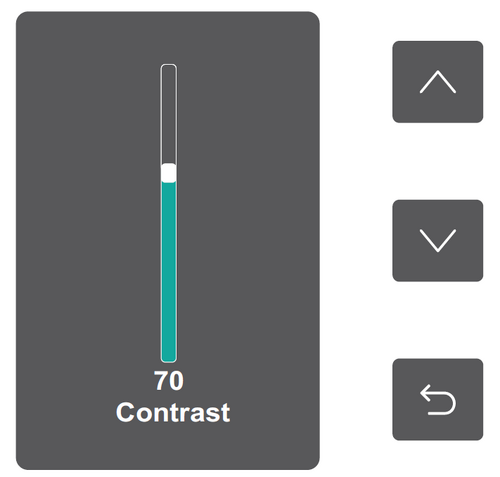
- Follow the on-screen key guide to return to the previous screen.
Note: The OSD Menu will automatically close if there is no action after five seconds.


On-Screen Display (OSD) Menu Tree
| Sub-menu | Menu Option |
|---|---|
| Contrast | (-/+, 0~100)/1 |
| Brightness | (-/+, 0~100)/1 |
| Volume | (-/+, 0~100)/1 |
| Audio Mode | Standard |
| Voice | |
| Movie | |
| Music | |
| Information | |
| Memory Recall |
Menu Options
| Sub-menu | Menu Option | ||||||||||
|---|---|---|---|---|---|---|---|---|---|---|---|
| Contrast | Adjust the degree of difference between the lightest and darkest parts of the picture and change the amount of black and white in the image. | ||||||||||
| Brightness | Adjust the background black levels of the screen image. | ||||||||||
| Volume | Adjust the volume level. | ||||||||||
| Audio Mode |
| ||||||||||
| Information | Display the monitor information. | ||||||||||
| Memory Recall | Reset all settings to their default values. |