
VG245 On-Screen Display Menu: Difference between revisions
From ViewSonic Documentation
| Line 14: | Line 14: | ||
</noinclude> __NOTOC__ | </noinclude> __NOTOC__ | ||
=General Operation= | =General Operation= | ||
<div class="res-img">[[File:VG_Key_Guide.png]]</div> | |||
<ol><li>Press the '''2'''/'''3'''/'''4'''/'''5''' key to display the Quick Menu. Then press the '''4''' key to display the On-Screen Display (OSD) Menu.</li> | <ol><li>Press the '''2'''/'''3'''/'''4'''/'''5''' key to display the Quick Menu. Then press the '''4''' key to display the On-Screen Display (OSD) Menu.</li> | ||
:<div class="res-img">[[File:VG245_VG275_OSD_Operations_1.PNG|350px| Display the OSD Menu]]</div> | :<div class="res-img">[[File:VG245_VG275_OSD_Operations_1.PNG|350px| Display the OSD Menu]]</div> | ||
Revision as of 10:42, 9 August 2023
General Operation

- Press the 2/3/4/5 key to display the Quick Menu. Then press the 4 key to display the On-Screen Display (OSD) Menu.
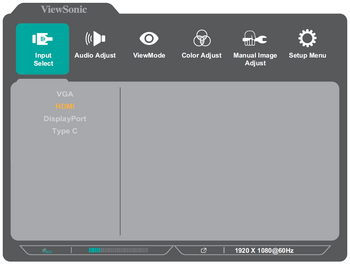
- Press the 1 (ViewMode) or 2 key to select the main menu. Then press the 3 key to enter the selected menu.
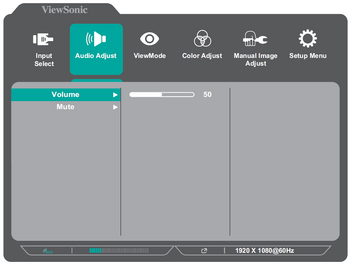
- Press the 1 (ViewMode) or 2 key to select the desired menu option. Then press the 3 key to enter the sub-menu.
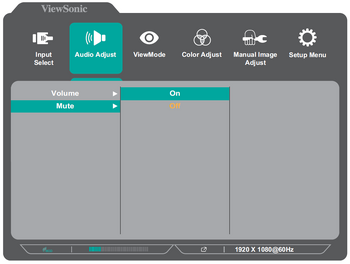
- Press the 1 (ViewMode) or 2 key to adjust/select the setting. Then press the 3 key to confirm.
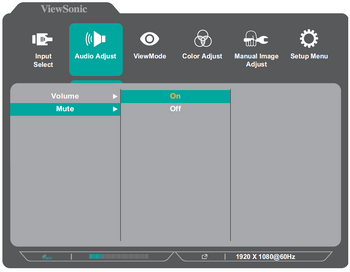
- NOTE: Certain menu option adjustments do not require the user to press the 3 key to confirm the selection. Follow the key guide that appears on the bottom of the screen to select the option or make adjustments.
- Press the 4 key to return to the previous menu.


- NOTE: To exit the OSD Menu, press the 4 key until the OSD Menu disappears.