
VG2208A Adjusting the Viewing Angle: Difference between revisions
From ViewSonic Documentation
// via Wikitext Extension for VSCode |
|||
| (One intermediate revision by the same user not shown) | |||
| Line 36: | Line 36: | ||
=Tilt Angle Adjustment= | =Tilt Angle Adjustment= | ||
Tilt the monitor forwards or backwards to the desired viewing angle (-5° to | Tilt the monitor forwards or backwards to the desired viewing angle (-3.5° to 23°). | ||
<div class="res-img">[[File: | <div class="res-img">[[File:VG2208A_Tilt.png|250px|alt=Monitor tilting forward or backward]]</div> | ||
{{Note|When adjusting, support the stand firmly with one hand while tilting the monitor forwards or backwards with the other hand.}} | {{Note|When adjusting, support the stand firmly with one hand while tilting the monitor forwards or backwards with the other hand.}} | ||
Latest revision as of 06:31, 2 September 2024
Height Adjustment
Lower or raise the monitor to the desired height (0 to 110 mm).

Note: When adjusting, press down firmly along the adjustment track holding the monitor with both hands on the side.
Screen Orientation Adjustment (Pivot)
-
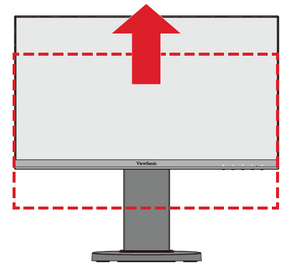
Adjust the monitor height to the highest position. Then tilt the monitor backwards to the full tilt position.
-
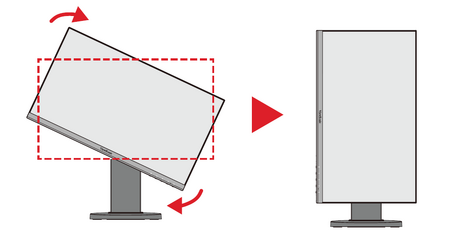
Rotate the monitor 90° clockwise or counterclockwise from landscape to portrait orientation.
 Note:
Note:- To rotate the screen image, manually change the system’s display orientation settings.
- When adjusting, make sure to hold both sides of your monitor firmly with both hands.


Swivel Adjustment
Swivel the monitor to the left or right for the desired viewing angle (±170˚).

Tilt Angle Adjustment
Tilt the monitor forwards or backwards to the desired viewing angle (-3.5° to 23°).

Note: When adjusting, support the stand firmly with one hand while tilting the monitor forwards or backwards with the other hand.