
VG2208A Introduction: Difference between revisions
From ViewSonic Documentation
// via Wikitext Extension for VSCode |
|||
| (2 intermediate revisions by the same user not shown) | |||
| Line 23: | Line 23: | ||
<li>USB cable</li> | <li>USB cable</li> | ||
</ol> | </ol> | ||
|style="text-align:center;"| <div class="res-img">[[File:VG2208A.png|400px| | |style="text-align:center;"| <div class="res-img">[[File:VG2208A.png|400px|alt=product photo]]</div> | ||
|} | |} | ||
{{Note|The cables included in your package may vary depending on your country. Please contact your local reseller for more information.}} | {{Note|The cables included in your package may vary depending on your country. Please contact your local reseller for more information.}} | ||
| Line 29: | Line 29: | ||
=Front View / Rear View= | =Front View / Rear View= | ||
<gallery widths="300" heights="300" mode="nolines"> | <gallery widths="300" heights="300" mode="nolines"> | ||
File:VG2208A Front View. | File:VG2208A Front View.png|<div style="font-style:normal; text-align:center">Front View</div> | ||
File:VG2208A Rear View. | File:VG2208A Rear View.png|<div style="font-style:normal; text-align:center">Rear View</div> | ||
</gallery> | </gallery> | ||
=I/O Ports= | =I/O Ports= | ||
<div class="res-img">[[File:VG2208A_IO. | <div class="res-img">[[File:VG2208A_IO.png| 600px | alt=I/O Ports]]</div> | ||
{| class="wikitable" style="text-align:center; width: 50%; background-color:#ffffff;" | {| class="wikitable" style="text-align:center; width: 50%; background-color:#ffffff;" | ||
Latest revision as of 06:24, 2 September 2024
Package Contents
|
 |
Note: The cables included in your package may vary depending on your country. Please contact your local reseller for more information.
Front View / Rear View
-
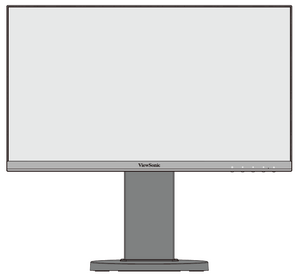 Front View
 -
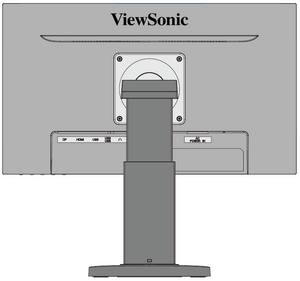 Rear View


I/O Ports

| Number | Item |
|---|---|
| ❶ | DisplayPort |
| ❷ | HDMI |
| ❸ | USB Upstream |
| ❹ | USB Downstream |
| ❺ | Audio Out |
| ❻ | AC IN |
- NOTE: For more information about the 1 (★) / 2 / 3 / 4 / 5 ( ) key and its functions, refer to Hot Keys.
Further Reading
 |