
IFP55G1 Remote Control: Difference between revisions
From ViewSonic Documentation
No edit summary |
|||
| (26 intermediate revisions by the same user not shown) | |||
| Line 8: | Line 8: | ||
<div class="grid-item">[[IFP55G1_Using_Gestures|Using Gestures]]</div> | <div class="grid-item">[[IFP55G1_Using_Gestures|Using Gestures]]</div> | ||
<div class="grid-item">[[IFP55G1_Connecting_Devices|Connecting Devices]]</div> | <div class="grid-item">[[IFP55G1_Connecting_Devices|Connecting Devices]]</div> | ||
<div class="grid-item">[[ | <div class="grid-item">[[IFP55G1_Using_the_ViewBoard|Using the ViewBoard]] </div> | ||
<div class="grid-item">[[IFP55G1_On-Screen Display_Menu_Tree|On-Screen Display Menu Tree]] </div> | |||
<div class="grid-item">[[IFP55G1_On-Screen_Display_Operation|On-Screen Display Menu Operation]] </div> | |||
<div class="grid-item">[[IFP55G1_RS-232_Protocols|RS-232 Protocols]]</div> | <div class="grid-item">[[IFP55G1_RS-232_Protocols|RS-232 Protocols]]</div> | ||
<div class="grid-item">[[IFP55G1_Specifications|Specifications]]</div> | <div class="grid-item">[[IFP55G1_Specifications|Specifications]]</div> | ||
| Line 19: | Line 21: | ||
</div> | </div> | ||
</noinclude> | </noinclude> | ||
=Remote Control Overview= | =Remote Control Overview= | ||
[[File:IFP33_Remote_Control.png|right| | [[File:IFP33_Remote_Control.png|right|300px|Remote Control]] | ||
{| class="wikitable" style="font-weight:bold; text-align:center; width:60%; background-color:#ffffff;" | {| class="wikitable" style="font-weight:bold; text-align:center; width:60%; background-color:#ffffff;" | ||
! style="background-color:#DB0025; color:#ffffff;" | Number | ! style="background-color:#DB0025; color:#ffffff;" | Number | ||
! style="background-color:#DB0025; color:#ffffff;" | Item | |||
! style="background-color:#DB0025; color:#ffffff;" | Description | ! style="background-color:#DB0025; color:#ffffff;" | Description | ||
|- | |- | ||
| 1 | | 1 | ||
| <i class='fas fa-power-off' style='font-size:24px'></i> | |||
| style="font-weight:normal; text-align:left;" | Power ON/OFF | | style="font-weight:normal; text-align:left;" | Power ON/OFF | ||
|- | |- | ||
| 2 | | 2 | ||
|[[File:Icon_Mute.png|30px|]] | |||
| style="font-weight:normal; text-align:left;" | Mute/Unmute | | style="font-weight:normal; text-align:left;" | Mute/Unmute | ||
|- | |- | ||
| 3 | | 3 | ||
|SLEEP | |||
| style="font-weight:normal; text-align:left;" | Sleep Mode | | style="font-weight:normal; text-align:left;" | Sleep Mode | ||
|- | |- | ||
| 4 | | 4 | ||
|DISPLAY | |||
| style="font-weight:normal; text-align:left;" | For Non-Android sources; display current input source information | | style="font-weight:normal; text-align:left;" | For Non-Android sources; display current input source information | ||
|- | |- | ||
| 5 | | 5 | ||
|P.MODE | |||
| style="font-weight:normal; text-align:left;" | Blank screen | | style="font-weight:normal; text-align:left;" | Blank screen | ||
|- | |- | ||
| 6 | | 6 | ||
|FREEZE | |||
| style="font-weight:normal; text-align:left;" | Freeze screen | | style="font-weight:normal; text-align:left;" | Freeze screen | ||
|- | |- | ||
| 7 | | 7 | ||
| | |||
| style="font-weight:normal; text-align:left;" | Numeric input buttons | | style="font-weight:normal; text-align:left;" | Numeric input buttons | ||
|- | |- | ||
| 8 | | 8 | ||
|ALT+TAB | |||
-/-- | |||
| style="font-weight:normal; text-align:left;" | Slot-in computer, space bar Alt+Tab | | style="font-weight:normal; text-align:left;" | Slot-in computer, space bar Alt+Tab | ||
|- | |- | ||
| 9 | | 9 | ||
|ALT+F4<br>[[File:Icon_ALT+F4.png|20px|]] | |||
| style="font-weight:normal; text-align:left;" | Slot-in computer, close program window | | style="font-weight:normal; text-align:left;" | Slot-in computer, close program window | ||
|- | |- | ||
| 10 | | 10 | ||
|INPUT | |||
| style="font-weight:normal; text-align:left;" | Input source selection | | style="font-weight:normal; text-align:left;" | Input source selection | ||
|- | |- | ||
| 11 | | 11 | ||
|ASPECT | |||
| style="font-weight:normal; text-align:left;" | Back to slot-in system main interface | | style="font-weight:normal; text-align:left;" | Back to slot-in system main interface | ||
|- | |- | ||
| 12 | | 12 | ||
|MENU | |||
| style="font-weight:normal; text-align:left;" | For Android, access Settings; for other sources, access Touch Menu settings | | style="font-weight:normal; text-align:left;" | For Android, access Settings; for other sources, access Touch Menu settings | ||
|- | |- | ||
| 13 | | 13 | ||
|<small>ALT</small><br><i class="fa fa-circle" style="font-size:24px;color:red"></i> | |||
| style="font-weight:normal; text-align:left;" | Screen capture | | style="font-weight:normal; text-align:left;" | Screen capture | ||
|- | |- | ||
| 14 | | 14 | ||
|<small>TAB</small><br><i class="fa fa-circle" style="font-size:24px;color:green"></i> | |||
| style="font-weight:normal; text-align:left;" | PC<ref name="PC">All computer-related function keys are not available without a slot-in computer.</ref> [Tab] button | | style="font-weight:normal; text-align:left;" | PC<ref name="PC">All computer-related function keys are not available without a slot-in computer.</ref> [Tab] button | ||
|- | |- | ||
| 15 | | 15 | ||
|<small>DESKTOP</small><br><i class="fa fa-circle" style="font-size:24px;color:yellow"></i> | |||
| style="font-weight:normal; text-align:left;" | Switch to slot-in PC desktop | | style="font-weight:normal; text-align:left;" | Switch to slot-in PC desktop | ||
|- | |- | ||
| | | 1 | ||
|[[File:Icon_Backspace.png|20px|]]<br><i class="fa fa-circle" style="font-size:24px;color:#89CFF0"></i> | |||
| style="font-weight:normal; text-align:left;" | PC<ref name="PC" /> [Backspace] button | | style="font-weight:normal; text-align:left;" | PC<ref name="PC" /> [Backspace] button | ||
|- | |- | ||
| 17 | | 17 | ||
|START / D.MENU | |||
| style="font-weight:normal; text-align:left;" |PC<ref name="PC" /> [Windows] button | | style="font-weight:normal; text-align:left;" |PC<ref name="PC" /> [Windows] button | ||
|- | |- | ||
| 18 | | 18 | ||
|[[File:Icon_PC_Menu.png|15px|]] / D.TITLE | |||
| style="font-weight:normal; text-align:left;" | PC<ref name="PC" /> [Menu] button | | style="font-weight:normal; text-align:left;" | PC<ref name="PC" /> [Menu] button | ||
|- | |- | ||
| 19 | | 19 | ||
|[[File:Icon_Writing_Software.png|15px|]] / D.USB | |||
| style="font-weight:normal; text-align:left;" | Writing software setup | | style="font-weight:normal; text-align:left;" | Writing software setup | ||
|- | |- | ||
| 20 | | 20 | ||
|EPG / BACK | |||
| style="font-weight:normal; text-align:left;" | Return button | | style="font-weight:normal; text-align:left;" | Return button | ||
|- | |- | ||
| 21 | | 21 | ||
| ▼/▲/◄/► | |||
| style="font-weight:normal; text-align:left;" | Scroll up, down, left, and right | | style="font-weight:normal; text-align:left;" | Scroll up, down, left, and right | ||
|- | |- | ||
| 22 | | 22 | ||
|ENTER | |||
| style="font-weight:normal; text-align:left;" | Confirm selection/state | | style="font-weight:normal; text-align:left;" | Confirm selection/state | ||
|- | |- | ||
| 23 | | 23 | ||
|ESC / EXIT / | |||
D.SETUP | |||
| style="font-weight:normal; text-align:left;" | Shortcut button to exit dialogue boxes | | style="font-weight:normal; text-align:left;" | Shortcut button to exit dialogue boxes | ||
|- | |- | ||
| 24 | | 24 | ||
|CH.+ / PGUP / CH.+ / PGDN | |||
| style="font-weight:normal; text-align:left;" | CH+: PC previous page | | style="font-weight:normal; text-align:left;" | CH+: PC previous page | ||
CH-: PC next page | CH-: PC next page | ||
|- | |- | ||
| 25 | | 25 | ||
|VOL+ / VOL- | |||
| style="font-weight:normal; text-align:left;" | Increase/Decrease volume | | style="font-weight:normal; text-align:left;" | Increase/Decrease volume | ||
|- | |- | ||
| 26 | | 26 | ||
|FAV / SPACE | |||
| style="font-weight:normal; text-align:left;" | PC<ref name="PC" /> [Space] button | | style="font-weight:normal; text-align:left;" | PC<ref name="PC" /> [Space] button | ||
|- | |- | ||
| 27 | | 27 | ||
|F1-F12 | |||
| style="font-weight:normal; text-align:left;" | Built-in computer F1~F12 function button | | style="font-weight:normal; text-align:left;" | Built-in computer F1~F12 function button | ||
|- | |- | ||
|} | |} | ||
<references /> | <references /> | ||
=Inserting Remote Control Batteries= | |||
<div> | |||
To Insert batteries into the remote control: | |||
<ol> | |||
<li>Remove the cover on the rear of the remote control.</li> | |||
<li>Insert two “AAA” batteries, ensuring the “+” symbol on the battery matches the “+” on the battery post.</li> | |||
<li>Replace the cover by aligning it with the slot on the remote control and snapping the latch shut.<br> | |||
[[File:IFP50-3_Battery_Replacement.png|Replacing the Batteries of the Remote Control|600px]] | |||
</li> | |||
</ol> | |||
:<div class="note-yellow" style=" | |||
background-color: #ffff99; | |||
border: solid 1px #ffff88; | |||
border-radius: 3px; | |||
border-left:solid 8px #fed141; | |||
padding:8px; | |||
width:auto; | |||
max-width:70%; | |||
"><i class='fas fa-exclamation-circle' style='font-size:24px'></i> '''WARNING:''' There is a risk of explosion if batteries are installed with incorrect polarity. | |||
</div> | |||
</div> | |||
{{Note| | |||
:* It is recommended that you do not mix battery types. | |||
:* Always dispose of old batteries in an environmentally friendly way. Contact your local government for more information on how to dispose of batteries safely. | |||
}} | |||
=Remote Control Effective Range= | |||
The working range of the remote control is shown here. It has an effective range of 8 meters, 30° degrees left and right. Ensure there is nothing obstructing the remote control’s signal to the receiver. | |||
<div class="res-img">[[File:IFP33_Remote_Control_Range.png|Effective Range of the Remote Control|500px]]</div> | |||
{{#seo: | |||
|title=ViewSonic ViewBoard | |||
|title_mode=append | |||
|keywords=ViewSonic, ViewBoard, IFPG1, Remote Control, IFP55G1, IFP65G1, IFP75G1, IFP86G1 | |||
|description=The features of and how to use the IFP33's remote control. | |||
}} | |||
[[Category:IFPG1 Series]] | |||
[[Category:ViewBoard]] | |||
[[Category:IFP55G1]] | |||
Latest revision as of 09:43, 25 June 2024
Remote Control Overview

| Number | Item | Description |
|---|---|---|
| 1 | Power ON/OFF | |
| 2 | 
|
Mute/Unmute |
| 3 | SLEEP | Sleep Mode |
| 4 | DISPLAY | For Non-Android sources; display current input source information |
| 5 | P.MODE | Blank screen |
| 6 | FREEZE | Freeze screen |
| 7 | Numeric input buttons | |
| 8 | ALT+TAB
-/-- |
Slot-in computer, space bar Alt+Tab |
| 9 | ALT+F4
|
Slot-in computer, close program window |
| 10 | INPUT | Input source selection |
| 11 | ASPECT | Back to slot-in system main interface |
| 12 | MENU | For Android, access Settings; for other sources, access Touch Menu settings |
| 13 | ALT |
Screen capture |
| 14 | TAB |
PC[1] [Tab] button |
| 15 | DESKTOP |
Switch to slot-in PC desktop |
| 1 |  |
PC[1] [Backspace] button |
| 17 | START / D.MENU | PC[1] [Windows] button |
| 18 |  / D.TITLE / D.TITLE
|
PC[1] [Menu] button |
| 19 |  / D.USB / D.USB
|
Writing software setup |
| 20 | EPG / BACK | Return button |
| 21 | ▼/▲/◄/► | Scroll up, down, left, and right |
| 22 | ENTER | Confirm selection/state |
| 23 | ESC / EXIT /
D.SETUP |
Shortcut button to exit dialogue boxes |
| 24 | CH.+ / PGUP / CH.+ / PGDN | CH+: PC previous page
CH-: PC next page |
| 25 | VOL+ / VOL- | Increase/Decrease volume |
| 26 | FAV / SPACE | PC[1] [Space] button |
| 27 | F1-F12 | Built-in computer F1~F12 function button |
Inserting Remote Control Batteries
To Insert batteries into the remote control:
- Remove the cover on the rear of the remote control.
- Insert two “AAA” batteries, ensuring the “+” symbol on the battery matches the “+” on the battery post.
- Replace the cover by aligning it with the slot on the remote control and snapping the latch shut.
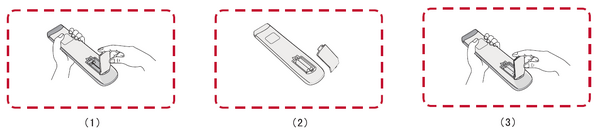

- WARNING: There is a risk of explosion if batteries are installed with incorrect polarity.
Note:
- It is recommended that you do not mix battery types.
- Always dispose of old batteries in an environmentally friendly way. Contact your local government for more information on how to dispose of batteries safely.
Remote Control Effective Range
The working range of the remote control is shown here. It has an effective range of 8 meters, 30° degrees left and right. Ensure there is nothing obstructing the remote control’s signal to the receiver.
