
VG245 On-Screen Display Menu: Difference between revisions
From ViewSonic Documentation
| (2 intermediate revisions by the same user not shown) | |||
| Line 14: | Line 14: | ||
</noinclude> __NOTOC__ | </noinclude> __NOTOC__ | ||
=General Operation= | =General Operation= | ||
<div class="res-img">[[File:VG_Key_Guide.png|600px]]</div> | |||
<ol><li>Press the '''2'''/'''3'''/'''4'''/'''5''' key to display the Quick Menu. Then press the '''4''' key to display the On-Screen Display (OSD) Menu.</li> | <ol><li>Press the '''2'''/'''3'''/'''4'''/'''5''' key to display the Quick Menu. Then press the '''4''' key to display the On-Screen Display (OSD) Menu.</li> | ||
:<div class="res-img">[[File:VG245_VG275_OSD_Operations_1.PNG| | :<div class="res-img">[[File:VG245_VG275_OSD_Operations_1.PNG|500px| Display the OSD Menu]]</div> | ||
<li>Press the '''1 (ViewMode)''' or '''2''' key to select the main menu. Then press the '''3''' key to enter the selected menu.</li> | <li>Press the '''1 (ViewMode)''' or '''2''' key to select the main menu. Then press the '''3''' key to enter the selected menu.</li> | ||
:<div class="res-img">[[File:VG245_VG275_OSD_Operations_2.PNG| | :<div class="res-img">[[File:VG245_VG275_OSD_Operations_2.PNG|500px| Display the OSD Menu]]</div> | ||
<li>Press the '''1 (ViewMode)''' or '''2''' key to select the desired menu option. Then press the '''3''' key to enter the sub-menu.</li> | <li>Press the '''1 (ViewMode)''' or '''2''' key to select the desired menu option. Then press the '''3''' key to enter the sub-menu.</li> | ||
:<div class="res-img">[[File:VG245_VG275_OSD_Operations_3.PNG| | :<div class="res-img">[[File:VG245_VG275_OSD_Operations_3.PNG|500px| Display the OSD Menu]]</div> | ||
<li>Press the '''1 (ViewMode)''' or '''2''' key to adjust/select the setting. Then press the '''3''' key to confirm.</li> | <li>Press the '''1 (ViewMode)''' or '''2''' key to adjust/select the setting. Then press the '''3''' key to confirm.</li> | ||
:<div class="res-img">[[File:VG245_VG275_OSD_Operations_4.PNG| | :<div class="res-img">[[File:VG245_VG275_OSD_Operations_4.PNG|500px| Display the OSD Menu]]</div> | ||
:'''NOTE:''' Certain menu option adjustments do not require the user to press the '''3''' key to confirm the selection. Follow the key guide that appears on the bottom of the screen to select the option or make adjustments. | :'''NOTE:''' Certain menu option adjustments do not require the user to press the '''3''' key to confirm the selection. Follow the key guide that appears on the bottom of the screen to select the option or make adjustments. | ||
</small> | </small> | ||
Latest revision as of 10:46, 9 August 2023
General Operation

- Press the 2/3/4/5 key to display the Quick Menu. Then press the 4 key to display the On-Screen Display (OSD) Menu.
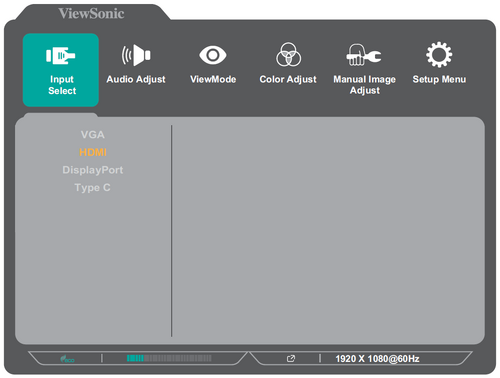
- Press the 1 (ViewMode) or 2 key to select the main menu. Then press the 3 key to enter the selected menu.
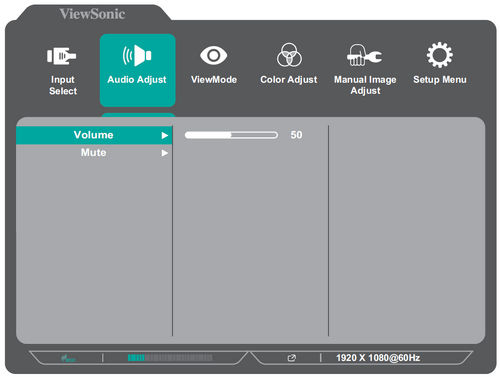
- Press the 1 (ViewMode) or 2 key to select the desired menu option. Then press the 3 key to enter the sub-menu.
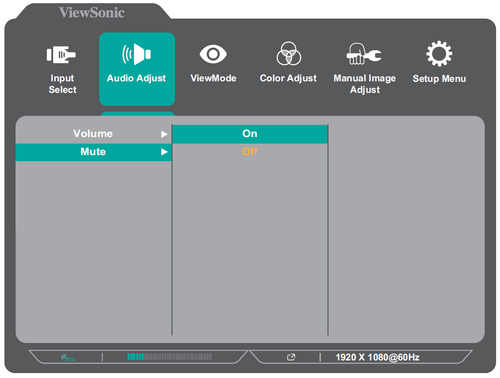
- Press the 1 (ViewMode) or 2 key to adjust/select the setting. Then press the 3 key to confirm.
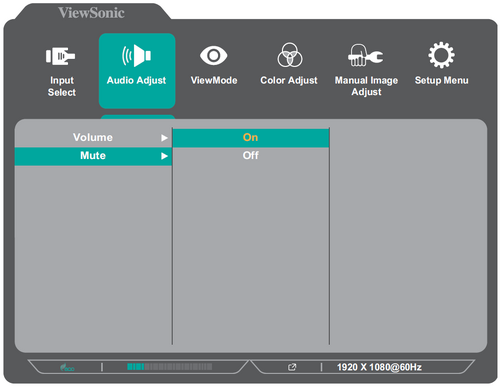
- NOTE: Certain menu option adjustments do not require the user to press the 3 key to confirm the selection. Follow the key guide that appears on the bottom of the screen to select the option or make adjustments.
- Press the 4 key to return to the previous menu.


- NOTE: To exit the OSD Menu, press the 4 key until the OSD Menu disappears.