vController
Hardware Settings
Connect the monitor to the local area network or serial port. You may then use the computer to implement vController to remotely control the monitor.
RS232C Connections

Software Installation

Use the Ethernet cable to connect to this display via the router. Press the MENU button to display the OSD menu and set the monitor network settings.
Introduction
vController 2.0 integrates RS-232 and LAN command for displays and projectors.
Start Up
Display or Projector selection provides RS-232 or LAN communication connection, display identity code, switching the machine on and off, and the input signal settings.
Select Device
 to control a display or the Projector Icon
  to control a projector.

RS-232 Settings
- Press the Return Button
 to search for the RS-232 connection ports and then select a corresponding hardware connection port.
- Default baud rate is 9600.
- Press the Share Button
 to connect to the RS-232. When the RS-232 has been successfully connected, the button will turn green.

Network Settings
- Enter the IP address of the monitor in the IP address field.
- When the network settings interface is opened, press the Ping Button
 to check if the connection is successful.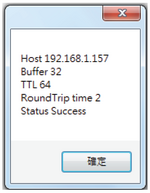
- Default port number is 5000.
- Press the Share Button to connect to the network. When the network connection has been successful, the button will turn green.


Start
 |
 |
| Display Start Interface | Projector Start Interface |
Display Identification Number (ID)
Create ID numbers when connecting to displays via RS-232C. A unique ID should be created for each display. Check All when connecting to multiple displays.
- NOTE: Only displays support ID numbers. Projectors do not support ID numbers.
ID Group
- Check Group.
- Enter ID numbers in the text field.
On/Off Buttons
- Press the On Button
 to turn on the display.
 - Press the Off Button
 to turn off the display.


Icon Description
Display has turned on successfully. 
Display has failed to turn on / display's status is unknown.
Display has turned off successfully. 
Display has failed to turn off / display's status is unknown.


Source Menu
- Select video source with the pull-down menu
- Press the Source Button
 to switch the input signal.
IP Group
- Press the IP Button
 to set the IP group.
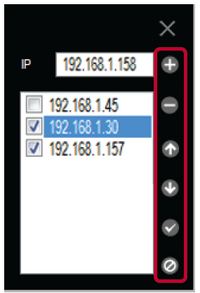
- Enter the IP address of the display or projector in the IP address field.


Icon Description 
Add IP address into group. 
Remove IP address from group. 
Move up the focus IP address. 
Move down the focus IP address. 
Enable all IP address. 
Disable all IP address. 
Close IP group windows.


Setting
Setting / Getting Buttons
Setting Button
Press to the Setting Button  to set the RS-232 or LAN commands.
Icon Description 
Command was successfully read. 
Command was not set / command is not supported. 
Command is still processing.


Getting Button
Press to the Getting Button  to read the RS-232 or LAN commands.
Icon Description 
Command was successfully read. 
Command was not set / command is not supported. 
Command is still processing.


Monitor Setting
Setup

Item Function Description Commands Supported Devices Supported OSD Language Select the language for the OSD interface. Write All devices Power Lock Button used to activate or de-activate the power source. Write/Read All devices Button Lock Button used to activate or de-activate the control panel buttons. Write/Read All devices Menu Lock Button used to activate or de-activate the main menu buttons. Write/Read All devices DTV Channel Select the digital TV channel. Write TV types ATV Channel Select the analog TV channel Write TV types Remote Control Choose whether to switch the remote control on/off or select the IR pass through mode. When the IR pass through mode has been activated, the name of the button would be displayed in the RC display frame when the remote control is pressed. Write/Read All devices Set-Up Wizard Choose whether to switch the set-up wizard on/off (only for TV devices) Write/Read TV types Restore Default Return all settings to the default factory settings Write All devices Ack Tests the communication connections Write All devices
Picture

Item Function Description Commands Supported Devices Supported Contrast Adjust contrast to improve display quality.The black portions of the image would be blacker, while the white portions would be whiter. Write/Read All devices Brightness Adjust brightness of the image displayed. Write/Read All devices Sharpness Adjust and improve the image sharpness. Write/Read All devices Backlight Adjust the panel backlights Write/Read All devices Color Increase or decrease the color strength of the image. Write/Read All devices Tint Increase or decrease the tint of the image. Increasing tint will make the image greener, while decreasing tint will make the image appear more purple. Write/Read All devices Color Mode Select the warmth of the color used for the image. Low-warmth images would appear slightly red, while high-warmth images would appear slightly blue. Write All devices Picture Size Select picture size. Write All devices
Audio

Item Function Description Commands Supported Devices Supported Sound Switch the SRS effects on or off. Write All devices Bass Increase or decrease the bass volume. Write All devices Treble Increase or decrease the treble volume. Write All devices Balance Adjust the balance of the left and right channels. Write All devices Volume Increase or decrease the monitor volume. Write/Read All devices Mute Mute or unmute the monitor speakers. Write/Read All devices
Tiling
This function allows users to establish a large array of displays (TV walls). This function requires daisy chain connections. The maximum number of displays to be arranged horizontally/vertically would depend on the specifications of the displays used.

Item Function Description Commands Supported Devices Supported Tiling-Mode Swith on / off Tiling-Mode. Write/Read TV wall type (CDX) Tiling-Compensation Turn on / off the tiling-compensation function. When switched on, the monitors would adjust the image to compensate for the width of the border frames and provide an accurate and precise display of the images. Write/Read TV wall type (CDX) Tiling-H by V Monitors Select the number of monitors in the horizontal / vertical directions. Write/Read TV wall type (CDX) Tiling Position Designate the position of the monitor in the monitor tiling matrix. Write/Read TV wall type (CDX)
KeyPad

Item Function Description Commands Supported Devices Supported 
Power On ButtonPress this button to power on device. Write All devices 
Power Off ButtonPress this button to power off device. Write All devices 
Menu ButtonPress this button to access the OSD menu. Write All devices 
Volume Down ButtonPress this button to decrease the audio output level. Write All devices 
Volume Up ButtonPress this button to increase the audio output level. Write All devices 
Mute ButtonPress this button to turn the mute function on / off. Write All devices 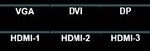
Source Switch ButtonsPress these buttons to select the input source. Write All devices 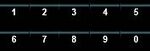
0 - 9 ButtonsSelect the desired number by pressing the 0 - 9 buttons Write All devices 
Arrow Buttons and Enter ButtonUse to Arrow Buttons to adjust the selected item in the OSD interface. Press the ENTER Button to confirm the action. Write All devices


Macro

The user can define three (3) components:
- Group Name
- Edit Macro Group Commands
- Run Macro Group Commands
Group Name
Key in the group name here.

Edit Macro Group Commands
 to add commands to the Macro Group Commands.
| Item | Description |
|---|---|
 |
Select command. |
 |
Select command data. |
 |
Add command to group. |
 |
Remove command from group. |
 |
Move up the command focus. |
 |
Move down the command focus. |
 |
Enable all IP addresses. |
 |
Close macro edit. |
Run Macro Group Commands
 to run the Macro Group Commands.
Projector Setting
Setup
 |
 |
| Pro 9 Series Not Selected | Pro 9 Series Selected |
Item Function Description Commands Supported Devices Supported OSD Language Select the language for the OSD interface. Write Supports Non-Pro 9 Series model. Reset All Return all settings to the default factory settings. Write All devices Reset Color Reset the color settings to their default values. Write Supports Non-Pro 9 Series model.
Picture

Item Function Description Commands Supported Devices Supported Contrast Adjust contrast to improve display quality.The black portions of the image would be blacker, while the white portions would be whiter. Write/Read Supports Pro 9 Series only Brightness Adjust brightness of the image displayed. Write/Read Supports Pro 9 Series only
Audio
 |
 |
| Pro 9 Series Not Selected | Pro 9 Series Selected |
Item Function Description Commands Supported Devices Supported Volume Increase or decrease the projector volume. Write/Read All devices Mute Mute or unmute the projector speakers. Supports Non-Pro 9 Series All devices
KeyPad
 |
 |
| Pro 9 Series Not Selected | Pro 9 Series Selected |
Item Function Description Commands Supported Devices Supported
Power On ButtonPress this button to power on device. Write All devices
Power Off ButtonPress this button to power off device. Write All devices 
ECO Mode ButtonWrite All devices 
Lamp Mode ButtonCycle between ECO, Normal, and Dynamic ECO. Write Supports Pro 9 Series only 
Audio Mode ButtonWrite All devices 
Blank On/Off ButtonWrite All devices 
Freeze On/Off ButtonWrite All devices
Volume Down ButtonPress this button to decrease the audio output level. Write Supports Non-Pro 9 Series
Volume Up ButtonPress this button to increase the audio output level. Write Supports Non-Pro 9 Series
Mute ButtonPress this button to turn the mute function on / off. Write Supports Non-Pro 9 Series 
Picture Mode ButtonWrite All devices 
Aspect Ratio ButtonWrite All devices 
Arrow Buttons and Enter Button- Move the selection row up/down/left/right or adjust the selected item in the OSD interface.
- ENTER button confirms the action.
Write Supports Non-Pro 9 Series 
Source Switch ButtonSelect the input source. Write Supports Non-Pro 9 Series 
Keystone ButtonAdjust the keystone values. Write Supports Non-Pro 9 Series


Macro

The user can define three (3) components:
- Group Name
- Edit Macro Group Commands
- Run Macro Group Commands
Group Name
Key in the group name here.
Edit Macro Group Commands
to add commands to the Macro Group Commands.| Item | Description |
|---|---|
|
Select command. |
|
Select command data. |
|
Add command to group. |
|
Remove command from group. |
|
Move up the command focus. |
|
Move down the command focus. |
|
Enable all IP addresses. |
|
Close macro edit. |
Run Macro Group Commands
to run the Macro Group Commands.Schedule

Pre-set schedules can be used to determine when the displays are to be switched on/off. Be reminded that in order for this function to work, the vController software must be kept running.
| Item | Description |
|---|---|
| Group | Group On or Off schedule. Select from Group A to H or No group. |
| Name | Type a schedule name. |
| Protocol | Select RS-232 or LAN. |
| Device | Select Display or Projector. |
| COM | Set the RS-232 COM port. |
| ID | Select the Display ID. |
| On | Set the time to switch on the display (hours, minutes). |
| Off | Set the time to switch off the display (hours, minutes). |
| A week | Press to select the days of the week. |
| Enable | Enable or disable this schedule. |
| Save | The schedule will only come into use after pressing the button to store the schedule. |
| Delete | Delete the schedule. |
Command Mode
Press  to enter Command Mode. The figure below shows the Command Mode interface. Perform the following steps:
- Select ASCII or Hex, and then manually enter the Command.
