
IFP6550-5 Pre-installed Applications
Air Class
Display quiz questions on the ViewBoard and allow up to 30 mobile users to submit answers remotely. Whether deploying single or multiple choice questions, the ViewBoard will record the results for each device being used.

Network Information
- PC (Windows/Mac/Chromebook) and tablet/mobile (iOS/Android) devices, as well as the ViewBoard need to be linked to the same LAN network subnet.
- Ports: TCP 8080
To launch Air Class:
-
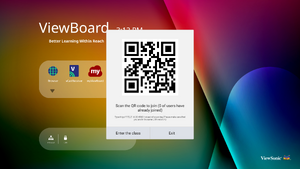 Select "Enter the class"
 -
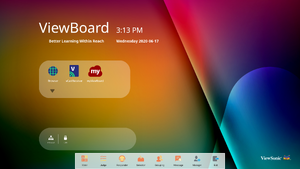 Choose a function


- Tap the tool bar trigger icon and select the more tools icon. Then select the Air Class icon.
- Select “Enter the class”.
- Choose from the available interactive functions at the bottom of the screen.
| Item | Description |
|---|---|
| Voter | Single and Multiple choice questions. |
| Judge | True/False questions. |
| Responder | Race to answer first |
| Selector | Randomly select a participant |
| Grouping | Assign participants to groups |
| Message | Allow/Deny participants to direct message the ViewBoard |
| Manager | Add participants |
| Exit | Exit Air Class |
Voter
- Select the Single choice or Multiple choice icon to select the preferred answer type.

- Tap BEGIN VOTING to let the participants start.
- After the participants are finished and press OK, the ViewBoard will show the participant‘s name on screen.
- Tap FINISH VOTING to close the quiz.
- Then the participants’ “Answer Statistics” will be displayed.
- Choose the right answer to show the correct rate.
- Click the Explain icon to further analyze the topic.


Judge
- Tap BEGIN VOTING to let the participants start a True/False questionnaire.
- After the participants are finished and press OK, the ViewBoard will show the participant‘s name on screen.
- Tap FINISH VOTING to close the quiz.
- Then the participants’ “Answer Statistics” will be displayed.
- Choose the right answer to show the correct rate.
- Click the Explain icon to further analyze the topic.


Responder
Participants race to select their answer and tap OK to submit their answer.

Selector
- Select the “Selector’ icon.
- Set the number of participants to be selected.
- NOTE: The number of participants that can be selected will be based on the total number of participants.
- Tap START to start the random selection.
- The selected participant’s name will then be displayed.
Grouping
Select the icon to assign participants to groups.
Message
-
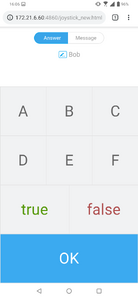 Select "Message"
 -
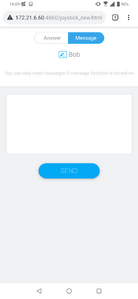 Change the interface
 -
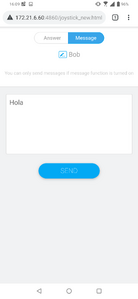 Enter your message


To allow messaging:
- Tap the “Message” icon to enable the function.
- Participants select “Message” to change to the message interface.
- Participants key in their message then select SEND.
- The message will scroll across the top of the ViewBoard.
Manager
Select the icon to let more participants join the class.
Exit
Select to exit the Air Class interface.
myViewBoard Display
Wirelessly mirror screens to a larger display.

To share a screen to a ViewBoard with myViewBoard Display:
- Open myViewBoard Display on the ViewBoard you want to share your screen to.
- On the device you want to share the screen from, go to: https://myviewboard.com/display.
- Enter the Display Code and One Time Password for the ViewBoard you wish to share to.
- NOTE: Note that the password refreshes every 30 seconds.
myViewBoard Live
Stream whiteboarding sessions.

A Stream URL and a Stream Key are needed to begin live streaming. The Stream URL is automatically shown after selecting the streaming service in myViewBoard Live.
- NOTE: The Stream Key will come from the streaming service chosen.
On myViewBoard Live:
- Launch myViewBoard Live.
- Input the required information.
- Select the Record the stream checkbox to record a copy of the stream to the ViewBoard (if applicable).
- Tap the arrow icon to start the stream.
On the dashboard of the chosen streaming service:
- Verify that it is able to successfully receive the stream.
- To stop the stream, locate and click the ‘End Stream’ button on the chosen service’s dashboard.
- NOTE: To learn more about myViewBoard Live, visit: https://wiki.myviewboard.com/MyViewBoard_Live.
myViewBoard Manager
Remotely manage multiple installations of ViewSonic devices.

Once devices are set up and have myViewBoard Manager installed, they can be added to the entity and managed remotely from the Manager web application.
- NOTE: Only available to Entity Admins from myviewboard.com after signing in.
Add a Device
On the device to manage:
- Download and install myViewBoard Manager.
- Open myViewBoard Manager and note the 6-digit PIN displayed.
In the myViewBoard Manager web application on myviewboard.com:
- Click Add Device.
- Input the 6-digit PIN obtained earlier.
- Name the device (if applicable).
- Click Add.
- NOTE: To learn more about myViewBoard Manager, visit: https://wiki.myviewboard.com/MyViewBoard_Manager.
myViewBoard Record
Capture everything that is displayed on screen in a video format.

To launch the screen recording application:
- Select the myViewBoard Record icon in the application drawer.
- Select the preferred recording configurations.
- Tap the check mark and a three (3) second countdown will begin. Screen recording will begin immediately after the countdown.
- After stopping the recording, you will be able to preview the video, save it, or discard it.
myViewBoard Whiteboard
A digital whiteboarding application.
- NOTE: To learn more about myViewBoard Whiteboard, visit: https://wiki.myviewboard.com/Whiteboard_for_Android.

Floating Toolbar
| Item | Description | |
|---|---|---|
 |
Move | Move the Floating Toolbar. |
 |
Present Mode | Switch between presentation and preparation modes. |
 |
Paste from Clipboard | Insert the current clipboard content onto the canvas. |
 |
Previous Page | Go to the previous page (if the canvas has multiple pages). |
 |
Next Page | Go to the next page (if the canvas has multiple pages). |
 |
New Page | Add a new canvas. |
 |
Pages in Whiteboard | Create, select, rearrange, copy and delete pages. |
Main Toolbar
| Item | Description | |
|---|---|---|
 |
Screen Capture | Screenshot, video, and audio recording. |
 |
Move | Select and hold to move the toolbar to the left side, right side, or bottom of the screen. |
 |
File | Open, save, export, and print whiteboard files. |
 |
Magic Box | Import resources (image, video, audio, etc.) to the whiteboard. |
 |
Embedded Browser | Open the built-in browser to access internet resources, which can be dragged onto the canvas. |
 |
Infinite Canvas | Drag to move the canvas. Use two hands to zoom in/zoom out. Select again for an overview. |
 |
Selection | Select objects, text, and other elements on the canvas. |
 |
Pen | Writing tools and customization options. |
 |
Eraser | Erase objects or clear the page. |
 |
Shapes and Lines | Draw shapes, arrows, and add tables. |
 |
Text and Handwriting | Add a text box. |
 |
Undo | Undo the previous action. |
 |
Redo | Redo the previous action. |
Background Management
| Item | Description | |
|---|---|---|
 |
Sign In | Sign in to a myViewBoard account. |
 |
Background Management | Change the canvas background. |
 |
FollowMe Setting | Display custom images uploaded to a cloud storage account. |
 |
Color Palette | Choose from solid or gradient colors as the background. |
 |
Pre-installed | Choose backgrounds that come pre-installed with Whiteboard. |
 |
myViewBoard Originals | Display original content created by myViewBoard. |
 |
Local Hard Drive | Use images from the local hard drive. |
vCast
Working with ViewBoard® Cast software (vCast, vCast Pro, and vCastSender), the vCast application will allow the ViewBoard to receive laptop screens (Windows/Mac/Chrome) and mobile (iOS/Android) users’ screens, photos, videos, annotations, and camera(s) that are using the vCastSender application.

- NOTE:
- ViewBoard® Cast software, laptops, and mobile devices can connect to both the same subnet and cross subnet by entering the on-screen PIN code.
- Connected devices will show up under Device List on the same subnet connection.
- If the device does not show up under Device List, users will need to key-in the on-screen PIN code.
Network Information
- Ports:
- TCP 56789, 25123, 8121 & 8000 (Controlling message port & client device audio transfer)
- TCP 8600 (BYOM)
- TCP 53000 (Request share screen)
- TCP 52020 (Reverse control)
- TCP 52025 (Reverse control for ViewBoard Cast Button)
- TCP 52030 (Status sync)
- UDP 48689, 25123 (Device searching and broadcast & client device audio transfer)
- UDP 5353 (Multicast search device protocol)
- Port and DNS Activation:
- Port: 443
- DNS: https://vcastactivate.viewsonic.com
- OTA Service:
- Server Port: TCP443
- Server FQDN Name: https://vcastupdate.viewsonic.com
Display Group Settings
To adjust the Display Group Settings, select the Display Group icon ( ) located in the lower-right corner of the screen.

- Toggle the "Turn On/Off Display Group" ON to enable the Display Group feature.
- NOTE: Other preinstalled ViewBoard Cast devices in the same network will be listed.
- Select the devices you want to join the display group and select OK to save the settings.
- NOTE:
- If the devices you want to group are not listed, you can enter their respective IP address or connecting PIN code.
- The Display Group maximum device limit is six devices.
- If you frequently connect to the same device, you can select the Star icon (
 ) next to the device to add it to your frequently connected devices list, "My List of Devices in Group", for easier Display Group setup and management.


Synchronized Group Screen All the Time
When the “Synchronized group screen all the time” function is toggled ON, it will display a synchronized group screen continuously. If it is toggled OFF, it will work on vCast mirroring only.

- NOTE: Select the devices to group first, then toggle the "Synchronized group screen all the time” function ON to avoid interruption.
After confirming the above settings, you can share your screen to the main display, then the grouped client devices will be synced up to your screen.

Moderator Mode
Moderator Mode allows the moderator to take control of the devices connected to the ViewBoard. To enter Moderator Mode, select the Moderator Mode icon ( ) located in the lower-right corner of the screen.

When enabled, the moderator can view a list of all connected screens in the left floating window and can preview each participant’s screen and then select any of participant’s screen and cast to the ViewBoard’s main screen for presentation. The moderator can also control each participant’s screen, annotate on the ViewBoard, and remove unwanted participants by selecting the close icon (X).

Broadcast
When enabled, the ViewBoard’s screen will be broadcasted to all of the participant’s connected screens simultaneously. The participants can only view the presentation contents until the moderator disables the Broadcast function.

Multiple Screen Sharing
By default, vCast is set to allow multiple screen sharing, but can also be set to single screen sharing. To do this, the moderator can select the Multiple Screen Sharing icon to switch to single screen sharing.
Preview Screen
By default, vCast is set to let the moderator preview the participant’s screen contents prior to sharing to the ViewBoard. Selecting the Preview Screen icon, the Moderator can switch to see the participant’s name only.
Touch
By default, participants can use touch for collaboration after connecting. The moderator can enable/disable the touch function of a participant by selecting the Touch icon in their window.
NOTE:
- Moderator Mode is supported on all vCastSender and AirPlay devices, but mobile devices are limited to a "preview" function. Additionally, mobile Android devices cannot cast sound out.
- When you cast your Windows/Mac/Chrome screen to a ViewBoard, the selected full screen unit will not be broadcasted back to your device to avoid repetitive screen casting.
- The active presenter can touch each of the participant's screens to remotely control casting devices.
- The number of multi-screen presenters on-screen depends on your Windows CPU processor performance and router specifications.
Casting from Windows, MacBook, and Chrome Devices

- Ensure the client device (e.g., laptop) is connected to the same network as the ViewBoard.
- NOTE: The network name can be found under Room Network.
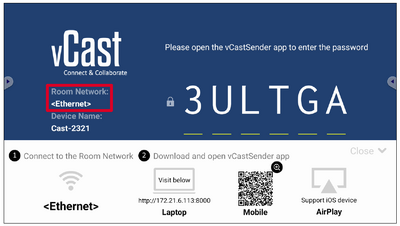
- On the client device, visit the address that is shown on the ViewBoard to download and install the vCastSender application.
- After installing, launch the vCastSender application.
- To connect to the ViewBoard, input the PIN code and click OK.
- NOTE: The PIN code can be found as highlighted below:
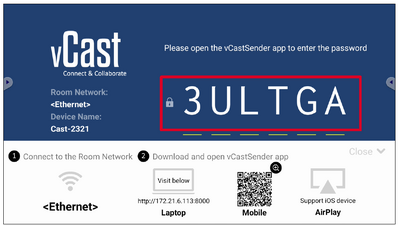
- Additionally, you can connect to the ViewBoard or display by clicking Device List then the Device Name listed.
- NOTE: The Device Name can be found as highlighted below:
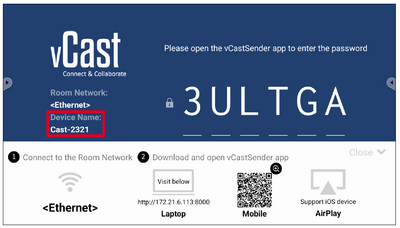


Casting from Android Devices

- Ensure the client device (e.g., Android phone or tablet) is connected to the same network as the ViewBoard.
- NOTE: The network name can be found under Room Network.
- On the Android client device, scan the QR code shown on the ViewBoard to directly download the vCastSender application, or download the application from the Google Play Store.
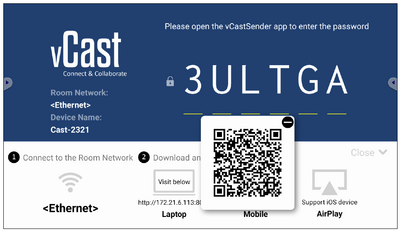
- After installing, launch the vCastSender application.
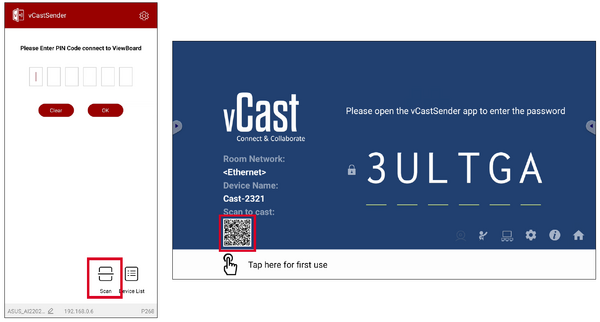
- To connect to the display, input the PIN code and select OK.
- NOTE: The PIN code can be found as highlighted below:
- You can also connect to the ViewBoard by clicking Device List then the Device Name listed.
- NOTE: The Device Name can be found as highlighted below:
- Additionally, you can connect to the ViewBoard by selecting Scan then placing the on-screen QR code into the box to automatically connect.


Casting from Apple iOS Devices
Apple AirPlay® is compatible with vCast for screen mirroring and content streaming under the same subnet environment only. An “AirPlay Password” will be generated on-screen for connection when using AirPlay to cast to a ViewBoard.

- Ensure the client device (e.g., iPhone or iPad) is connected to the same network as the ViewBoard.
- NOTE: The network name can be found under Room Network.
- On the iOS client device, directly open AirPlay and select the Device Name of the ViewBoard to connect.
- NOTE: The Device Name can be found as highlighted below:
- Input the generated on-screen AirPlay Password on the client device to connect.
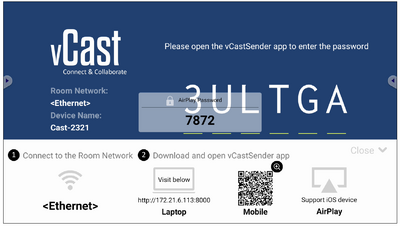
- NOTE: In a cross subnet environment, please download and connect with the vCastSender iOS application from the Apple App Store.
- You can also connect to the ViewBoard by selecting Scan then placing the on-screen QR code into the box to automatically connect.

Connecting to a Display from a Mobile Device
Once connected, select Receive. The ViewBoard or selected display screen will appear on the mobile device with an on-screen toolbar. Users can interact with the ViewBoard or display with annotations, file sharing, etc.

| Item | Description | |
|---|---|---|
 |
Toggle | Hide or display the toolbar. |
 |
Home | Return to the Home interface. |
 |
Return | Return to the previous operation. |
 |
Folder | View or open the mobile device's files. |
 |
Share | Cast the mobile device's screen to the connected ViewBoard or display. |
 |
Touch | Remotely control the connected ViewBoard or display. |
 |
Annotate | Make annotations, and adjust the pen color. |
 |
Clear | Clear everything on screen. |
 |
Camera | Send camera images to the connected ViewBoard or display. |
Other Default Applications
Chromium
Web browser for surfing the internet.

Folders

| Number | Item |
|---|---|
| 1 | Storage Device Display |
| 2 | Icons |
| 3 | File Type Menu |
| 4 | File Information |
| 5 | Main Display Area |
Icons

File Type Menu
| Item | Description |
|---|---|
| All | All types |
| Doc | OFFICE files |
| Note | Image stored by myViewBoard, Side Tool Bar, and remote control Screen Capture button. |
| Picture | Image files |
| Media | Audio and Video files |
OfficeSuite
Create, edit, and view Documents, Spreadsheets, Presentations, and PDFs.


Screen Lock
Set a screen lock password and enable screen lock.
- NOTE: If the user forgets the password, use the remote control and press INPUT-0-2-1-4 to restore the password to default.
To set a screen lock password:
- Go to: Settings > Display > Password for screen lock, or select the Screen Lock icon in the apps list.
- Select Set Password, and input a new four (4) digit password. Then select OK.
- Now when selecting the Screen Lock icon, the screen will be locked.

vSweeper
Clear unnecessary data and unwanted files.

Advanced Settings can also be customized to the user's needs.
