vController Using the Application
From ViewSonic Documentation
Introduction
vController 2.0 integrates RS-232 and LAN command for displays and projectors.
- Start Up
- Setting
- Schedule
Setting
Setting / Getting Buttons
Setting Button
Press to the Setting Button  to set the RS-232 or LAN commands.
Icon Description 
Command was successfully read. 
Command was not set / command is not supported. 
Command is still processing.


Getting Button
Press to the Getting Button  to read the RS-232 or LAN commands.
Icon Description 
Command was successfully read. 
Command was not set / command is not supported. 
Command is still processing.


Monitor Setting
Setup

Item Function Description Commands Supported Devices Supported OSD Language Select the language for the OSD interface. Write All devices Power Lock Button used to activate or de-activate the power source. Write/Read All devices Button Lock Button used to activate or de-activate the control panel buttons. Write/Read All devices Menu Lock Button used to activate or de-activate the main menu buttons. Write/Read All devices DTV Channel Select the digital TV channel. Write TV types ATV Channel Select the analog TV channel Write TV types Remote Control Choose whether to switch the remote control on/off or select the IR pass through mode. When the IR pass through mode has been activated, the name of the button would be displayed in the RC display frame when the remote control is pressed. Write/Read All devices Set-Up Wizard Choose whether to switch the set-up wizard on/off (only for TV devices) Write/Read TV types Restore Default Return all settings to the default factory settings Write All devices Ack Tests the communication connections Write All devices
Picture

Item Function Description Commands Supported Devices Supported Contrast Adjust contrast to improve display quality.The black portions of the image would be blacker, while the white portions would be whiter. Write/Read All devices Brightness Adjust brightness of the image displayed. Write/Read All devices Sharpness Adjust and improve the image sharpness. Write/Read All devices Backlight Adjust the panel backlights Write/Read All devices Color Increase or decrease the color strength of the image. Write/Read All devices Tint Increase or decrease the tint of the image. Increasing tint will make the image greener, while decreasing tint will make the image appear more purple. Write/Read All devices Color Mode Select the warmth of the color used for the image. Low-warmth images would appear slightly red, while high-warmth images would appear slightly blue. Write All devices Picture Size Select picture size. Write All devices
Audio

Item Function Description Commands Supported Devices Supported Sound Switch the SRS effects on or off. Write All devices Bass Increase or decrease the bass volume. Write All devices Treble Increase or decrease the treble volume. Write All devices Balance Adjust the balance of the left and right channels. Write All devices Volume Increase or decrease the monitor volume. Write/Read All devices Mute Mute or unmute the monitor speakers. Write/Read All devices
Tiling
This function allows users to establish a large array of displays (TV walls). This function requires daisy chain connections. The maximum number of displays to be arranged horizontally/vertically would depend on the specifications of the displays used.

Item Function Description Commands Supported Devices Supported Tiling-Mode Swith on / off Tiling-Mode. Write/Read TV wall type (CDX) Tiling-Compensation Turn on / off the tiling-compensation function. When switched on, the monitors would adjust the image to compensate for the width of the border frames and provide an accurate and precise display of the images. Write/Read TV wall type (CDX) Tiling-H by V Monitors Select the number of monitors in the horizontal / vertical directions. Write/Read TV wall type (CDX) Tiling Position Designate the position of the monitor in the monitor tiling matrix. Write/Read TV wall type (CDX)
KeyPad

Item Function Description Commands Supported Devices Supported 
Power On ButtonPress this button to power on device. Write All devices 
Power Off ButtonPress this button to power off device. Write All devices 
Menu ButtonPress this button to access the OSD menu. Write All devices 
Volume Down ButtonPress this button to decrease the audio output level. Write All devices 
Volume Up ButtonPress this button to increase the audio output level. Write All devices 
Mute ButtonPress this button to turn the mute function on / off. Write All devices 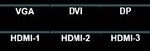
Source Switch ButtonsPress these buttons to select the input source. Write All devices 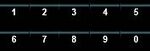
0 - 9 ButtonsSelect the desired number by pressing the 0 - 9 buttons Write All devices 
Arrow Buttons and Enter ButtonUse to Arrow Buttons to adjust the selected item in the OSD interface. Press the ENTER Button to confirm the action. Write All devices


Macro

The user can define three (3) components:
- Group Name
- Edit Macro Group Commands
- Run Macro Group Commands
Group Name
Edit Macro Group Commands
Run Macro Group Commands