
ID0730 Using the Driver
From ViewSonic Documentation
Installing the Driver
It is not necessary to download any drivers or software to use the Digital Writing Pad. However, if you would like more features such as pen pressure, please download and install our ViewSonic Pen Manager. To download and install:
- Uninstall and remove any drivers of other graphic tablets/monitors installed on your computer.
- Disable any anti-virus software and firewall temporarily, and ensure you are installing the driver as an Administrator.
- Download and install the driver from: https://pendisplay.viewsonic.com
- After a successful installation, please restart the computer then plug in the Digital Writing Pad.
- The System Tray will now show the “ViewSonic Pen Manager” icon.

DisplayLink Driver
Open the DisplayLink installation file and install the driver.


- NOTE: DisplayLink Driver can be installed through Windows Update.
Pen Display Driver
Pen Display Manager can be used to map the active area and adjust the feel of the pen.
- Open the ViewSign Console installation file and install the driver.
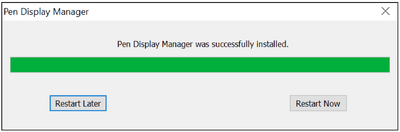
- After the installation completes, you will need to restart the computer.
- NOTE: For further ViewSign Console information, please visit: https://manuals.viewsonic.com/ViewSign_Software

Connecting the Pen Display
- Turn the device over so the bottom side is facing up.
- Plug the USB Type A end of the USB cable into the USB Port on the device.
- Connect the Main USB A cable to the computer. The Secondary USB A cable can be connected to a fully powered USB port on the computer.


