
MPC310-W31-TU Using the Device: Difference between revisions
// via Wikitext Extension for VSCode |
// via Wikitext Extension for VSCode |
||
| Line 97: | Line 97: | ||
|<div class="res-img">[[File:MRC1010-TN Icon Share.png |45px|alt=Share icon]]</div> | |<div class="res-img">[[File:MRC1010-TN Icon Share.png |45px|alt=Share icon]]</div> | ||
|Share | |Share | ||
| style="text-align:left;" | Project your laptop by plugging in the cable connected to the console. Depending on the room settings, it may be projected to the room automatically, or you may have to select Share on the Touch Console. You can also cast content onto the room display from your [https://support.microsoft.com/en-us/office/cast-content-from-your-desktop-to-a-microsoft-teams-room-6d62cdbb-3da2-4bb9-80bd-9cf1098beb3d | | style="text-align:left;" | Project your laptop by plugging in the cable connected to the console. Depending on the room settings, it may be projected to the room automatically, or you may have to select Share on the Touch Console. You can also cast content onto the room display from your [https://support.microsoft.com/en-us/office/cast-content-from-your-desktop-to-a-microsoft-teams-room-6d62cdbb-3da2-4bb9-80bd-9cf1098beb3d desktop] or [https://support.microsoft.com/en-us/office/cast-content-from-a-mobile-device-to-a-microsoft-teams-room-c4e5fb1b-6b94-4d48-88f2-6bcd8e7e339d mobile device]. | ||
|- | |- | ||
|<div class="res-img">[[File:MRC1010-TN Icon Join With an ID.png|45px|alt=Join with an ID icon]]</div> | |<div class="res-img">[[File:MRC1010-TN Icon Join With an ID.png|45px|alt=Join with an ID icon]]</div> | ||
Revision as of 07:12, 18 July 2024
Prerequisites
Required License for Microsoft Teams Rooms (MTR)
You will need a Microsoft Teams Rooms license to set up your MTR Room System. To learn more about the required licenses, refer to the Microsoft Teams documentation: "Microsoft Teams Rooms licenses"
Required Resource Account for Microsoft Teams Rooms
To set up your Microsoft Teams Rooms system, you will also need a Microsoft Teams Rooms account. For information on setting up this account, refer to the Microsoft Teams documentation: "Create and configure resource accounts for rooms and shared Teams device"
MTR Setup Wizard
-
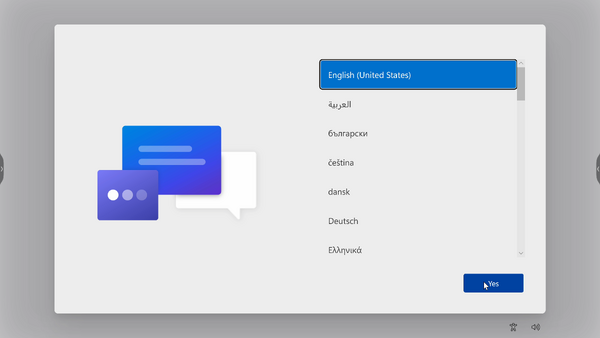
Select language.
-
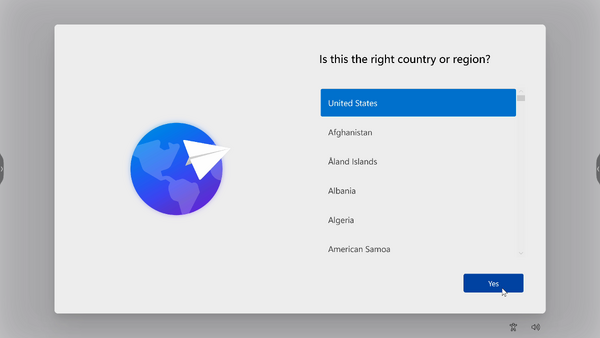
Select country or region.
-
Select keyboard layout.

-
Add a second keyboard layout.

-
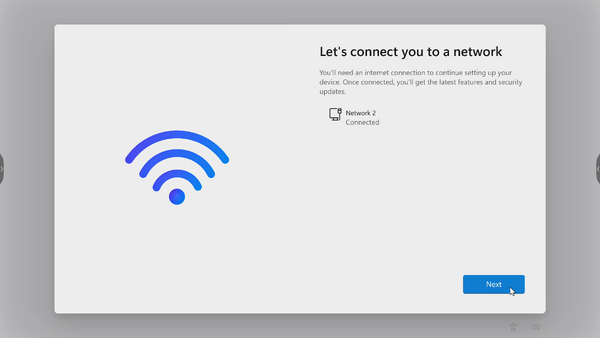
Connect to a network.
-
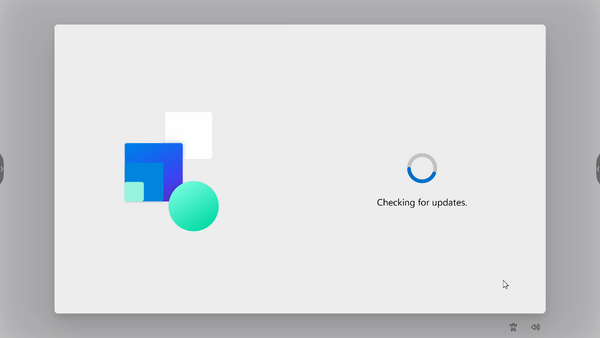
Check for any updates and finish setting up.



MTR Account Setup
-
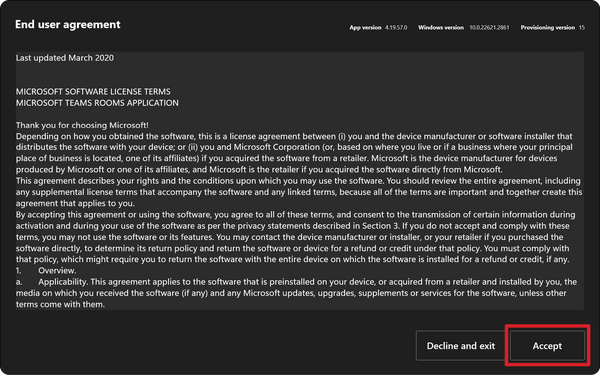
To setup a Microsoft Teams Rooms account, review the End user agreement and select Accept.
-
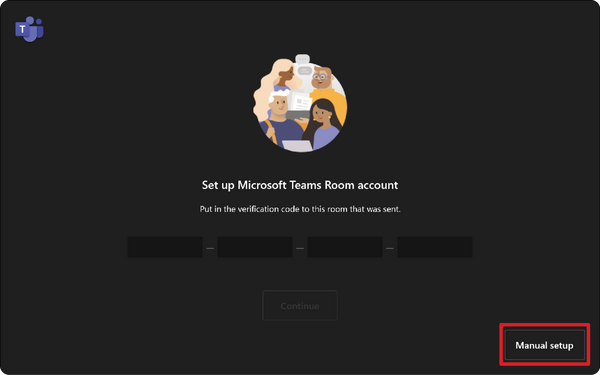
Select Manual setup.
-
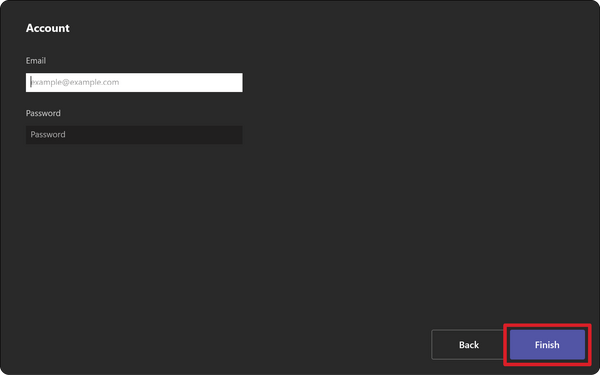
Enter the account email and password, then select Finish.


Touch Console
Home Screen

| Icon | Function | Description |
|---|---|---|
 |
Meet Now | Start a new meeting. |
 |
Call | Make a phone call. |
 |
Share | Project your laptop by plugging in the cable connected to the console. Depending on the room settings, it may be projected to the room automatically, or you may have to select Share on the Touch Console. You can also cast content onto the room display from your desktop or mobile device. |
 |
Join with an ID | Join a meeting that is not on the calendar. |
 |
More | View more options like adding a room, setting adjustment, etc. |
 |
Accessibility | See accessibility options. |
 |
Restart Device | Restart the Touch Console. |
 |
Settings | Change the Touch Console settings. |
 |
Room Controls | Switch to an OEM-provided application for in-room media or room lighting and/or blind controls. This option is available when configured by your administration. |
