
MPC310-W31-TU Using the Device: Difference between revisions
// via Wikitext Extension for VSCode |
// via Wikitext Extension for VSCode |
||
| Line 52: | Line 52: | ||
<li> | <li> | ||
<p>Check for any updates and finish setting up.</p> | <p>Check for any updates and finish setting up.</p> | ||
<p | <p>[[File:MPC310-W31-TU MTR Setup-6-1.png|600px|alt=checking for updates]]</p> | ||
< | <p>[[File:MPC310-W31-TU MTR Setup-6-2.png|600px|alt=finish setting up]]</p> | ||
< | <p>[[File:MPC310-W31-TU MTR Setup-6-3.png|600px|alt=Teams Rooms screen]]</p> | ||
</li> | </li> | ||
</ol> | </ol> | ||
| Line 78: | Line 78: | ||
=Touch Console= | =Touch Console= | ||
==Home Screen== | ==Home Screen== | ||
<div class="res-img">[[File:MPC310-W31-TU MTR Account-3.png|600px|alt=finish setting up]]</div> | |||
{| class="wikitable" style="text-align:center; width:60%; background-color:#ffffff;" | |||
|- | |||
! style="font-weight:bold; background-color:#DB0025; color:#ffffff;"| Number | |||
! style="font-weight:bold; background-color:#DB0025; color:#ffffff;"| Item | |||
! style="font-weight:bold; background-color:#DB0025; color:#ffffff;"| Description | |||
|- | |||
| style="font-weight:bold;" | '''1''' | |||
|[[File:Icon_Screen_Brightness_Down.png|50px|Screen Brightness - Icon]] | |||
| style="text-align:left;" |Decrease screen brightness. | |||
|- | |||
| style="font-weight:bold;" | '''2''' | |||
|[[File:Icon_Screen_Brightness_Up.png|50px|Screen Brightness + Icon]] | |||
| style="text-align:left;" | Increase screen brightness. | |||
|- | |||
| style="font-weight:bold;" | '''3''' | |||
|[[File:M1_mini_Plus_Icon_VolumeDown.png|50px|Volumne - Icon]] | |||
| style="text-align:left;" | Decrease the volume. | |||
|- | |||
| style="font-weight:bold;" | '''4''' | |||
|[[File:M1_mini_Plus_Icon_VolumeUp.png|50px|Volume + Icon]] | |||
|style="text-align:left;" | Increase the volume. | |||
|- | |||
| style="font-weight:bold;" | '''5''' | |||
|[[File:Icon_Touch_Screen.png|50px|Touch Screen Icon]] | |||
|style="text-align:left;" | Disable/Enable the touch screen. | |||
|- | |||
| style="font-weight:bold;" | '''6''' | |||
|[[File:Icon_Control_Panel_Menu.png|50px|IFP55G1 Menu Icon]] | |||
| style="text-align:left;" | Launch the Menu system. | |||
|- | |||
|'''7''' | |||
|[[File:Icon_Power_BK.png|50px|IFP55G1 Menu Icon]] | |||
|style="text-align:left;" | | |||
*Power indicator light. | |||
* Press to turn ON the device. | |||
* Press to turn OFF/ON the display backlight only. | |||
* Press and hold to turn OFF the device. | |||
|- | |||
|} | |||
==PIR Sensor Setup== | ==PIR Sensor Setup== | ||
<ol> | <ol> | ||
Revision as of 06:56, 18 July 2024
Prerequisites
Required License for Microsoft Teams Rooms (MTR)
You will need a Microsoft Teams Rooms license to set up your MTR Room System. To learn more about the required licenses, refer to the Microsoft Teams documentation: "Microsoft Teams Rooms licenses"
Required Resource Account for Microsoft Teams Rooms
To set up your Microsoft Teams Rooms system, you will also need a Microsoft Teams Rooms account. For information on setting up this account, refer to the Microsoft Teams documentation: "Create and configure resource accounts for rooms and shared Teams device"
MTR Setup Wizard
-
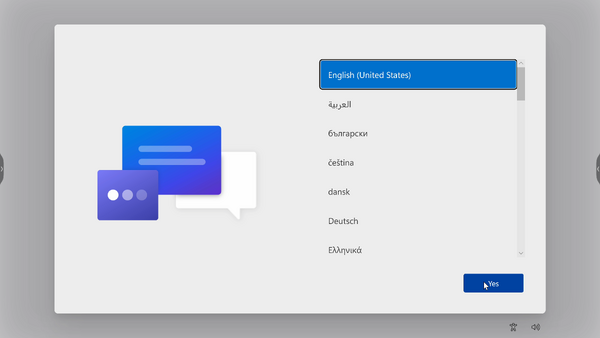
Select language.
-
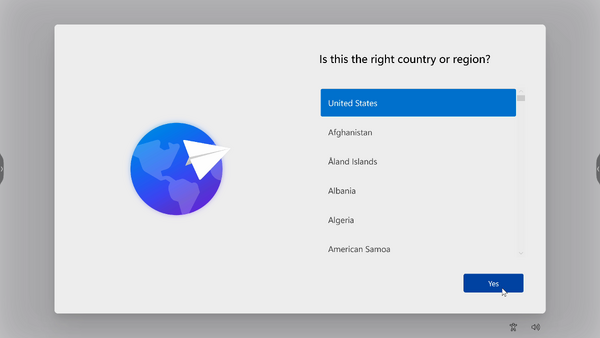
Select country or region.
-
Select keyboard layout.

-
Add a second keyboard layout.

-
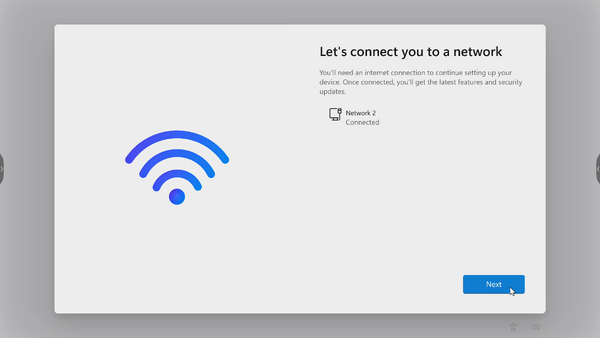
Connect to a network.
-
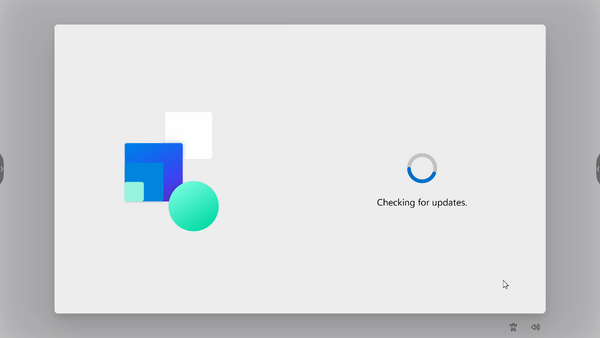
Check for any updates and finish setting up.



MTR Account Setup
-
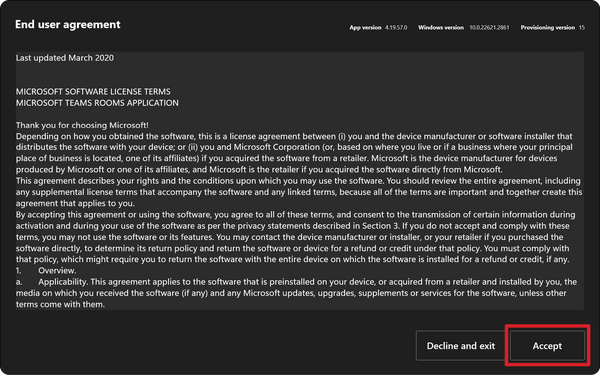
To setup a Microsoft Teams Rooms account, review the End user agreement and select Accept.
-
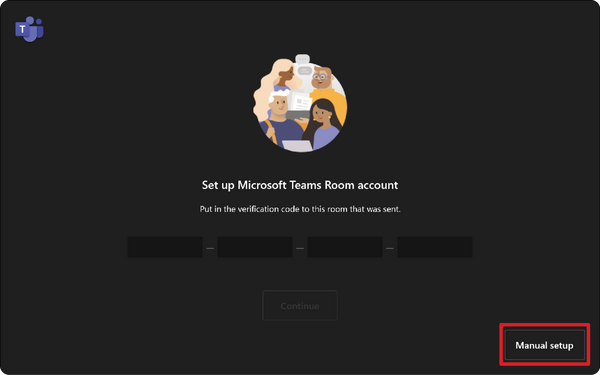
Select Manual setup.
-
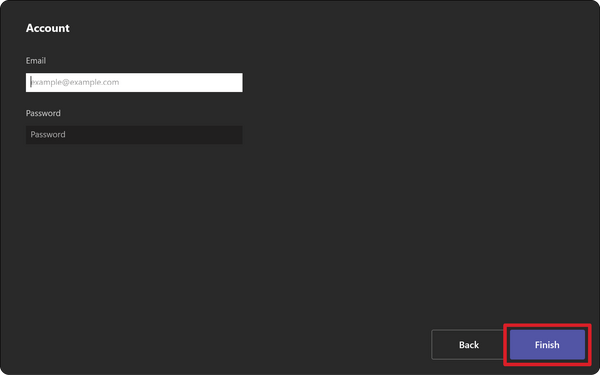
Enter the account email and password, then select Finish.


Touch Console
Home Screen

| Number | Item | Description |
|---|---|---|
| 1 | 
|
Decrease screen brightness. |
| 2 | 
|
Increase screen brightness. |
| 3 | 
|
Decrease the volume. |
| 4 | 
|
Increase the volume. |
| 5 | 
|
Disable/Enable the touch screen. |
| 6 | 
|
Launch the Menu system. |
| 7 | 
|
|
