
VX2528J On-Screen Display Menu: Difference between revisions
From ViewSonic Documentation
// via Wikitext Extension for VSCode |
// via Wikitext Extension for VSCode |
||
| Line 17: | Line 17: | ||
<li> | <li> | ||
<p> | <p> | ||
Move the '''Joy Key'''[[File:Icon_Joy_Key_Up.svg|30px|alt= Joy Key Up]] / [[File:Icon_Joy_Key_Down.svg|30px|alt= Joy Key Down]] / [[File:Icon_Joy_Key_Left.svg|30px|alt= Joy Key Left]] / [[File:Icon_Joy_Key_Right.svg|30px|alt= Joy Key Right]] to display the On-Screen Display (OSD) Menu. | Move the '''Joy Key''' [[File:Icon_Joy_Key_Up.svg|30px|alt= Joy Key Up]] / [[File:Icon_Joy_Key_Down.svg|30px|alt= Joy Key Down]] / [[File:Icon_Joy_Key_Left.svg|30px|alt= Joy Key Left]] / [[File:Icon_Joy_Key_Right.svg|30px|alt= Joy Key Right]] to display the On-Screen Display (OSD) Menu. | ||
</p> | </p> | ||
<div class="res-img">[[File:VX3218-PC-MHDJ_OSD_Menu_Input.png|500px|On-Screen Display (OSD) Menu]]</div> | <div class="res-img">[[File:VX3218-PC-MHDJ_OSD_Menu_Input.png|500px|On-Screen Display (OSD) Menu]]</div> | ||
| Line 23: | Line 23: | ||
<li> | <li> | ||
<p> | <p> | ||
Move the '''Joy Key''' [[File:Icon_Joy_Key_Left.svg|30px|alt= Joy Key Left]] or [[File:Icon_Joy_Key_Right.svg|30px|alt= Joy Key Right]] to select the main menu. Then | Move the '''Joy Key''' [[File:Icon_Joy_Key_Left.svg|30px|alt= Joy Key Left]] or [[File:Icon_Joy_Key_Right.svg|30px|alt= Joy Key Right]] to select the main menu. Then move the '''Joy Key''' [[File:Icon_Joy_Key_Down.svg|30px|alt= Joy Key Down]] to enter the selected menu. | ||
<p> | <p> | ||
<div class="res-img">[[File:VX3218-PC-MHDJ_OSD_Menu_Color_Adjust_1.png|500px|On-Screen Display (OSD) Menu]]</div> | <div class="res-img">[[File:VX3218-PC-MHDJ_OSD_Menu_Color_Adjust_1.png|500px|On-Screen Display (OSD) Menu]]</div> | ||
| Line 29: | Line 29: | ||
<li> | <li> | ||
<p> | <p> | ||
Move the '''Joy Key''' [[File:Icon_Joy_Key_Left.svg|30px|alt= Joy Key Left]] or [[File:Icon_Joy_Key_Right.svg|30px|alt= Joy Key Right]] to select the desired menu option. Then | Move the '''Joy Key''' [[File:Icon_Joy_Key_Left.svg|30px|alt= Joy Key Left]] or [[File:Icon_Joy_Key_Right.svg|30px|alt= Joy Key Right]] to select the desired menu option. Then move the '''Joy Key''' [[File:Icon_Joy_Key_Down.svg|30px|alt= Joy Key Down]] to enter the sub-menu. | ||
</p> | </p> | ||
<div class="res-img">[[File:VX3218-PC-MHDJ_OSD_Menu_Color_Adjust_2.png|500px|On-Screen Display (OSD) Menu]]</div> | <div class="res-img">[[File:VX3218-PC-MHDJ_OSD_Menu_Color_Adjust_2.png|500px|On-Screen Display (OSD) Menu]]</div> | ||
Revision as of 03:17, 3 July 2024
General Operation
-
Move the Joy Key
 /
/  /
/  /
/  to display the On-Screen Display (OSD) Menu.
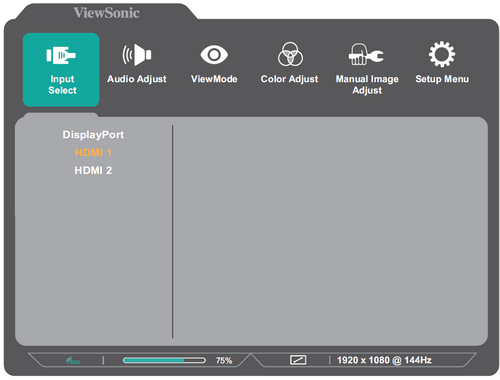
-
Move the Joy Key
or to select the main menu. Then move the Joy Key to enter the selected menu.

-
Move the Joy Key
or to select the desired menu option. Then move the Joy Key to enter the sub-menu.

-
Move the Joy Key
or to select the setting. Then press the Joy Key to confirm, or move the the Joy Key or to make adjustments.
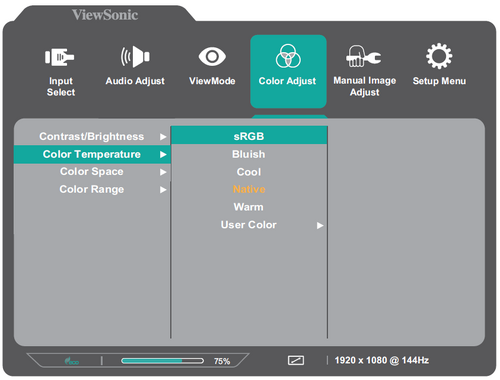 Note: Follow the key guide to select the option or make adjustments.


