
MA1014H MA1214H Making Connections: Difference between revisions
From ViewSonic Documentation
| Line 35: | Line 35: | ||
=Connecting Device= | =Connecting Device= | ||
<div class="res-img">[[File: | <div class="res-img">[[File:MA1014H_MA1214H_Connecting_Devices_Update.png|600px]]</div> | ||
# Connect the Main USB A cable to the computer. | |||
# Connect the Main USB A cable to the computer. The Secondary USB A cable can be connected to an AC outlet using the | # The Secondary USB A cable can be connected to an AC outlet using the suppliedpower adapter. | ||
:::<small>'''NOTE:''' | :::<small>'''NOTE:''' | ||
:::*Power through the secondary USB cable from the AC/DC Adapter willensure a sufficient power supply to avoid screen flicker in case the powerfrom the computer is not stable. | |||
:::*Customized units may have an additional USB cable for the DocumentCamera. Please also connect this USB cable to the computer. | |||
</small> | |||
Revision as of 10:30, 10 April 2023
Installing Drivers and Software
System Requirements:
Operating system: Windows XP/7/8/10 (32/64 bit)
PC I/O: USB 2.0/above
Before connecting and using the pen display, it is necessary to install the below software. The software can be downloaded at:
https://www.viewsonicglobal.com/q/MA1014H
https://www.viewsonicglobal.com/q/MA1014L
https://www.viewsonicglobal.com/q/MA1214H
https://www.viewsonicglobal.com/q/MA1214L

DisplayLink Driver
Open the DisplayLink installation file and install the driver.

- NOTE: DisplayLink Driver can be installed through Windows Update when connected to the Internet.
Pen Display Driver
Pen Display Manager can be used to map the active area and adjust the feel of the pen.
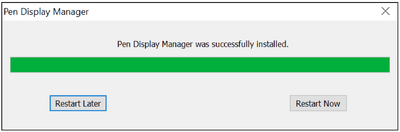
- Open the ViewSign Console installation file and install the driver (Pen Display Manager).
- Restart the computer after the installation completes.
- NOTE: For further ViewSign Console information, please visit: https://manuals.viewsonic.com/ViewSign_Software

Connecting Device

- Connect the Main USB A cable to the computer.
- The Secondary USB A cable can be connected to an AC outlet using the suppliedpower adapter.
- NOTE:
- Power through the secondary USB cable from the AC/DC Adapter willensure a sufficient power supply to avoid screen flicker in case the powerfrom the computer is not stable.
- Customized units may have an additional USB cable for the DocumentCamera. Please also connect this USB cable to the computer.
- NOTE: