
VP16-OLED Connecting Power and Devices: Difference between revisions
| Line 63: | Line 63: | ||
* When a Type C port recognizes an external device as a power adapter, it will only distribute the power. It will NOT display the input signal. | * When a Type C port recognizes an external device as a power adapter, it will only distribute the power. It will NOT display the input signal. | ||
* Only when one of the Type C ports is recognized as a power adapter can the other one deliver two-way power. | * Only when one of the Type C ports is recognized as a power adapter can the other one deliver two-way power. | ||
<br /> | |||
If a notebook is connected first to the monitor, then a mobile phone is connected second, the mobile phone’s battery will not be charged as neither Type C port recognizes the connection as being connected to a power adapter. | If a notebook is connected first to the monitor, then a mobile phone is connected second, the mobile phone’s battery will not be charged as neither Type C port recognizes the connection as being connected to a power adapter. | ||
:'''NOTE:''' If you want to display the mobile phone’s screen, you must unplug the Type C cable connected to the notebook. | :'''NOTE:''' If you want to display the mobile phone’s screen, you must unplug the Type C cable connected to the notebook. | ||
<br /> | |||
If a mobile phone is connected first to the monitor, then a notebook is connected second, the mobile phone’s battery will be charged as one of the Type C ports is recognized as being connected to a power adapter. | If a mobile phone is connected first to the monitor, then a notebook is connected second, the mobile phone’s battery will be charged as one of the Type C ports is recognized as being connected to a power adapter. | ||
:'''NOTE:''' If you want to display the notebook screen, you must unplug the Type C cable connected to the mobile phone. | :'''NOTE:''' If you want to display the notebook screen, you must unplug the Type C cable connected to the mobile phone. | ||
<br /> | |||
Due to the monitor’s design, do not connect two notebooks or one notebook and a desktop computer at the same time. This can cause power distribution conflicts, resulting in flashing screens or the forced shutdown of the notebook(s). | Due to the monitor’s design, do not connect two notebooks or one notebook and a desktop computer at the same time. This can cause power distribution conflicts, resulting in flashing screens or the forced shutdown of the notebook(s). | ||
:'''NOTE:''' | :'''NOTE:''' | ||
Revision as of 06:44, 27 September 2022
Connecting to Power
The monitor can be powered in any of the following configurations:
- Type C Connection

- Type A Connection

- Power Adapter

Connecting External Devices
Your external device(s) can be connected in any of the following configurations:
- Type C Connection
Connect a Type C cable from your external device to a Type C port on the monitor.

- Micro HDMI Connection
- Connect the micro HDMI cable from your external device to the micro HDMI port on the monitor.
- Connect the USB Type A to Type C cable from your external device.
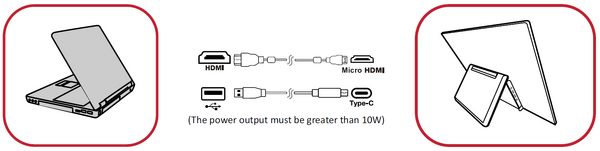
- NOTE: The USB Type A to Type C connection will also supply power to the monitor from the notebook. The power output must be greater than 10W.

- Audio Connection
Plug the audio jack of the ear-/headphones into the Audio Out port of the monitor. Additionally, you can connect the monitor to a sound bar using an audio cable.

Power Delivery
Powering a Notebook or Mobile Phone
If the included power adapter is connected to the monitor, then the monitor can charge a connected notebook or mobile phone.

Power Supply Detection
This product will detect if the power supply device is an adapter, laptop or mobile phone.
- If the power source is an adapter or notebook, the default brightness value will be 100.
- If the power source is a mobile phone, the default brightness value will be 15.
- When using a mobile phone to power the monitor, the default brightness level will be 15.
- NOTE: Due to the limited power output of the mobile phone, do not adjust the brightness level higher as this may cause the display to flash or shut down.
Power Delivery - Further Information
Due to the design please note:
- The first connected device will be the main input signal.
- When a Type C port recognizes an external device as a power adapter, it will only distribute the power. It will NOT display the input signal.
- Only when one of the Type C ports is recognized as a power adapter can the other one deliver two-way power.
If a notebook is connected first to the monitor, then a mobile phone is connected second, the mobile phone’s battery will not be charged as neither Type C port recognizes the connection as being connected to a power adapter.
- NOTE: If you want to display the mobile phone’s screen, you must unplug the Type C cable connected to the notebook.
If a mobile phone is connected first to the monitor, then a notebook is connected second, the mobile phone’s battery will be charged as one of the Type C ports is recognized as being connected to a power adapter.
- NOTE: If you want to display the notebook screen, you must unplug the Type C cable connected to the mobile phone.
Due to the monitor’s design, do not connect two notebooks or one notebook and a desktop computer at the same time. This can cause power distribution conflicts, resulting in flashing screens or the forced shutdown of the notebook(s).
- NOTE:
- If the notebook has a Type C port, please connect via Type C to the monitor.
- Do not connect the other Type C port of the monitor to another notebook or desktop computer via Type A and HDMI at the same time.
- If the notebook only has HDMI and Type A ports, please connect via HDMI and Type A to Type C to the monitor.
- If the power output of the Type A port of the notebook is not greater than 10W, please use our power adapter to connect to the monitor.
- Do not connect the other Type C port of the monitor to another notebook or desktop computer at the same time.
Second Display Setup
Connecting to Android Smartphones
Connecting to a Windows Device
Connecting to iPhones and iPads